> For the complete documentation index, see [llms.txt](https://docs.bdb.ai/governed-dashboards-6/llms.txt). Markdown versions of documentation pages are available by appending `.md` to page URLs; this page is available as [Markdown](https://docs.bdb.ai/governed-dashboards-6/charts-gallery/charts/spark-line.md).
# Spark Line
A Sparkline is a small chart that is drawn without axes. It does not contain some chart-specific elements (such as legend, title, etc.). The Sparkline chart can be easily embedded in the text as it performs more like an inline element (rendered inside a span) as opposed to the standard charts, which behave like block elements. The primary purpose attached to the Sparkline Chart is to show a trend of something unique.
**The best situation to use the Sparkline chart**
To show the data trend.
## **Default Chart Image**

## **Properties of the Sparkline chart**
### **General**
* **Component Name**: Set a unique name for the component identification. This field contains an auto-generated name indicating the sequence of the component in the dashboard.
* **Left**: Sets the horizontal position of the chart within the workspace.
* **Top**: Sets the vertical position of the chart within the workspace.
* **Height**: Adjusts the vertical size of the chart.
* **Width**: Adjusts the horizontal size of the chart.
* **Initial Visibility**: When unchecked, the chart will not be displayed during the first preview.
* **Type**: Allows the selection of the chart type, such as Line, Bar, or Tristate, offering flexibility in data representation.

### **Background**
* **Gradient Rotation**: Adjust the angle of the gradient applied to the background, allowing for a dynamic visual transition between colors.
* **Opacity**: Set the transparency level of the background, ranging from fully opaque to completely transparent.
* **Gradient**: Enable or disable gradient colors in the background for depth and visual appeal.
* Click the ***Gradient*** icon to access the ***Background gradient colors*** dialog box.
* Click the ***Add Color*** option to add multiple colors.
* Click the **Save** option to apply the selected background colors. 
* **Border**: Define the width of the border surrounding the pyramid chart.
* **Border Color**: Select the color for the chart's border, enhancing its visibility and aesthetics.
* **Border Radius**: Round the corners of the chart's border for a softer, more modern appearance.
* **Shadow**: Enable a shadow effect for the background to add dimension and focus to the chart.
* **Shadow Color**: Choose the color of the shadow cast by the chart background.
* **Shadow Transparency**: Adjust the transparency level of the shadow to control its prominence and intensity.

### **Tooltip**
* **Show Tool Tip**: The user can show the series description and get the tooltip by clicking the ***Show Tool Tip*** option.
* The ***Tool Tip Configuration window*** opens.
* Select any ***Tool Tip*** option. The supported Tool Tip options are None and Default.
* Click the ***Save*** option.

* **Background Color**: Set the background color for the tooltip box to enhance readability.
* **Opacity**: Adjust the transparency level of the tooltip background.
* **Border Color**: Define the color of the border surrounding the tooltip box.
* **Tooltip Font Size**: Specify the font size for the text displayed in the tooltip.
* **Box Width**: Determine the width of the tooltip box for optimal presentation.
* **Precision**: Set the number of decimal places to show in the tooltip for numerical values. 
### **Line**
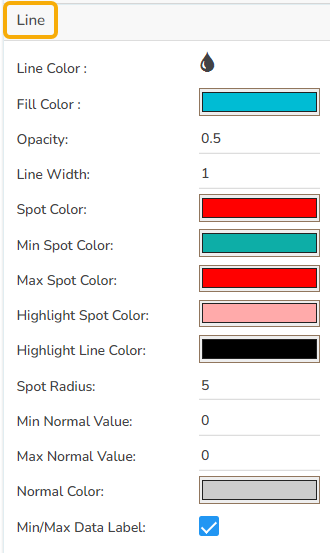
When configuring the Line chart in the Sparkline component, various properties can be adjusted to enhance visual representation:
* **Line Color**: Set the color for the line in the chart to make it stand out.
* **Fill Color**: Choose a color to fill the area between the line and the x-axis.
* **Opacity**: Adjust the transparency level of the fill color for clear visibility.
* **Line Width**: Specify the thickness of the line to ensure it is easily visible.
* **Spot Color**: Define a color for spots along the line to highlight data points.
* **Min Spot Color**: Set a distinct color for the minimum value spot on the line.
* **Max Spot Color**: Choose a color for highlighting the maximum value spot.
* **Highlight Spot Color**: Specify a color to highlight certain spots for emphasis.
* **Highlight Line Color**: Select a color to emphasize particular lines in the chart.
* **Spot Radius**: Determine the size of the spots displayed on the line.
* **Min Normal Value**: Set the lower bound of the normal value range to indicate on the chart.
* **Max Normal Value**: Define the upper limit of the normal value range.
* **Normal Color**: Choose a color to fill the area within the normal value range.
* **Min/Max Data Label**: Enable this option to display the minimum and maximum values directly on the chart.
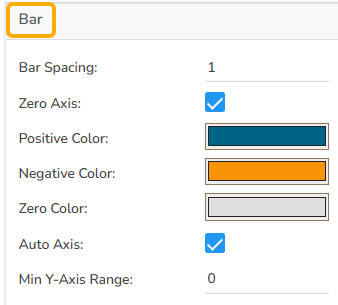
### **Bar**
* **Bar Spacing**: Adjust the space between individual bars for better clarity or a compact look.
* **Zero Axis**: Enable or disable the zero-axis line for reference in the bar chart.
* **Positive Color**: Select a color to represent the bars with positive values.
* **Negative Color**: Choose a color for bars indicating negative values.
* **Zero Color**: Define the color for bars that represent zero values.
* **Auto Axis**: Automatically adjust the axis based on the data range to optimize chart appearance.
* **Min Y-Axis Range**: Set the minimum range for the Y-axis to maintain a consistent scale across charts.
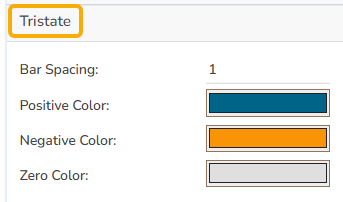
### **Tristate**
After selecting the type to Tristate from the General section, the following properties can be adjusted to enhance its visual representation:
* **Bar Spacing**: Modify the space between bars to achieve a more refined or compact layout, allowing for better visual differentiation.
* **Positive Color**: Assign a specific color to bars that represent positive values, aiding quick identification of growth or gains.
* **Negative Color**: Choose a distinct color for bars displaying negative values, highlighting losses or declines effectively.
* **Zero Color**: Set a color for bars that denote zero values, ensuring these neutral or unchanged data points are visible.
### **Formatter**
The **Formatter** allows users to customize how numerical data is displayed. This includes:
* **Currency**: Select the currency type for financial values. Options include CENT, EURO, INR, POUND, USD, and YEN.
* **Position**: Choose where the currency symbol appears. Use the Prefix position if the currency is in INR format, or the Suffix position for other formats like Pound or USD.
* **Number Formatter**: Set the number format based on your region's convention. You can choose between the Indian and International number formats, affecting how large numbers are grouped and separated.

**The following variants can be obtained by changing Spark Line properties:**
**Sparkline Line**

**Sparkline Bar**

**Sparkline Tristate**

## Sample Data
Download the given sample data and map it as mentioned below to plot your ***Spark Line*** chart.
Use the ***Tristate*** column as the ***Category*** field, and the ***Trend*** column as the ***Series*** field *to plot data.*
{% file src="/files/Xrbrm9raCM6M7wjQYPNP" %}