> For the complete documentation index, see [llms.txt](https://docs.bdb.ai/self-service-visualization-4/llms.txt). Markdown versions of documentation pages are available by appending `.md` to page URLs; this page is available as [Markdown](https://docs.bdb.ai/self-service-visualization-4/design-canvas/series-properties.md).
# Series Properties
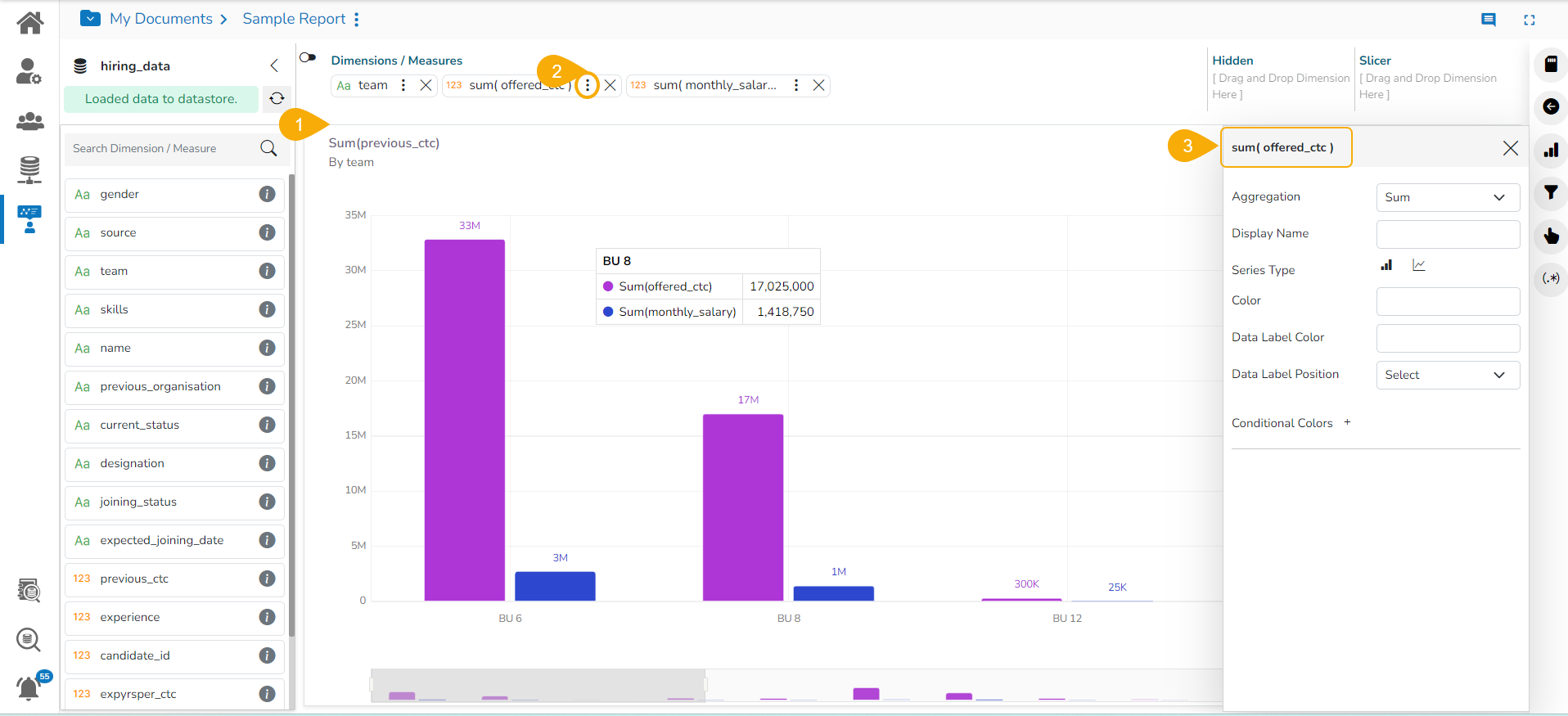
The Series Properties option allows the user to set up or modify the properties of the selected Measures for a View.
The users can configure and modify various measure related properties through the ***Series Properties*** window.
* Navigate to the ***Design page*** for a view that has one or more selected measure values.
* Click the ***Series Properties*** option provided next to a dragged measure.
* A tab opens by the default name of the selected measure.
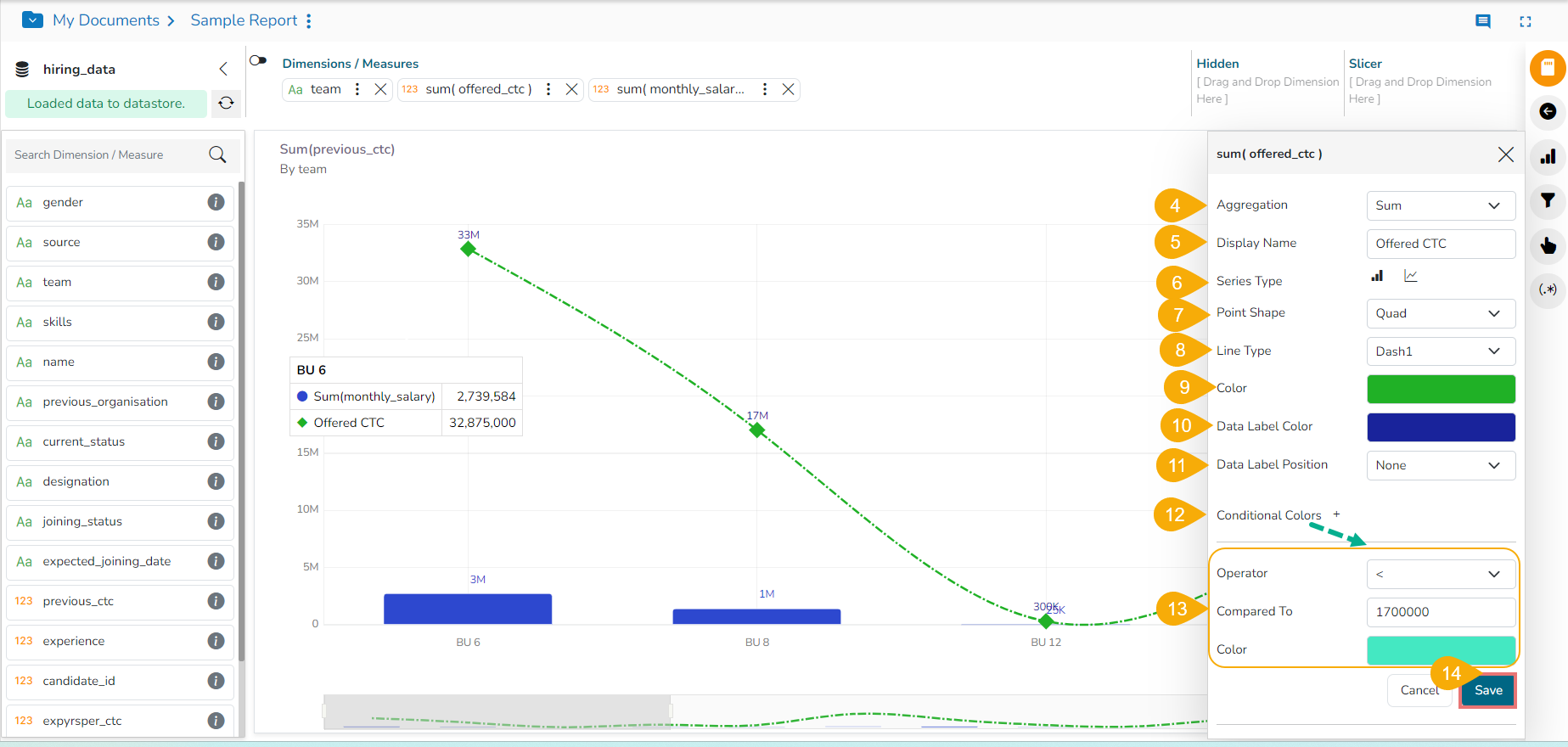
* The users can set the following properties from a pop-up window for a mixed chart with two measures dragged on the workspace:
* **Aggregation**: Select an aggregation option from the drop-down menu (the given choices are: Sum, Min, Max, Variance, Mean, Standard Deviation, Cumulative Sum)
* **Display Name**: Enter the title for the measure to be displayed in the data label
* **Series Type**: Choose a series type format for the selected measure
* **Point Shape**: Select a point shape from the drop-down menu. (the given choices are: Cross, Cube, Hexagon, Point, Quad, Star, Triangle)
* **Line Type**: Select a line type from the drop-down menu (the given choices are: Straight, Dot, Dash, Dash1)
* **Axis**: Select an axis out of the given choices (the users need to enable the ***Secondary Value Axis*** to get the ***Axis*** option in the Series Properties window)
* **Color:** Select the color of the chart presentation from the given menu
* **Data Label Color**: Choose a color for the data label from the given menu
* **Data Label Position:** Select a position to display the data label (the given choices are: Top, Middle, Bottom)
* **Conditional Colors**: Click the Conditional Colors icon to insert a new condition.
* Configure the below-given fields to apply a new condition on the selected measure.
* ***Operator***- Select an operator from the drop-down menu (the supported operations are <, <=, >, >=, ==, !=).
* ***Compared To*** - Set a value to which the operator can be applied.
* ***Color***- Choose a color to be applied when the set condition is met.
* Click the ***Save*** option.
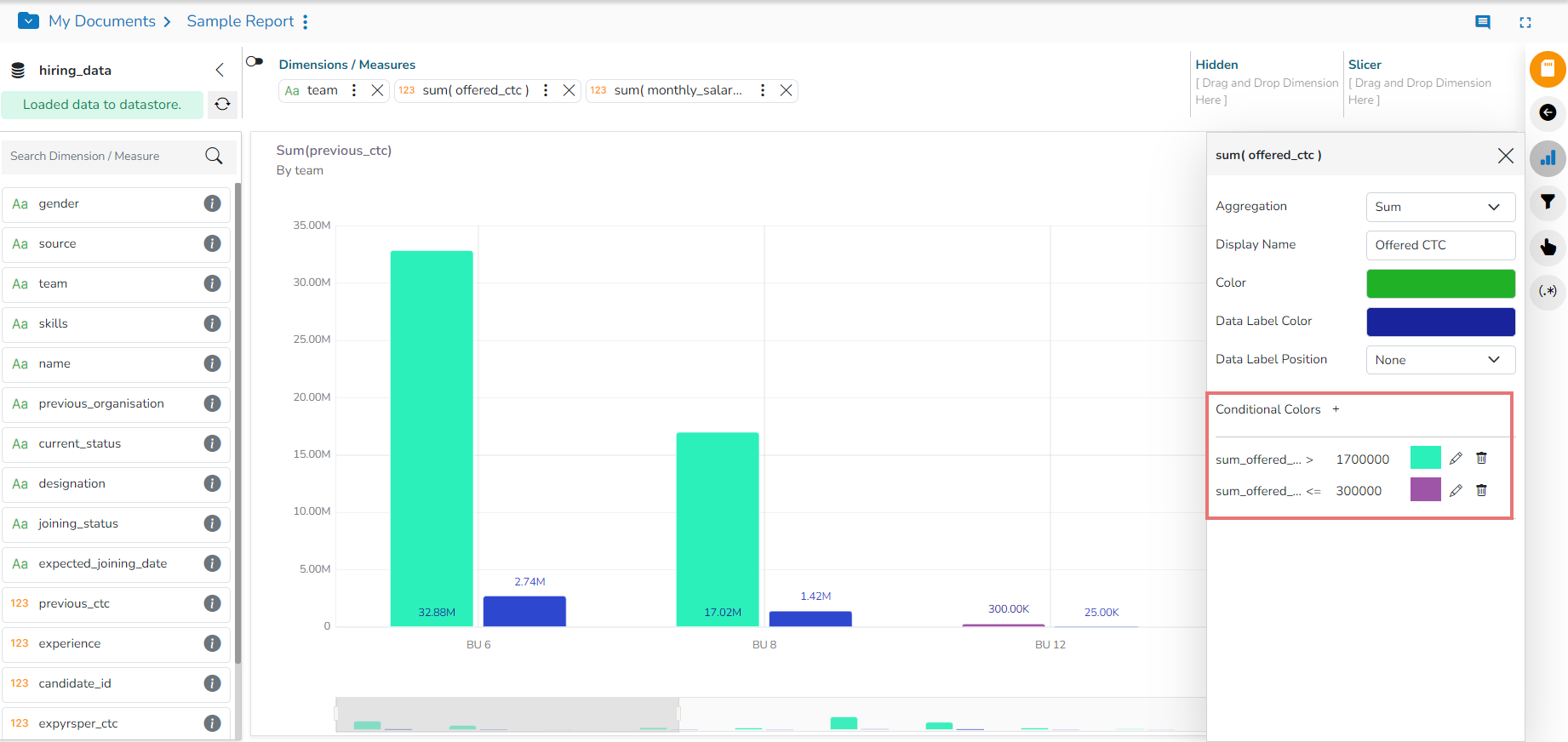
* *The user can provide multiple conditions for a single measure column.*
Multiple Conditions applied using the Conditional Colors option
{% hint style="info" %}
*Please Note:*
* The ***Series Properties*** may differ as per the selected chart components.
* Users need to enable the ***Secondary Value Axis*** from the ***Properties*** tab to get the ***Axis*** field in the Series Properties.
* Users can change or modify the View title by clicking on the edit options provided next to the view name.
* Click the ***Edit*** icon > Modify/change the title for the selected measure or dimension > click the ***Checkmark*** icon to save the change and the ***Close mark*** icon for not to save the change.
{% endhint %}