# Column Chart

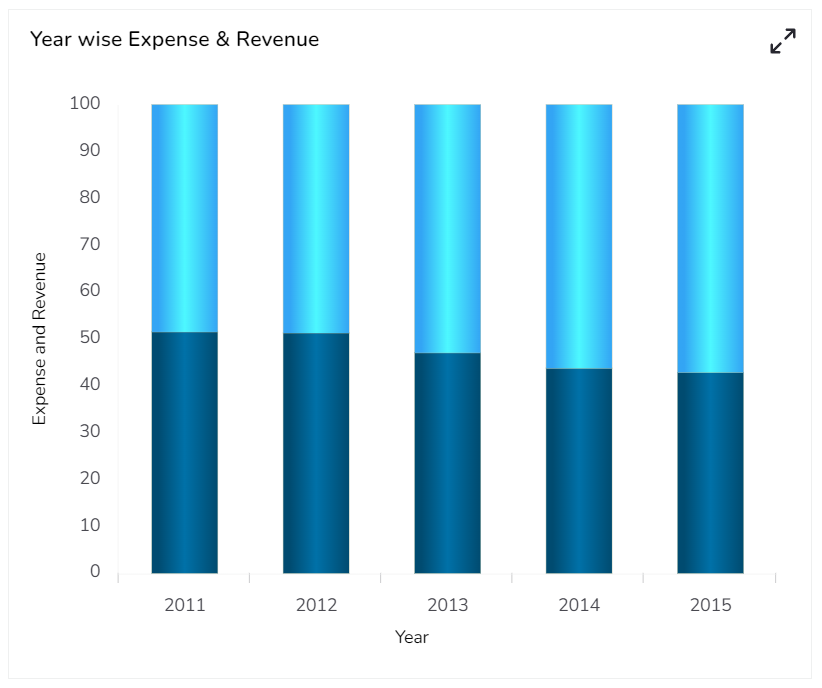
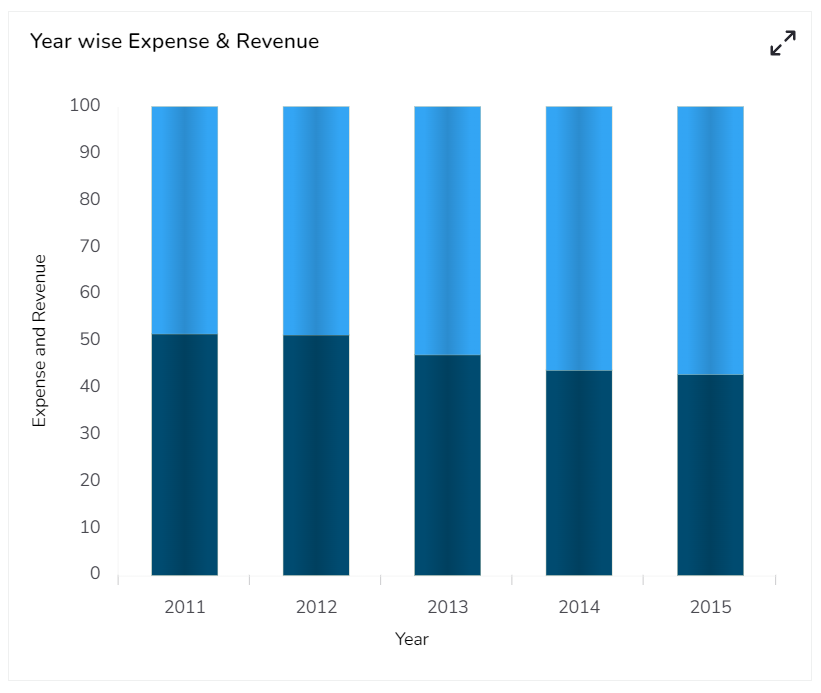
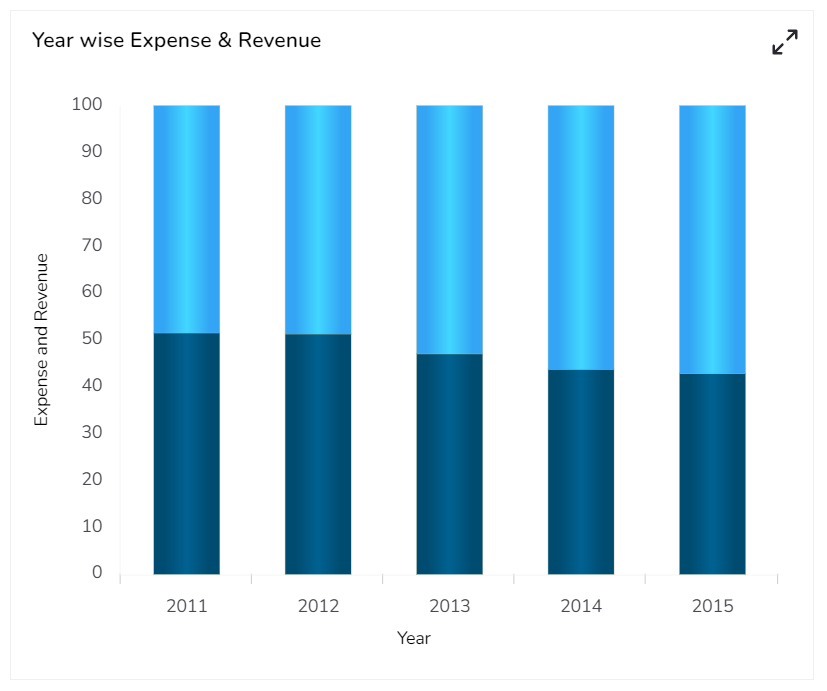
A column chart is used when you want to compare the values of individual data points with another. They help in bringing out the highs and lows of the data set. The Column chart is a data visualization where each category is represented by a rectangle, with the height of the rectangle being proportional to the values being plotted. Column charts are also known as vertical bar chart&#x73;**.**

## **Best Situations to Use a Column chart**

Column charts are suitable for displaying data sets with negative values

**Example:** To find the best and worst performers in an organization

**Variations of this chart Use stacked Column charts:** Where multiple categories can be clubbed together on top of each other, which makes addressing multiple questions easier.

**Use column side by side:** Where comparison between multiple categories becomes easier instead of toggling between charts.

**Add color for quick insight:** Displaying the columns with colors will make users pay quick attention to important tasks.

## **Default Chart Image**

<figure><img src="https://859511478-files.gitbook.io/~/files/v0/b/gitbook-x-prod.appspot.com/o/spaces%2FGDmsjfjJBNqow7Fo97cO%2Fuploads%2FRjHUCH8PVtCVKCM2Zwno%2Fcolumn_design.png?alt=media&#x26;token=c48b82bc-8c57-46bc-af2a-19d846038cc9" alt=""><figcaption></figcaption></figure>

## **The Properties of Column Chart**

### **General**&#x20;

* The user can change the height, width, top, left, chart type, base type, Bar size and . In this case, the selected ***Chart Type*** is ***Clustered***, the selected ***Base Type*** is ***Cylinder***.
* The user needs to put a checkmark for the Initial Visibility option to avail the preview at the first time.
* The user can also change the Doughnut Width and select Web Type, Web Stroke color, and Category Stroke color using the General option.
* It is possible to ***Use Series Colors*** and define the range of ***Series Colors*** from the General Properties.
* The user can also enable ***Animation*** and ***Clockwise*** display of the selected categories.

&#x20;     ![](https://content.gitbook.com/content/nyOeUTaPuBluyvesHVm9/blobs/d1NLsft1VXoeb69vUHeS/image.png)

### **Tooltip**

* The user can show the description of the series by enabling the tooltip.
* The user can show the description of the series and get the tooltip by enabling it.
* The user can set and modify background color, border color, Tooltip font related properties using these properties fields.

&#x20;     ![](https://content.gitbook.com/content/nyOeUTaPuBluyvesHVm9/blobs/PnPVZe6GkprSD3Qs9qg1/image.png)

### **Background**

* The user can modify the Gradient related properties such as Gradient Rotation, Opacity, Gradient color using these properties fields.
* Change the Background color of the chart, get the border for the chart, and change the border color.
* Enable the shadow option to get the reflection of the chart. The user can also change the color and increase or decrease the transparency of the shadow.

&#x20;    ![](https://content.gitbook.com/content/nyOeUTaPuBluyvesHVm9/blobs/BUlKepvWJE4WLuZCaXZS/image.png)

### **Title**

* The user can enable or disable the Title Box and Title by using this properties field.
* The user can change Title Name, Font color, Font size, Font style, etc.
* By enabling the ***Show Dataset Description***, the title description will be taken from the mapped data fields.

&#x20;    ![](https://content.gitbook.com/content/nyOeUTaPuBluyvesHVm9/blobs/tgxUz2TsWAJUj4Ng5xd2/image.png)&#x20;

### **Subtitle**

* The user can enable the subtitle if it is required.
* These properties fields will help to enable or disable the Subtitle, Provide description if it has been enabled and set the font related properties for the same.
* The users can also set the display alignment of the Subtitle and select any text decoration option from the given drop-down menu.

&#x20;    ![](https://content.gitbook.com/content/nyOeUTaPuBluyvesHVm9/blobs/U0Lu7O7TkCseI75tuKyg/image.png)

### **X-Axis**

* The user can change the axis name, Font color, Font size; enable the axis line, and change the axis color of the X Axis.
* The user can also rotate (tilt) the title label by using this properties option.
* By enabling the ***Show Dataset Description***, the ***X Axis*** description will be taken from the mapped data fields.

&#x20;   ![](https://content.gitbook.com/content/nyOeUTaPuBluyvesHVm9/blobs/XntKt85q85rQwYnUCET2/image.png)

### **Y-Axis**

* The user can change the axis name, Font color, Font size; enable the axis line, and changed the axis color of the Y Axis.
* By enabling the ***Show Dataset Description***, the ***Y Axis*** description will be taken from the mapped data fields.

![](https://content.gitbook.com/content/nyOeUTaPuBluyvesHVm9/blobs/EOfblU8We9D8vOZDSaNn/image.png)

### **Legend**

* The user can enable or disable internal legend in the chart.
* The Font related properties such as Font Color, Font Weight, Font Size, Font Family, Font Style can be set and modified using this properties fields.
* The user can also select a Text Decoration option for the Legend.
* Put a check mark in the Hide on Load checkbox to hide the Legend while loading the chart.

&#x20;    ![](https://content.gitbook.com/content/nyOeUTaPuBluyvesHVm9/blobs/gmNZKThGIU60KcZGrQP4/image.png)

### **Formatter**

* The Number formatter helps to choose whether the user wants it in Indian or International format.
* The user can change Y-Axis values in units such as %, T, Lacs, M, etc.
* The user can set the ‘Precision’ option to get the value in decimal format.
* The Currency option helps to select the currency value in INR, Pound, and USD.
* The Position of the currency displays the selected currency symbol in prefix or suffix.

  * For example, if the Currency symbol is rupees and the prefix option is selected, then it will be displayed on the left side. Likewise, the suffix displays the selected currency symbol on the right side.

  &#x20;    ![](https://content.gitbook.com/content/nyOeUTaPuBluyvesHVm9/blobs/zqF89Ln6oG5A0RgppQkQ/image.png)&#x20;

### **Axis Setup**&#x20;

* The user can enable or disable the Auto Axis Setup from this properties field.
* The user can select Base Zero to begin the chart plotting from base zero.
* Set and modify the Min and Max values.
* Enable the Horizontal and Vertical marker Line together with Zero Marker Line.
* The user can select and change color of lines (Marker line & Zero Marker line), increase and decrease the color Transparency by opacity.

&#x20;    ![](https://content.gitbook.com/content/nyOeUTaPuBluyvesHVm9/blobs/P2MQEUhpy9FioaC2XSTc/image.png)

### **Export Options**

* The Export Options also helps to provide heading, subheading, file name. The user can also select an option for Global Export Type.

&#x20;      ![](https://content.gitbook.com/content/nyOeUTaPuBluyvesHVm9/blobs/DsJHgpoB2HlkzHmdsNWU/image.png)

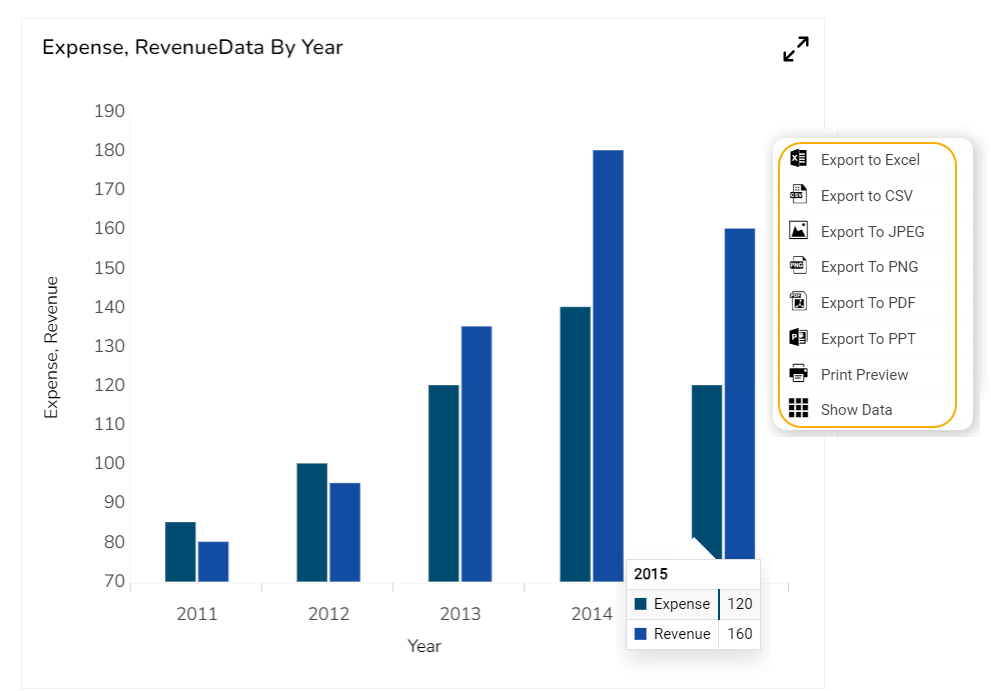
* By enabling the[ ***Enable Context Menu***](#user-content-fn-1)[^1] the user gets a context menu with various export options to download the report in the ***Preview*** mode.&#x20;

<figure><img src="https://content.gitbook.com/content/nyOeUTaPuBluyvesHVm9/blobs/pKD4sVeddElPD8w5stJX/image.png" alt=""><figcaption><p><em><strong>Accessing the Export Context menu in Preview</strong></em></p></figcaption></figure>

## **Dataset Series Properties**&#x20;

The user can change the color of each series by selecting any of the series from the Dataset properties. The user can enable the Data Label that can show the Value of each selected data field.

&#x20;      ![](https://859511478-files.gitbook.io/~/files/v0/b/gitbook-x-prod.appspot.com/o/spaces%2FGDmsjfjJBNqow7Fo97cO%2Fuploads%2Ftl8xMzvRQpyft26hYcNq%2Fcolumn_dataset.png?alt=media\&token=423d99ae-33df-4afb-82e1-92cfcb056bf7)

## **Various Variants of the Column chart**

The following variants of the Column chart can be seen by changing the chart properties:

### **Clustered Charts**

#### **Clustered chart with Plain Base**

<figure><img src="https://859511478-files.gitbook.io/~/files/v0/b/gitbook-x-prod.appspot.com/o/spaces%2FGDmsjfjJBNqow7Fo97cO%2Fuploads%2FZPFkUQHN1qGYXtw0k6sO%2Fplain_clustered.png?alt=media&#x26;token=fa98311e-95fc-4697-8e51-83d9f4634511" alt=""><figcaption></figcaption></figure>

#### **Clustered chart with Rectangle Base**

<figure><img src="https://859511478-files.gitbook.io/~/files/v0/b/gitbook-x-prod.appspot.com/o/spaces%2FGDmsjfjJBNqow7Fo97cO%2Fuploads%2FGk6atNCKse7MHRVJ4lhw%2Frectangle_clustered.png?alt=media&#x26;token=9bb3da58-7a0d-497e-8e88-3661dc56e758" alt=""><figcaption></figcaption></figure>

#### **Clustered chart with Cylinder Base**

<figure><img src="https://859511478-files.gitbook.io/~/files/v0/b/gitbook-x-prod.appspot.com/o/spaces%2FGDmsjfjJBNqow7Fo97cO%2Fuploads%2FX0aIxriyy7AbDZj8Qy8R%2Fcylinder_clustered.png?alt=media&#x26;token=ee81b738-2c69-41ac-8a4d-b75a13845369" alt=""><figcaption></figcaption></figure>

#### **Clustered chart with Gradient1 Base**

<figure><img src="https://859511478-files.gitbook.io/~/files/v0/b/gitbook-x-prod.appspot.com/o/spaces%2FGDmsjfjJBNqow7Fo97cO%2Fuploads%2F4csSGBiIGsu2iGseKDaB%2Fgradient1_clustered.png?alt=media&#x26;token=e649009e-634b-4d10-a7e9-996a30d539a3" alt=""><figcaption></figcaption></figure>

#### **Clustered chart with Gradient2 Base**

<figure><img src="https://859511478-files.gitbook.io/~/files/v0/b/gitbook-x-prod.appspot.com/o/spaces%2FGDmsjfjJBNqow7Fo97cO%2Fuploads%2FpIrjCyTFwGjNu3XRKu2m%2Fgradient2_clustered.png?alt=media&#x26;token=9b1a5728-6996-4c6f-b2db-22b7d9254554" alt=""><figcaption></figcaption></figure>

#### **Clustered chart with Gradient3 Base**

<figure><img src="https://859511478-files.gitbook.io/~/files/v0/b/gitbook-x-prod.appspot.com/o/spaces%2FGDmsjfjJBNqow7Fo97cO%2Fuploads%2F1l8CyQ3WJYQ78IVB0BET%2Fgradient3_clustered.png?alt=media&#x26;token=3110b996-5e7b-4ffe-82b6-f175b77aa4c2" alt=""><figcaption></figcaption></figure>

### **Stacked Charts**

#### **Stacked Chart with Rectangle Base**

<figure><img src="https://859511478-files.gitbook.io/~/files/v0/b/gitbook-x-prod.appspot.com/o/spaces%2FGDmsjfjJBNqow7Fo97cO%2Fuploads%2FYXnSPlMt8k9pVAHwyYWf%2Frectangle_stacked.png?alt=media&#x26;token=d1fe528f-5fa5-44d7-8331-da191d28ffce" alt=""><figcaption></figcaption></figure>

#### **Stacked Chart with Cylinder Base**

<figure><img src="https://859511478-files.gitbook.io/~/files/v0/b/gitbook-x-prod.appspot.com/o/spaces%2FGDmsjfjJBNqow7Fo97cO%2Fuploads%2FRr2Y1B0NRubfh75kE0mO%2Fcylinder_stacked.png?alt=media&#x26;token=07290fd7-1b2d-4c9d-96d5-3976e7ada148" alt=""><figcaption></figcaption></figure>

#### **Stacked Chart with Plain Base**

<figure><img src="https://859511478-files.gitbook.io/~/files/v0/b/gitbook-x-prod.appspot.com/o/spaces%2FGDmsjfjJBNqow7Fo97cO%2Fuploads%2Fe7ot5DwJMqFh4hGwpZra%2Fplain_stacked.png?alt=media&#x26;token=36f8d650-7d07-43b5-bafa-ee88d1630c9d" alt=""><figcaption></figcaption></figure>

#### **Stacked Chart with Gradient1 Base**

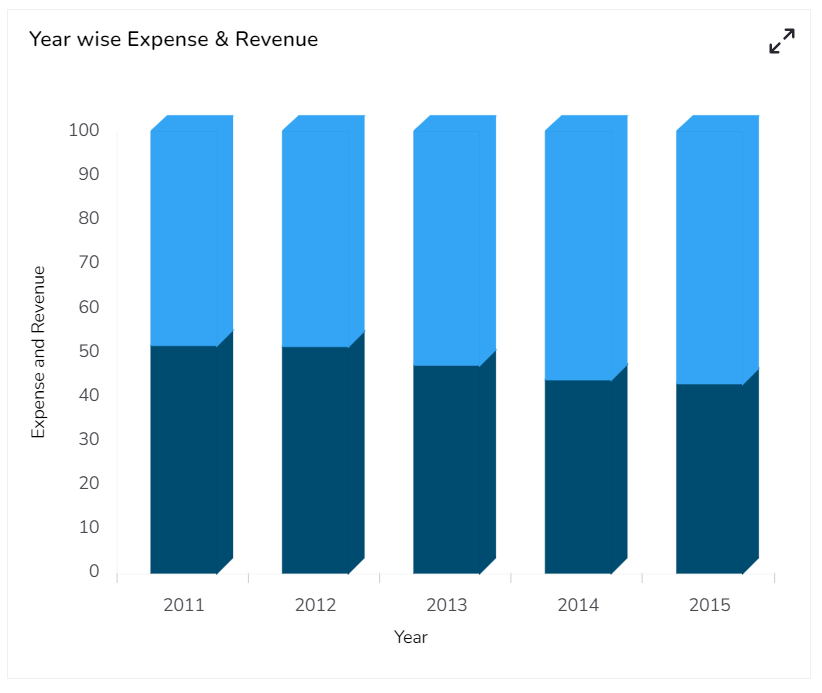
<figure><img src="https://859511478-files.gitbook.io/~/files/v0/b/gitbook-x-prod.appspot.com/o/spaces%2FGDmsjfjJBNqow7Fo97cO%2Fuploads%2FgS6wOR4xNDnscGoe4RRe%2Fgradient1_stacked.png?alt=media&#x26;token=b207c469-f2cc-457d-b6de-7254f7f4bfcc" alt=""><figcaption></figcaption></figure>

#### **Stacked Chart with Gradient2 Base**

<figure><img src="https://859511478-files.gitbook.io/~/files/v0/b/gitbook-x-prod.appspot.com/o/spaces%2FGDmsjfjJBNqow7Fo97cO%2Fuploads%2F6QlbPVIbwzfClajuTshL%2Fgradient2_stacked.png?alt=media&#x26;token=e80106c5-cc6e-49f1-afff-5c6216ed79f0" alt=""><figcaption></figcaption></figure>

#### **Stacked Chart with Gradient3 Base**

<figure><img src="https://859511478-files.gitbook.io/~/files/v0/b/gitbook-x-prod.appspot.com/o/spaces%2FGDmsjfjJBNqow7Fo97cO%2Fuploads%2F2Ia2DTNMQMFH3octgD0B%2Fgradient3_stacked.png?alt=media&#x26;token=83e7a3f9-be95-4d78-bc98-1cf77737523c" alt=""><figcaption></figcaption></figure>

### **Overlaid Charts**

#### **Overlaid Chart with Rectangle Base**

<figure><img src="https://859511478-files.gitbook.io/~/files/v0/b/gitbook-x-prod.appspot.com/o/spaces%2FGDmsjfjJBNqow7Fo97cO%2Fuploads%2FiAQmEHdvbUADDukmfY2U%2Frectangle_overlaid.png?alt=media&#x26;token=4c47ddc9-f467-47fa-9cda-c9c231d9d639" alt=""><figcaption></figcaption></figure>

#### **Overlaid Chart with Cylinder Base**

<figure><img src="https://859511478-files.gitbook.io/~/files/v0/b/gitbook-x-prod.appspot.com/o/spaces%2FGDmsjfjJBNqow7Fo97cO%2Fuploads%2F1ytqK9VgO7BLZzDxwq7a%2Fcylinder_overlaid.png?alt=media&#x26;token=1ad2c9eb-4295-4627-8374-d8765d9e278f" alt=""><figcaption></figcaption></figure>

#### **Overlaid Chart with Plain Base**

<figure><img src="https://859511478-files.gitbook.io/~/files/v0/b/gitbook-x-prod.appspot.com/o/spaces%2FGDmsjfjJBNqow7Fo97cO%2Fuploads%2FuEEmHOCI6RvVRUWDLmYx%2Fplain_overlaid.png?alt=media&#x26;token=13629429-e04a-44b0-a11c-d6e4c699ccf9" alt=""><figcaption></figcaption></figure>

#### **Overlaid Chart with Gradient1 Base**

<figure><img src="https://859511478-files.gitbook.io/~/files/v0/b/gitbook-x-prod.appspot.com/o/spaces%2FGDmsjfjJBNqow7Fo97cO%2Fuploads%2F6OqsJJGQUB0n5cZK8ZBg%2Fgradient1_overlaid.png?alt=media&#x26;token=1fdfd374-253b-416c-a688-c7a4263ff1ef" alt=""><figcaption></figcaption></figure>

#### **Overlaid Chart with Gradient2 Base**

<figure><img src="https://859511478-files.gitbook.io/~/files/v0/b/gitbook-x-prod.appspot.com/o/spaces%2FGDmsjfjJBNqow7Fo97cO%2Fuploads%2FjicVMHJVMuxabLU6MGDS%2Fgradient2_overlaid.png?alt=media&#x26;token=3043f67b-ac3a-4112-b1f0-c2cfadf95928" alt=""><figcaption></figcaption></figure>

#### **Overlaid Chart with Gradient3 Base**

<figure><img src="https://859511478-files.gitbook.io/~/files/v0/b/gitbook-x-prod.appspot.com/o/spaces%2FGDmsjfjJBNqow7Fo97cO%2Fuploads%2FN6X7Ypc2he6i6i7Le4YG%2Fgradient3_overlaid.png?alt=media&#x26;token=5cdc65c8-0a0c-489b-967f-0201d296cbb0" alt=""><figcaption></figcaption></figure>

### 100% Charts

#### **100% Chart with Rectangle Base**

<figure><img src="https://content.gitbook.com/content/nyOeUTaPuBluyvesHVm9/blobs/ywSirEeyrFiDXhVcCxQn/image.png" alt=""><figcaption></figcaption></figure>

#### **100% Chart with Cylinder Base**

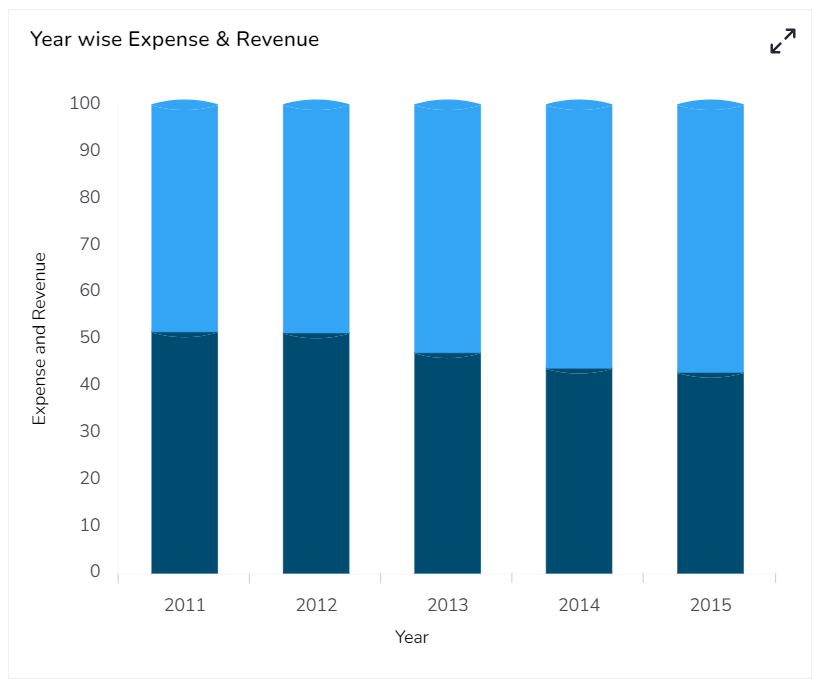
<figure><img src="https://content.gitbook.com/content/nyOeUTaPuBluyvesHVm9/blobs/BSwaobaKGT8FQAmaVqGJ/image.png" alt=""><figcaption></figcaption></figure>

#### **100% Chart with Plain Base**

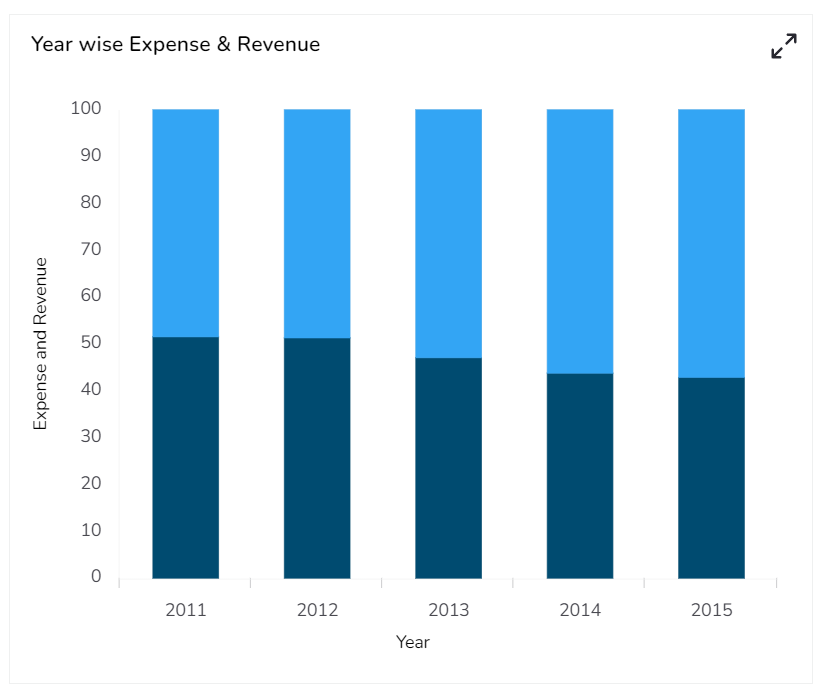
<figure><img src="https://content.gitbook.com/content/nyOeUTaPuBluyvesHVm9/blobs/JxGaUHF1sw8NxgMrpJcQ/image.png" alt=""><figcaption></figcaption></figure>

#### **100% Chart with Gradient1 Base**

<figure><img src="https://content.gitbook.com/content/nyOeUTaPuBluyvesHVm9/blobs/YR16iS8dGT9DCXloxoBs/image.png" alt=""><figcaption></figcaption></figure>

#### **100% Chart with Gradient2 Base**

<figure><img src="https://content.gitbook.com/content/nyOeUTaPuBluyvesHVm9/blobs/Qh0Ecbok6rrHzyoN4zfk/image.png" alt=""><figcaption></figcaption></figure>

#### **100% Chart with Gradient3 Base**

<figure><img src="https://content.gitbook.com/content/nyOeUTaPuBluyvesHVm9/blobs/diL9pWlJIlF1CRuopJT9/image.png" alt=""><figcaption></figcaption></figure>

## Sample Data&#x20;

Download the given sample data and map it as mentioned below to plot your ***Column*** chart:

* Use the ***Year*** column as ***Category*** field, and the other columns as ***Series** to plot data.*

{% file src="<https://content.gitbook.com/content/nyOeUTaPuBluyvesHVm9/blobs/Di6ldrdy6hao5RIe6bKT/Sample%20Data_Column%20chart.xlsx>" %}

{% hint style="info" %}
*<mark style="color:green;">Please Note:</mark> The Category field can be any data type line, string, or numeric. But, Series fields can be only numeric data type.*
{% endhint %}

[^1]: