# Preview Dashboard

The Preview action option opens the selected dashboard in the preview mode.

* Navigate to a saved dashboard using the Manage option.
* Select a dashboard and click the ***More*** ***Action*****s** icon.

<figure><img src="https://859511478-files.gitbook.io/~/files/v0/b/gitbook-x-prod.appspot.com/o/spaces%2FGDmsjfjJBNqow7Fo97cO%2Fuploads%2FMQAU4pg1ry7LQQ7fbbWb%2Fimage.png?alt=media&#x26;token=6e8356d1-9d3b-45ee-bdbe-8118d9c25783" alt=""><figcaption><p><em>Accessing the More Actions option for a dashboard</em></p></figcaption></figure>

* Choose the ***Preview*** action from the context menu.

![](https://859511478-files.gitbook.io/~/files/v0/b/gitbook-x-prod.appspot.com/o/spaces%2FGDmsjfjJBNqow7Fo97cO%2Fuploads%2Fs3pRQjZ8QWQw6GTHcQeB%2Fimage.png?alt=media\&token=3b0dc796-55ff-4c19-ba57-2ed27094ba10)​

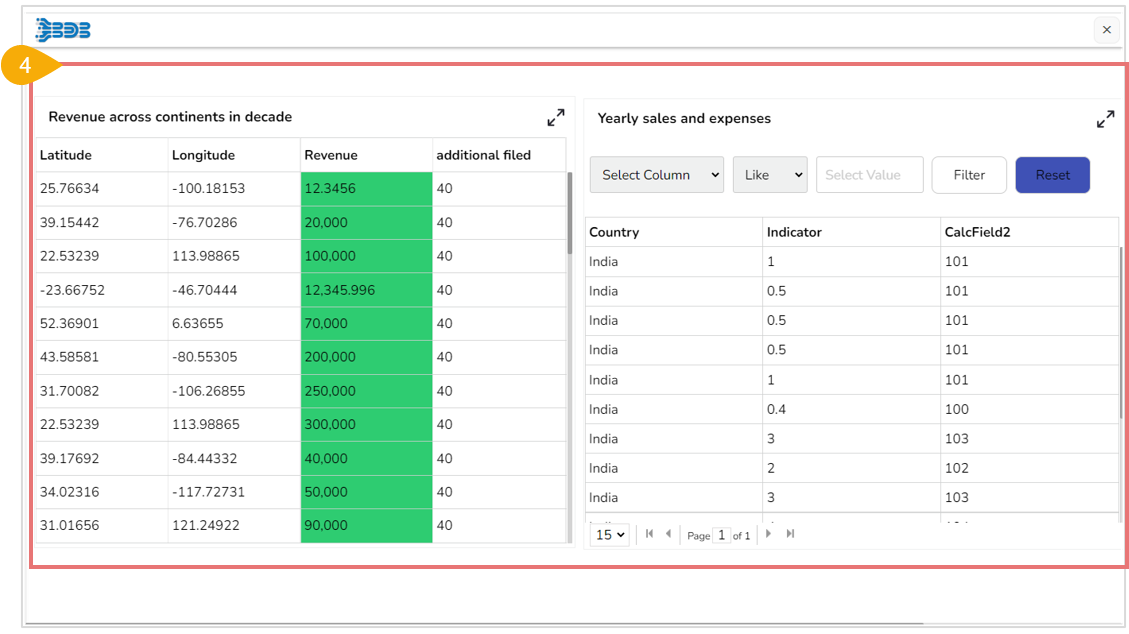
* The selected dashboard opens in Preview mode.

<figure><img src="https://content.gitbook.com/content/nyOeUTaPuBluyvesHVm9/blobs/e7dYoEdG2EnN6RYDGy5P/image.png" alt=""><figcaption></figcaption></figure>

{% hint style="info" %}
*<mark style="color:green;">Please Note:</mark>* *The user gets the **Preview** icon on the Designer canvas header as well.​*![](https://859511478-files.gitbook.io/~/files/v0/b/gitbook-x-prod.appspot.com/o/spaces%2FGDmsjfjJBNqow7Fo97cO%2Fuploads%2FmleC9o6KUCcWy7MpMK6D%2Fimage.png?alt=media\&token=7e2708b1-cc9f-47b7-b300-2b05fba4b051)
{% endhint %}