# Scorecard
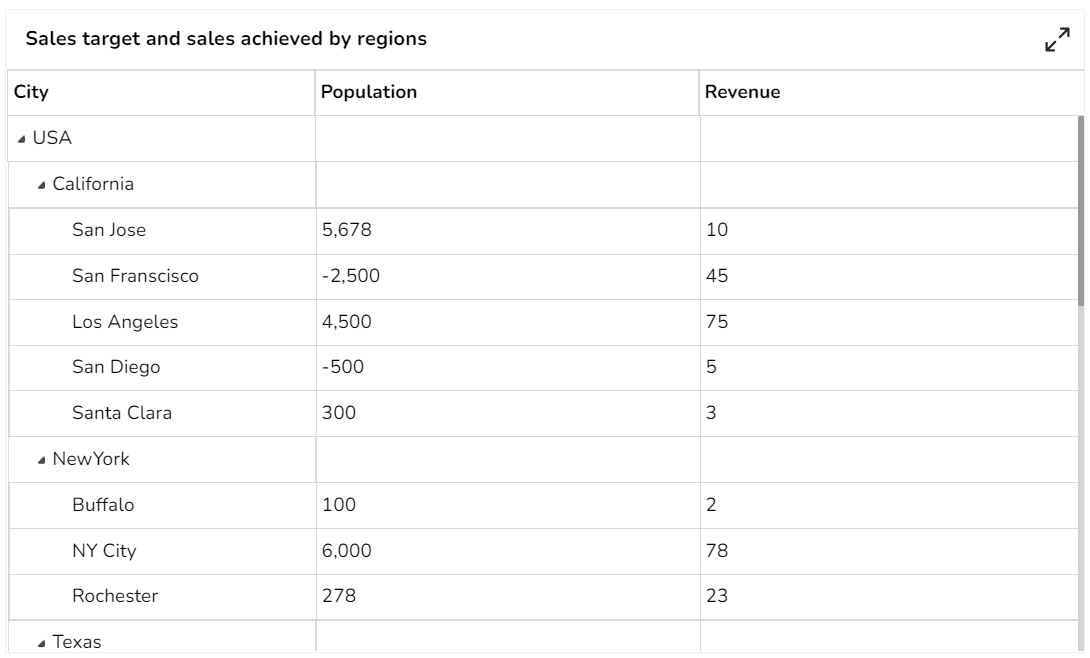
They are similar to the Data Grid, where data can be displayed in the hierarchical format, and alerts can be set.
## **Best Situation to use Scorecard**
* When end-users need to view data in numerical format
* When alerts need to be shown.
* When need to display hierarchies in data.
### **Variations**
**Compare**: A ‘Compare Value’ must be given by the user. Alerts are then triggered depending on it the data in the data set is greater, equal, or less than the compare value. (Ex. <50% = Red, 50%= Yellow, >50%= Green)
**Range:** Alerts can be configured to trigger based on range value(s), (Ex. 0-40%, =Red,
## **Default Scorecard Chart Image**
## **Properties of the Scorecard Grid chart**
### **General**
The user can change the height, width, top, and left values. If initial visibility is not enabled, then the chart won’t be available for the first preview. If the Max button is not enabled, then the user can’t maximize the individual chart. Hierarchy can be changed between Multiple and Single.
### **Background**
The user can change the background color of the chart, can get the border for the chart and can change the border color, can get the reflection of the chart by enabling the shadow option can also change the color and increase & decrease the transparency of the shadow.

### **Row Style**
The user can change the Font color-size-weight-family of the text inside the row. Row height can also be adjusted. Under text decoration, we can provide an underline to the text.

### **Styles**
The user can change Roll Over Color, Selection Color, etc. If Horizontal Gridlines between the rows are needed, we can enable them and give color. Also, Vertical grid line color can also be changed. Under the Grid Color, we can change the row color and alternate row color.

### **Title**
The user can change Title Name, Font color, size, style, etc.

### **Subtitle**
The user can enable the subtitle to display the second title. The user can change the Name, Font color, size, style for the subtitle.
### **Header Style**
The user can change the Header Text Color, font size-style-weight-family, etc. Either the user can give a background color or we can go for Use Field Colour option and set those colors in the dataset section.
### **Row Style**
The user can change the Font color-size-weight-family of the text inside the row. Row height can also be adjusted. Under text decoration, we can provide an underline to the text.

### **Styles**
The user can change Roll Over Color, Selection Color, etc. If Horizontal Gridlines between the rows are needed, we can enable them and give color. Also, Vertical grid line color can also be changed. Under the Grid Color, we can change the row color and alternate row color.

### **Export Options**
The user can enable the ‘Enable Context Menu’ to download the reports in different formats if we click on the chart from the preview section. The heading and sub-heading of that downloaded chart and the name of the downloaded file can be changed from this section.
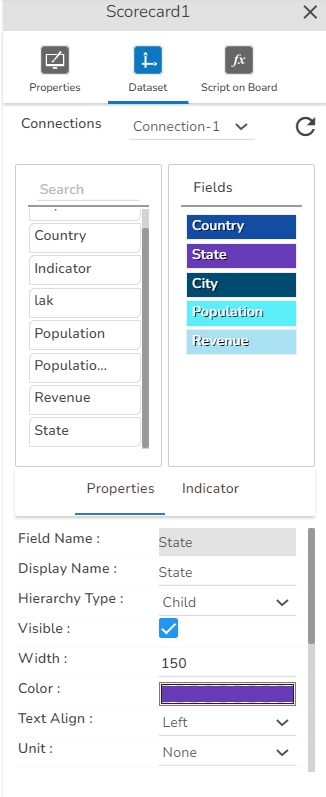
## **Property Tab for Dataset Properties Pallet**

## **Scorecard grid variants after changing its properties:**
{% hint style="info" %}
*Please Note:*
* *The user needs to select the **Column Type** as **Numeric** for the selected Data Grid fields using the **Properties** tab provided for the Dataset, so they become responsive to the changes that the user set using the **Indicator** tab.*

* *Refer the* [***Alerts in Grids***](https://docs.bdb.ai/governed-dashboards/configurations/alerts-in-grids) *page provided under* [***Configurations***](https://docs.bdb.ai/governed-dashboards/configurations) *section to understand how to insert Alerts in a Grid component.*
{% endhint %}
---
# Agent Instructions: Querying This Documentation
If you need additional information that is not directly available in this page, you can query the documentation dynamically by asking a question.
Perform an HTTP GET request on the current page URL with the `ask` query parameter:
```
GET https://docs.bdb.ai/governed-dashboards-5/charts-gallery/grids/scorecard.md?ask=
```
The question should be specific, self-contained, and written in natural language.
The response will contain a direct answer to the question and relevant excerpts and sources from the documentation.
Use this mechanism when the answer is not explicitly present in the current page, you need clarification or additional context, or you want to retrieve related documentation sections.


## **Scorecard grid variants after changing its properties:**

## **Scorecard grid variants after changing its properties:**