# Delete

## Deleting a Dashboard

Users can delete a dashboard by following the steps explained over here.

* Select a dashboard using the ***Manage*** option.
* Click the ***Delete*** icon from the ***More Actions*** context menu.

<figure><img src="https://859511478-files.gitbook.io/~/files/v0/b/gitbook-x-prod.appspot.com/o/spaces%2FGDmsjfjJBNqow7Fo97cO%2Fuploads%2FDKNTvqGk11TbnvVCaleJ%2Fimage.png?alt=media&#x26;token=26d4e8d8-c38e-43bb-b850-59c7f10db405" alt=""><figcaption><p><em>Accessing the Delete Icon from the More Actions context menu</em></p></figcaption></figure>

* A pop-up window appears to confirm the deletion.
* Select the ***Remove*** option from the pop-up window.

![](https://859511478-files.gitbook.io/~/files/v0/b/gitbook-x-prod.appspot.com/o/spaces%2FGDmsjfjJBNqow7Fo97cO%2Fuploads%2FtAWuX8rkencLfUlCpRCK%2Fimage.png?alt=media\&token=45e39f75-a7c1-43c4-96d7-ecd9aa91dd0e)​

* A message appears to notify the completion of the action and the selected dashboard gets removed from the list.

![](https://859511478-files.gitbook.io/~/files/v0/b/gitbook-x-prod.appspot.com/o/spaces%2FGDmsjfjJBNqow7Fo97cO%2Fuploads%2FsqtI2ba3nxuynyRE0jrQ%2Fimage.png?alt=media\&token=3963f7ef-6297-421c-a029-b2c13b4fb0cf)​

## Restoring a Deleted Dashboard <a href="#restoring-the-deleted-dashboard" id="restoring-the-deleted-dashboard"></a>

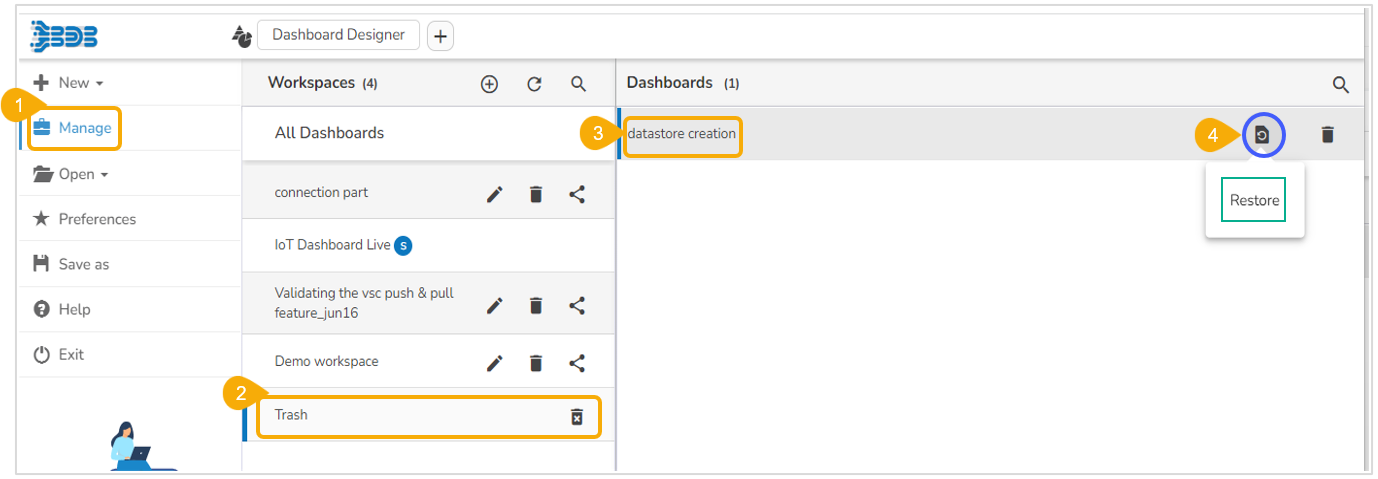
By default, the dashboard gets moved to the Trash Workspace. The users can open the Trash Workspace and restore the dashboard to the desired workspace.

* Click the ***Manage*** option from the Designer homepage.
* Navigate to the ***Trash*** workspace created under the list of all the workspaces.
* Select a deleted dashboard that you want to restore Click the ***Restore*** icon.

<figure><img src="https://859511478-files.gitbook.io/~/files/v0/b/gitbook-x-prod.appspot.com/o/spaces%2FGDmsjfjJBNqow7Fo97cO%2Fuploads%2F9jwJqGTqRg0X6F95zSJu%2Fimage.png?alt=media&#x26;token=0cc5c317-951a-4f3f-8ec3-9f34f809adaa" alt=""><figcaption><p><em>Accessing the Restore option for a dashboard</em></p></figcaption></figure>

* The ***Restore*** window appears.
* Select a workspace using the drop-down menu.
* Click the ***Restore*** option.

![](https://859511478-files.gitbook.io/~/files/v0/b/gitbook-x-prod.appspot.com/o/spaces%2FGDmsjfjJBNqow7Fo97cO%2Fuploads%2FfkVKUSF7mg6h0ciy3ZgY%2Fimage.png?alt=media\&token=8594f1fc-be62-4d83-8342-f5ab30acd887)​

* A success message appears to assure the restoration.

![](https://859511478-files.gitbook.io/~/files/v0/b/gitbook-x-prod.appspot.com/o/spaces%2FGDmsjfjJBNqow7Fo97cO%2Fuploads%2FFjlUdnFJx5uqTanasMk3%2Fimage.png?alt=media\&token=6d7f7f9f-9d8f-4925-947c-a50f01460450)​

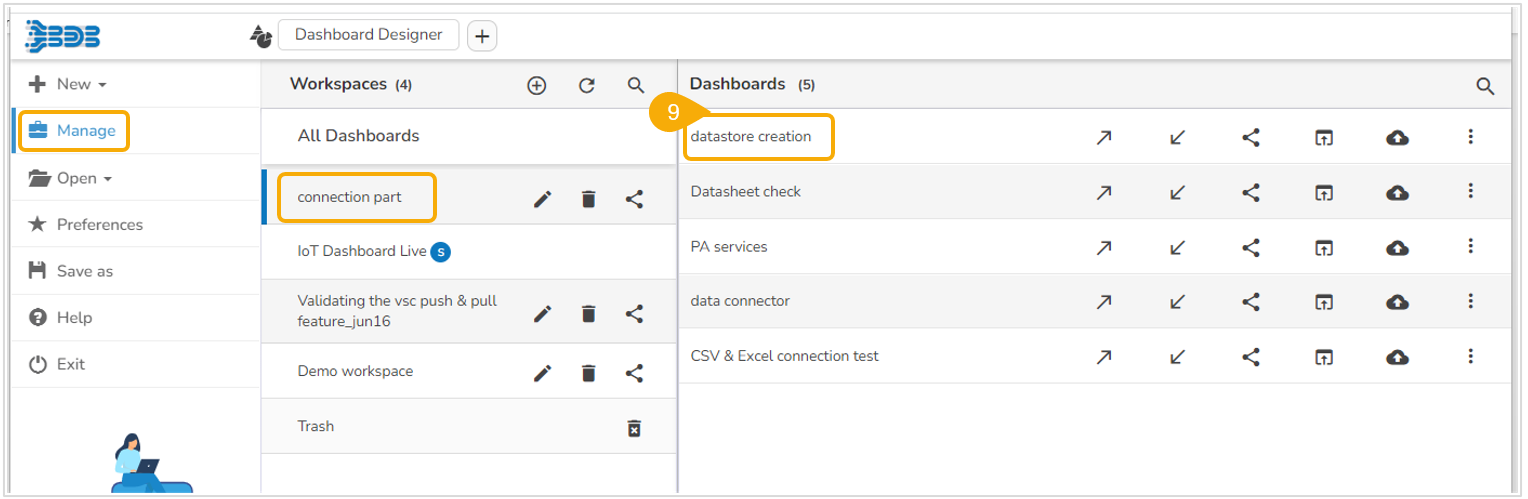
* The dashboard gets restored to the selected workspace.

<figure><img src="https://859511478-files.gitbook.io/~/files/v0/b/gitbook-x-prod.appspot.com/o/spaces%2FGDmsjfjJBNqow7Fo97cO%2Fuploads%2FFxPsuCinW42yJ7nayxCf%2Fimage.png?alt=media&#x26;token=a667285b-97fd-4678-b496-a21b0a388cd5" alt=""><figcaption><p><em>The dashboard gets restored in the selected Workspace</em></p></figcaption></figure>