# Dashboard as Template

The ***Save as Template*** option has been provided under the ***More Actions*** menu for each saved dashboard. By clicking this option it will create the selected dashboard as a Card in the Templates section.

{% hint style="success" %}
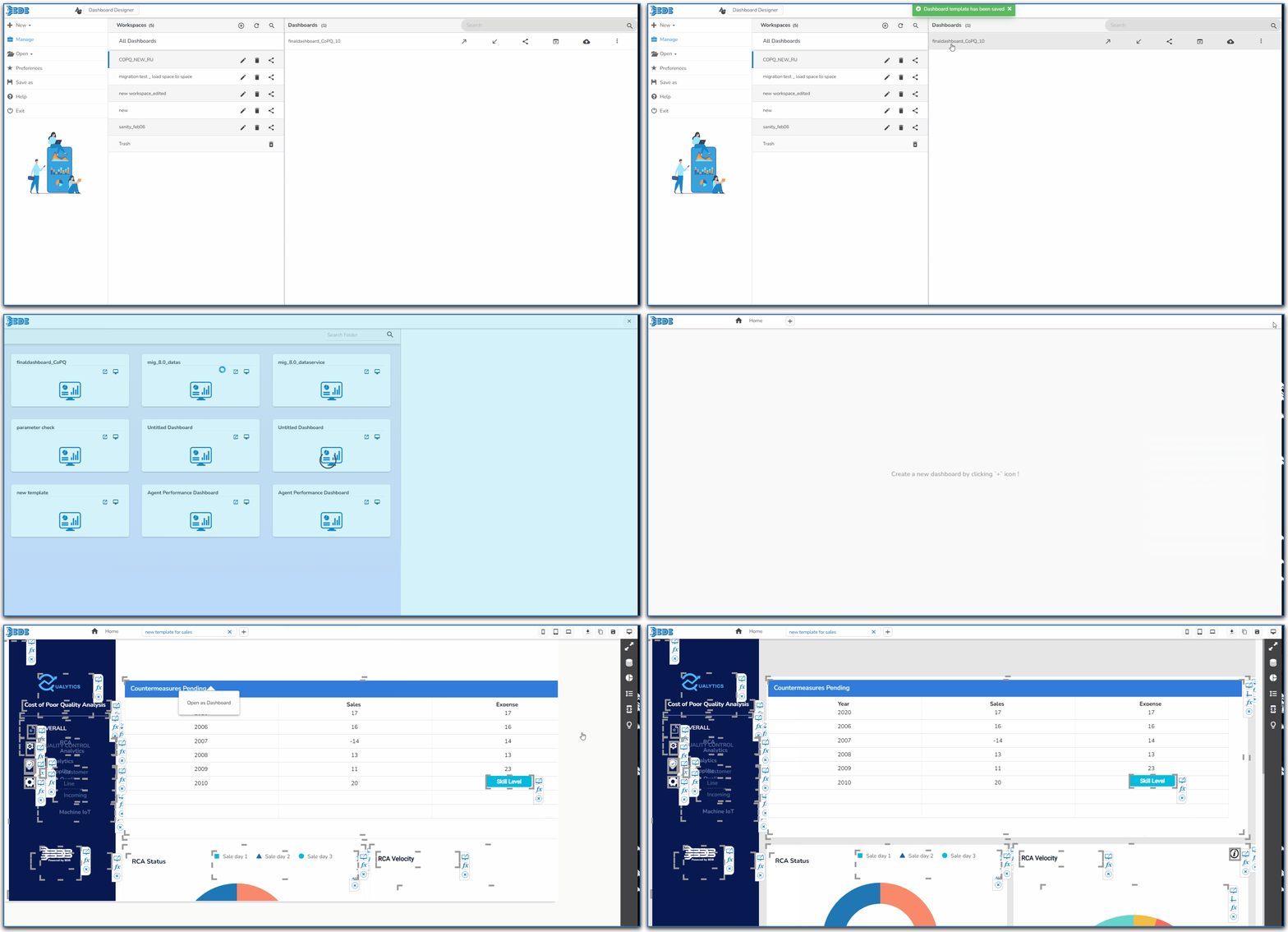
*Check out the given illustration on how to create and use the Dashboard Templates inside the Designer module.*
{% endhint %}

<figure><img src="https://content.gitbook.com/content/nyOeUTaPuBluyvesHVm9/blobs/c5sctDhxjPV8JnlSUjIA/dashboard%20template%20.gif" alt=""><figcaption><p>Dashboard Templates </p></figcaption></figure>

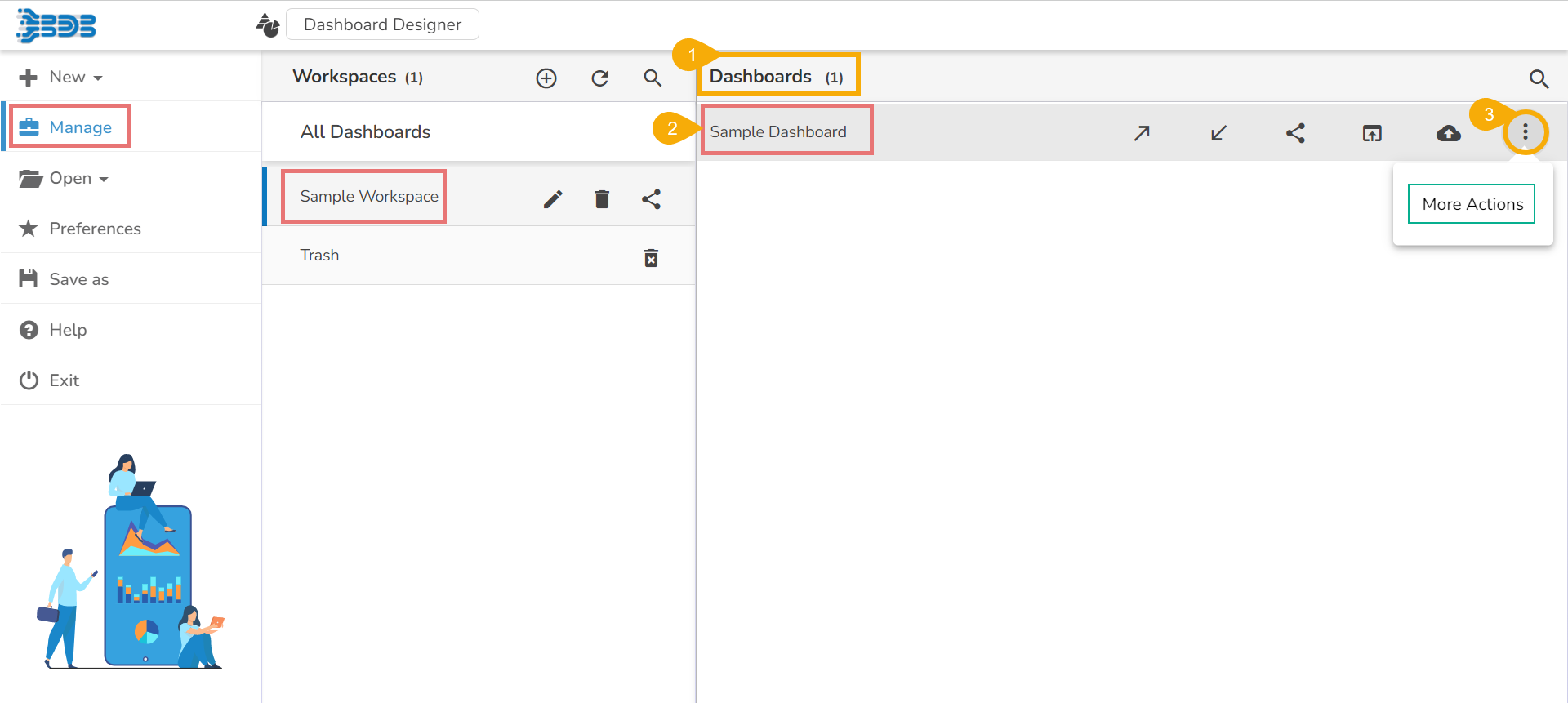
* Navigate to the saved ***Dashboards*** list using the ***Manage*** option.
* Select a ***Dashboard*** from the list.
* Click the ***More Actions*** icon for the selected dashboard. &#x20;

<figure><img src="https://content.gitbook.com/content/nyOeUTaPuBluyvesHVm9/blobs/CK4eCwLHK2aSeIqxrb1N/image.png" alt=""><figcaption></figcaption></figure>

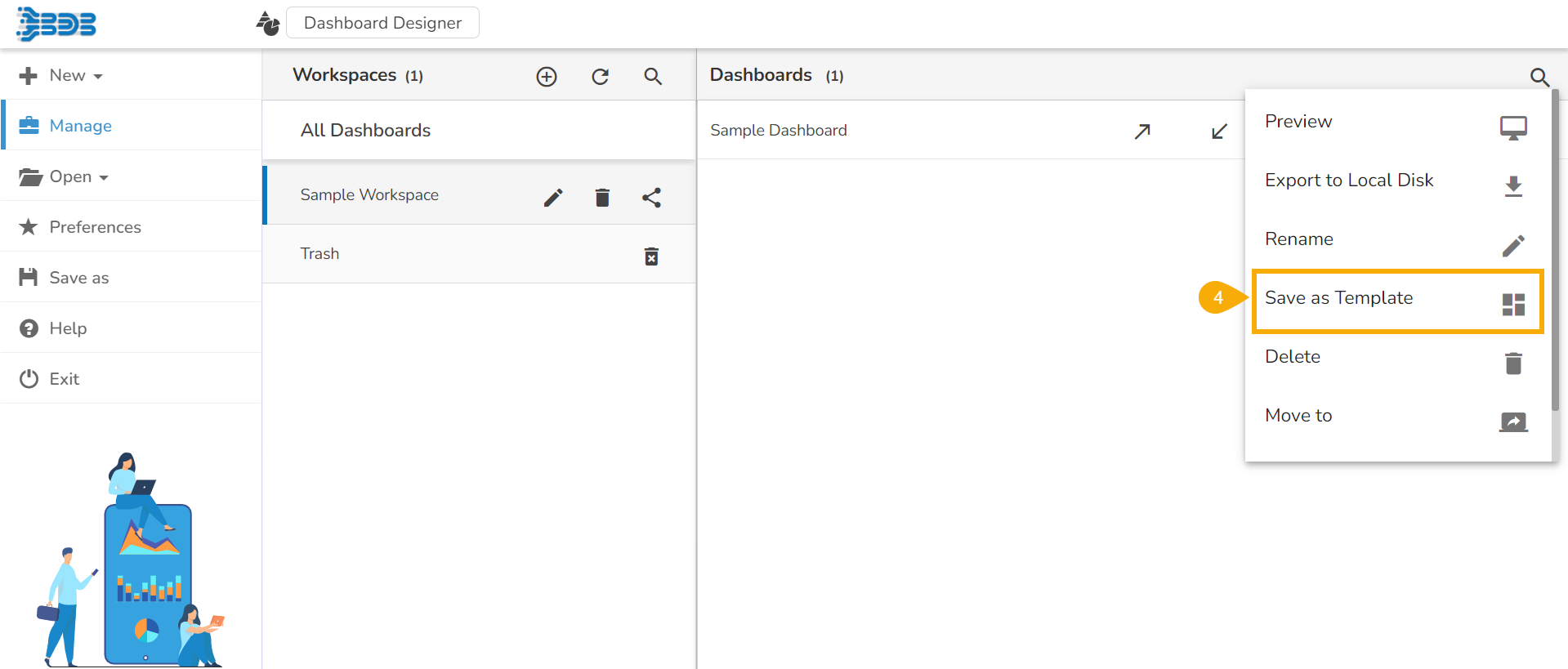
* Click the ***Save as Template*** option from the ***More Actions*** context menu.

<figure><img src="https://content.gitbook.com/content/nyOeUTaPuBluyvesHVm9/blobs/vd5wZII3oPYEggJiNgEy/image.png" alt=""><figcaption></figcaption></figure>

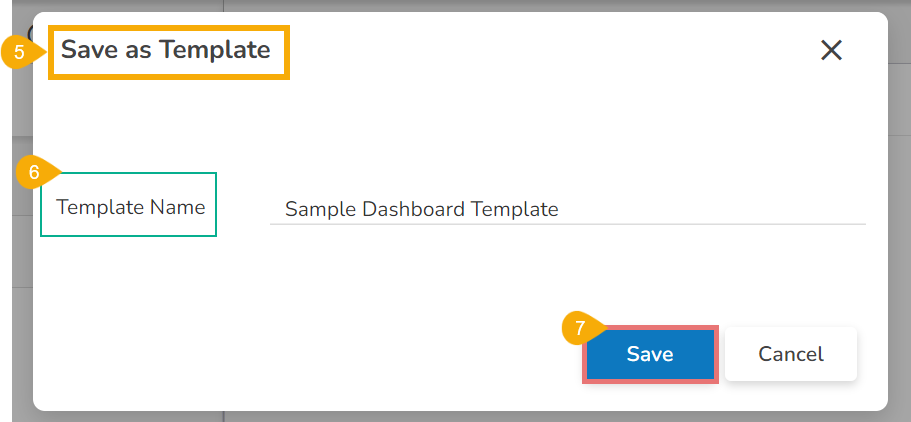
* The ***Save as Template*** dialog box opens.
* Provide the ***Template Name*** in the given space.
* Click the ***Save*** option.

&#x20;    &#x20;

<figure><img src="https://content.gitbook.com/content/nyOeUTaPuBluyvesHVm9/blobs/fpxbdY0n6mhH5pLNHvSo/image.png" alt=""><figcaption></figcaption></figure>

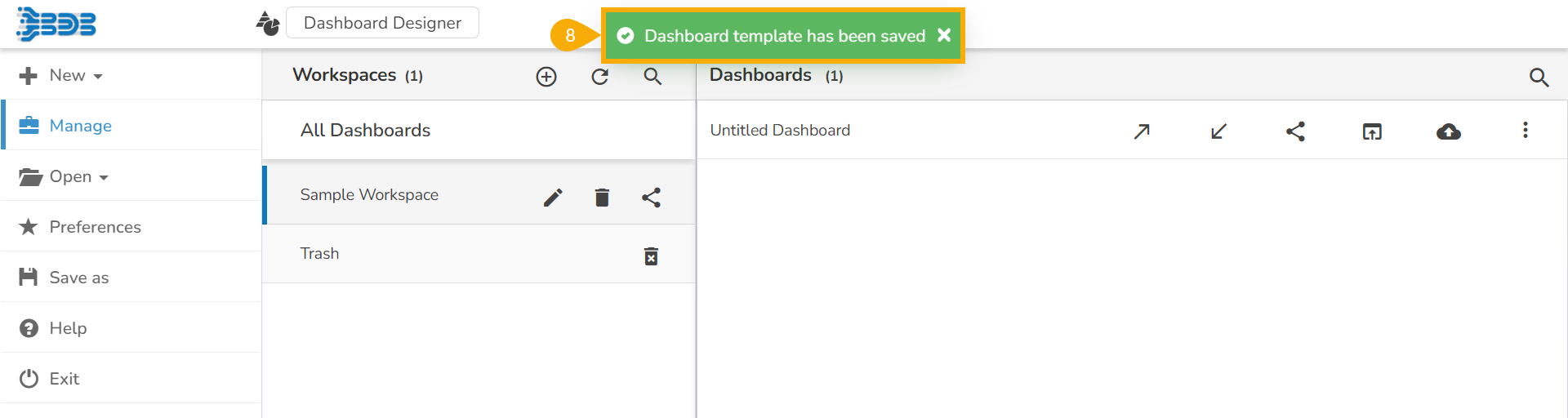
* A notification message appears to inform the completion of the action.    &#x20;

<figure><img src="https://content.gitbook.com/content/nyOeUTaPuBluyvesHVm9/blobs/yItP9uFDqnTVginUJ1fG/image.png" alt=""><figcaption></figcaption></figure>

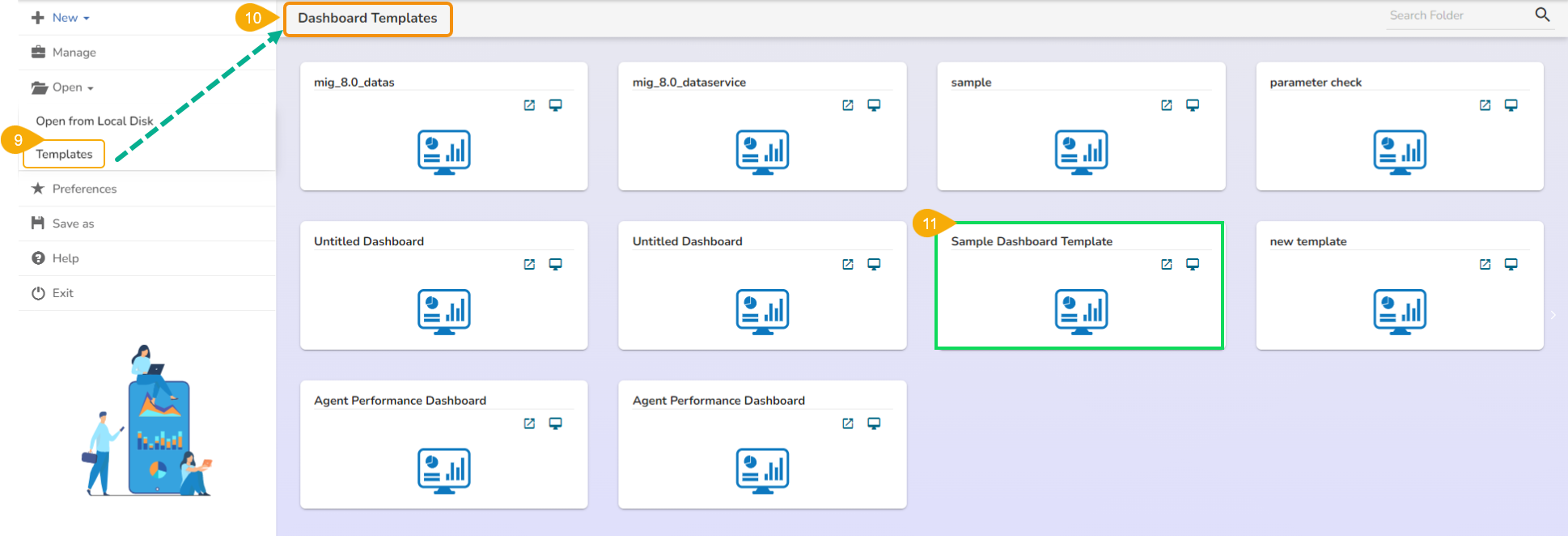
* Click the ***Templates*** option provided under the ***Open*** option from the Designer homepage.
* The ***Dashboard Templates*** page opens listing all the available dashboard templates.
* The recently saved dashboard template gets listed under the Dashboard Templates page.&#x20;

<figure><img src="https://content.gitbook.com/content/nyOeUTaPuBluyvesHVm9/blobs/Lc2OVhCNTHzk2fVyQwNE/image.png" alt=""><figcaption></figcaption></figure>

{% hint style="info" %}
Please Note: The saved Dashboard template gets two icons to perform actions.

1. Open as dashboard <img src="https://content.gitbook.com/content/nyOeUTaPuBluyvesHVm9/blobs/3byh3Ho3YmQkUZA43qdd/image.png" alt="" data-size="line">
2. Preview Template <img src="https://content.gitbook.com/content/nyOeUTaPuBluyvesHVm9/blobs/ldmlvF2QIPKepUN1iJCO/image.png" alt="" data-size="line">
   {% endhint %}

<details>

<summary>Open as Dashboard</summary>

When the users click on the  **Open as Dashboard** icon<img src="https://content.gitbook.com/content/nyOeUTaPuBluyvesHVm9/blobs/L0swcJ1CZ46XcOlrVyQn/image.png" alt="" data-size="line">, they will get all dragged charting components in the Designer canvas view without the inserted scripts and mapped data connection for that dashboard.

</details>

<details>

<summary>Preview Template</summary>

When the users select the  ***Preview Template*** icon<img src="https://content.gitbook.com/content/nyOeUTaPuBluyvesHVm9/blobs/CDMJvNymM72Saea6tH1O/image.png" alt="" data-size="line">, they will get the preview mode of the selected dashboard. It allows the inserted functionality together with the mapped dataset for the preview.

</details>