> For the complete documentation index, see [llms.txt](https://docs.bdb.ai/governed-dashboards-5/llms.txt). Markdown versions of documentation pages are available by appending `.md` to page URLs; this page is available as [Markdown](https://docs.bdb.ai/governed-dashboards-5/connecting-to-a-data-source/establishing-a-data-connection/merged-connection.md).
# Merged Connection
Steps to develop a data connection based on the Merged data.
{% hint style="success" %}
*Check out the given walk-through on how to create a data connection based on the multiple merged connections and associate it to a charting component.*
{% endhint %}
## Merging Data Fields
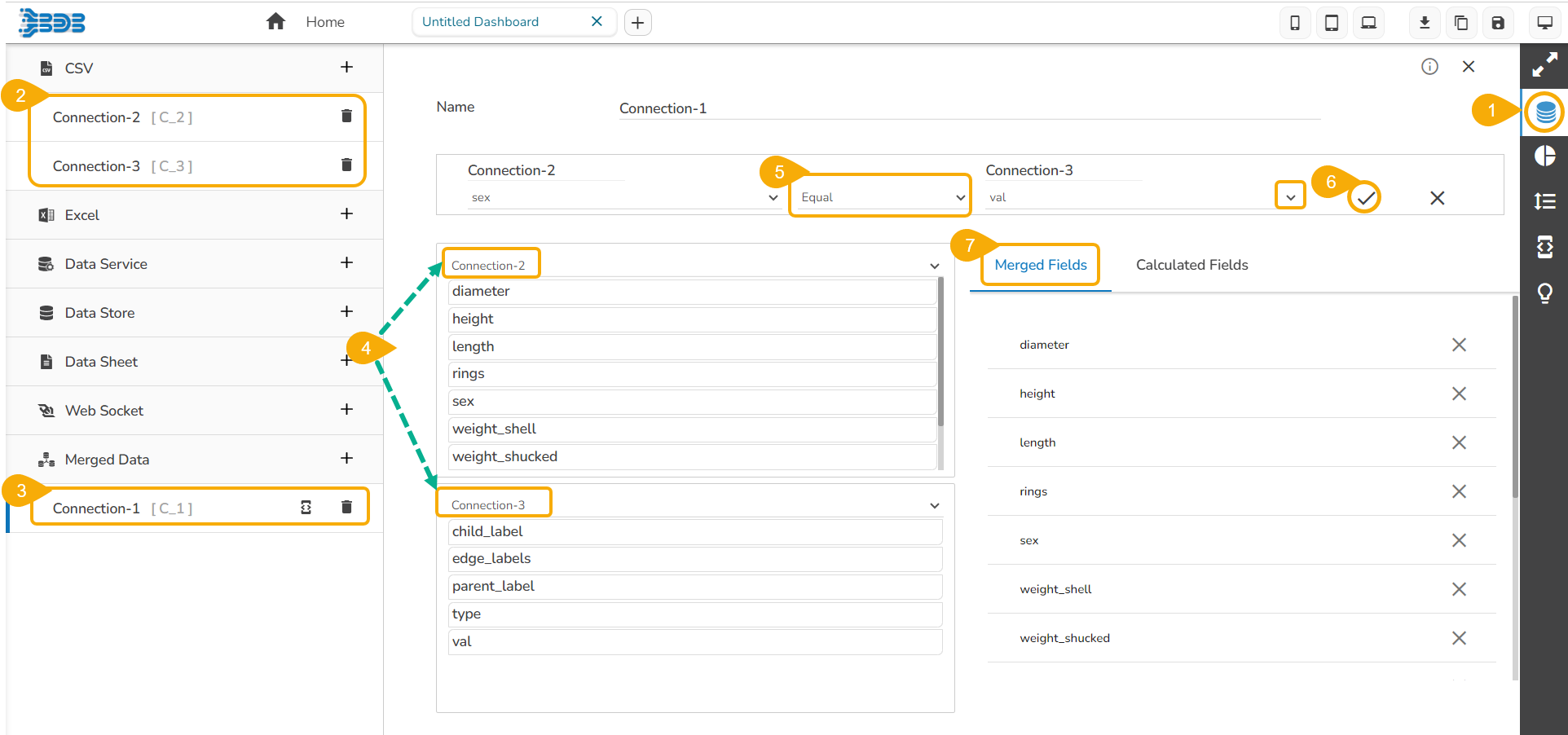
* Click the **Data Connectors** icon.
* Create new connections using any data connector option (In this case, Excel connections are created. E.g., Connection-1, Connection-2).
* Create a connection under the ***Merged Data*** connector. (E.g., Connection-3).
* Configure the new connection created for Merged data by mapping the created Excel connections.
* Define a condition via the drop-down menu in the Criteria space. (E.g. ***Equal*** or ***Not Equal***)
* Click the ***Create Criteria*** icon.
* The Merged Fields displays all the data fields from the merged connections.
* After clicking the ***Create Criteria*** icon, the created criteria get added to space.
* Trigger a script to produce some action on the connection part using the ***Script on Load*** icon.
## Removing fields from the Merged Data Connection
*The users can remove the fields added to the merged data connection using the **Remove** icon.***
## Creating a Calculated Field
Select the ***Calculated Fields*** tab to access Calculated Field Editor and add the calculated fields.
* Click the ***Calculated Fields*** tab.
* Click the ***Add*** icon.

* The Calculated Field Editor window opens.
* Provide a title for the calculated field.
* Insert calculation formula inside the Script Editor space.
* Click the ***Create*** option.

* The newly created Calculated field gets added under the ***Calculated Fields*** tab.