> For the complete documentation index, see [llms.txt](https://docs.bdb.ai/data-center-6/llms.txt). Markdown versions of documentation pages are available by appending `.md` to page URLs; this page is available as [Markdown](https://docs.bdb.ai/data-center-6/data-center/data-sandbox/creating-a-new-data-sandbox.md).

# Creating a New Data Sandbox

Get the step-by step process to create and save a new data sandbox under the Data Center module.

## Creating a Data Sandbox

{% hint style="warning" %}
*<mark style="color:orange;">Pre-requites:</mark> The user must configure the* [*Sandbox Settings*](https://docs.bdb.ai/7.6/core-platform/platform-administration/admin-panel-options/configurations/sandbox-settings) *to access the Data Sandbox option under the Data Center.*
{% endhint %}

{% hint style="success" %}
*Check out the video on creating a Data Sandbox under the Data Center module.*
{% endhint %}

{% embed url="<https://files.gitbook.com/v0/b/gitbook-x-prod.appspot.com/o/spaces%2Fe7P9Uf1O3iaFlsO3hfWI%2Fuploads%2FSVlblA6ZR1NaKFPh2RZZ%2FData%20Sandbox%20Creation.mp4?alt=media&token=ce958e99-4830-4b1a-b74f-ba0305f7cabf>" %}
***Data Sandbox Creation***
{% endembed %}

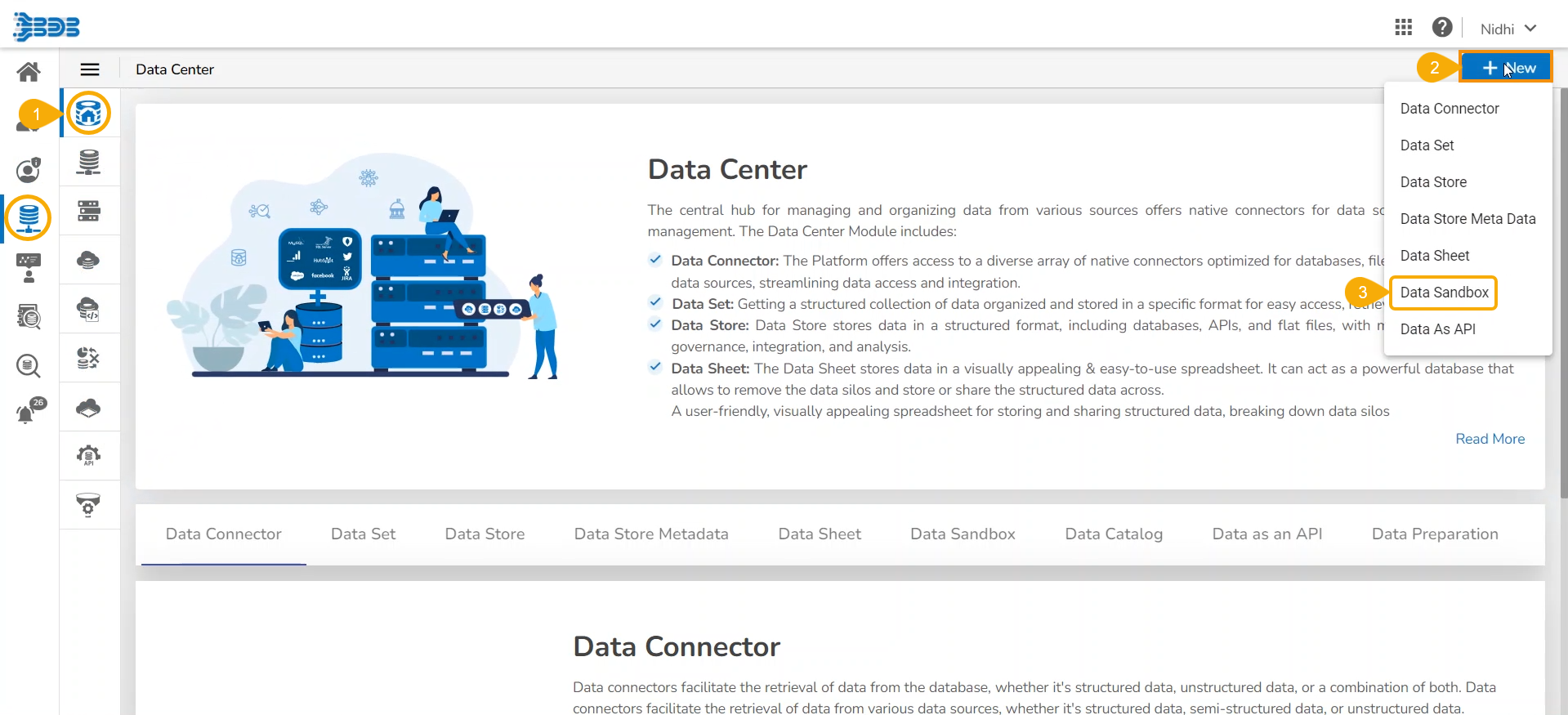
* Navigate to the ***Data Center*** homepage.&#x20;
* Click the ***New*** menu.
* Click the ***Data Sandbox*** option from the ***New*** Context menu.

<figure><img src="https://content.gitbook.com/content/Kg5pfnNkTs1b1YNYX7rD/blobs/udDiIt0A3Z2tjQPe0F2j/image.png" alt=""><figcaption></figcaption></figure>

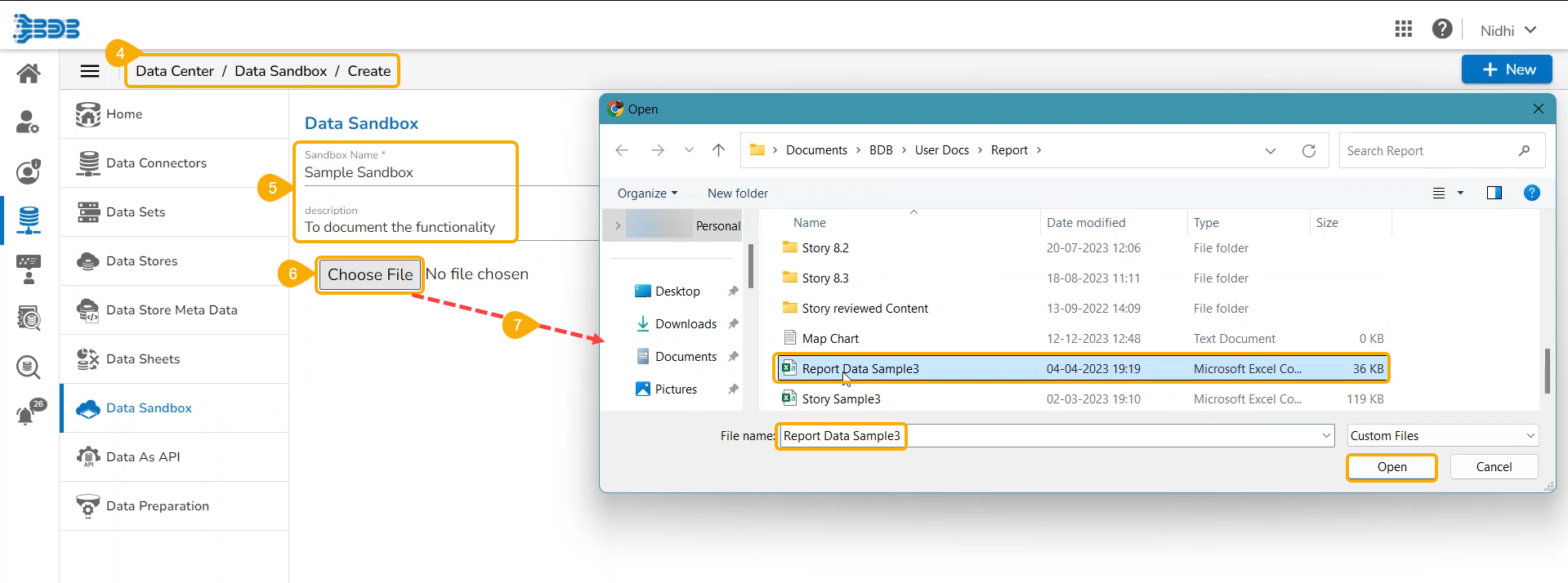
* The ***Data Sandbox*** form opens.
* Provide the following information:
  * Data Sandbox Name
  * Describe the Data Sandbox.
* Click the ***Choose File*** option.
* Select a file from the system.

<figure><img src="https://content.gitbook.com/content/Kg5pfnNkTs1b1YNYX7rD/blobs/pDFCcHpeEQiBaRVpX2Is/image.png" alt=""><figcaption></figcaption></figure>

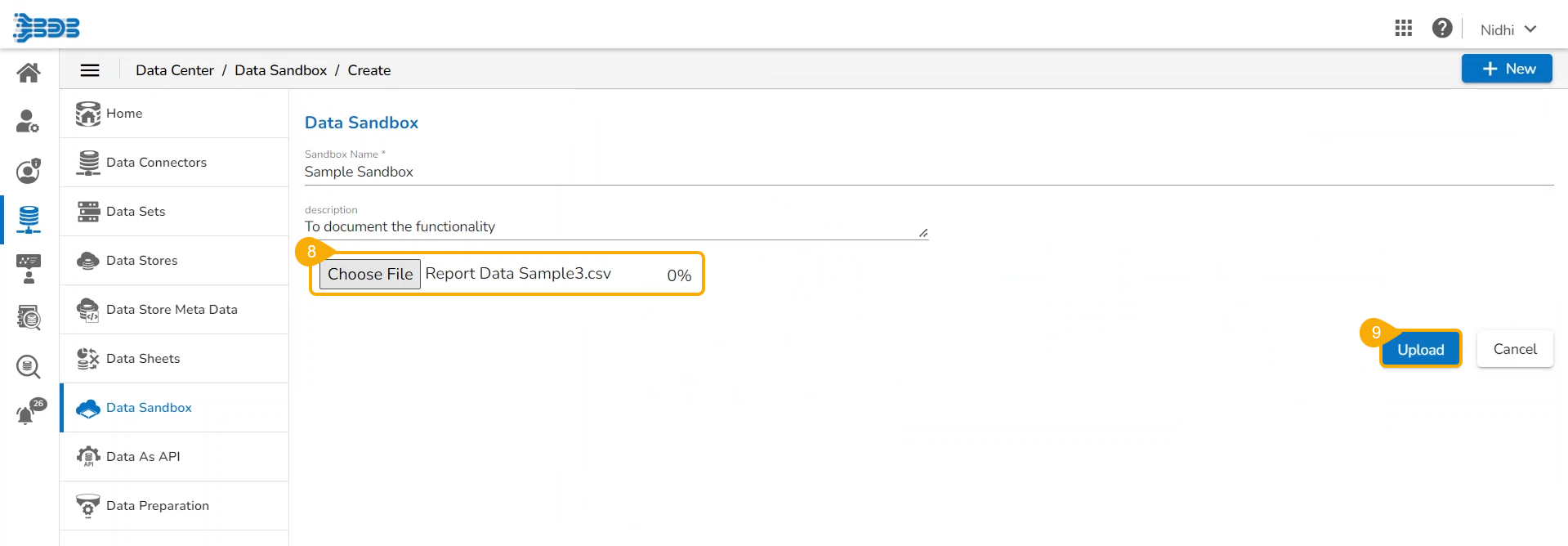
* The selected file's name gets mentioned next to the Choose File option.
* Click the ***Upload*** option. &#x20;

<figure><img src="https://content.gitbook.com/content/Kg5pfnNkTs1b1YNYX7rD/blobs/Ag7gVN23WVqDmsngQvaH/image.png" alt=""><figcaption></figcaption></figure>

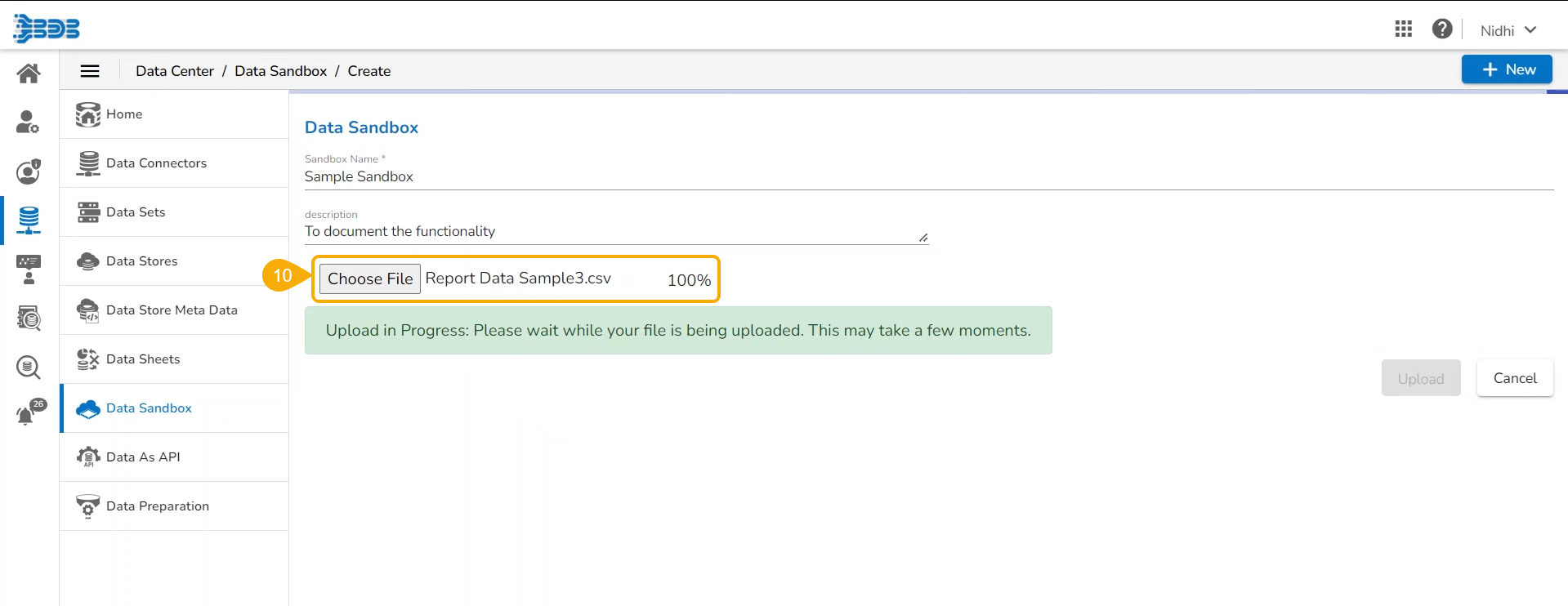
* The File gets uploaded to the ***Data Sandbox*** (The increasing number count suggests the completion of file upload).

<figure><img src="https://content.gitbook.com/content/Kg5pfnNkTs1b1YNYX7rD/blobs/aeJt9ipJtdsRnJBlYofG/image.png" alt=""><figcaption></figcaption></figure>

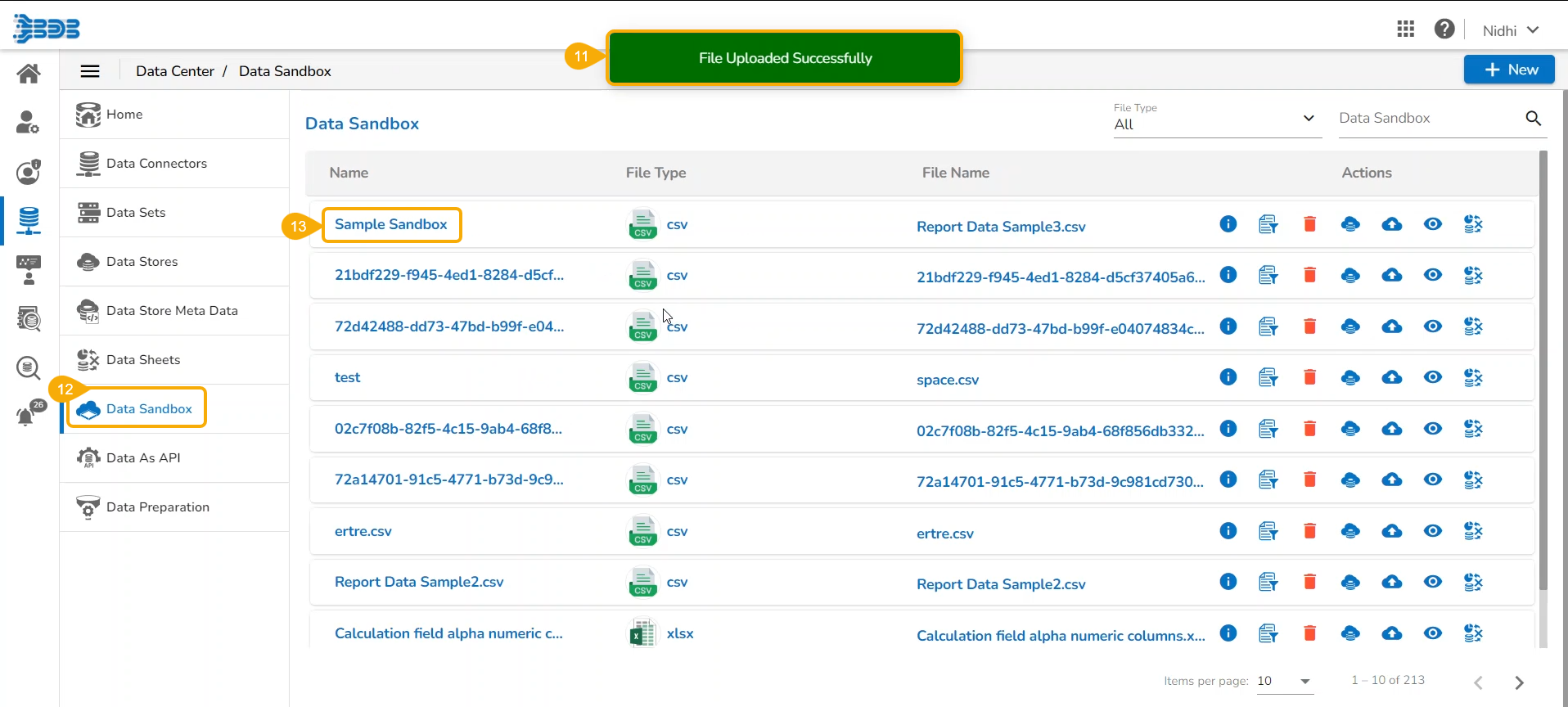
* A confirmation message appears on successful uploading of the file.&#x20;
* The ***Data Sandbox*** ***List*** page opens.
* The newly created Data Sandbox gets added at the top of the list.

<figure><img src="https://content.gitbook.com/content/Kg5pfnNkTs1b1YNYX7rD/blobs/rpyzXXbZSSd453O8hGvO/image.png" alt=""><figcaption></figcaption></figure>

The **Actions** icons provided to a listed/saved Data Sandbox are as follows:

<table data-header-hidden><thead><tr><th width="145.33333333333331"></th><th width="173"></th><th></th></tr></thead><tbody><tr><td><strong>Icon</strong></td><td><strong>Name</strong></td><td><strong>Attributed Action</strong></td></tr><tr><td>​​<img src="https://content.gitbook.com/content/Kg5pfnNkTs1b1YNYX7rD/blobs/7Ldykw8n4Q7atwANEbBJ/image.png" alt=""></td><td>Upload File Status</td><td>Generates notification message to confirm about the file upload status.</td></tr><tr><td>​​<img src="https://content.gitbook.com/content/Kg5pfnNkTs1b1YNYX7rD/blobs/myfQJuwpES21snECXnBK/image.png" alt=""></td><td>Data Preparation</td><td>Redirects to the Data Preparation Workspace.</td></tr><tr><td>​​<img src="https://content.gitbook.com/content/Kg5pfnNkTs1b1YNYX7rD/blobs/5dQDPZNi7SQ7Nfjx8zg8/image.png" alt=""></td><td>Remove</td><td>Redirects to Delete the selected Data Sandbox.</td></tr><tr><td><img src="https://content.gitbook.com/content/Kg5pfnNkTs1b1YNYX7rD/blobs/x7bJkWoeCSQpeqh2B0L1/image.png" alt=""></td><td>Create Data Store</td><td>Redirects to create Data Store.</td></tr><tr><td><img src="https://content.gitbook.com/content/Kg5pfnNkTs1b1YNYX7rD/blobs/s3kd7Rj1hyJdlDhXE3R0/image.png" alt=""></td><td>Reupload</td><td>Reuploads the Sandbox file.</td></tr><tr><td><img src="https://content.gitbook.com/content/Kg5pfnNkTs1b1YNYX7rD/blobs/j68MAobO0zTMFy1S0XV3/image.png" alt=""></td><td>Preview</td><td>Opens data preview of the sandbox file.</td></tr><tr><td><img src="https://content.gitbook.com/content/Kg5pfnNkTs1b1YNYX7rD/blobs/CGoUoASJ7MrnesOR0ekZ/image.png" alt=""></td><td>Create Datasheet</td><td>Redirects to create a Datasheet based on the Sandbox file.</td></tr></tbody></table>

{% hint style="info" %}
*<mark style="color:green;">Please Note</mark>*<mark style="color:green;">:</mark> *The supported file types extensions are .*&#x63;sv, .xls, .xlsx, .xlsm, .txt, .png, .jpg, .jpeg, .mp4, .json, .pdf, .avro, .parque&#x74;*.*&#x200B;
{% endhint %}

## Dealing with Corrupted Files for Sandbox Creation

The user will get a warning message if the uploaded sandbox file is corrupted or contains malicious data. The user will be suggested to clean the file and try again or to use a different file.

<figure><img src="https://2657181281-files.gitbook.io/~/files/v0/b/gitbook-x-prod.appspot.com/o/spaces%2FKg5pfnNkTs1b1YNYX7rD%2Fuploads%2FZNMFNbJMDwsT6niQWj9e%2Fimage.png?alt=media&amp;token=48df20f6-d7df-4008-8f79-b618746269bf" alt=""><figcaption></figcaption></figure>
