> For the complete documentation index, see [llms.txt](https://docs.bdb.ai/administrative-settings-5/llms.txt). Markdown versions of documentation pages are available by appending `.md` to page URLs; this page is available as [Markdown](https://docs.bdb.ai/administrative-settings-5/admin-panel-options/configurations/geo-spatial.md).
# Geo Spatial
This section explains the steps to configure the Geospatial plugin.
The option provides two types of Map settings.
* Click the ***Geo-Spatial*** from the Configuration and Settings admin option.
* The following option appears:
* [Geo Settings](#geo-settings)
* [Geo Shapes](#geo-shapes)
### **Geo Settings**
* Click the ***Geo*** ***Settings*** option from the Configurations list.
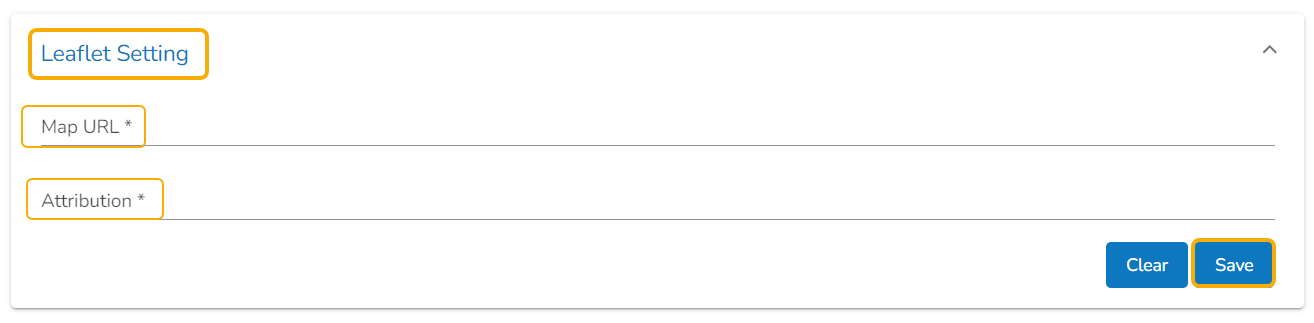
* The ***Geo Settings*** page opens displaying the ***Google Settings*** and ***Leaflet Settings*** options.
* Fill in the following information for the **Google Map**:
* ***Map Key***: Enter the map key that has been provided by Google (To be purchased from Google).
* Click the ***Save*** option.
* Fill in the following information for the **Leaflet Settings**:
* ***Map URL*****:** URL of the selected map (provided by the open-source vendors)
* ***Attribution*****:** Configuration parameters for the map (provided by the open-source vendor)
* Click the ***Save*** option.
{% hint style="info" %}
*Please Note: Click the **Clear** option to erase the information.*
{% endhint %}
### **Geo Shapes**
#### **Uploading a Geo Shape File**
* Click the ***Geo Shapes*** option from the ***Geo Settings*** configuration option.
* The ***Geo Shapes*** page opens.
* Click the ***Add*** option from the Geo Shapes page.
* The ***Create New Geo Shapes*** page opens.
* Enter the following information:
* **Shape Name**: Title of the geo shape (map)
* **Geometry Type**: Select any Geometry type from the drop-down menu (out of **Polygon** or **Line**)
* **Area Type**: Select an area type using the drop-down menu
* **Choose File**: Browse a shapefile from the system and upload (Only **JSON** and **JS** formats are supported)
* Click the ***Save*** option to save the inserted details.
* A message will pop up to ensure that the file has been uploaded.
* The uploaded Geo Shapefile is displayed in the list format.
{% hint style="info" %}
*Please Note: Use the **Search** space to search a Geo Shapefile from the displayed list.*
{% endhint %}
### Deleting a Geo Shape File
* Select an uploaded Geo Shapefile from the list.
* Click the ***Delete*** icon provided next to a Geo Shape File.
* A new window opens to confirm the deletion.
* Select the ***DELETE*** option.

* The selected Geo Shape file gets removed from the list.