> For the complete documentation index, see [llms.txt](https://docs.bdb.ai/administrative-settings-5/llms.txt). Markdown versions of documentation pages are available by appending `.md` to page URLs; this page is available as [Markdown](https://docs.bdb.ai/administrative-settings-5/admin-panel-options/configurations/ssl-certificate-settings.md).
# SSL Certificate Settings
By default, Platform connectors will not perform any verification of the server certificate. It means that someone can pretend to be the server without the client’s awareness. To prevent this kind of impersonation, the client needs to be able to verify the server's identity through a trusted chain of verification.
{% hint style="warning" %}
***Pre-requisites:** For SSL support to work, the user must have the following:*
1. *A MySQL/ ClickHouse /PostgreSQL server that supports SSL (as currently the SSL implementation has been provided for these data connectors).*
2. *A signed client certificate.*
{% endhint %}
## Upload a New Certificate
* Click the ***Upload Certificate Settings*** option from the list of ***Configurations***.
Accessing the Upload Certificate Settings option
* The ***Upload Certificate Settings*** page opens (It will be an empty list initially).
* Click the ***New*** option to upload settings for a new certificate.
* Provide the required details of the SSL Connector.
* ***Name***- This name is a key that can be configured for the Respective SSL Connector from the platform.
* ***CA Certificate***-Upload a certificate issued by a trusted Certificate Authority that validates the identity of the SSL Connector.
* ***Client Certificate***- A Client Certificate is a digital certificate that authenticates the client's identity to the server. It ensures secure and sensitive communications by encrypting data transmitted between the client and the server.
* ***Key File Upload***- A small data files that digitally bind a key.
* ***Jks File Upload***- It contains the Application Server's trusted certificates.
* ***Jks Trust Store Upload*** - It contains the Application Server's trusted certificates.
* ***Jks File Password***- Password used to protect a JKS file.
* ***Jks Trust Store Password*** – To protect a JKS file that contains trusted certificates.
* After Uploading the required certificates and details click the ***Save*** option to save the details.
Saving a new Certificate configuration
* A notification message appears.
* The uploaded certificate gets listed on the Certificate List page.
{% hint style="info" %}
*Please Note:*
* *In-between space is not allowed in the **Name**.*
* *Use the **Back** option to exit the page.*
{% endhint %}
## View the Uploaded Certificate
* Navigate to the ***Upload Certificate Settings*** page.
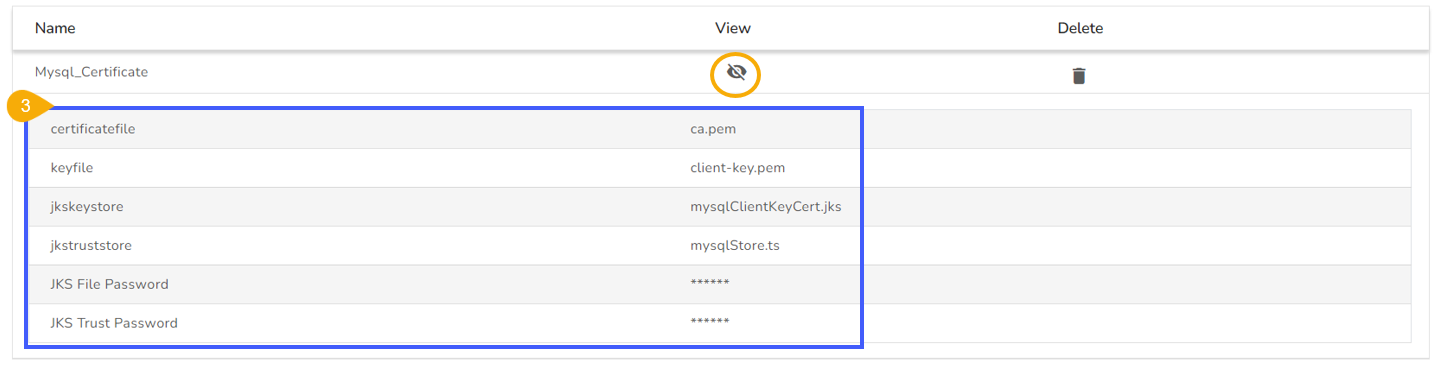
* Click the ***View*** icon for an uploaded certificate entry.
* The details of the selected certificate entry are displayed.
Displaying the details for an Uploaded Certificate
## Delete the Uploaded Certificate
* Navigate to the ***Upload Certificate Settings*** page.
* Click the ***Delete*** icon for an uploaded entry.
* The ***Delete Certificate*** confirmation dialog box appears.
* Confirm the deletion by clicking the ***Yes*** option.
* A notification message appears to confirm the deletion of the SSL configuration, and the selected SSL configuration gets deleted.
{% hint style="info" %}
*Please Note: The Admin can choose the **Cancel** option to cancel the deletion.*
{% endhint %}