> For the complete documentation index, see [llms.txt](https://docs.bdb.ai/security-users-and-roles-4/llms.txt). Markdown versions of documentation pages are available by appending `.md` to page URLs; this page is available as [Markdown](https://docs.bdb.ai/security-users-and-roles-4/creating-a-new-user-group.md).
# Creating a New User Group
* Click the ***New*** option given on the User Security page.
* A context menu opens.
* Select the ***Group*** option from the context menu.
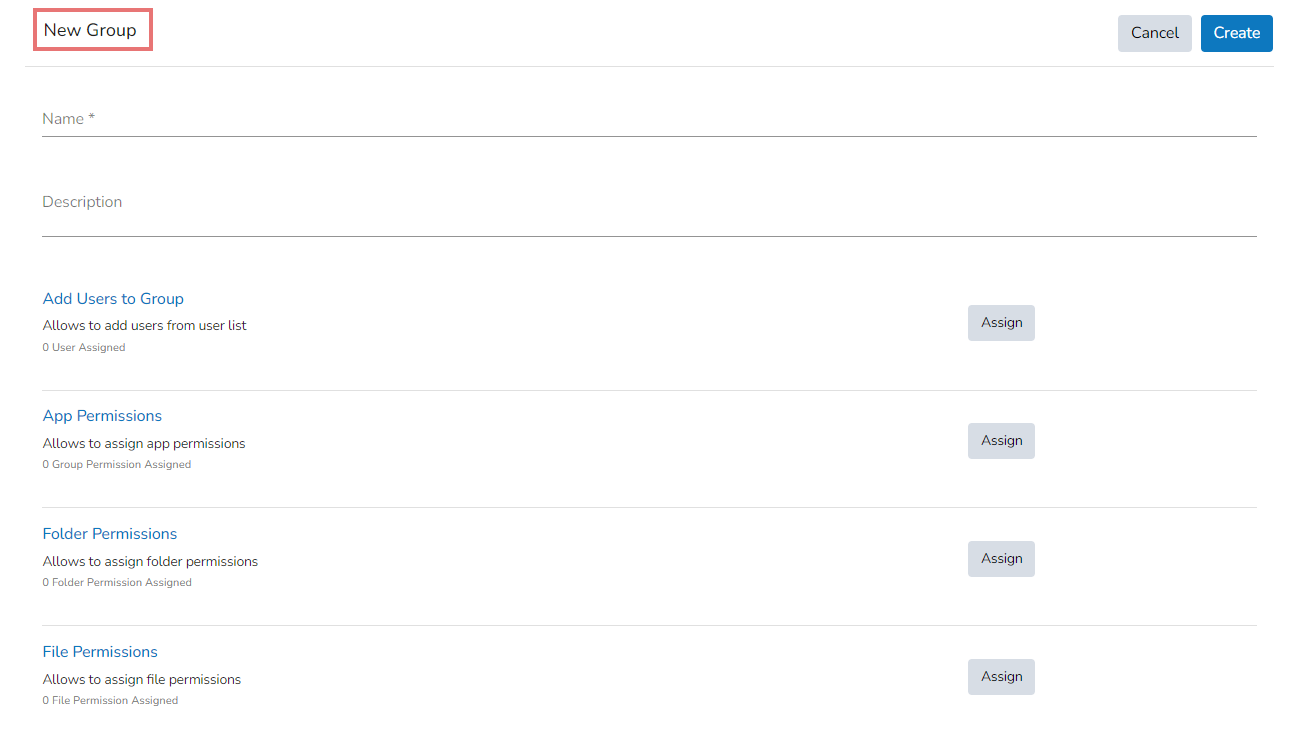
* The ***New Group*** window opens asking for information about a new group.
New Group window for creating a new User group
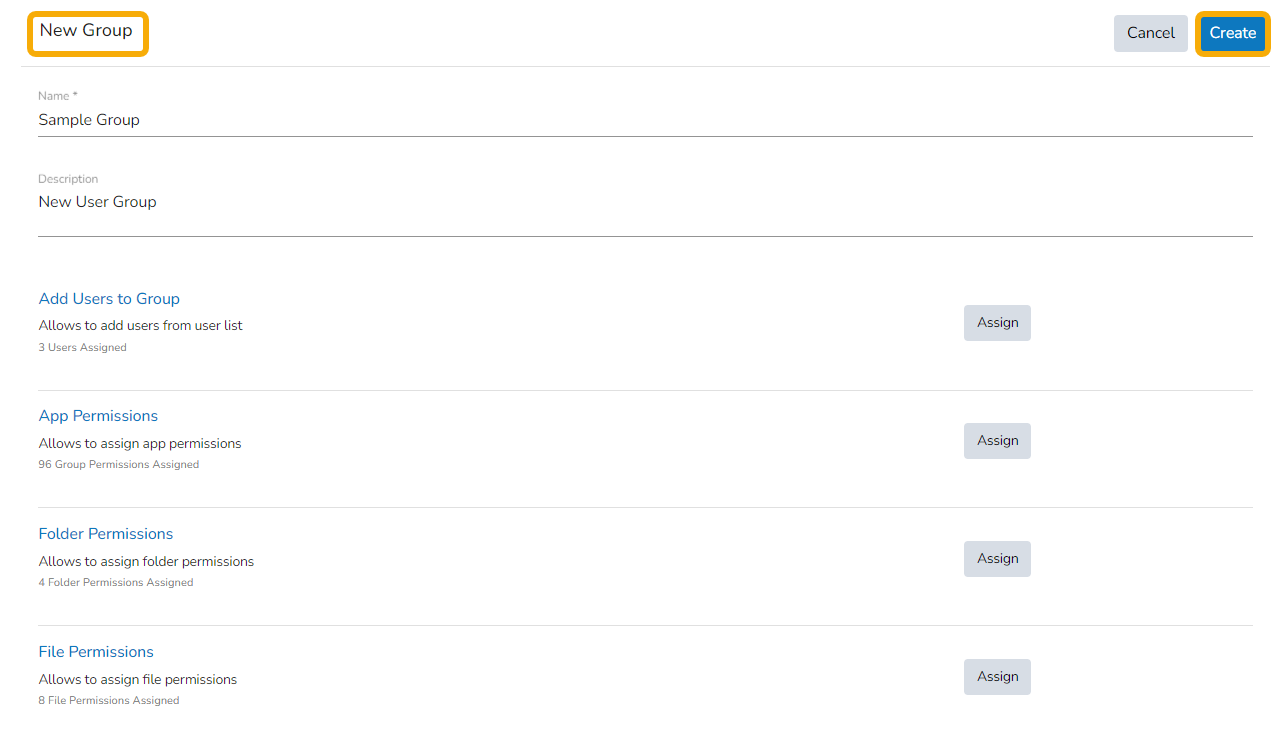
* Provide the following information to create a new User Group:
* **Group Name:** Enter a name for the user group (The group name should not exceed 20 words).
* **Description:** Describe the user group (optional) (The description should not exceed 150 words).

### **Add User to Group**
* Click the ***Assign*** option provided for adding the existing users to the newly created group.
* The ***Add Users to Group*** window opens with a list of all the existing users in that space.
* Select User(s) by using a checkmark in the box from the displayed list of users.

### **App Permission**
* Click the ***Assign*** option provided to add various app permissions to the newly created group.
* The ***App Permissions*** window opens with the list of the available apps to select the App Permissions.
* Either choose ***Select all*** options to add all the permission or manually Assign various plugin/app rights by choosing a specific plugin option to the newly created User Group via the ***Group Permissions*** menu list (It is mandatory).

### **Folder Permission**
* Click the ***Assign*** option provided next to the Folder Permission option.
* The ***Folder Permissions*** window opens with the list of the Folder Permissions to be selected for the group.

### **File Permissions**
* Click the ***Assign*** option provided for the File Permissions.
* The ***File Permissions*** window opens with the list of the File Permissions to be selected for the group.

* After adding users and allowing the required Permissions to the new group, click the ***Create*** option provided for the new User Group.
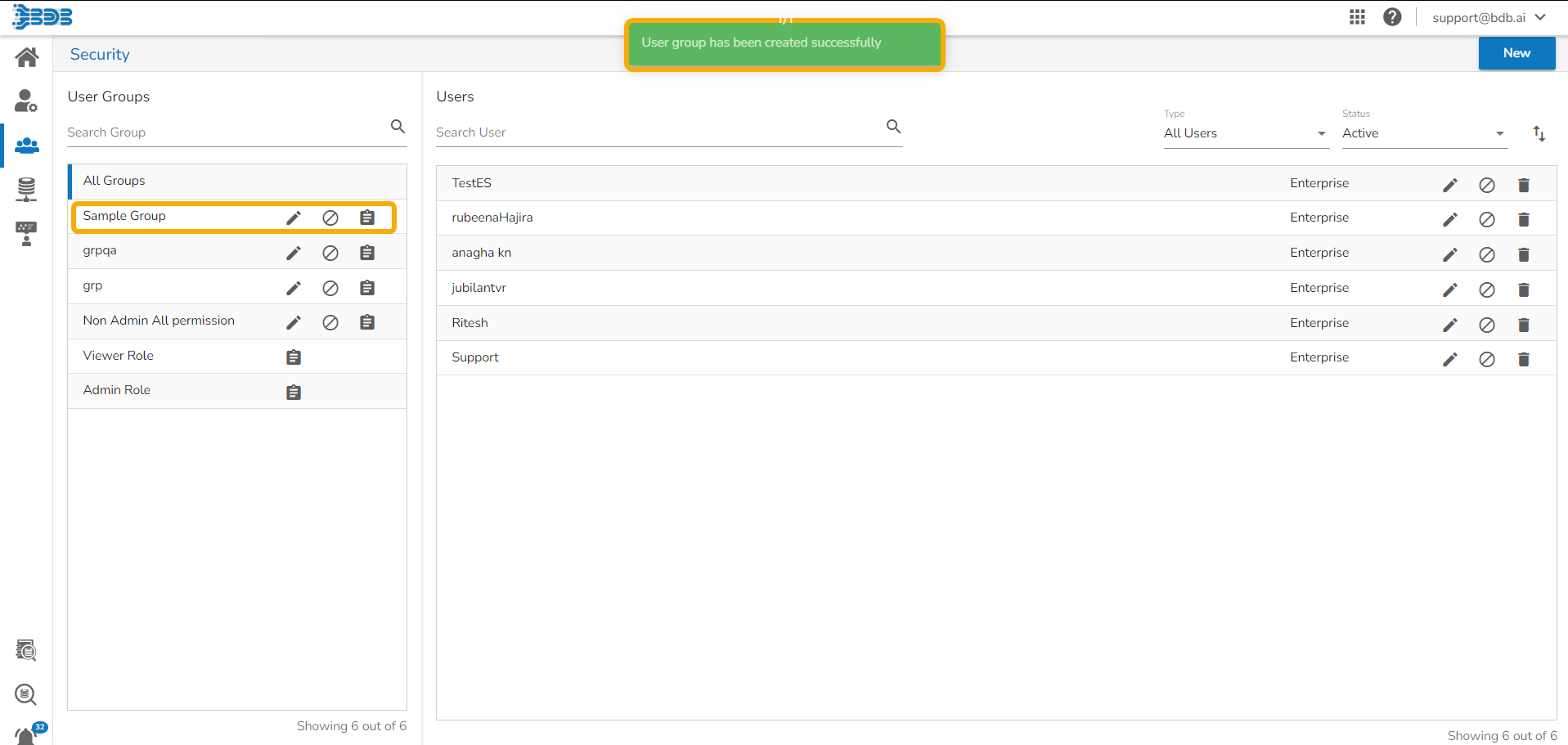
* A confirmation message appears.
* The newly created group will be listed under the ***All Group*** list (as shown below):
Confirmation message when a new User Group gets created
{% hint style="info" %}
Please Note:
* You will get a common ***Save*** option to save all the provided permission settings.
* Use a checkmark in the given box for the ***Select all*** option to select all the existing users.
* The default user groups do not have the ***Edit*** and ***Block*** icons –E.g., Viewer Role and Admin Role.

{% endhint %}