# Properties

## Question Specific Properties

* Click on the inserted Survey Question.
* Select a Question Type from the ***Questions*** menu.
* The ***Properties** tab* gets displayed with the following ***question specific properties***:
  * **Question Type:** Question type is pre-selected.
  * **Question Text**: Question Text can be inserted or modified.
  * **Answers/Choices**: Options can be added, modified, and deleted.
  * **Orientation**: ***Horizontal*** or ***Vertical*** orientation can be selected from the drop-down menu.

&#x20;           ![](https://3844665778-files.gitbook.io/~/files/v0/b/gitbook-x-prod.appspot.com/o/spaces%2FUE9osgacDEHKb1kIXQ45%2Fuploads%2F8xNMon3DDZhmuaqcPmV2%2Fimage.png?alt=media\&token=6928786f-a6a3-400f-b93a-8f582bf4164c)

The other question specific ***Properties*** options mentioned under the ***Properties tab*** are as explained below:

## **Features**

The ***Features*** option includes various options to be applied to a selected question.&#x20;

### **Validation** <a href="#validation" id="validation"></a>

It restricts skipping of the questions by the recipients while taking a survey. Recipients must attend all the validated questions to move ahead in the Survey. The application of the validation option can be determined by the survey goal and pattern. Validation can be provided to all the available question types under the BDB Survey App.

* Click the ***Features*** provided on the left side of the Properties page.
* The ***Validation*** option opens.
* Select ***Required*** from the drop-down menu.
* Question specific Validation message will appear in the below given box.

&#x20;      ​![](https://859511478-files.gitbook.io/~/files/v0/b/gitbook-x-prod.appspot.com/o/spaces%2FGDmsjfjJBNqow7Fo97cO%2Fuploads%2FkCNCESy05c9sIWt9DHhA%2Fimage.png?alt=media\&token=7474ac47-2712-4e3a-9ace-90035b5354fd)​

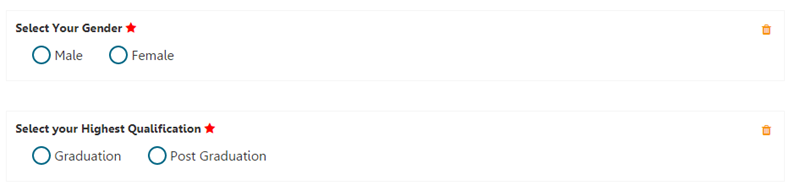
* All the validated Questions will appear with the ***Validation*** ![](https://3844665778-files.gitbook.io/~/files/v0/b/gitbook-x-prod.appspot.com/o/spaces%2FUE9osgacDEHKb1kIXQ45%2Fuploads%2FOKpFiDCtYFiVoBAYVvYx%2Fimage.png?alt=media\&token=b438d446-a4c1-4c34-b799-eb9f7f8040c5)symbol provided next to a question.      &#x20;

<figure><img src="https://859511478-files.gitbook.io/~/files/v0/b/gitbook-x-prod.appspot.com/o/spaces%2FGDmsjfjJBNqow7Fo97cO%2Fuploads%2Fye73Wl9yKH4pNNN2VTaW%2Fimage.png?alt=media&#x26;token=501acafa-3df5-4648-88f7-45104e171d11" alt=""><figcaption></figcaption></figure>

### **Show Comment Box** <a href="#show-comment-box" id="show-comment-box"></a>

A Comment Box is an optional feature provided under the Properties tab.

* Click ***Features*** provided on the left side of the ***Properties*** page.
* Select ***Show Comment Box*** option by check-marking the box
* Fill in the following information:
  * **Number of Rows**: Set rows by using the ***Stepper*** button
  * **Text Limit**: Set text limit using the ***Stepper*** button
  * **Text limit message**: Enter a message to display when the text limit is exceeded
  * **Comment Head**: Enter a heading for the inserted

&#x20;           ​![](https://859511478-files.gitbook.io/~/files/v0/b/gitbook-x-prod.appspot.com/o/spaces%2FGDmsjfjJBNqow7Fo97cO%2Fuploads%2F4kV71EjLCX2zq20keUkN%2Fimage.png?alt=media\&token=b66b42a2-df39-4207-a205-8be1ca9e79ab)​

* A Comment Box will be added below the selected question

<figure><img src="https://859511478-files.gitbook.io/~/files/v0/b/gitbook-x-prod.appspot.com/o/spaces%2FGDmsjfjJBNqow7Fo97cO%2Fuploads%2F2gaHOuiG0NhIDLQp3veJ%2Fimage.png?alt=media&#x26;token=aafbcc06-5366-4818-b776-f52338d49aa4" alt=""><figcaption><p><em><strong>Comment Box inserted for a Survey question</strong></em></p></figcaption></figure>

### **Use Logic** <a href="#use-logic" id="use-logic"></a>

Logic aims to guide the respondents on a specific path for the successful completion of the survey. It also helps in getting the desired responses from the selected group of participants.

* Click ***Features*** provided on the left side of the ***Properties*** screen.
* Select the ***Use Logic*** option by check-marking the box.
* ***Options*** and ***Logic Type*** will be displayed.
* Select a logic from the drop-down menu.
* Selecting a logic will display the ***Select*** drop-down menu.
* Select ***Check All*** option from the ***Select*** drop-down menu.
* The selected logic will be applied to the desired option.

&#x20;     ![](https://3844665778-files.gitbook.io/~/files/v0/b/gitbook-x-prod.appspot.com/o/spaces%2FUE9osgacDEHKb1kIXQ45%2Fuploads%2FMqJpBYsTRbENyELFwGJU%2Fimage.png?alt=media\&token=ee7d3ca1-ac64-451b-adb9-56709cb8348d)

#### Supported Logic Types

The Survey uses below mentioned logic types:

* **Page Jump**: It is applied to a page. It enables all the respondents to access the immediate next page in the survey. Irrespective of the answers chosen by the respondents, they will be taken to the next page of the survey.
* **Question Skip:** It enables the respondents to proceed on the next question or page based on the answer selected by them. This logic is applied directly to the quest
* **Disqualification:** Essentially, this logic is applied to multiple-choice questions to disqualify the respondents who fail to meet the required criteria for continuing the survey. A disqualification message will be shown to them restricting their further progress in the survey
* **End of the Survey:** This logic is generally used after the last question given for the survey to generate a Survey completion message for the recipients. It can be applied to a specific question, from where the organizer wants certain respondents to end the survey process.

## **Question Design** <a href="#question-design" id="question-design"></a>

Use the below-listed properties to set question display:

* **Component Width**: Set the required width number using the **Stepper** button<img src="https://859511478-files.gitbook.io/~/files/v0/b/gitbook-x-prod.appspot.com/o/spaces%2FGDmsjfjJBNqow7Fo97cO%2Fuploads%2FZoi6bERkfn4vn3VhmK6b%2Fimage.png?alt=media&#x26;token=1a0aa7c9-f13c-40e2-ba25-5f9523cacfa9" alt="" data-size="line">
* **Font Variant**: Select an option from the drop-down menu
  * Normal
  * Small-Caps
* **Font Style:** Select an option from the drop-down menu
  * Normal
  * Italic
* **Font Weight:** Select an option from the drop-down menu
  * Normal
  * Bold
* **Font Size**: Select an option from the drop-down menu (X-Large, Large, Medium, Larger, Smaller, Small and X-Small options are supported)
* **Option Font Color**: Set font color using the available color menu
* **Radio Background**: Set background color for radio buttons using the available color menu
* **Radio Border**: Set border color for radio buttons using the available color menu

&#x20;   ​![](https://859511478-files.gitbook.io/~/files/v0/b/gitbook-x-prod.appspot.com/o/spaces%2FGDmsjfjJBNqow7Fo97cO%2Fuploads%2FYmjGW4tmHJNvzBaIbb58%2Fimage.png?alt=media\&token=393b85e9-5411-4c0f-bc6e-1e1443282b58)​

## **Actions**  <a href="#actions" id="actions"></a>

Users can move a question to any of the survey pages by applying this option

* Click ***Actions*** provided on the left side of the ***Properties*** screen.
* ***Select Action*** and ***Page*** options will be displayed.
* Select ***Move*** option from the ***Select Action*** drop-down menu.
* Select a page from the ***Page*** drop-down menu.
* Click on the ***Done*** optio&#x6E;**.**

&#x20;        ![](https://3844665778-files.gitbook.io/~/files/v0/b/gitbook-x-prod.appspot.com/o/spaces%2FUE9osgacDEHKb1kIXQ45%2Fuploads%2FClrHqhjGjkRZMqyVP2Au%2Fimage.png?alt=media\&token=85e06739-5b7a-4f23-9411-4ce8bb82964e)

* The question will be moved on the selected page.

​
