Loading...
Loading...
Loading...
Loading...
Loading...
Loading...
Loading...
Loading...
Loading...
Loading...
Loading...
Loading...
Loading...
Loading...
Loading...
Loading...
Loading...
Loading...
Loading...
Loading...
Loading...
Loading...
Loading...
Loading...
Loading...
Loading...
Loading...
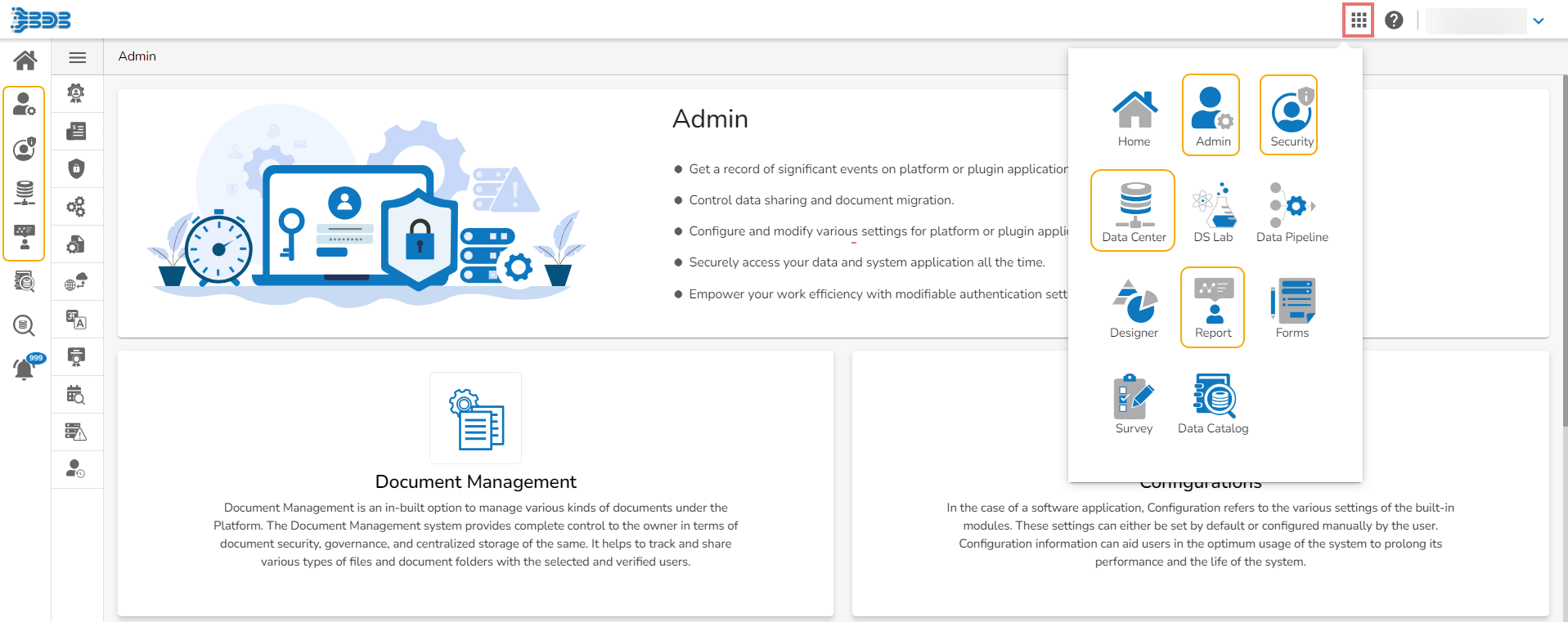
The Apps menu lists all the BDB modules together with the platform core modules for the user to kick start the data analytics journey.
The Apps menu displays all the available applications.
Navigate to the Platform homepage.
Click the Apps icon.
All the available platform modules will be displayed.
Users can select and open various modules using the application-specific icons in the Apps menu window.
Please Note:
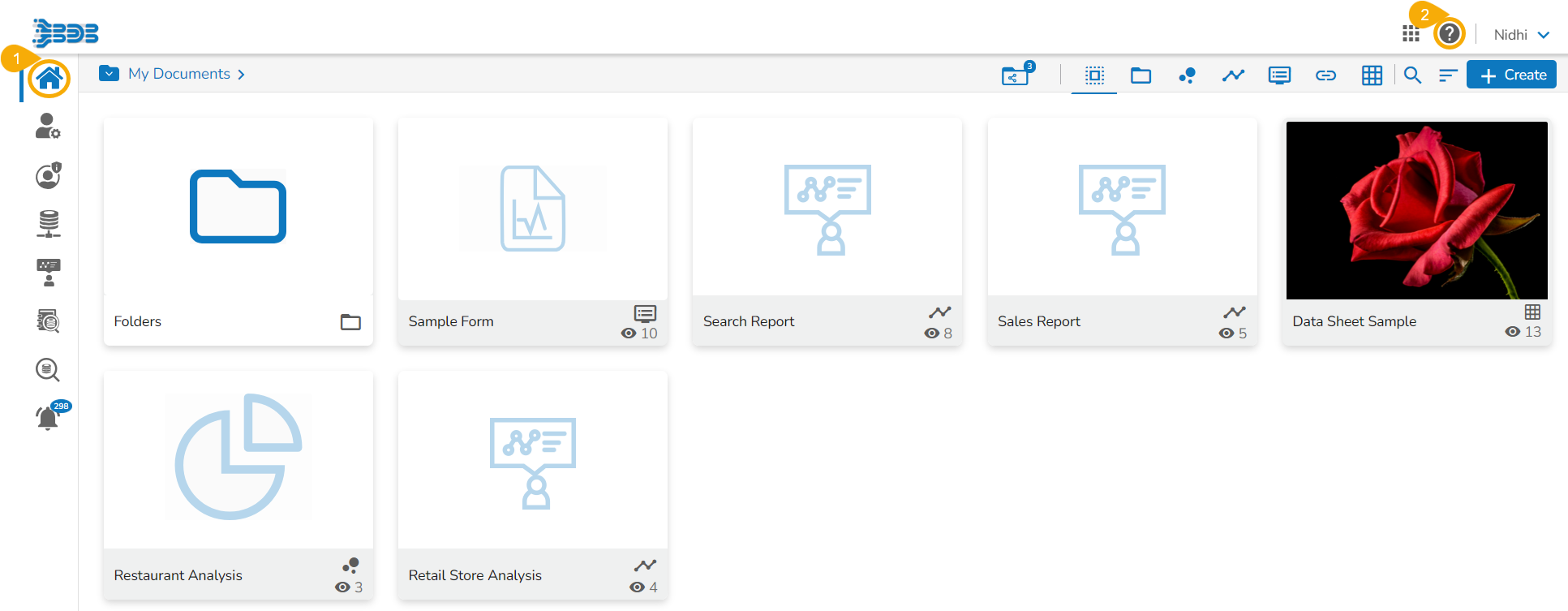
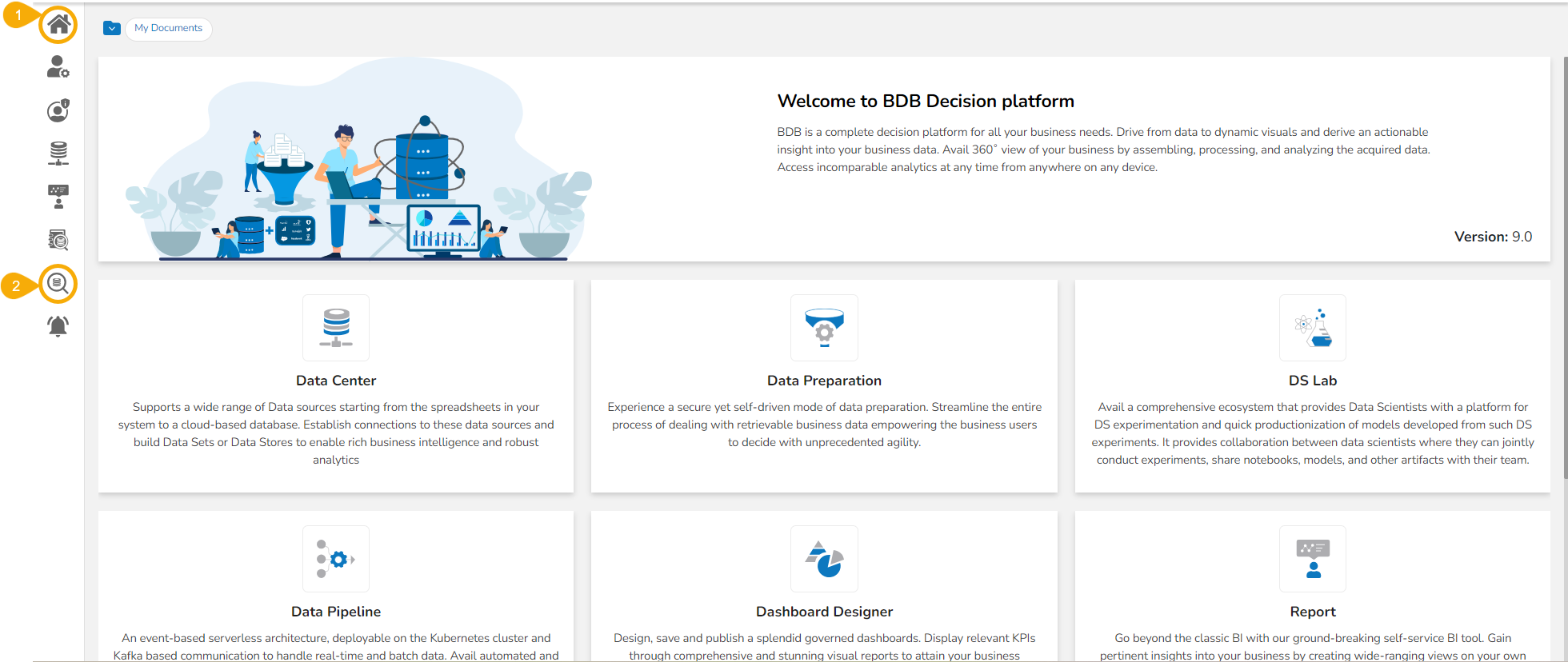
This is the default homepage screen when the user logs in to the Platform for the first time.
The user can access the Home icon in the left side panel and the Apps menu.
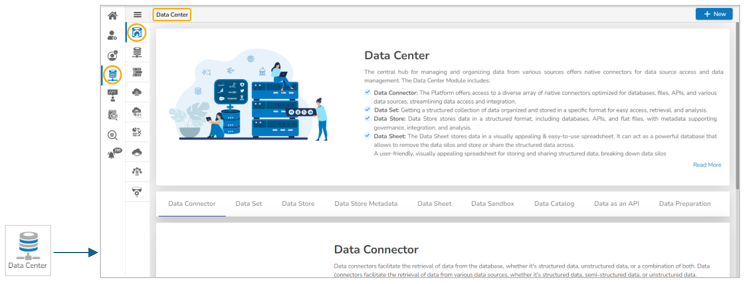
Please Note: The user gets the Data Center option on the left side panel and inside the Apps menu.
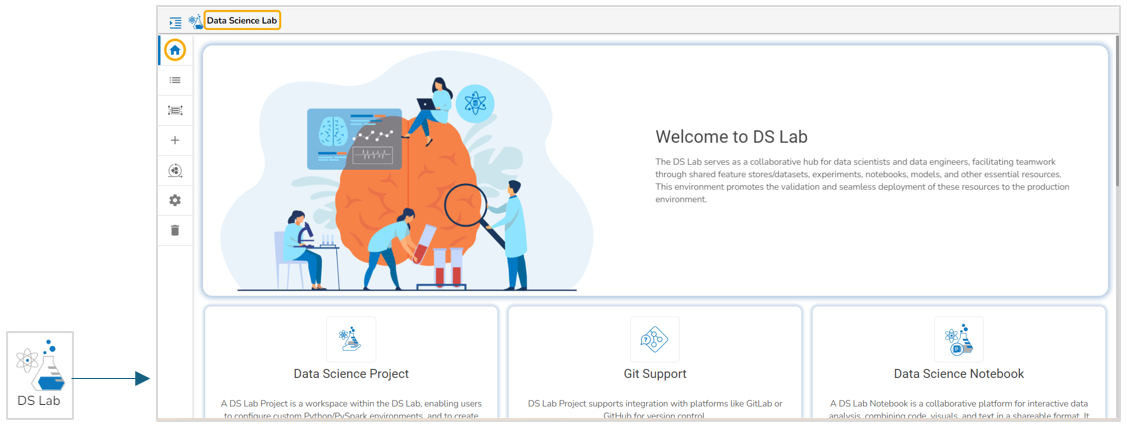
Please Note: The current image displays the project list with the created DS Lab Project.
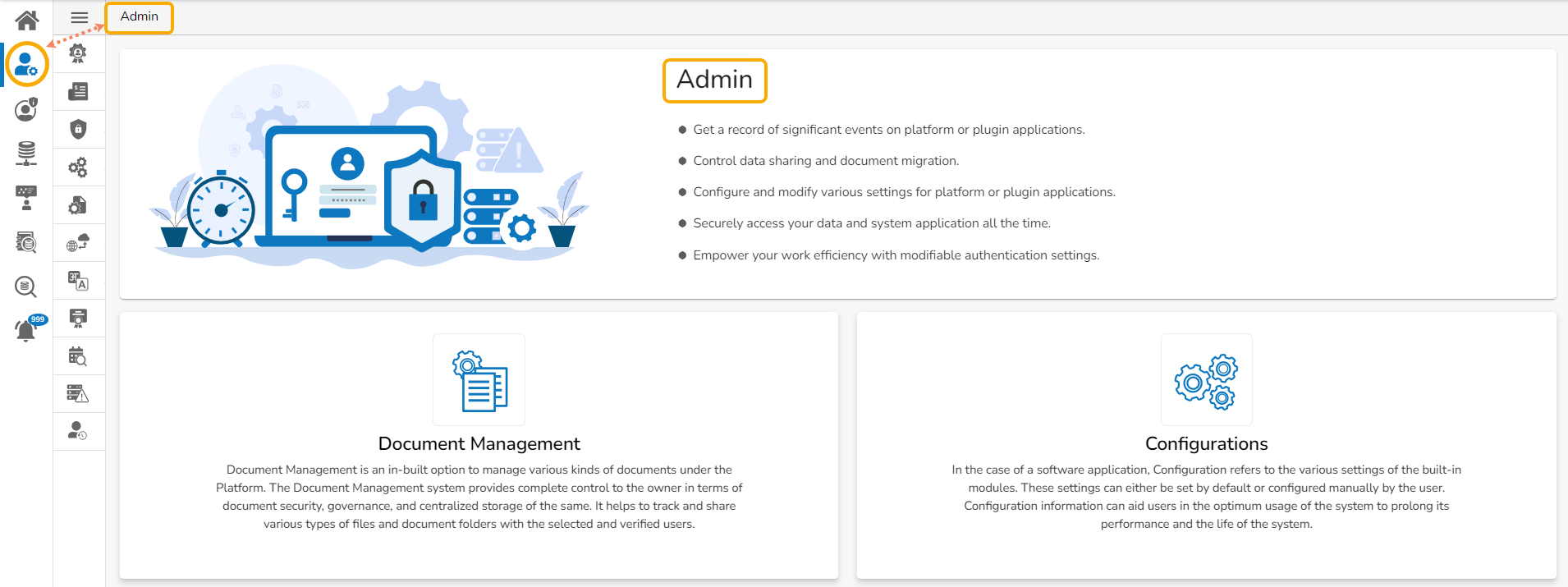
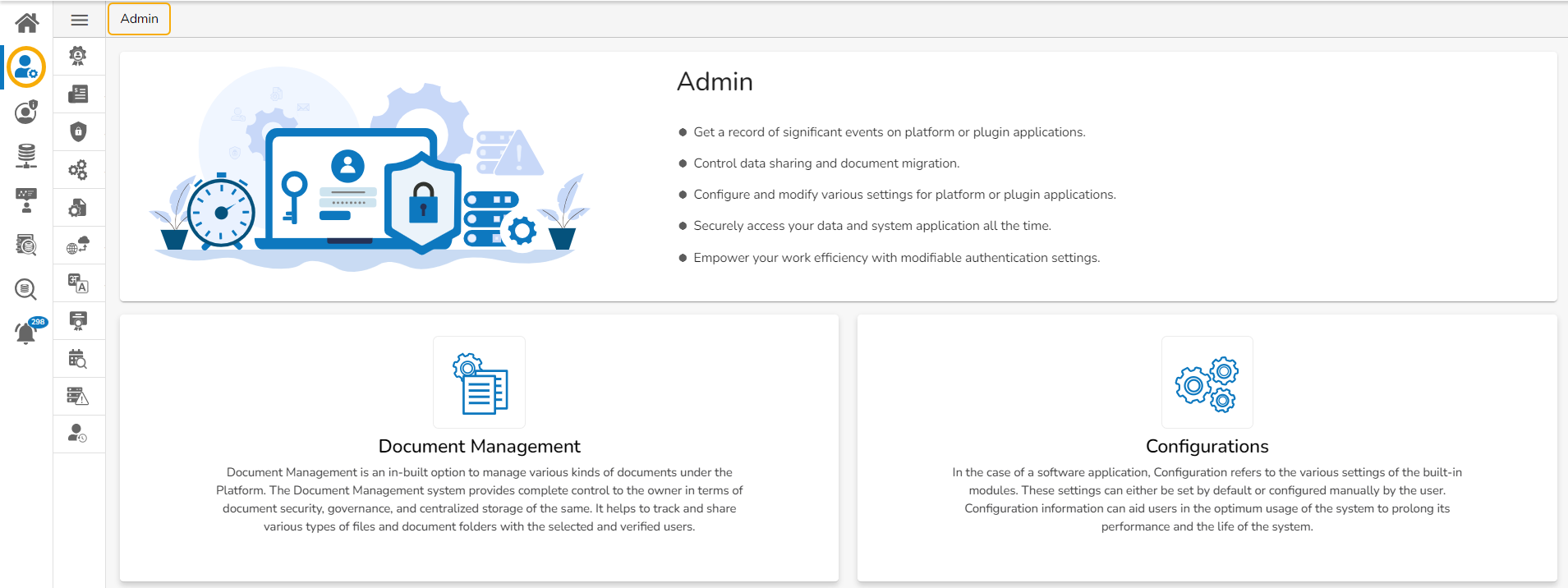
Please Note: The Admin module is accessible to the users from the left side panel and the Apps menu.

The various document folders available on the BDB Platform are explained under this section.
Please be informed that the Story module has been renamed as Report. The steps to access the attributed options to a report and apply them remain the same.
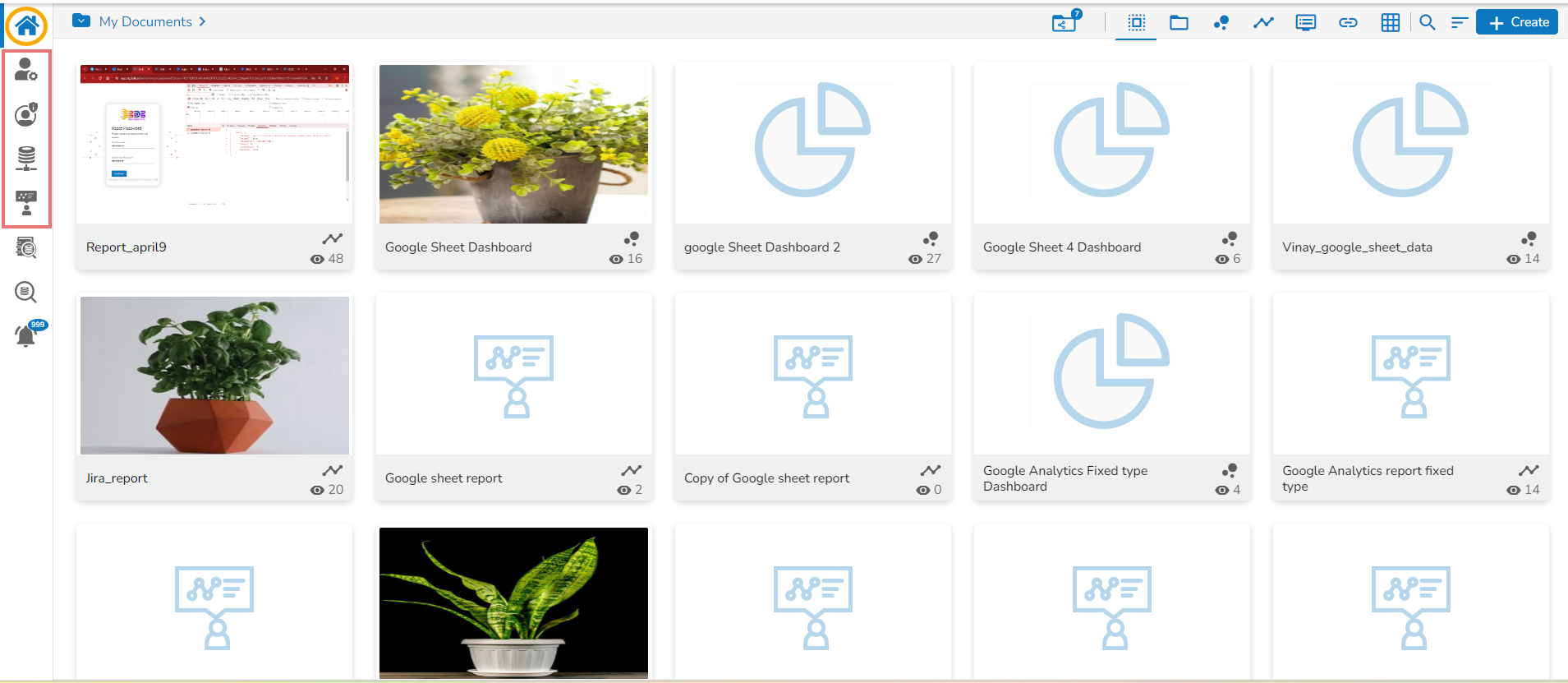
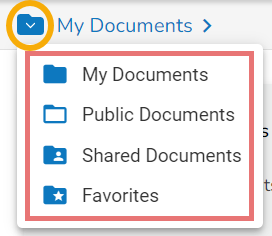
The Home page displays the following documents by clicking on the Folder icon:
My Documents
Public Documents
Shared Documents
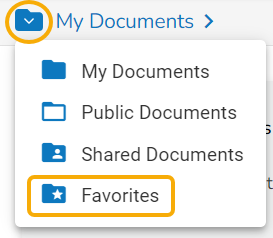
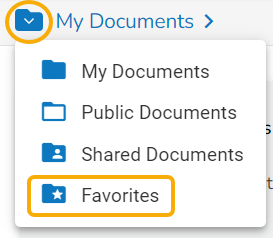
Favorites
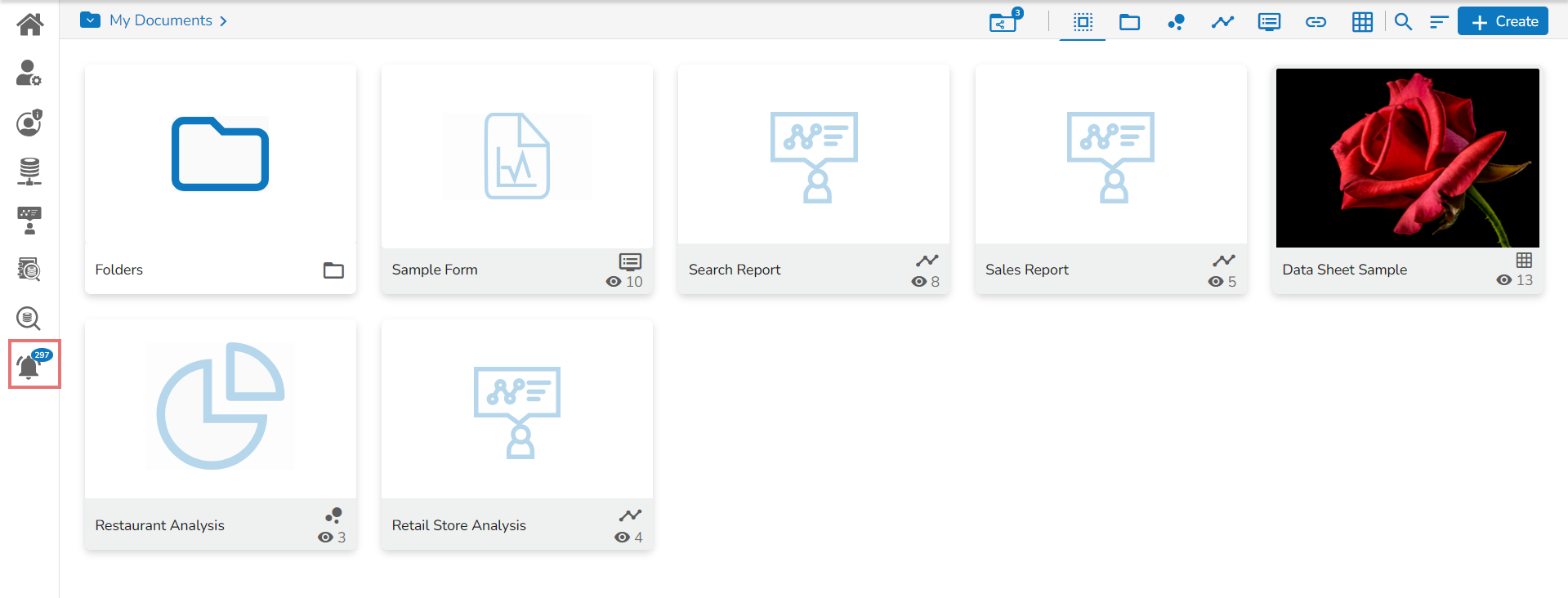
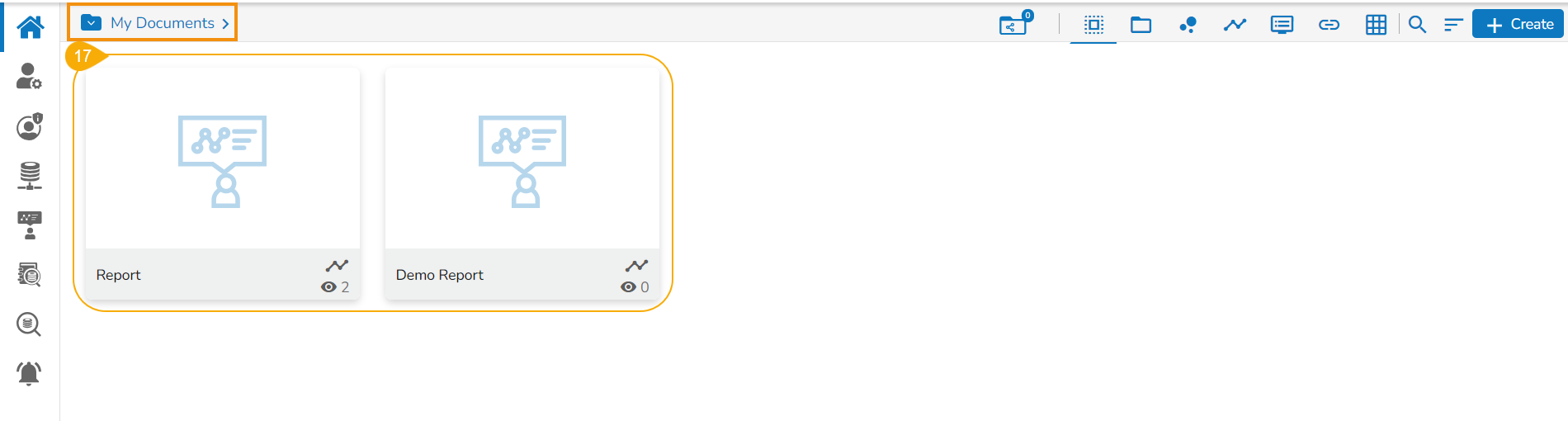
My Documents lists all the documents created by the user or assigned to the user.
The documents are displayed in thumbnail format.
The default screen for a Platform user displays the given notification message until they create their first document.
The Public Documents folder is available to all users.
Users can view documents shared by others.
The users also get the Create option to create various documents inside the Public Documents space. Those documents will be available publicly to the other users by default.
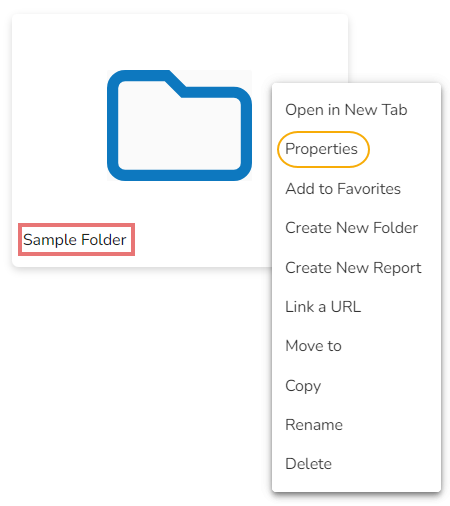
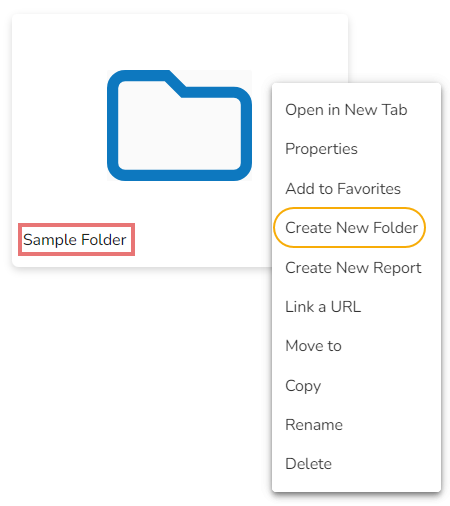
The documents and folders shared under the Public Documents space also get some modification options. Mostly the following options are provided to the folders available under the Public Documents folder:
Open in New Tab
Properties
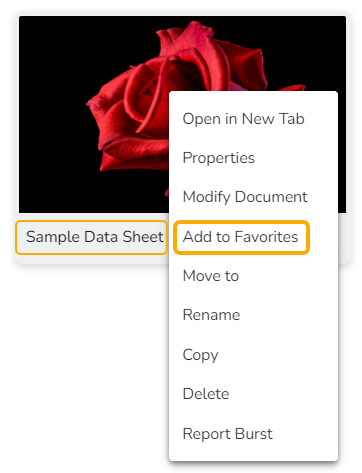
Add to Favorites
Create New Folder
The following image displays documents created under the Public Documents folder with the shared documents inside the Public Documents folder to display the difference between the credited options.
The following image displays a list of the attributed options provided for a created folder and shared folder under the Public Documents.
The documents shared by other users to you can be part of the Shared Documents.
The users receive a view-only copy of the documents shared using the Share With option.
The documents shared via the Copy To option contain all the edit permissions for the users.
The documents marked as a favorite by a user are saved under the Favorites document folder.
The documents in frequent use by the users are a part of the Favorites document folder.
Users can remove a document from Favorites (if desired).
Create New Story
Link a URL
Rename
For example, the following image displays some shared documents under the Shared Documents.
Use the right-click on both documents to get the credited operations.
You can see here that the stories shared using the Copy To option have all the document options to modify.
The stories shared using the Share with option do not display any documentation modification option.
The following notification will appear while accessing the Shared Documents if the Shared Documents folder does not contain any shared document.
The documents added to the Favorites don't get any permission to modify them.
The user can open the document added to the Favorites into a new tab.


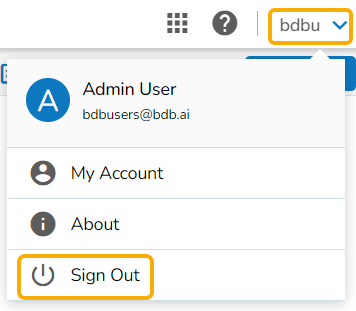
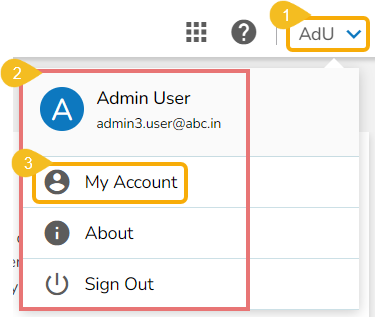
The administrator can edit basic information, set preferences, change the password, set API token access, deregister the mobile device, navigate to the default Platform page, and sign off from the BDB Platform by using the User Profile icon provided on the Platform homepage.
Navigate to the Platform homepage.
Click the User Profile option.
Displays the following options:
My Account: Displays account details of the logged-in user.
About: Displays a welcome page of the BDB Platform.
Sign Out: Allows to sign out from the Platform.
This section covers three options to manage settings for a user account.
Click the User Profile icon from the Platform homepage.
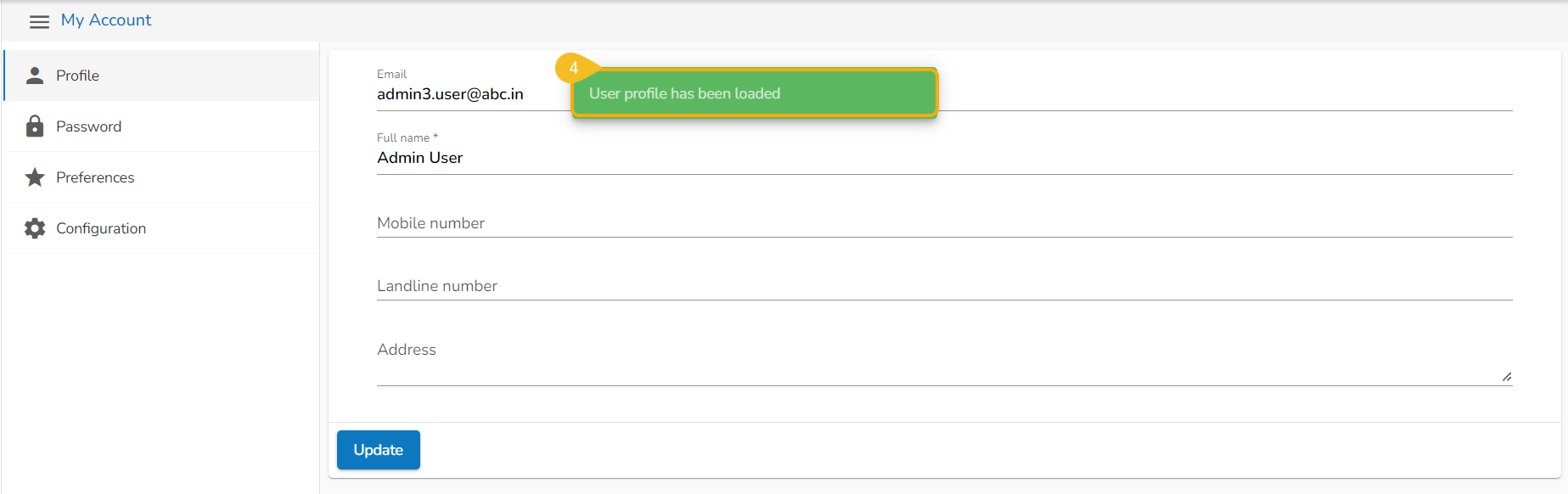
The existing user profile will be loaded by default.
Click the My Account option.
A notification message appears, and the user profile gets loaded.
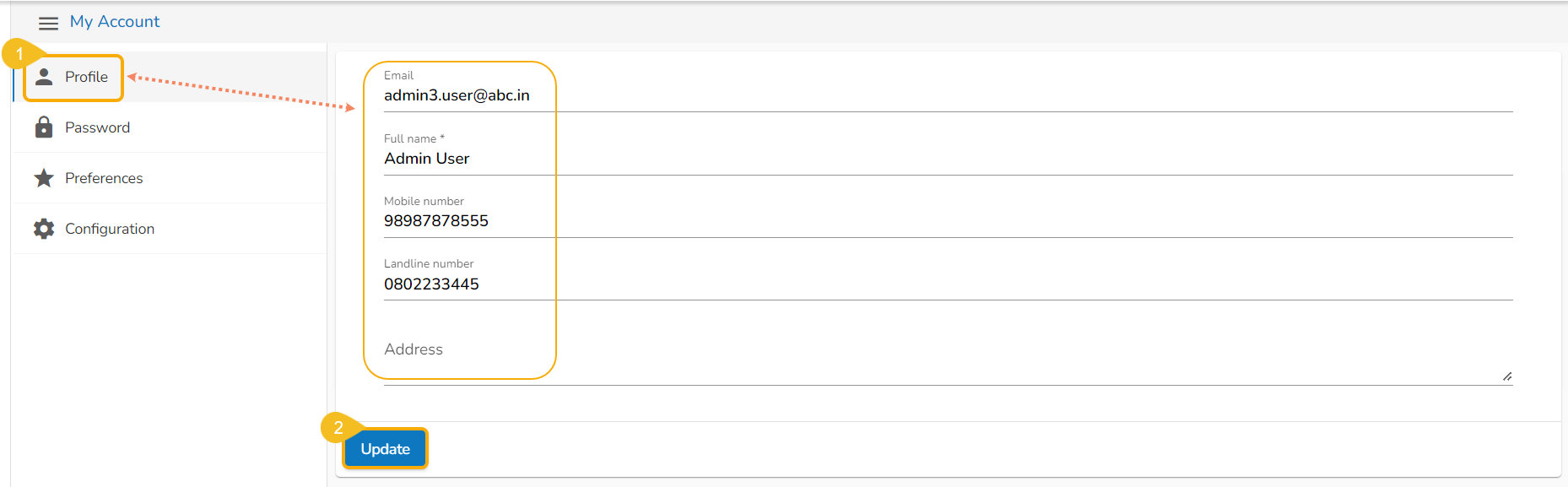
The Profile tab displays personal information about the logged-in user.
The Profile tab opens by default displaying the following fields:
Email (not editable)
Full Name
Mobile Number
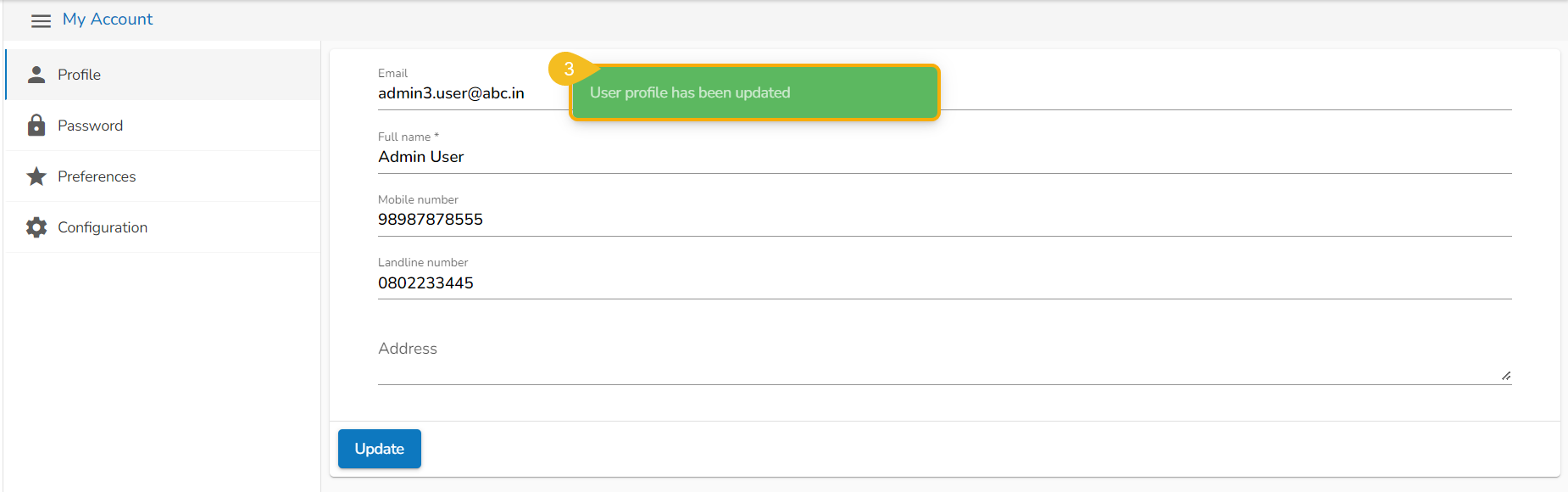
The profile changes get saved, and the same gets communicated through a confirmation message.
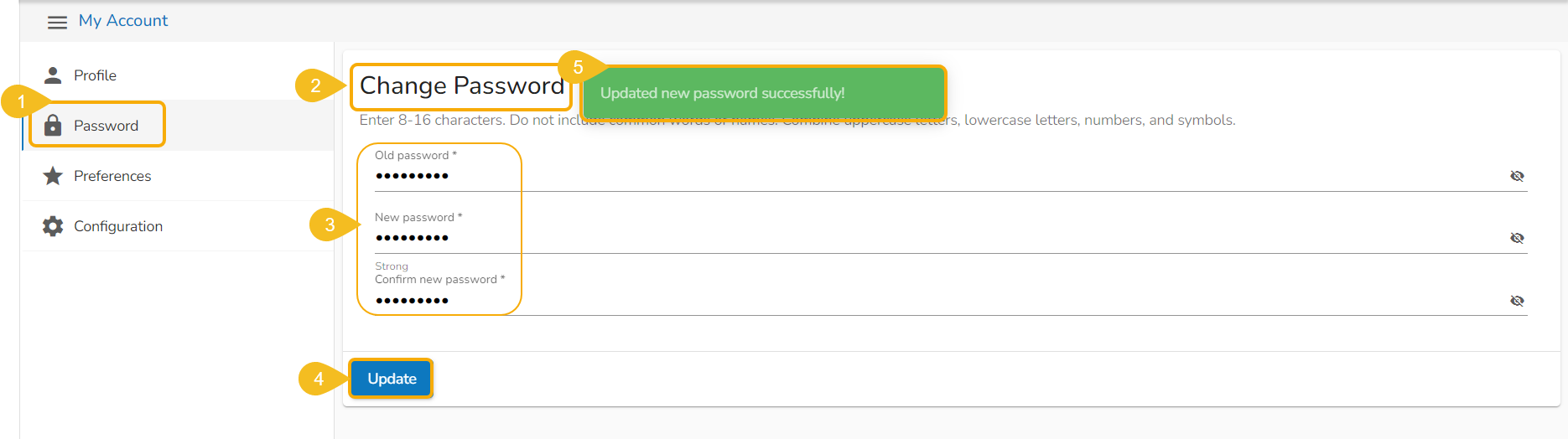
The user can reset the password for his account using this segment.
Click the Password tab using the My Account page.
The Change Password window opens.
Enter the Password, New Password, and Confirm Password (the newly set password).
The Administrator can change the users' preference settings using this module from the left side of the pane.
Follow the below-given steps to change preference settings:
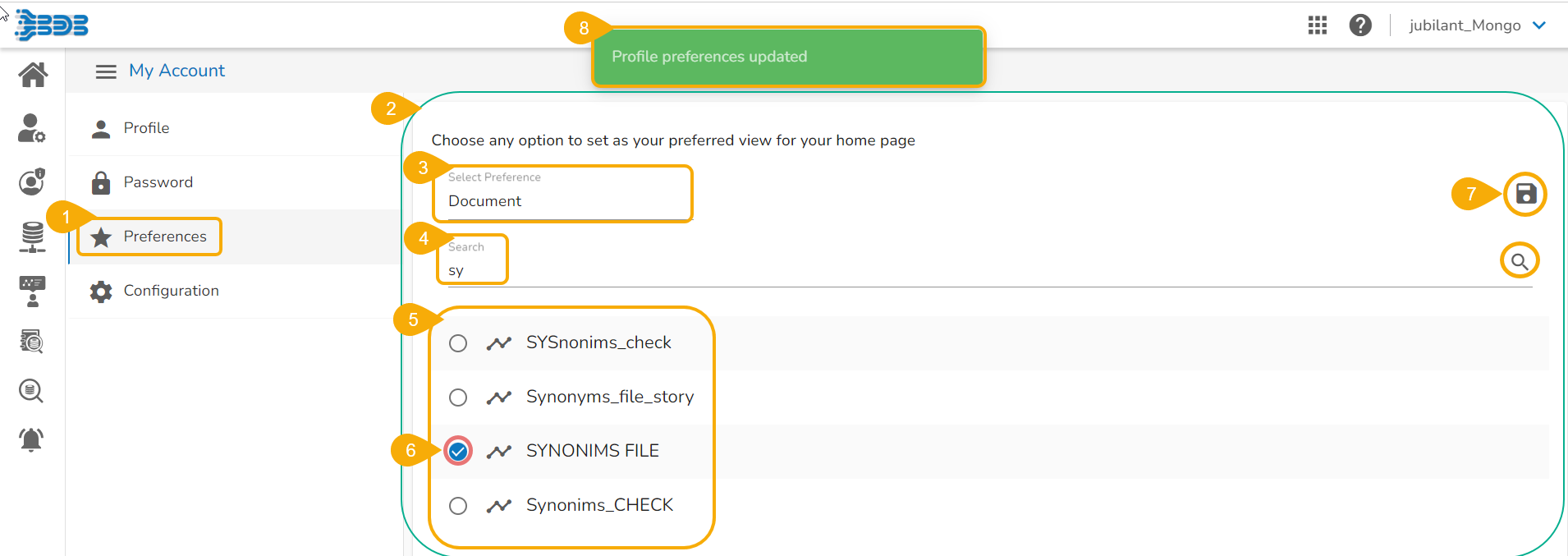
Click the Preferences tab using the My Account menu row.
The right-side panel displays the option to set the preferred view for the user's homepage.
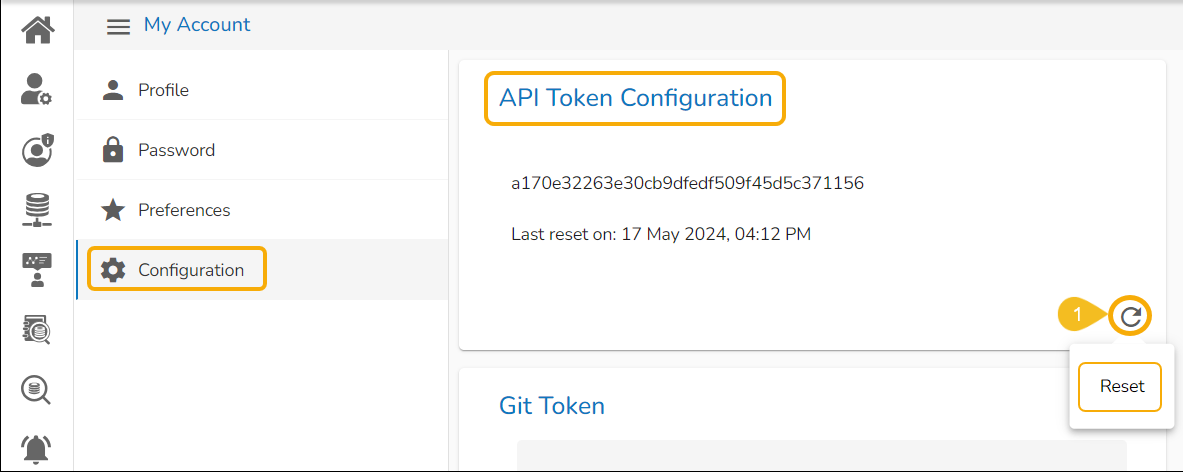
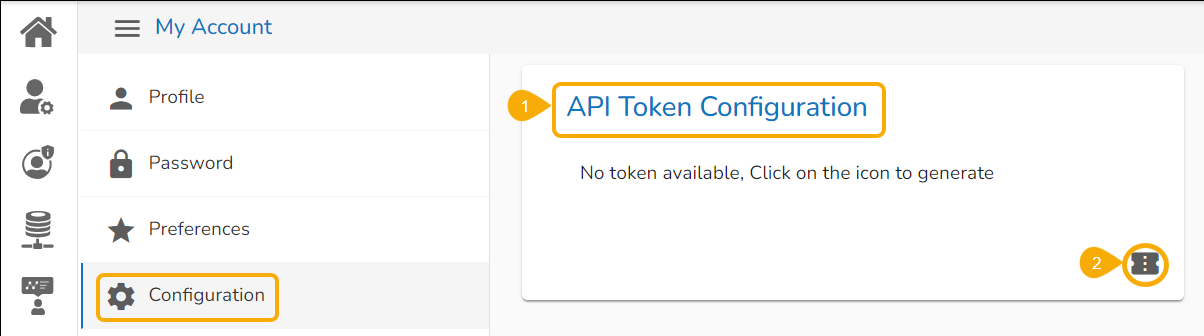
The Configuration tab allows to create or reset the API Token and set the Password Expiry configuration.
The API Token is used to expose the document as an open document.
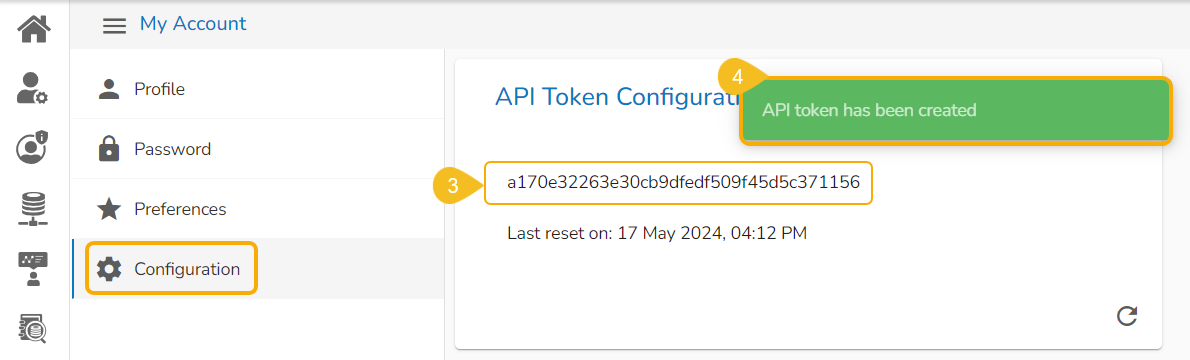
Navigate to the API Token Configuration option using the Configuration tab.
Click the Generate icon to generate an API token.
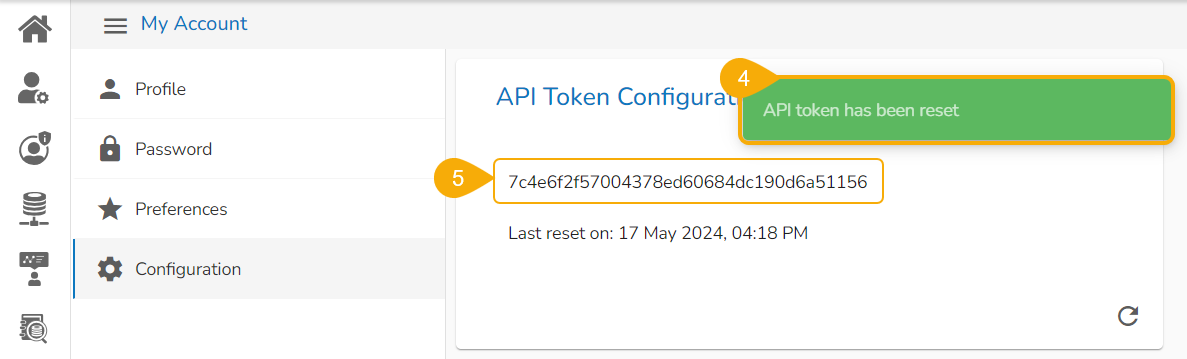
The API token gets generated and displayed below with the mention of the last reset date and time.
A notification message appears to convey the completion of the action.
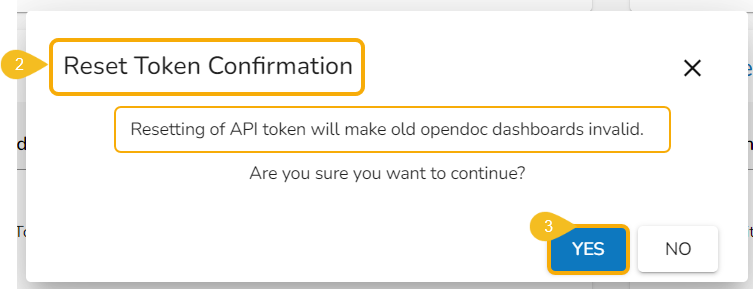
Click the Reset icon from the API Token Configuration window to reset the API Token.
The Reset Token Confirmation window opens with a warning that a reset of the API token using the Reset option will convert the old open doc dashboards as invalid.
Click the YES option from the warning message window to reset the API Token.
A confirmation message appears to inform that the API token has been reset.
The API Token gets reset displaying the recent Date and time under the API Token Configuration window.
The password expiry limit can be configured via this option.
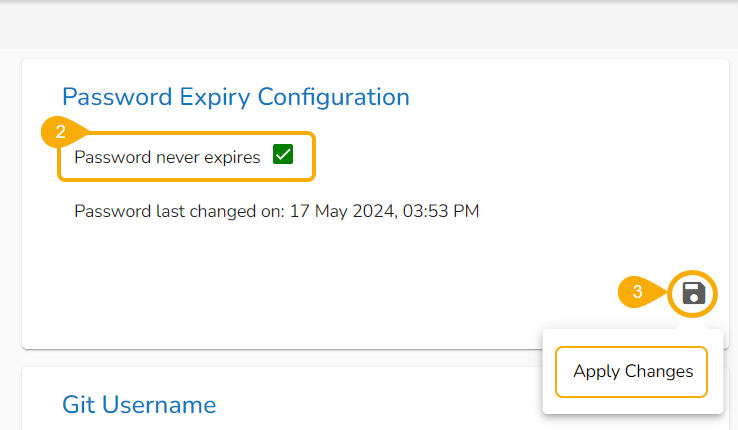
Navigate to the Password Expiry Configuration option using the Configuration tab.
Select the Password Never Expires option by putting a tick mark in the given checkbox.
Click the Apply Changes icon to save the changes.
A notification message appears to confirm the update and the selected configuration gets saved.
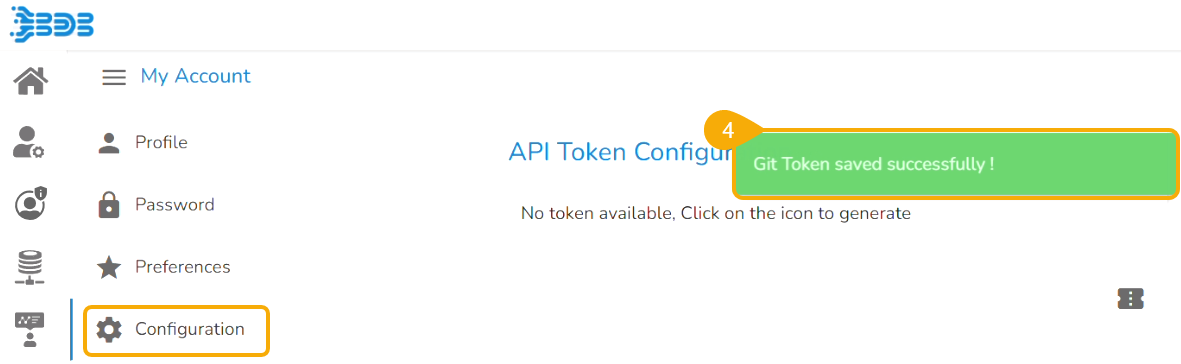
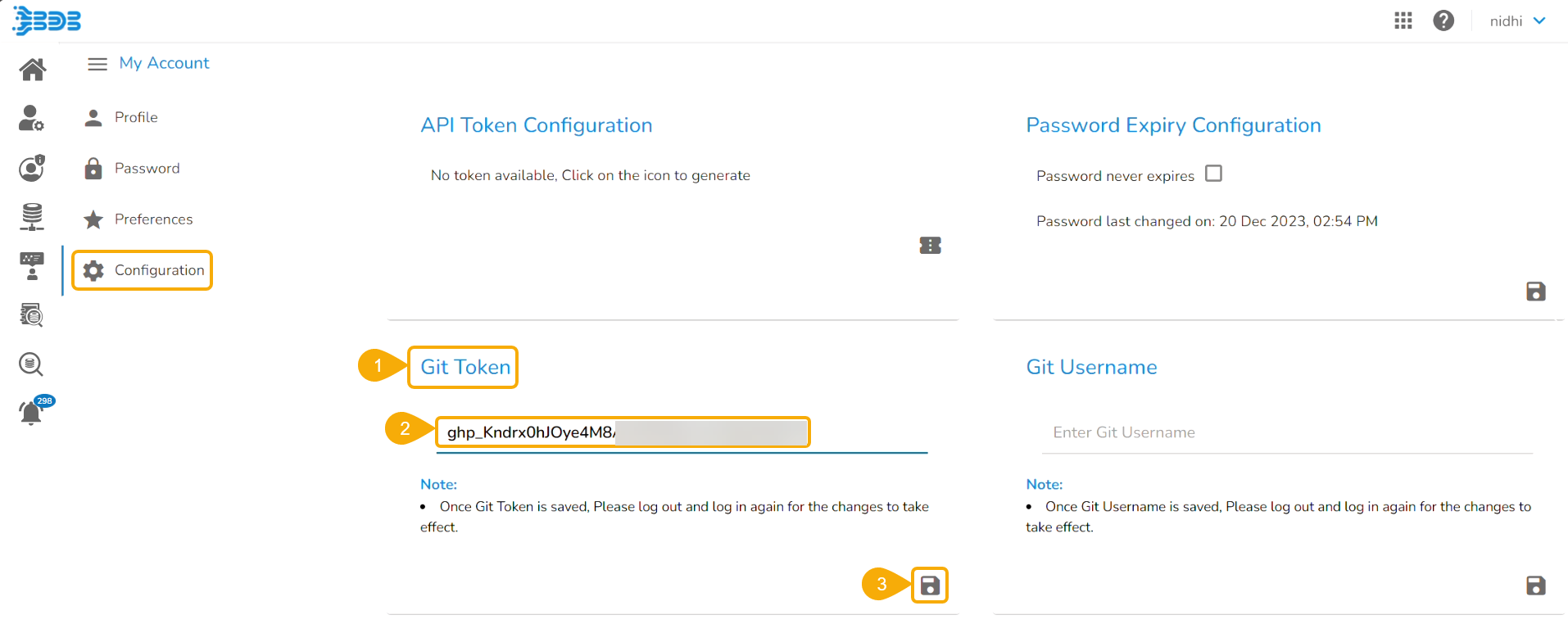
The user can configure Git Token using this option.
Navigate to the Git Token section under the Configuration tab.
Provide the Git Token provided by your deployment team.
Click the Save icon.
A notification message appears to ensure that the Git Token has been saved.
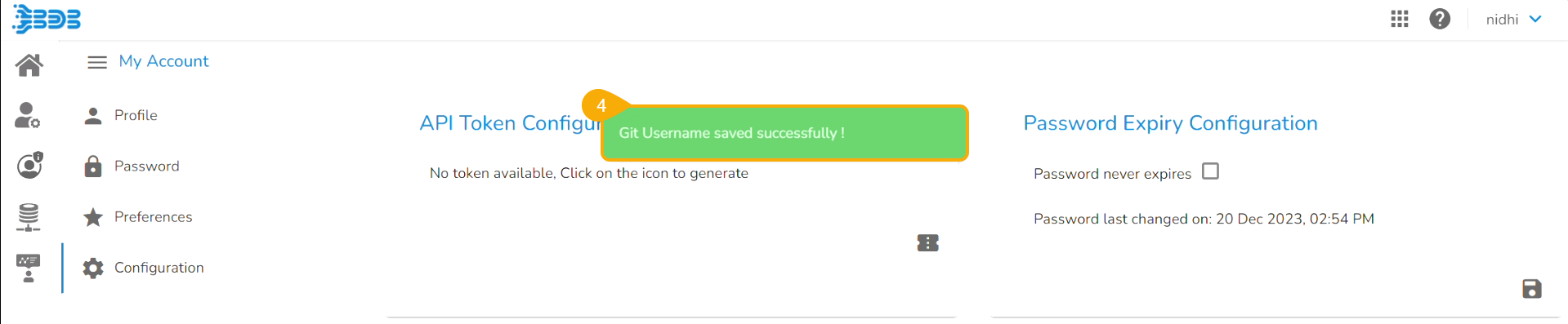
The user can configure Git Token using this option.
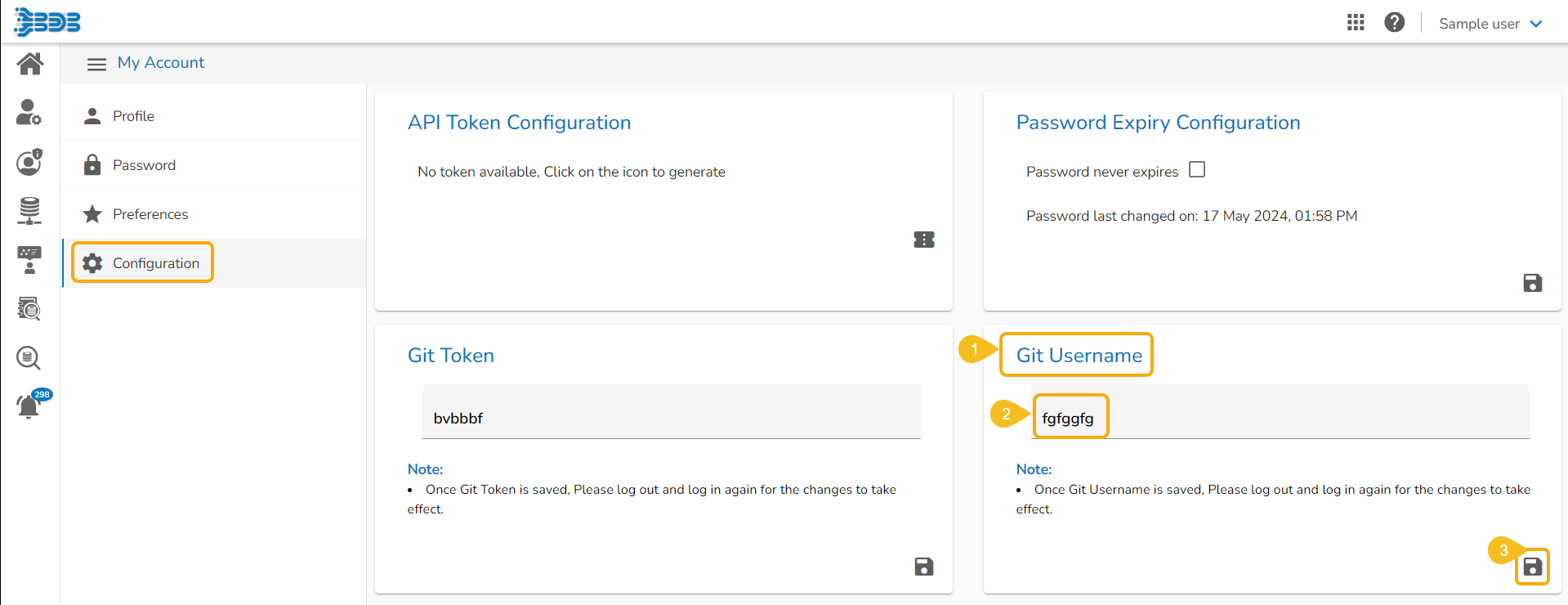
Navigate to the Git Username section under the Configuration tab.
Provide the Git Username.
Click the Save icon.
A notification message appears to ensure that the Git Username has been saved.
Landline Number
Address
The user can modify/change the required details and click the Update option.
A confirmation message appears and the password gets changed for the concerned User Account.
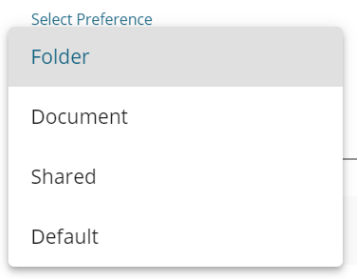
Folder- the user can set any folder as the preferred view for the homepage.
Document- the user can set any document as the preferred view for the homepage.
Shared- the user can set any document from the Shared folder as the preferred view for the homepage.
Default – it opens the My Documents page for the user as the default homepage.
Use the Search space to customize the list (In this case, the list of folders gets customized based on the searched folder).
As per the selected choice, a drop-down menu appears (E.g., The following image displays all the available folders since the Folder option is selected from the Select Preference drop-down).
Select a specific folder/document from the below-displayed choices using a tick mark in the radio button.
Click the Save option.
A pop-up confirmation message appears to ensure that the preferences have been updated.

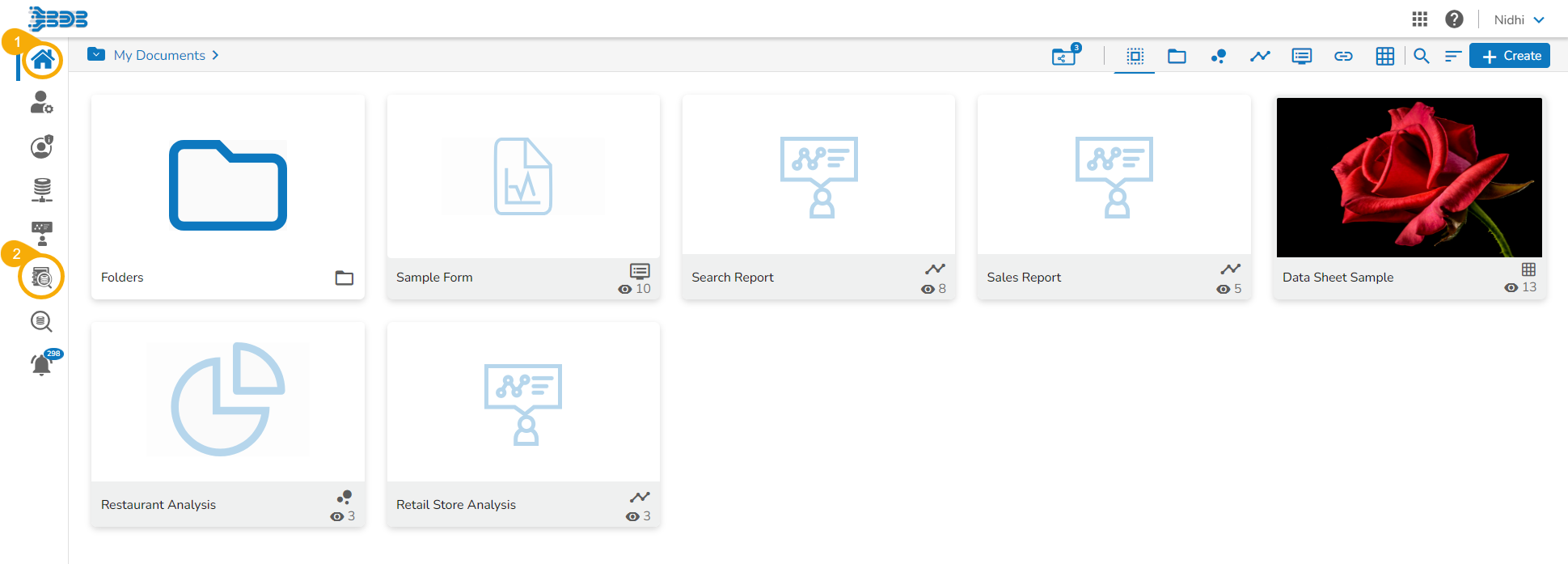
The Platform Homepage displays icons of the Admin, Security, Data Center, and Report modules on the homepage to make them easily available for the user.
The user can click on a module icon from the left menu panel to get redirected to that module. E.g., In the below-given image by clicking the Admin icon, the user is redirected to the Admin module's homepage.
The user can also access these modules (Admin, Security, Data Center, and Report) with the Home module icon under the Apps menu.
The Header menu panel contains Apps and Help icons to allow user access of more platform modules and related help links. It has User Profile to help with the user level configuration.
The platform homepage appears as a default screen after successful login. This section contains explanatory content for the various Platform modules.
This section explains how to filter the documents using the filter panel provided on the platform homepage.
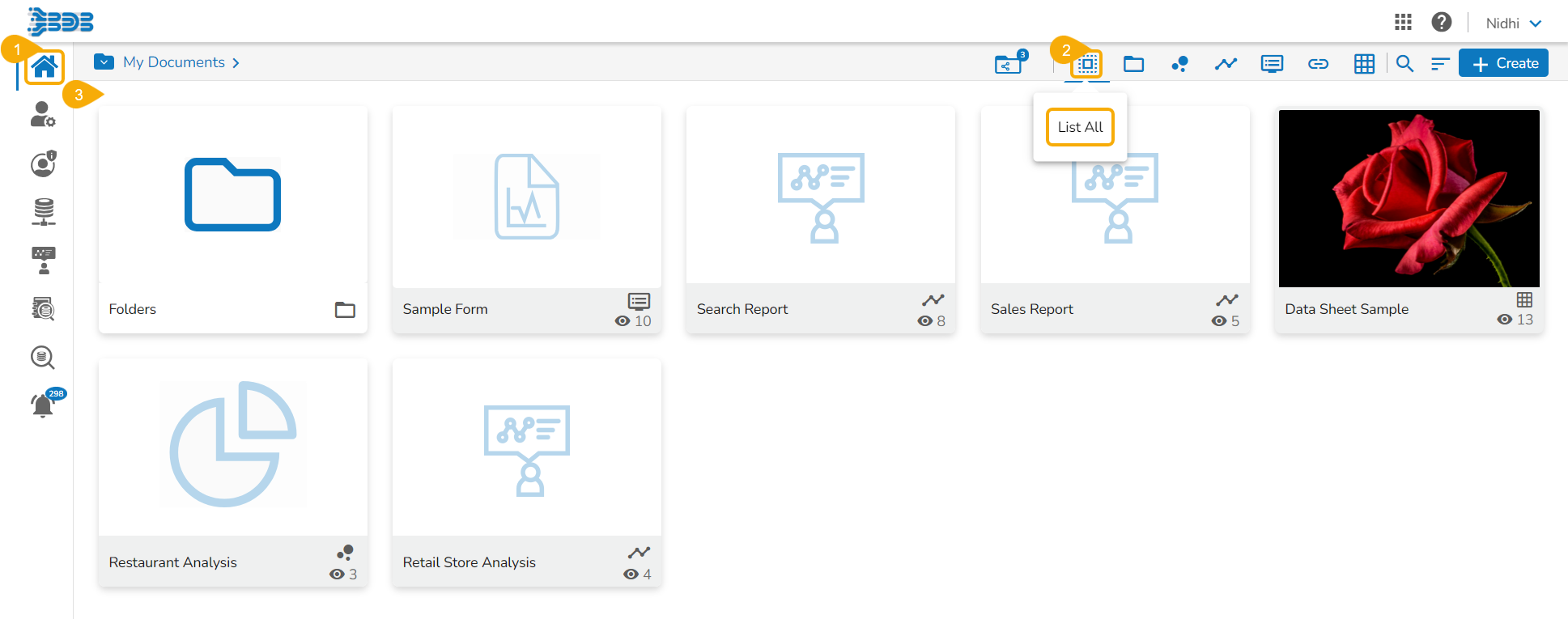
The Filter functionality helps to filter the available platform documents by the selected category.
Navigate to the platform Homepage.
The List All option is the default filter option for the platform documents.
As a result, all the available documents stored under the My Documents folder get listed (by default).
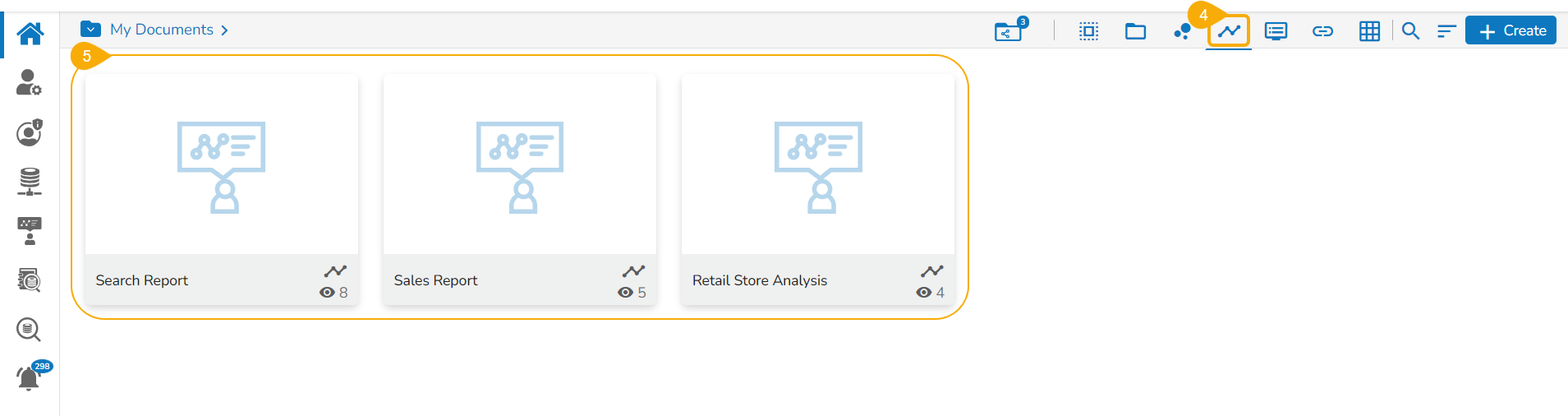
Select a Document Category. E.g., the Report category has been selected in the given image.
The homepage displays only the documents/ folders based on the selected category. For example, the following image shows only available Reports since the Report option is selected as a filtering category.

Data Search enables the user to create their data stories based on the textual and voice based search option.
The Data Search feature facilitates the user to search specific data queries across the Data Stores using text or voice. The user can drill into any granularity of the data using this interactive Data Search option.
Check out the given illustration to understand the Data Search functionality.
Navigate to the Platform homepage.
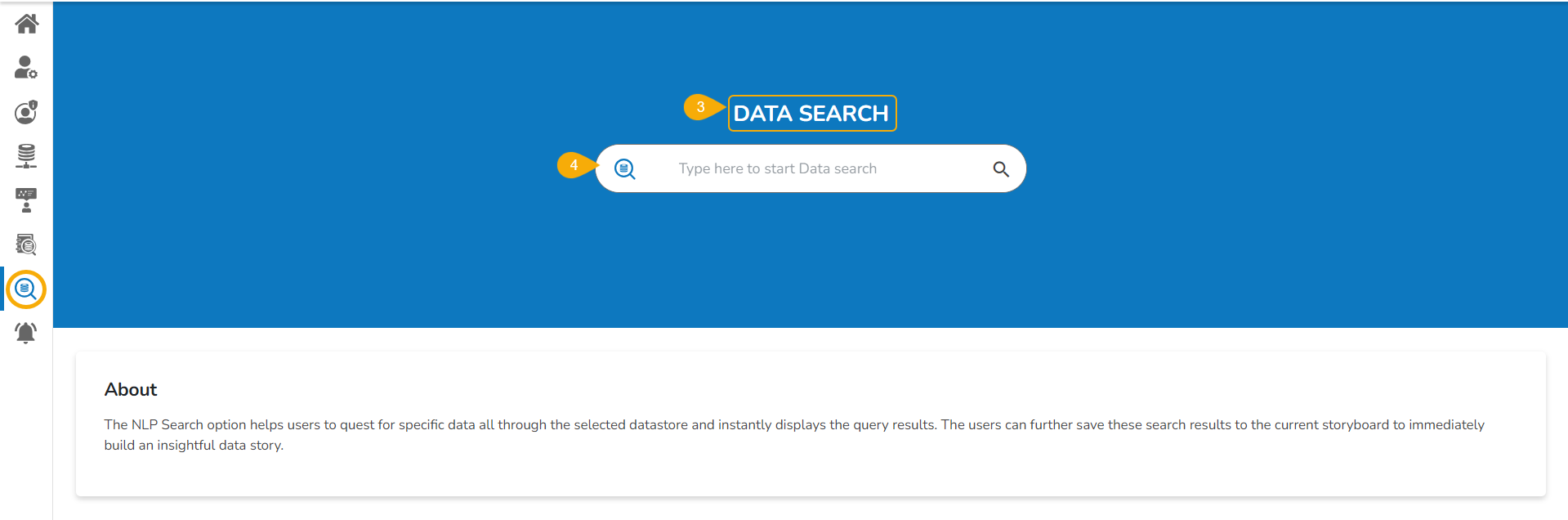
Click the Data Search icon provided on the left side panel.
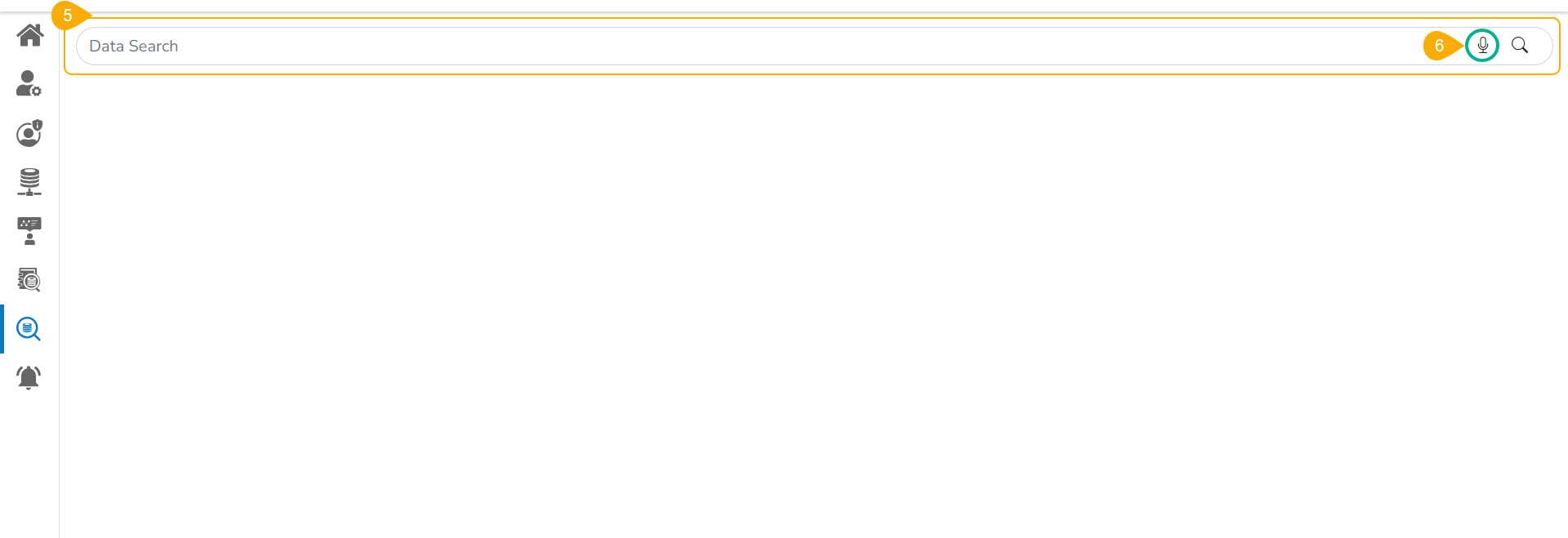
The DATA SEARCH page opens.
The user can use the given space to begin their data search.
The user gets redirected to the following page by clicking the Search space.
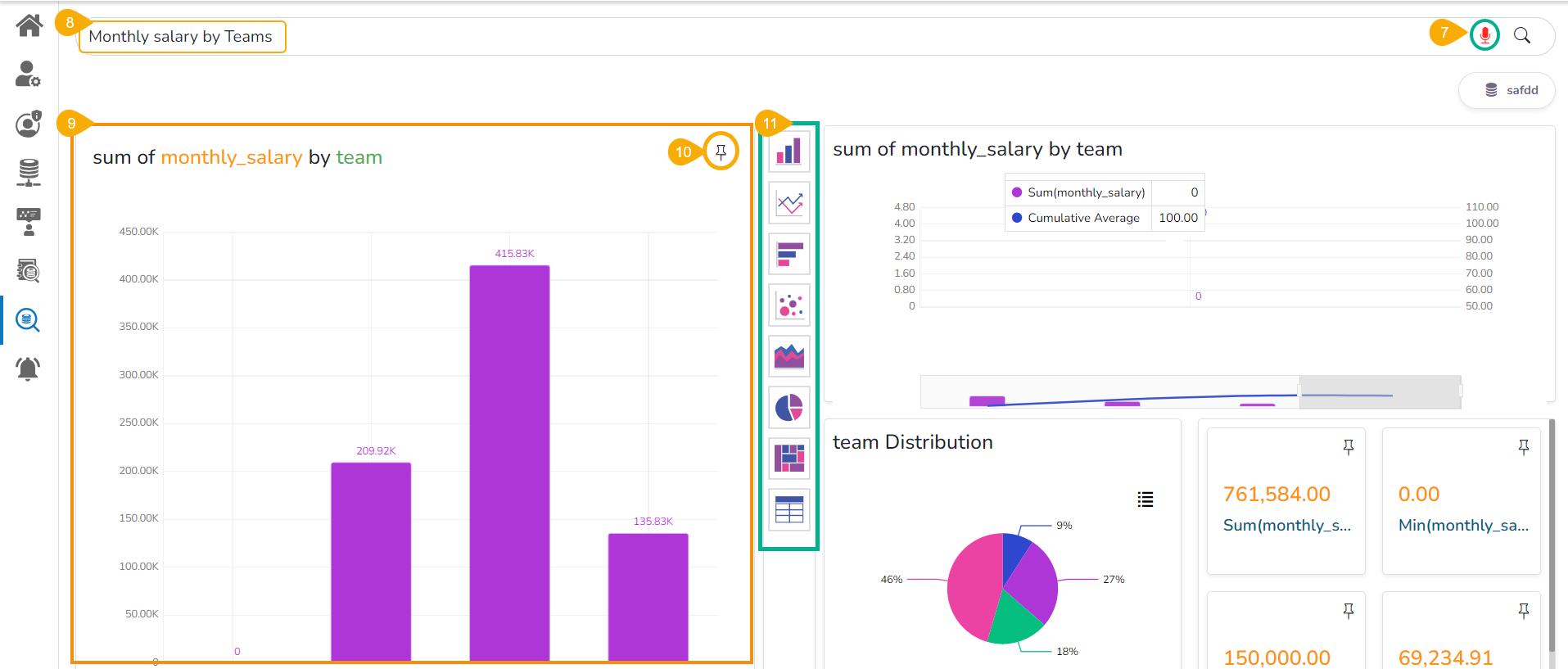
Click the microphone icon to use the voice search.
By clicking the microphone the icon turns red and keeps blinking till you enter your voice search.
As soon as your search query gets entered either through text or voice.
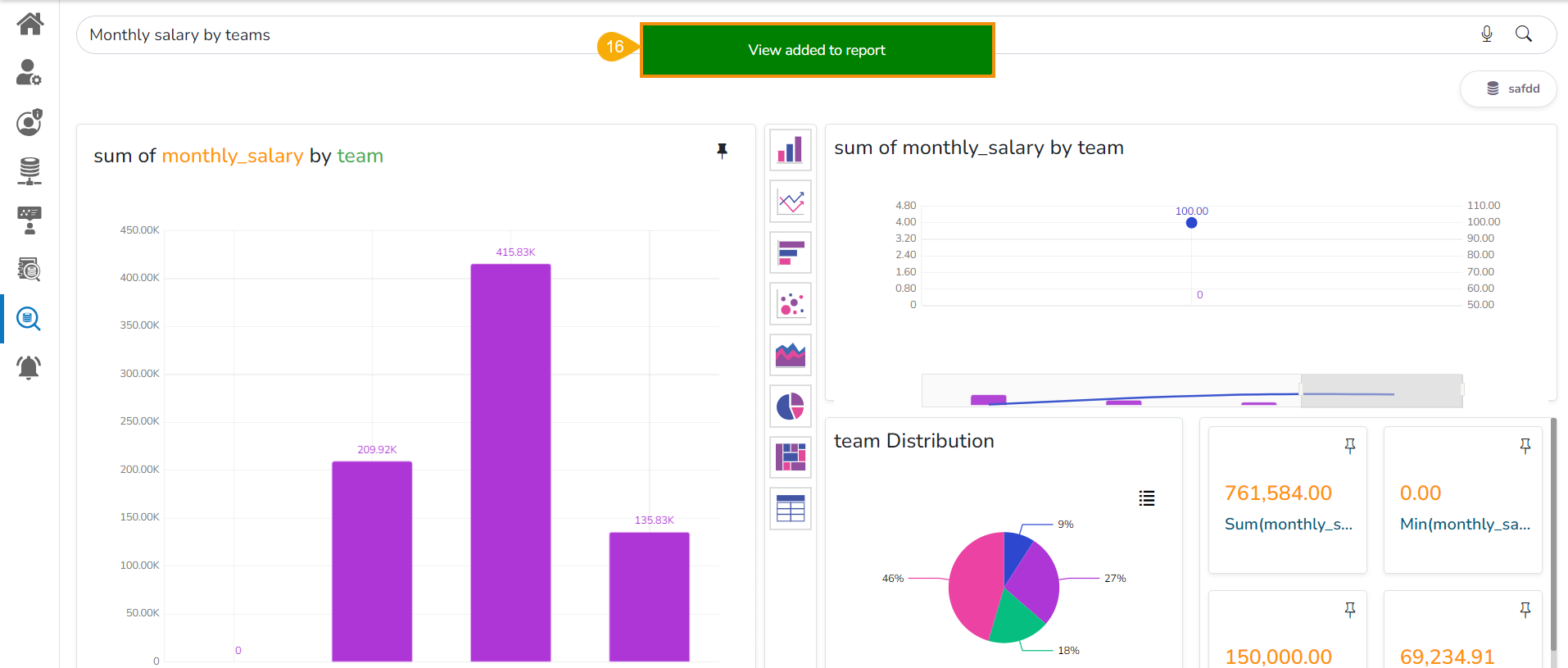
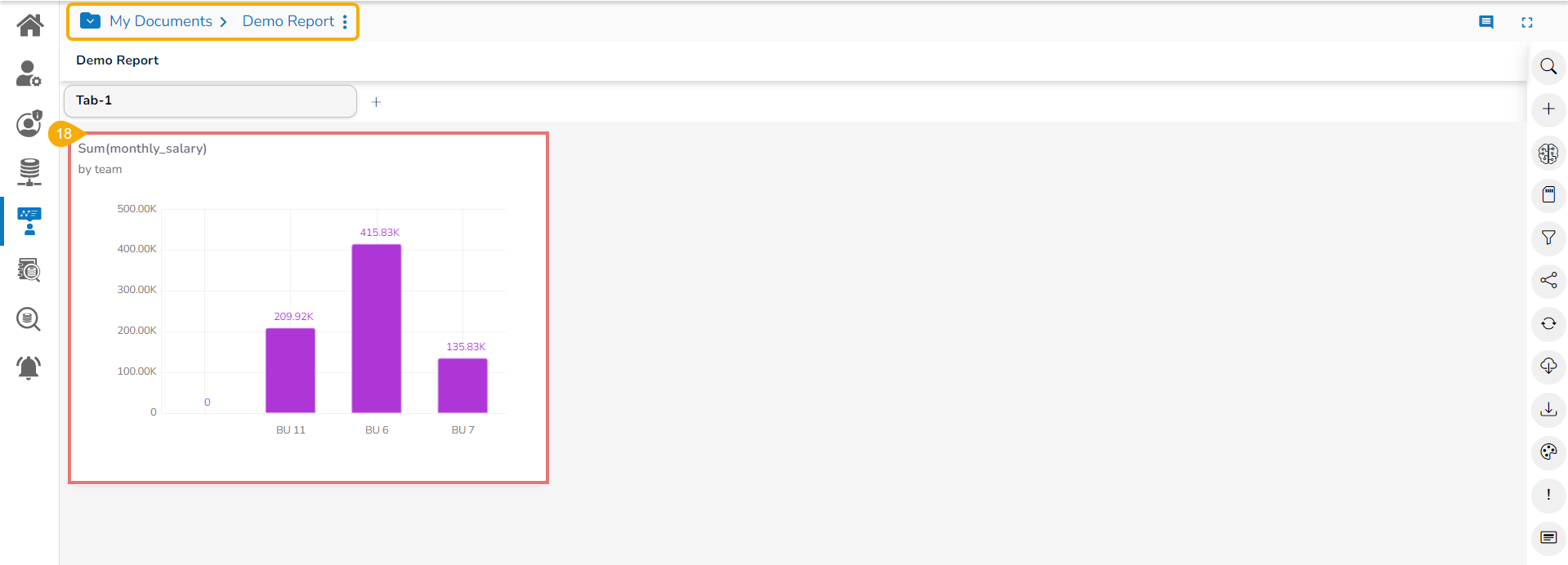
The searched data query result appears below on the screen. E.g., the given image displays the Sum of the monthly salary.
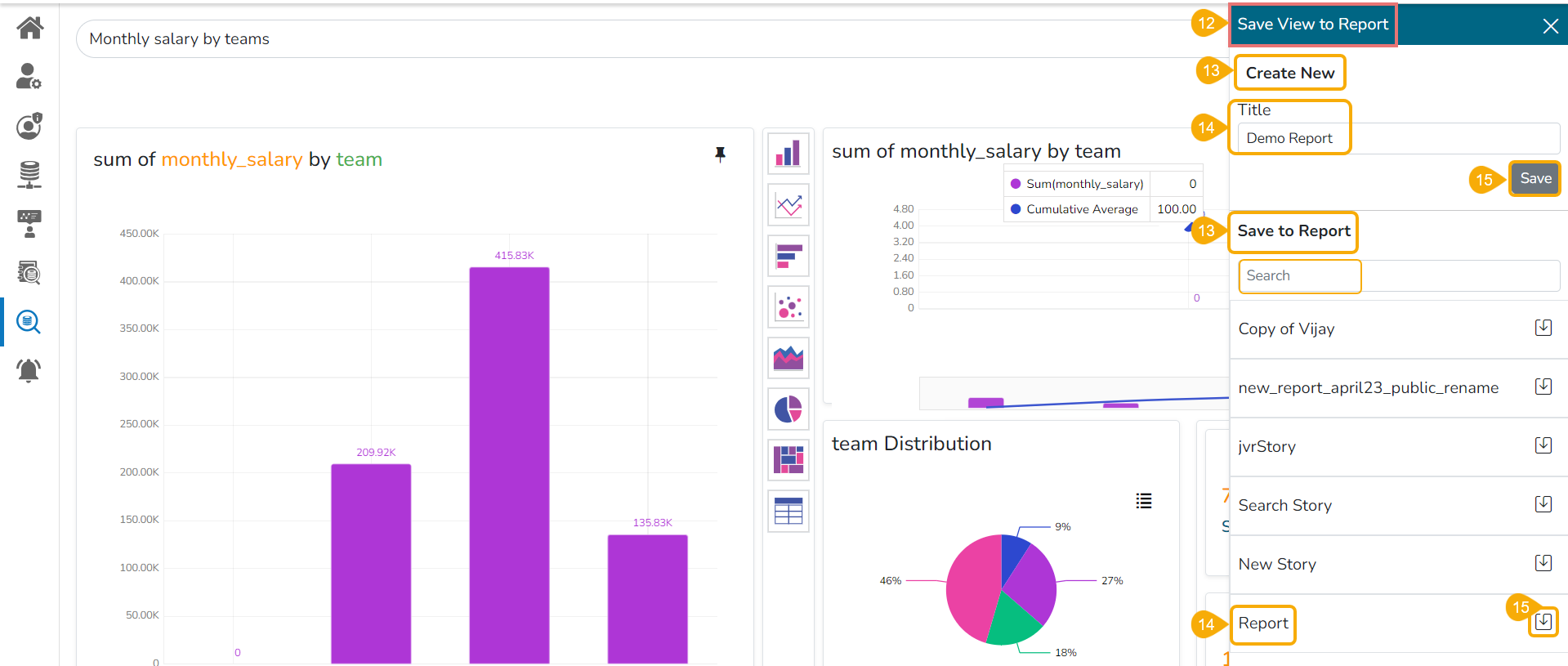
By clicking the Pin icon the Save View to Report drawer opens on the right side of the screen.
Either Create a New Report to save the search result View.
Provide a Title for a new Report.
A notification message informs the user that the searched View has been added to the Report.
Navigate to the concerned Reports. The Reports will be available under the My Documents.
The searched View can be seen added to the Report.
The user can visualize the same data using other charting options provided in the chart menu.
Click the Save option.
Or select an existing Report to save the search result View.
Select an existing Report from the list.
Click the Save to Report icon.
This page redirects the user to access the various help modules related to the Platform.
The users can access the various options under the Help menu on the Platform homepage.
Navigate to the Platform homepage.
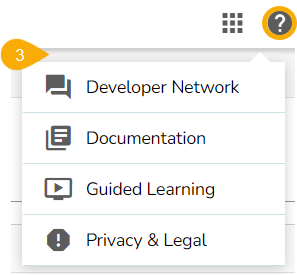
Click the Help icon from the header panel.
A context menu opens with the following options:
Developer Network
Documentation
Guided Learning
The user gets directed to the option based on the selection from the Help context menu.
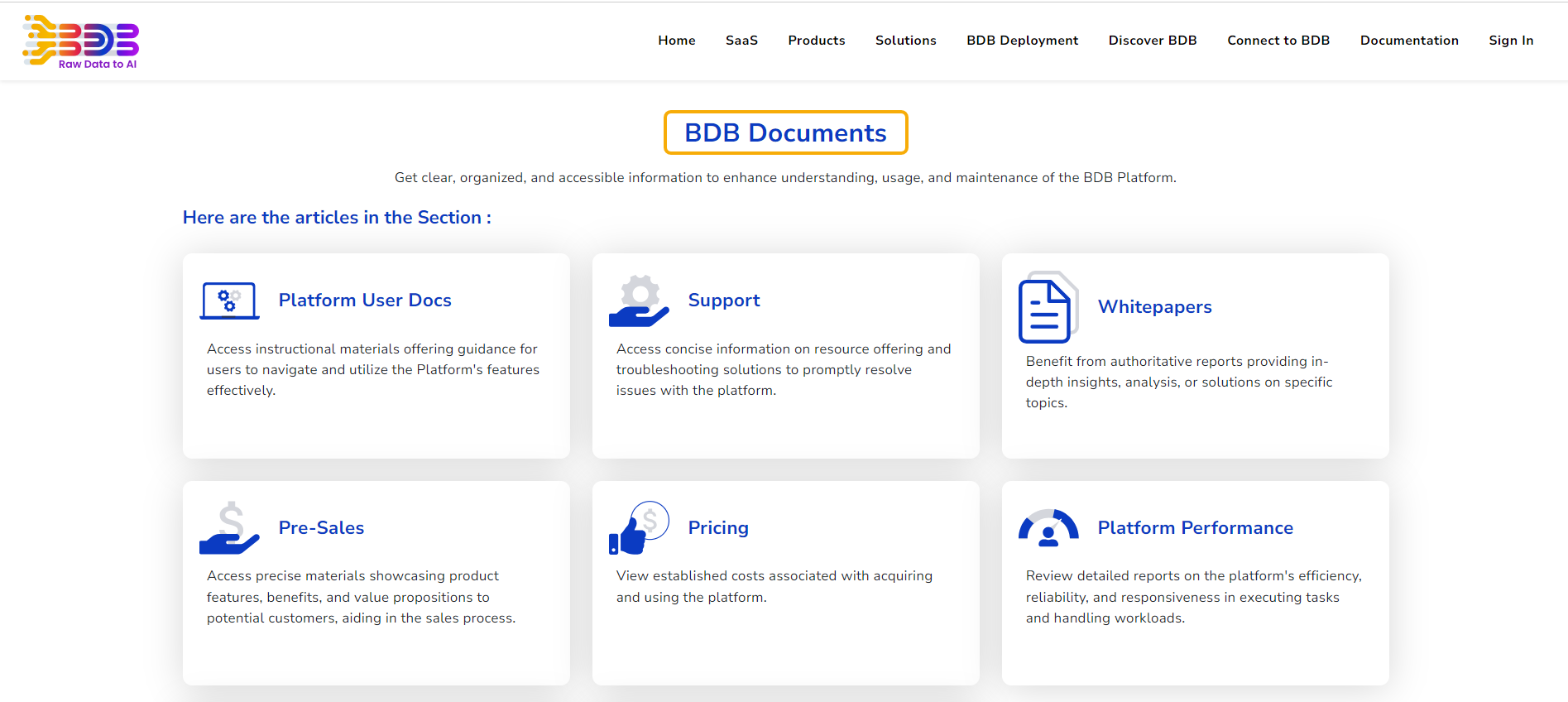
E.g., by selecting the Documentation option the user gets directed to the page from where the latest Platform related documents can be accessed.
E.g., by selecting the Guided Learning option the user gets directed to the page where you can see the latest videos.

Users get the Create a Folder, Link a URL, and Create a Report under the My Documents or Public Documents space. All the folders and documents that a user creates under the My Documents space of the Platform are provided with some attributive options.
Navigate to the My Document or Public Document space.
Access these document creation options either by clicking the Create option or using a right-click on the blank space under the My Documents or Public Documents.
Please refer to the following document-specific explanation of the attributed Options to understand them in detail:

Pre-requisites: Configuring the Form Settings option from the Admin module is required before accessing the Forms module for Form creation.
The users can publish the forms they created by them to the BDB Platform. The published forms can be accessed on the BDB Platform homepage under the My Documents section.
Click the Publish icon from the header panel of the selected Form.
Or
Click the Publish option using the Form Options menu.
A pop-up window opens to confirm the action.
Click the Yes option to publish the form.
A success message appears to confirm the action of the publish.
The published form appears under My Documents place of the same Platform account.
Each published Form is credited with some operations on the BDB Platform. Use right-click to access the available Form operations in a context menu.
Select the Open in New Tab option using the Context menu.
The form opens in the new tab.
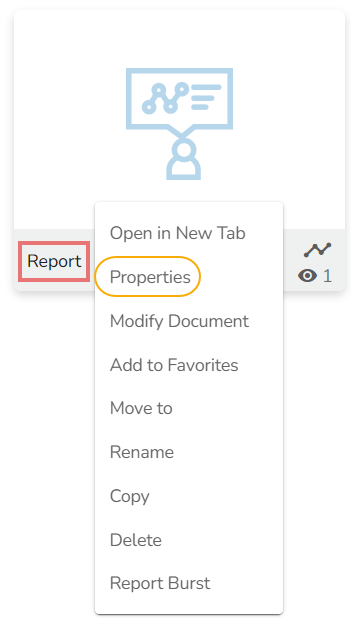
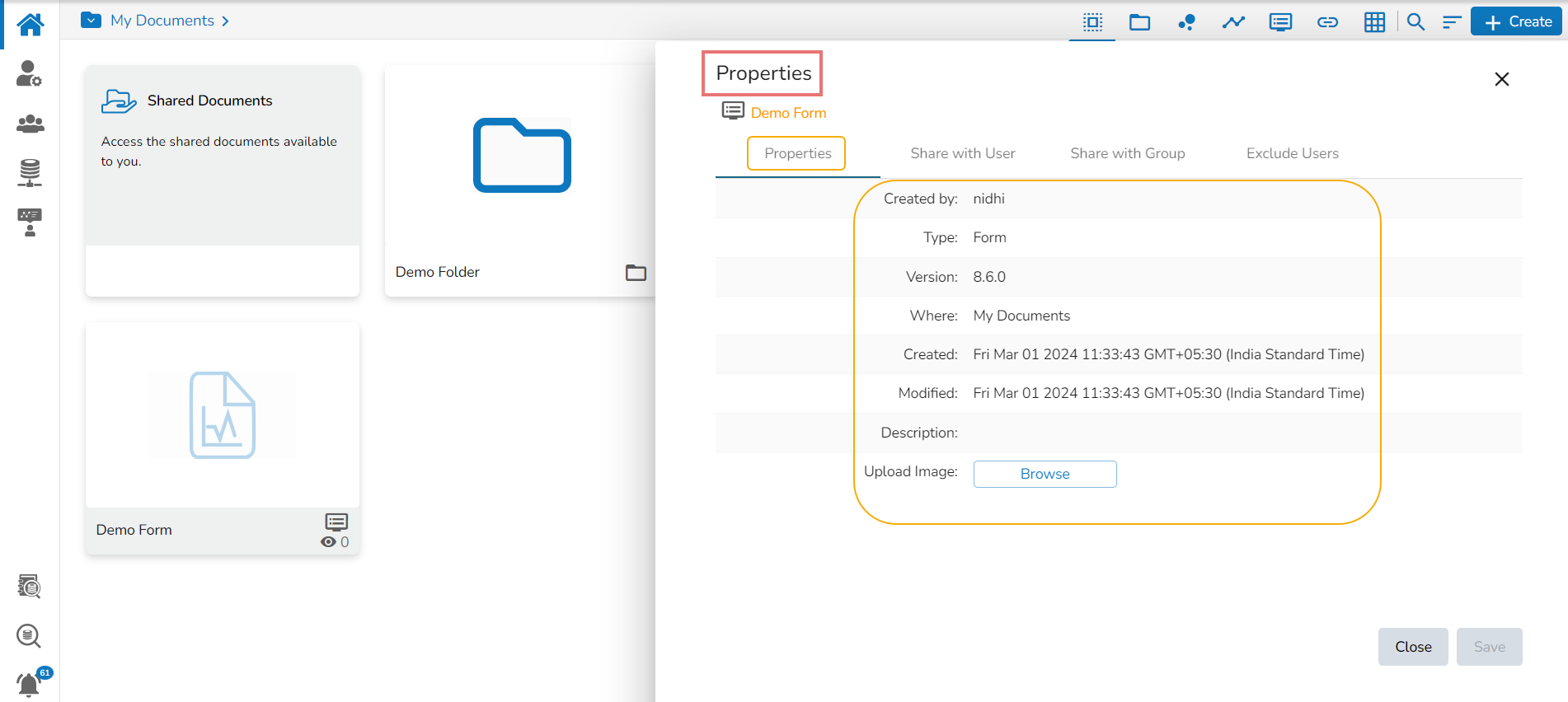
Select the Properties option from the context menu.
The Properties window appears with four options:
Properties: Displays basic details about the Form creation.
Click the Browse option to upload an image.
Click the Save option to save the update.
A message appears to assure about the update.
The Form will be shared with the selected User using the Share with User option.
Select the Share with User option using the Properties window.
Search for the specific user(s) using the Search bar.
Select a user or multiple users using the checkbox(es).
Share with Group
The Form gets shared with the selected User Group by selecting the Share with Group option.
Select the Share with Group option using the Properties window.
Search for the specific user group(s) using the Search bar.
Select one or multiple user groups using the checkbox(es).
A success message appears stating that the document privilege has been updated.
The Form gets shared with the selected user group(s).
The Selected User gets excluded from the rights to access the Form
Select the Exclude User option using the Properties window.
Search for the specific user(s) using the search bar.
Select a user or multiple users using the checkbox(es).
The user can modify the Form name and description using the Modify Document option.
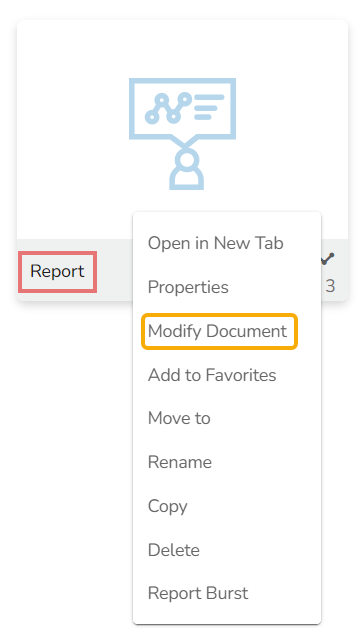
Select the Modify Document option using the context menu.
The Modify Forms window opens for the selected form.
Modify the required information:
The selected information gets modified, and a message appears to ensure the same.
Select the Add to Favorite option from the context menu.
A message appears to ensure the success of the action.
Open the Favorites section.
The selected form will be added to the Favorites.
Open the context menu option for the same form to get the Remove from Favorites option.
OR
Use the right-click on the form that has been added to the Favorites.
Click the Remove from Favorites option that appears.
The form gets removed from the Favorites, and a notification message ensures the same.
Administrators can move a Form from one folder or document space (E.g. My Documents) to another folder or document space.
Select a form.
Select the Move to option from the operation context menu.
The Move To window appears displaying the available folders.
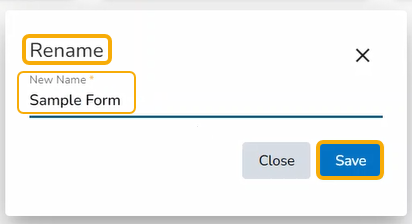
Select the Rename option from the context menu.
A new window opens prompting to rename the form.
Provide a New Name for the selected form.
Click the Save option.
A notification message appears and the selected form gets renamed.
Select the Copy option from the context menu.
Use the right-click on another folder or on the blank space to get the Paste option.
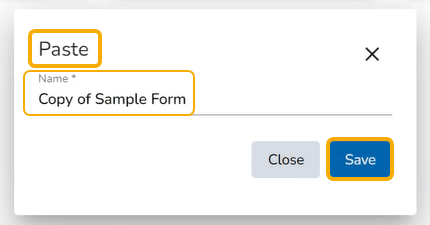
Click the Paste option.
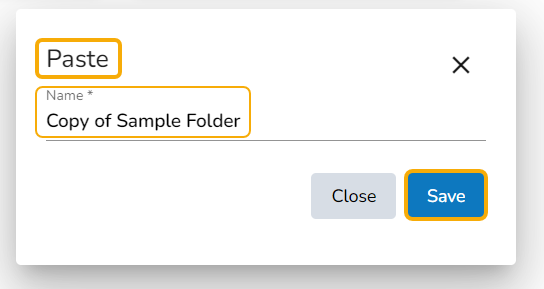
The Paste window displays the selected form name with the 'Copy of-' prefix. E.g., A form named Sample Form gets a new name,
The form gets copied to the selected space with the new name.
Select the Delete option from the context menu.
The Delete window opens to confirm the action.
Click the Delete option to delete the selected form.
The selected form gets deleted.
The image gets updated to the Form.
A success message appears stating that the document privilege has been updated.
The Form will be shared with the selected user(s) and added to the Shared Documents folder.
A success message appears, and the document privilege gets updated to exclude the selected users.
The Form permission will be excluded for the selected user/users.
Description of the Form
Click the Save option.
Click the Move icon.
The users get redirected to the next screen showing the selected folder name at the top.
Click the Save option.
A notification message appears.
The form gets moved to the selected space.
Click the Save option.


Pre-requisites: The user should have permission to access the module and the Dashboard must be published to a user account to get the options context menu for it.
The user can publish various analytics dashboards to the BDB Platform homepage via the Publish to Portal option provided in the Dashboard Designer plugin.
The user needs to navigate to the dashboard list provided in a workspace.
Access the Publish to Portal icon from the list of Dashboards.
The user gets redirected to the Publish wizard to choose a user or group or exclude the user.
Select the folder location for the published dashboard.
Use a checkmark to choose the desired user/user group (Selecting the Exclude Users option will exclude the user from the permission to access the specific dashboard).
Click the Publish option.
Two consecutive messages confirm that the latest changes have been saved and the selected dashboard has been published.
The user can access the published dashboard from the given location (My Documents is the default location for the published dashboards).
Navigate to the platform homepage.
Select a published dashboard on My Documents or Public Documents.
Right-click the published dashboard to open various credited options in a context menu.
The user can open the selected dashboard in a new tab.
Select the Open in New Tab option from the context menu.
The concerned dashboard opens in a new tab.
The user can access the Properties details of a selected dashboard using this option.
Select a dashboard.
Select the Properties option from the context menu.
The Properties window appears with four options.
Properties: The basic dashboard properties are displayed.
Click the Browse option to upload an image.
Share with Group: The dashboard gets shared with the selected group(s).
Select Share with Group in the Properties window.
Search a specific group by using the search bar.
Exclude Users: The user gets excluded from the rights to access a dashboard.
Select the Exclude Users option on the Properties window.
Search a specific user by using the search bar.
This section explains the step-by-step process to modify an existing dashboard.
Select the Modify Document option from the Dashboard context menu.
The Modify Dashboard window opens.
Enter the name of the dashboard.
A confirmation message appears to ensure that the required data is updated.
Administrators can add a dashboard to or remove it from the Favorites section.
Select the Add to Favorites operation from the Dashboard context menu.
A pop-up window appears with a message, “Document added to Favorites”.
Open the Favorites section.
The selected dashboard gets added to the Favorites section.
Use right-click on the dashboard to get the remove option.
Click the Remove from Favorite option.
OR
Navigate to the original Dashboard.
Use right-click on the dashboard to get the remove option.
Click the Remove from Favorites option.
Administrators can move a dashboard from one folder or document space (E.g. My Documents) to another folder or document space.
Select a dashboard.
Select the Move to option from the context menu.
The Move to window appears displaying the available folders.
The dashboard gets moved to the selected space.
The Administrator can change the name of an existing dashboard.
Select the Rename option from the Dashboard context menu.
The Rename window opens.
Enter a new name for the dashboard.
A confirmation message appears to ensure the action.
The selected dashboard gets renamed.
Administrators can copy and paste an existing dashboard anywhere within the My Documents or Public Documents folders.
Select a dashboard.
Select the Copy option from the dashboard Context menu.
Select another folder and open the menu with the credited options.
Or
Please navigate to My Documents or Public Documents and right-click anywhere in the blank space.
A context menu with the Paste option appears.
Click the Paste option.
The selected dashboard gets copied with a different name.
Administrators can remove a dashboard by following the given steps:
Select a dashboard.
Select the Delete option from the operation context menu.
A new window pops up to confirm the deletion.
This feature helps to notify the selected users or user groups with the open link and PDF report of the selected dashboard.
Select the Report Burst option from the Dashboard options menu.
The Report Burst window opens.
Add the users or user groups.
Provide a subject.
Provide a description (optional).
The scheduler turns on. You can switch it off by clicking the Stop Schedule option.
The scheduler gets stopped and the same gets communicated through a confirmation message.
The comment option is provided for the published Dashboards to explain or insert feedback for the dashboard.
Open a published Dashboard from the BDB Platform.
Click the Comments icon from the header.
A new window opens below with space to insert a message at the end of the window.
The message gets added to the Comments window.
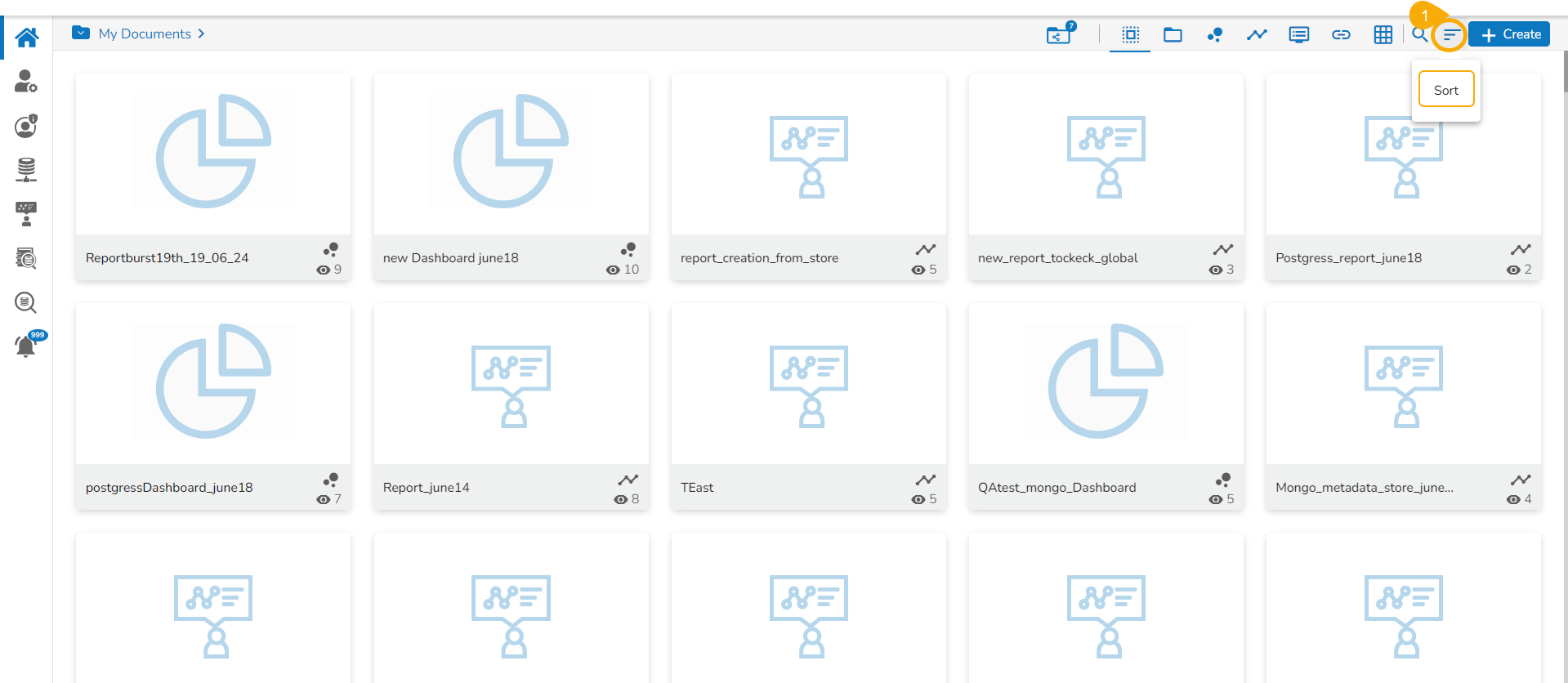
This functionality helps the users to sort the documents in ascending or descending order either based on alphabets or dates. The custom sorting is also available for the platform documents.
This feature allows users to sort documents by selecting a specific order on the platform homepage.
The following options are provided to display the available documents on the platform homepage:
Alphabetical/ Name (Ascending and Descending)
Date (Ascending and Descending)
Custom
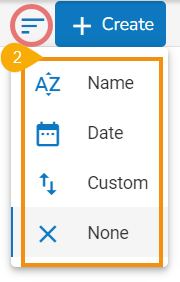
Click the Sort icon on the platform homepage.
A context menu opens with the following sorting options:
Various available Sorting options on the Platform Homepage.
You can sort documents by their names in ascending or descending order (Ascending is the default order).
You can sort documents by date using this option (Ascending is the default order).
You can manually drag and change the order of documents.
You can remove the impact of the applied Sort by option by selecting the None option.
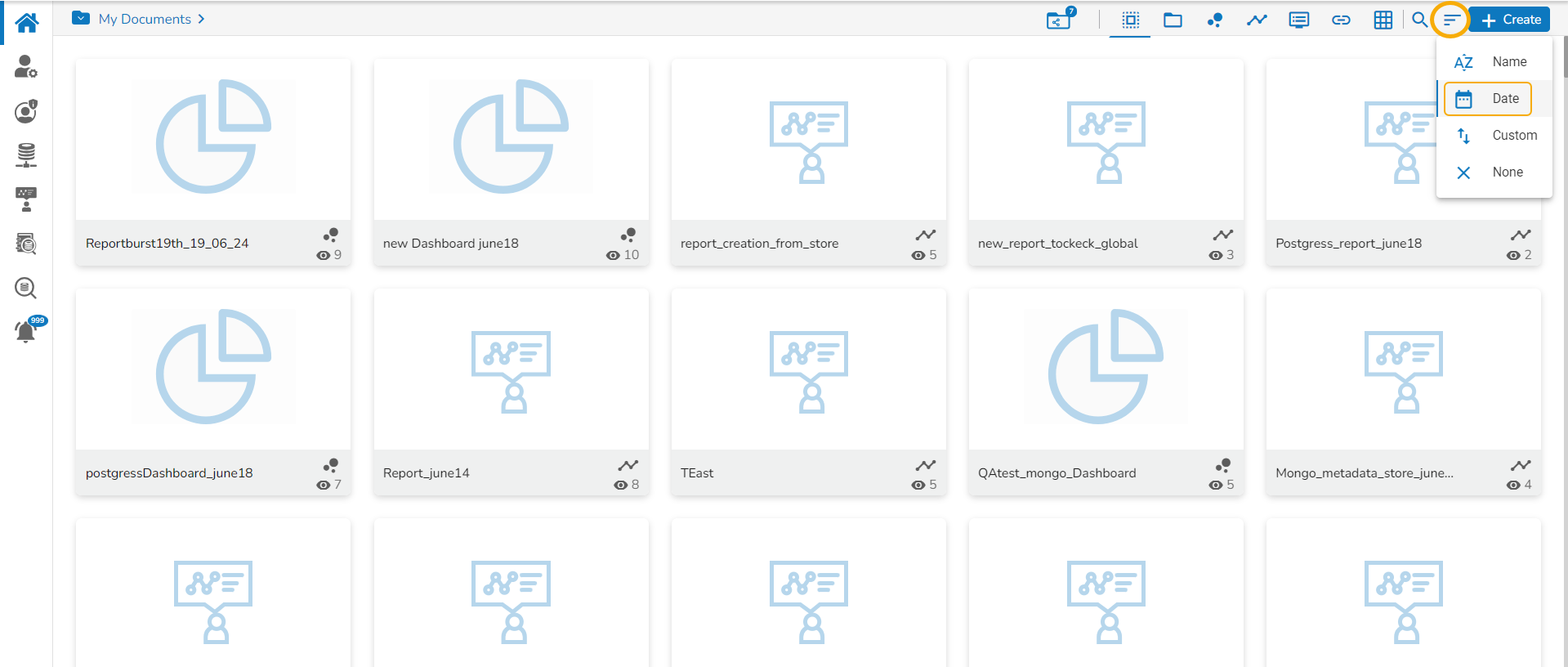
Select an option from the context menu. E.g., The Date option is selected in the following image:
The platform documents get sorted as per the selected order. E.g., The following image shows documents sorted by date.
The user can set a customized order for the documents by choosing the Custom Order option.
Choose the Custom option.
This is the Document Search option provided to search through the homepage documents.
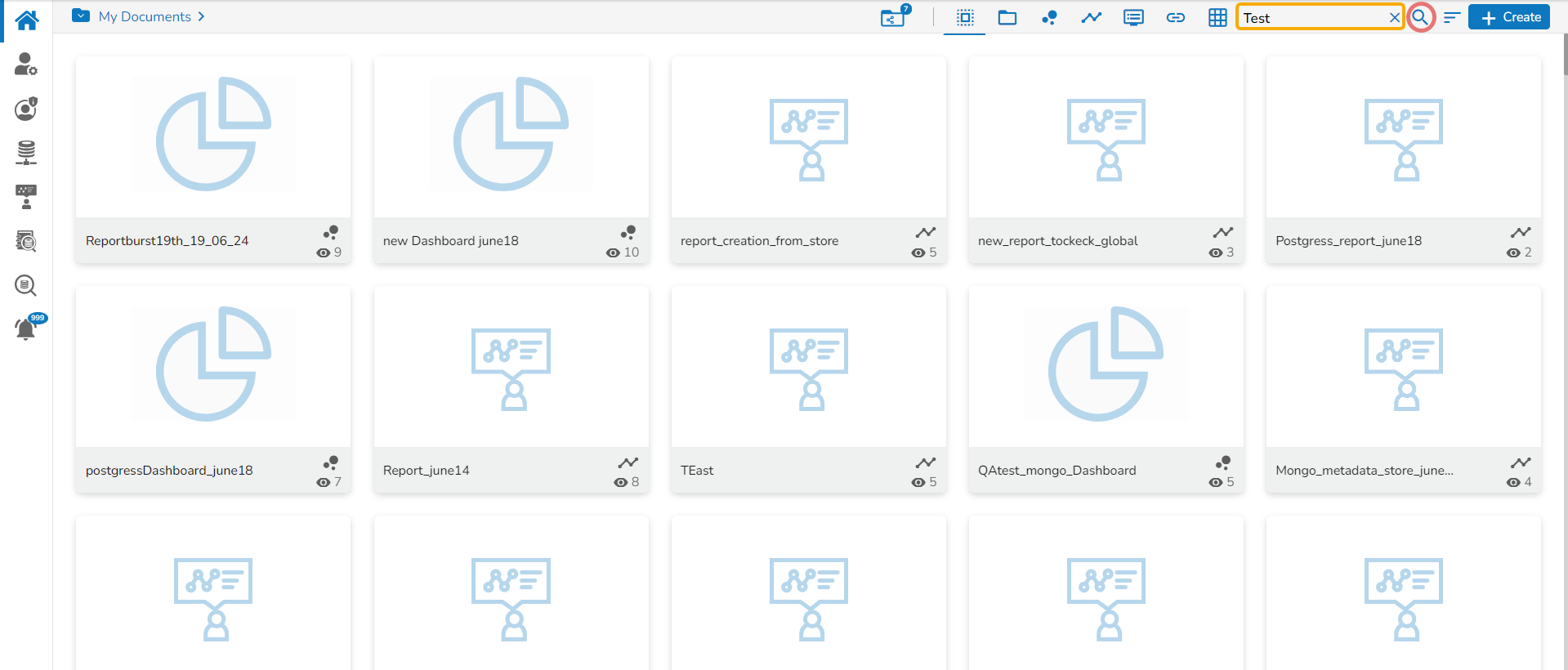
The administrator can search for a specific document by typing the document title in the Search option.
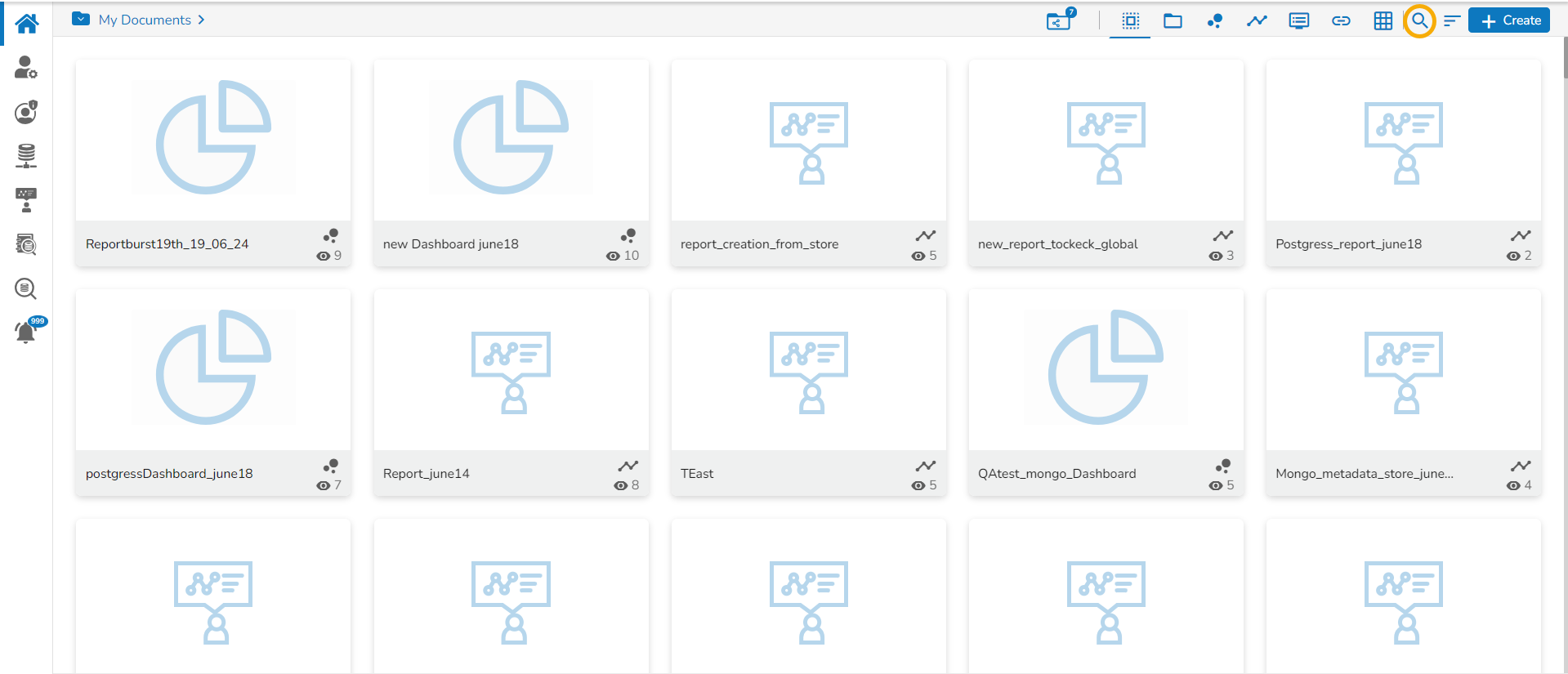
The user gets a navigation bar/ search option on the platform homepage to search for the desired documents. Click the Search icon.
The search space is displayed for users to insert the document title they want to search in the given space.
Click the Copy Link icon to copy the open document link of the published Dashboard.
Click the Save option to save the update.
A notification message appears to ensure the image is successfully updated.
Share with User: The dashboard gets shared with the selected user(s).
Select the Share with User option on the Properties window.
Search a specific user using the search bar.
Select a user or all the users using the checkbox(es).
Click the Save option.
A success message appears stating that the document privilege is updated.
Click the Save option.
A success message appears stating that the document privilege is updated.
The dashboard gets shared with the selected group(s).
Select a user or all/multiple users using the checkbox(es).
Click the Save option.
A success message appears, and the document privilege gets updated to exclude the selected user(s).
Click the Save option.
Select a folder.
Click the Move icon.
The user gets redirected to the next screen where the selected folder appears.
Click the Save option.
A success message appears.
Click the Save option.
The Paste window opens.
The dashboard name displays the prefix ‘Copy of-’ before the original name of the dashboard (E.g., the Dashboard named Sample Dashboard gets a new name Copy of Sample Dashboard ).
Click the Save option.
A confirmation message appears.
The selected dashboard gets deleted.
Schedule the report.
Click the Save option.
A confirmation message appears.
The open document link is shared with the selected user(s)/ user group(s) on the user's email ID.
Click the Send icon.


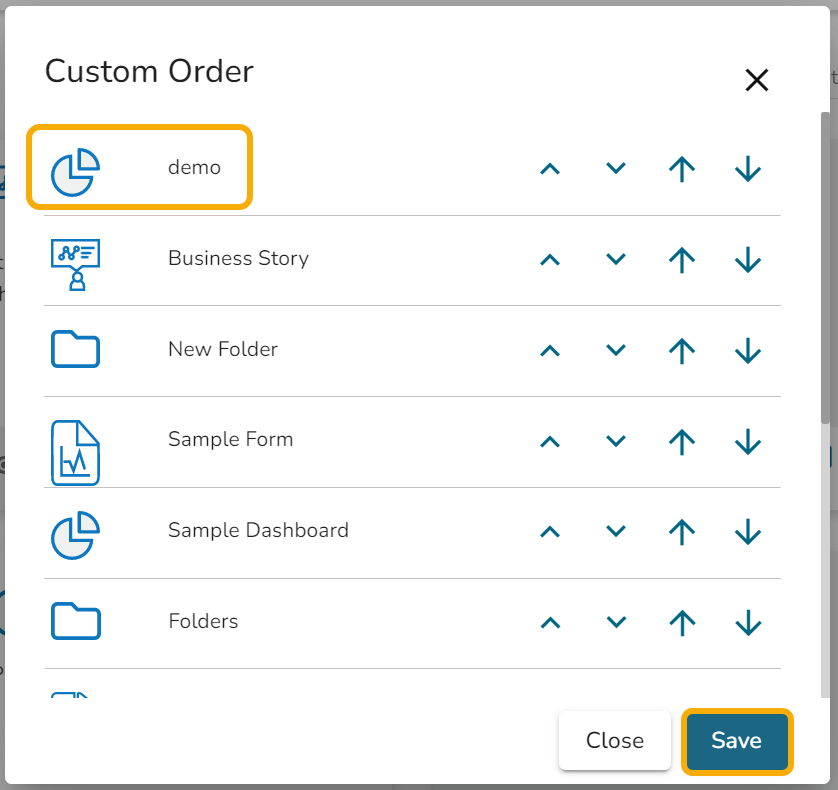
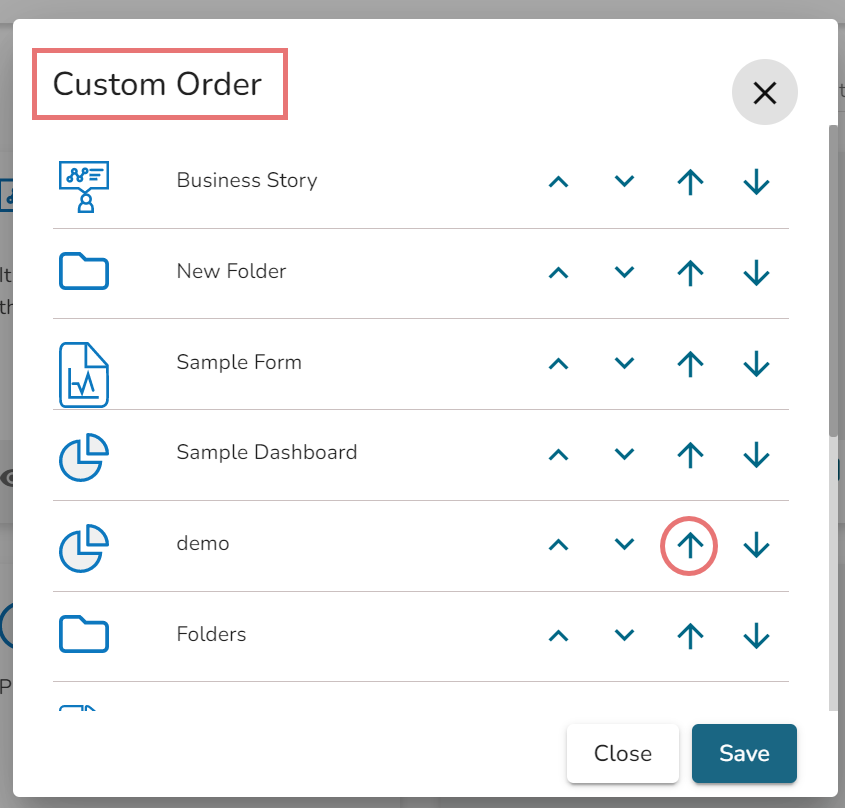
The Custom Order window opens.
Set a customized order for displaying the available documents or folders using the arrows or move-up and move-down icons.
The records will get shuffled as per the selected order. The chosen order in the given image is moved to the top, therefore the selected document is added to the top position in the list.
Click the Save option to save your selected order of display.
Click the Search icon again.
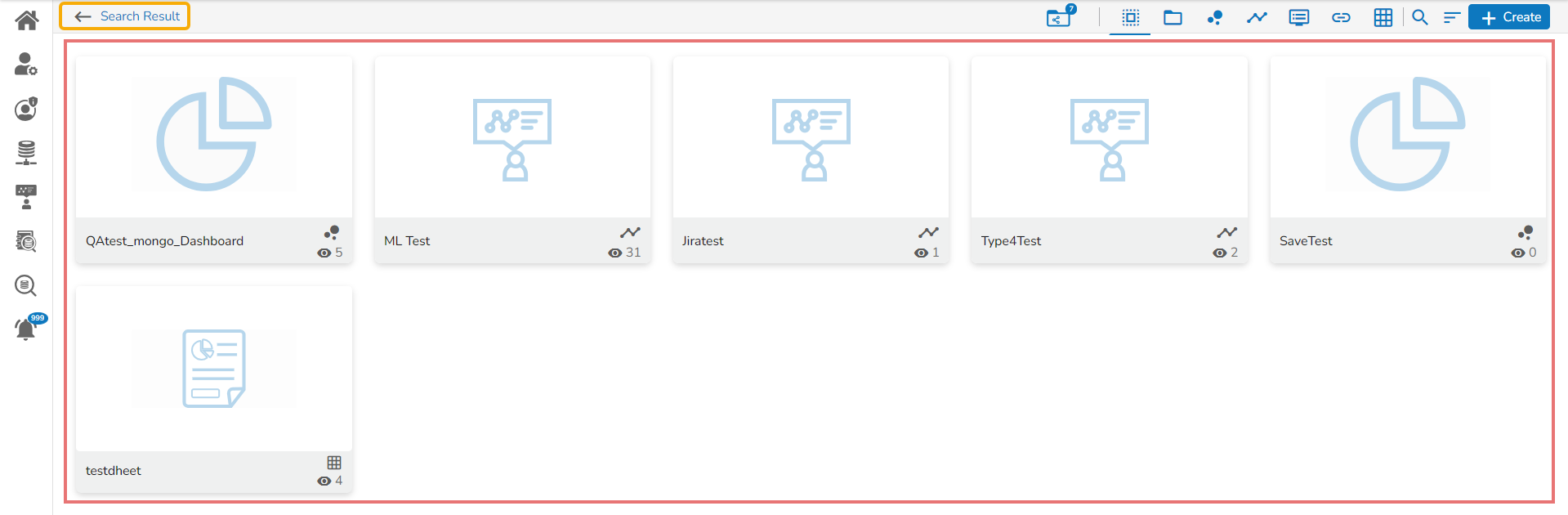
All the available documents with the matching search term get displayed as Search Result. E.g., The following image displays the documents containing the word test in their titles:

This functionality facilitates the user to kill active sessions while logging in after all the permitted sessions are consumed.
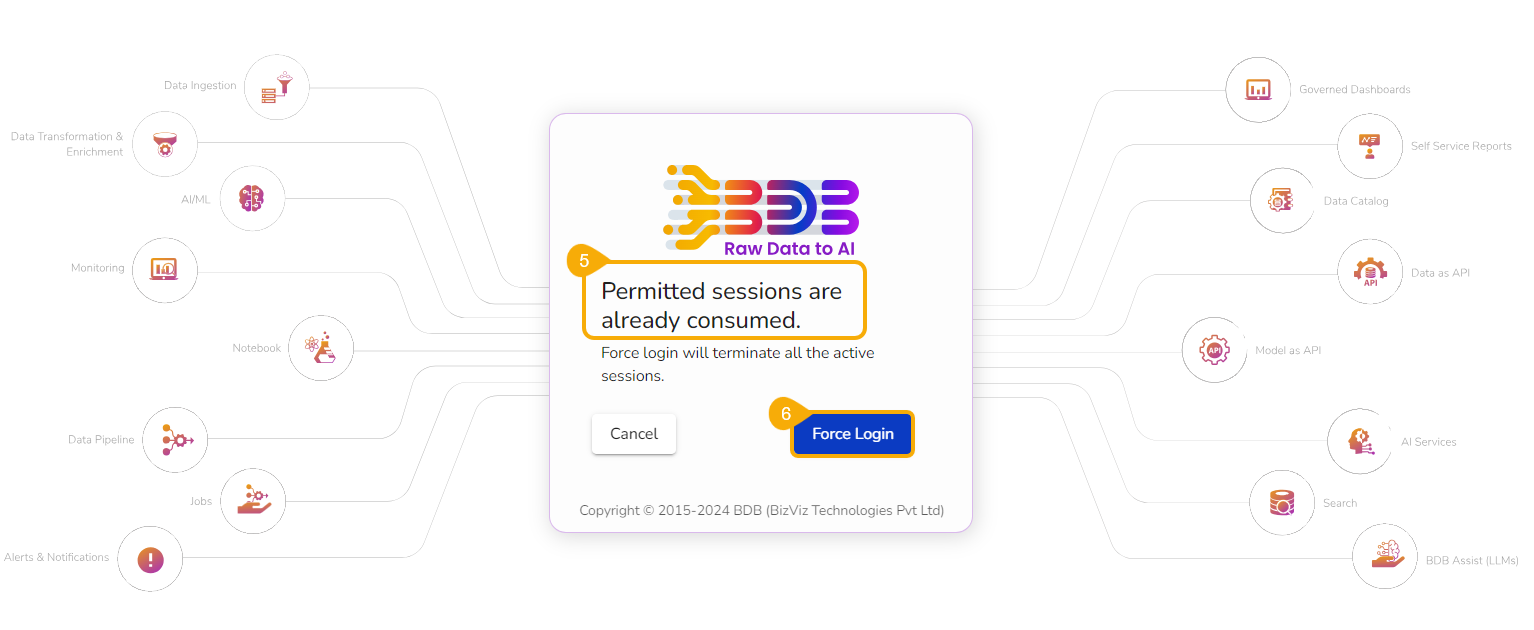
The Force Login functionality has been established to control the number of active sessions up to three. The users can access only 3 sessions at a time when they try to access the 4th session, a warning message displays to inform them that the user has consumed the permitted sessions, and a click on the Force Login would kill all those active sessions.
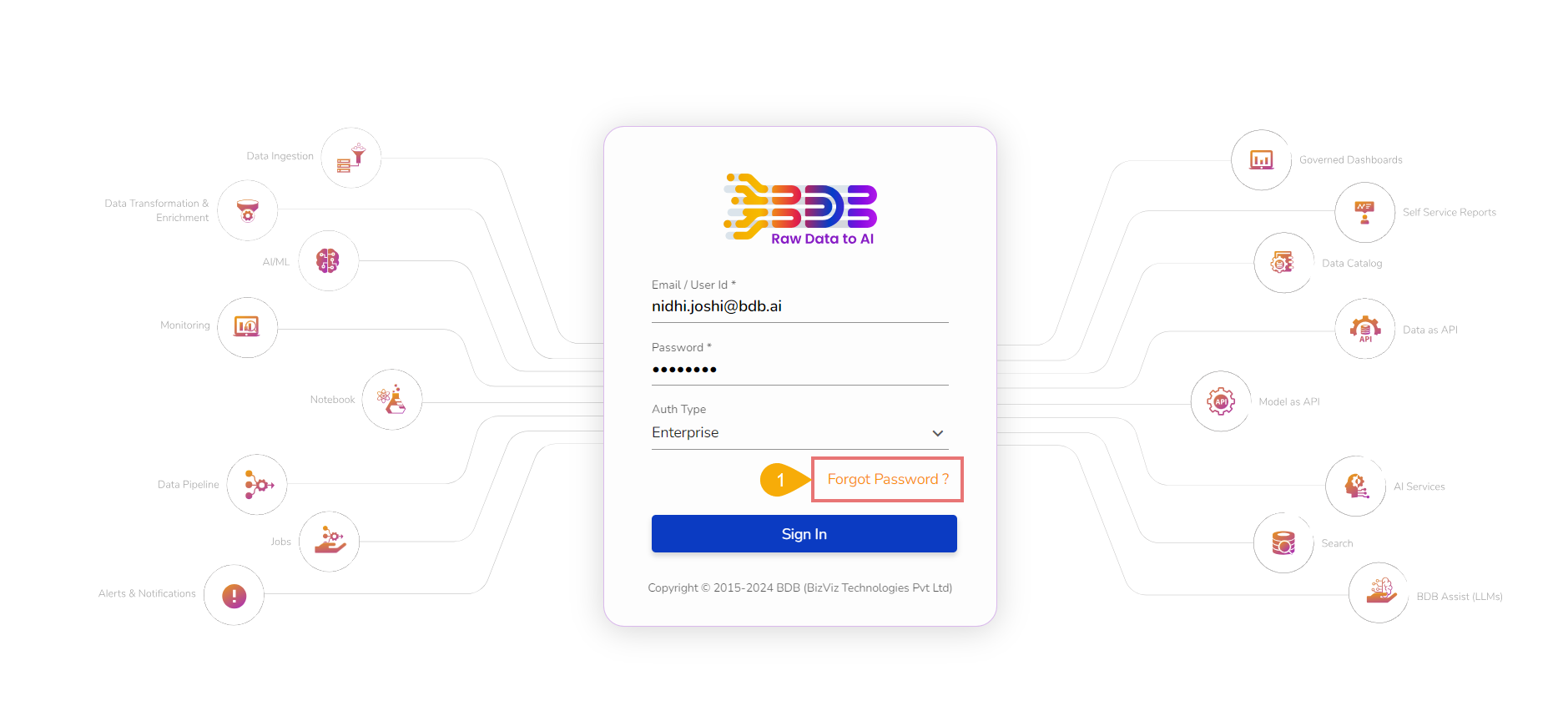
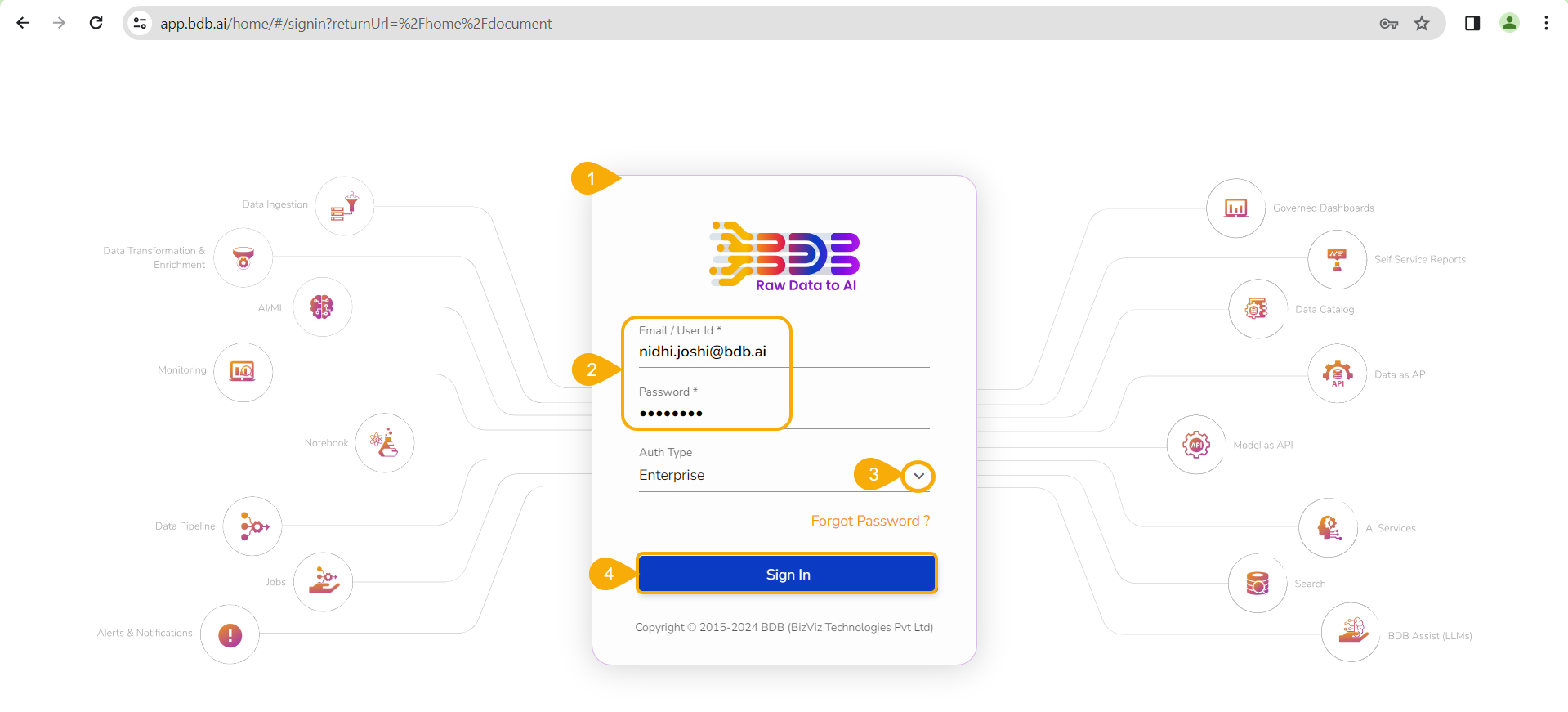
Navigate to the BDB Platform Sign-In page.
Enter the valid credentials to log in.
Select an Auth Type from the given choices.
Click the Sign In option.
The user gets a notification that all the permitted sessions are already consumed and it will inform the user that Force Login will terminate all the active sessions.
Click the Force Login option if you are willing to kill the current active sessions.
The user gets redirected to the Platform Sign In page after clicking the Force Login option.


This section explains the Left-side Menu panel given on the Platform Homepage.
Access the BDB Platform and begin your data exploration journey.
This section explains how to access the BDB Platform and the variety of modules that it offers:
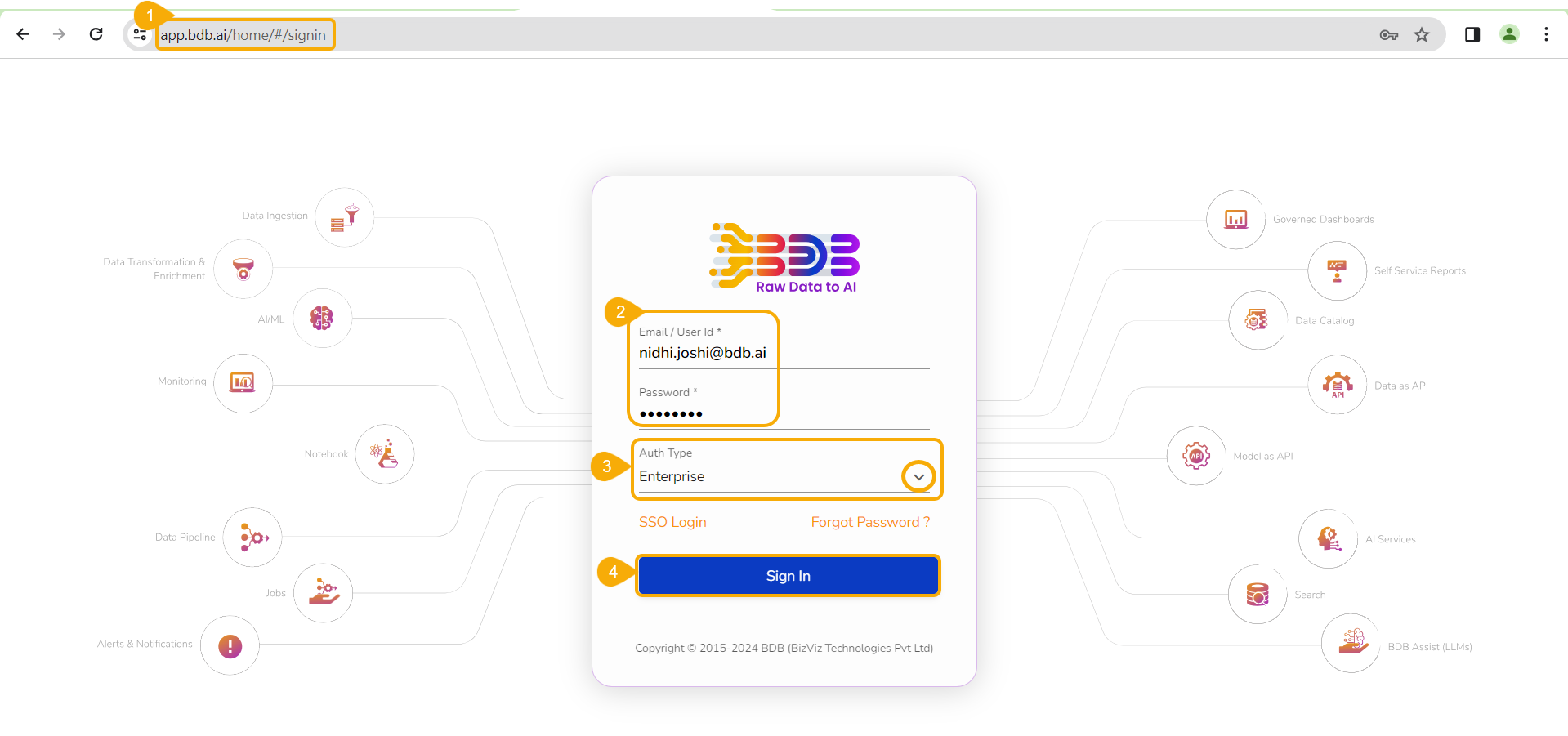
Open the BDB Enterprise Platform Link: https://app.bdb.ai
Enter your credentials to log in.
Select an Auth Type option using the drop-down menu.
Click the Sign In option.
The default landing page for the BDB Platform opens.


The user can connect to the URLs with the chosen folders or to the selected Document space.
Select the Link a URL option from the Options or Create Context menu.
The Link a URL window opens displaying the Add Details tab.
Enter a name for the URL.
Provide the URL link that you wish to add in the Type URL field.
Describe the URL (optional).
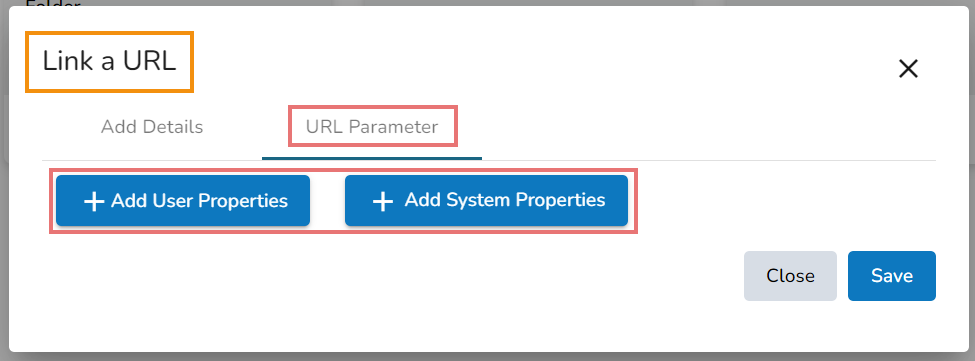
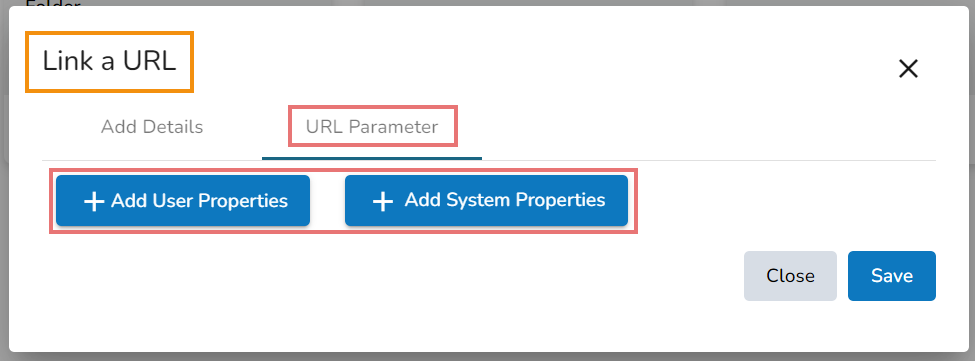
Navigate to the URL Parameter tab to add parameters (Optional).
Click the Save option.
A success message appears.
The URL gets created under the selected document folder. E.g., A URL document has been created under My Documents.
The user can see the linked URL by opening the created sample URL.
The user can add or remove parameters to the linked URL by using this option.
Navigate to the URL Parameter tab.
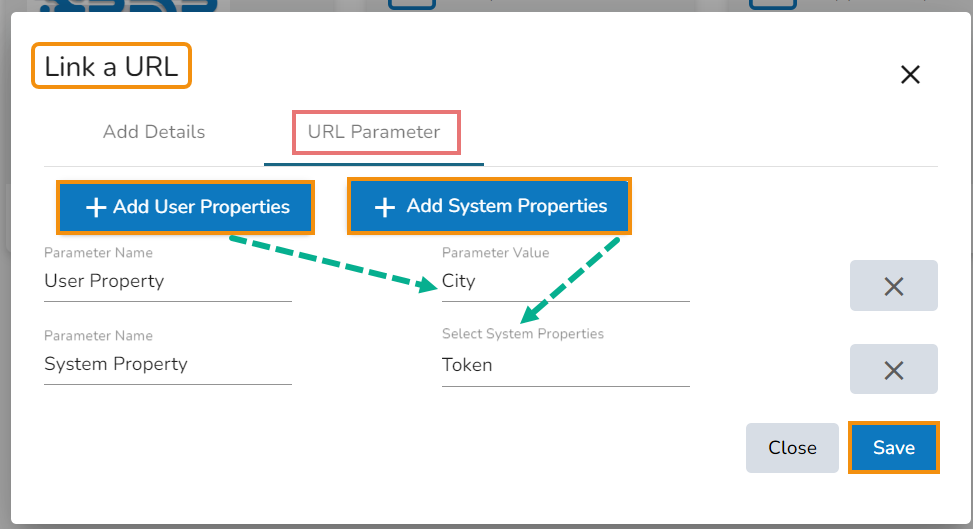
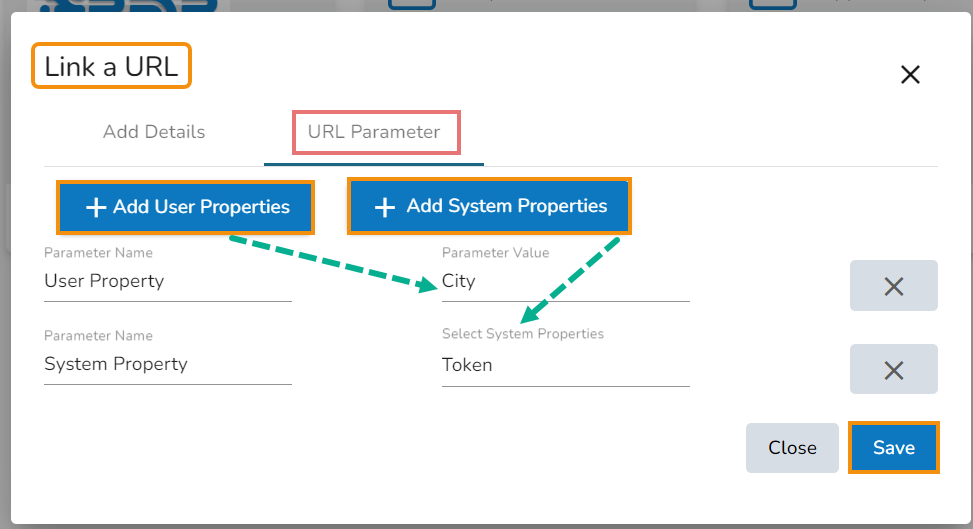
Two options for adding URL properties are displayed:
Add User Properties
By clicking the Add User Properties option, the user is required to add Parameter Name and Parameter Values.
By selecting the User Properties option, the administrator needs to insert a valid user custom field. (E.g., In the below-given image, parameter Param 1 passes the defined value for the city custom field provided for the selected user).
A document with a Linked URL is credited with various options in a context menu by using a right-click on it as displayed below:
Select a linked URL document.
Select the Open in New Tab option from the context menu.
The concerned linked URL will be opened in a new tab.
Select a linked URL document.
Select the Properties option from the context menu.
The Properties window appears with four options:
Properties: The Properties tab of the linked URL document gets displayed IT displays the Version, Creator's name, space, date of creation, and date of modification. The description entered by the user is also shown.
Click the Browse option to upload an image.
The uploaded image appears next to the Browse option.
Click the Save option to save the updates.
The linked URL document is shared with the selected user(s).
Select the Share with User option in the Properties window.
Search a specific user by using the search bar.
Select a user or all the users using the checkbox(es).
The document gets shared with the selected user(s).
The linked URL document can be shared with the selected group.
Select the Share with Group option from the Properties window.
Search for a specific user group using the search bar.
Select one or multiple groups using the checkbox(es).
The document gets shared with the selected group(s).
The selected user cannot access the linked URL file.
Select the Exclude User on the Properties pop-up screen.
Search for a specific user using the Search bar.
Select a user or all the users using the checkbox(es).
The selected user(s) will be excluded from the rights to access the linked URL.
Select the Modify Document from the URL options context menu.
The Modify Linked URL window opens.
The Edit Details tab opens by default.
A success message informs the user that the selected URL has been updated.
The user can add a URL document to or remove it from the Favorites section.
Select a linked URL document.
Select the Add to Favorites option from the context menu.
A message, “Document Added to Favorites” appears.
OR
Navigate to the original URL document.
Use the right-click to open the context menu.
Click the Remove from Favorites option.
Select the Move to option from the Link URL context menu.
The Move to window appears displaying the available folders.
Select a folder.
Select the Rename option from the Link URL context menu.
The Rename window opens.
Enter a New Name for the URL document.
It is possible to copy and paste a link URL into a different place.
Select the Copy option from the Link URL context menu.
Select another folder and use the right-click to get the Paste option in the context menu.
Or
Use the right-click on the blank space of My Documents or Public Documents.
A context menu will appear with the Paste option.
Select the Paste option.
A new window appears.
The Name mentioned in the pop-up window shows the prefix ‘Copy of-’ before the original name of the Link URL document (E.g., Model URL gets a new name Copy of Model URL).
Click the Save option.
The copied link URL is replicated with a different name.
Select the Delete option from the URL Options context menu.
The Delete window appears to confirm the deletion.
Click the Delete option.
Select the Report Burst option from the Link URL context menu.
The Report Burst window opens.
Add the users or user groups.
By choosing the System Properties option, it requires the administrator to select an option from the available System Properties drop-down menu. (E.g., in the below-given image, parameter Param 2 passes the authentication Token as system properties to link the URL).
Click the Save option to save the information.
The image gets uploaded.
A success message appears stating that the document privilege is updated.
A success message appears stating that the document privilege is updated.
A success message appears, and the document privilege gets updated to exclude the selected user(s).
The user can modify the following information (if required):
URL Name
URL Link
Description
The URL Parameters can be edited from the URL Parameter tab (if needed).
Click the Save option.
The selected link URL gets added to the Favorites section.
Navigate to the link URL you wish to remove from the Favorites section.
Use right-click on the URL to get the remove option.
Click the Remove from Favorites option.
The URL file gets removed from the Favorites section.
The user gets redirected to the next screen, where the selected folder is displayed at the top.
Click the Save option.
A message appears to notify the user that the document has been moved.
The concerned document with a linked URL gets moved to the selected folder.
Click the Save option.
A success message appears.
The linked URL document gets renamed.
A confirmation message appears, and the selected URL file gets removed.
Provide a subject.
Provide a description (optional).
Schedule the report.
Click the Save option.
A success message appears.
The open document link of the report gets shared with the selected user(s)/ user group(s).


Data Catalog empowers the data user to have wholistic view of data quickly discover data lineage that can drive towards insightful decisions optimizing their business worth.
Data Catalog Search is your ultimate gateway to discovering, accessing, and leveraging data. With intuitive search capabilities, seamless navigation, and comprehensive datasets, Data Catalog Search transforms how you explore and utilize data. Start your journey towards smarter insights and informed decisions today!
Data Catalog ensures that the most trusted data is always available to the Citizen Data Scientists, including tables, databases, saved data sets, or dashboards – all in one place. Data Catalog Search provides a centralized place to:
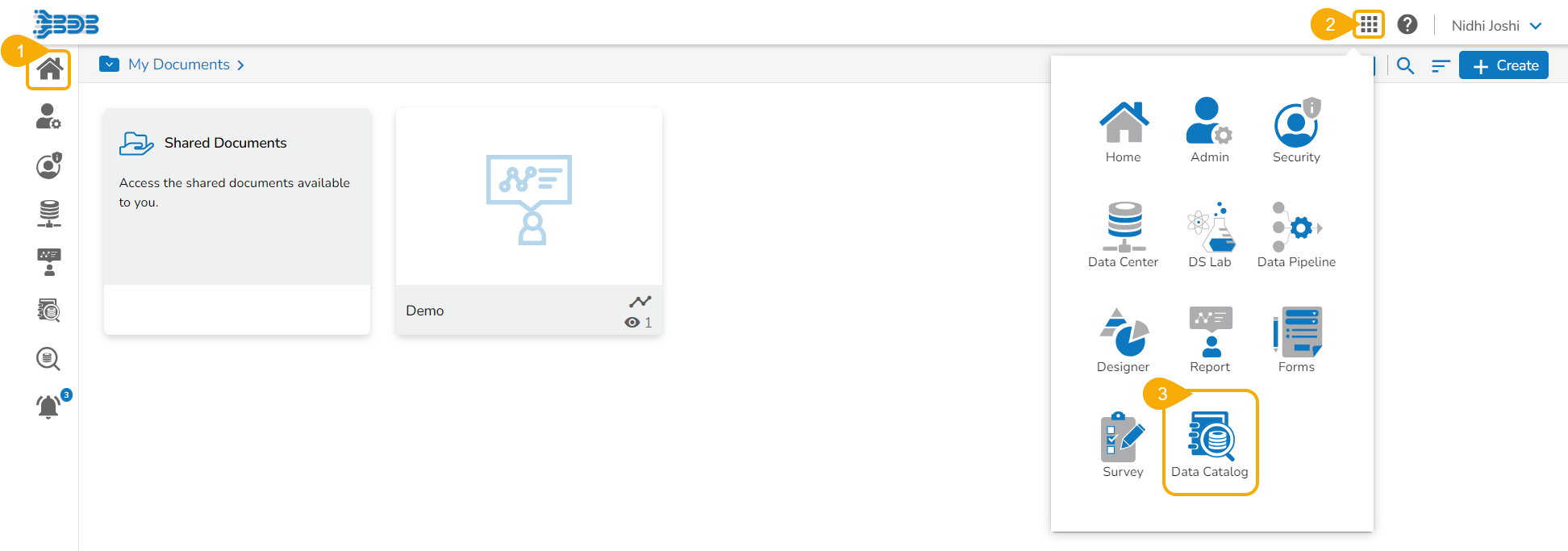
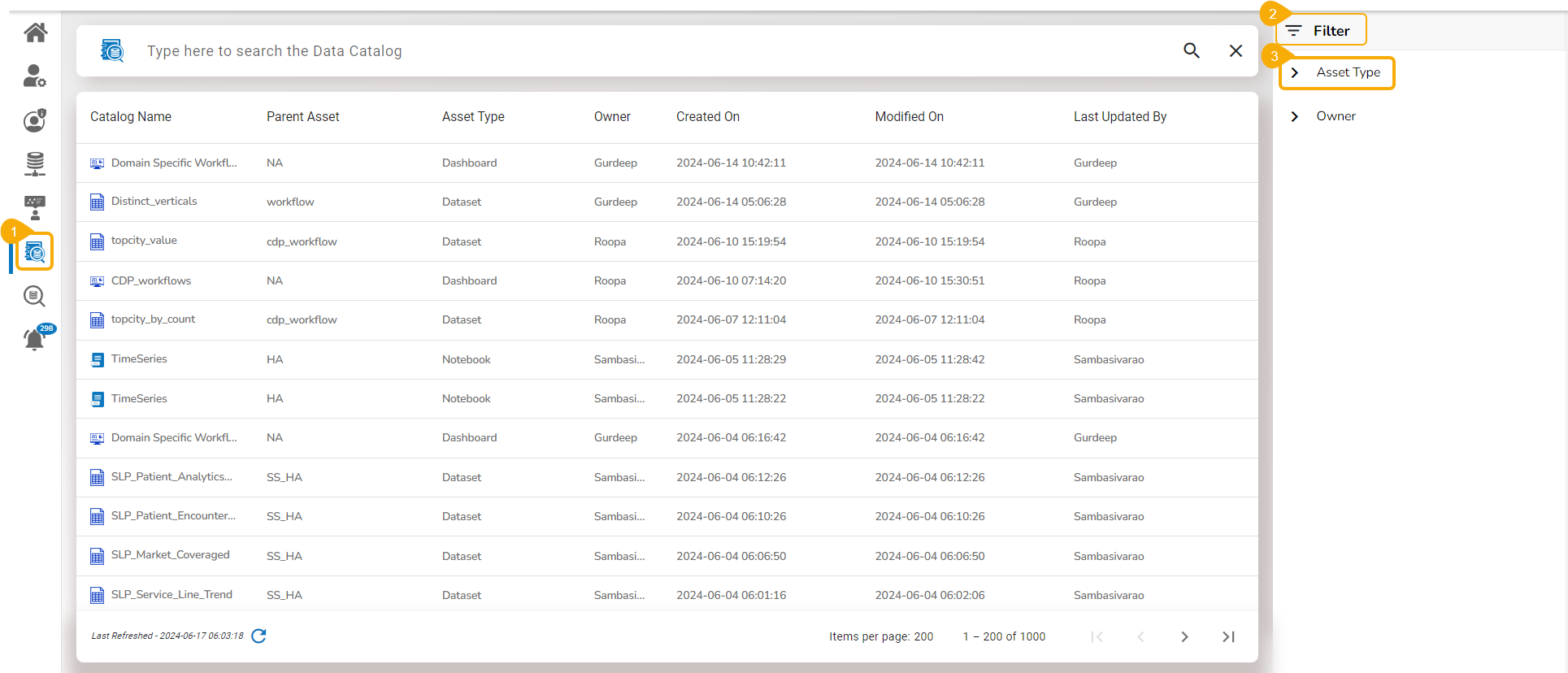
Navigate to the Platform Homepage.
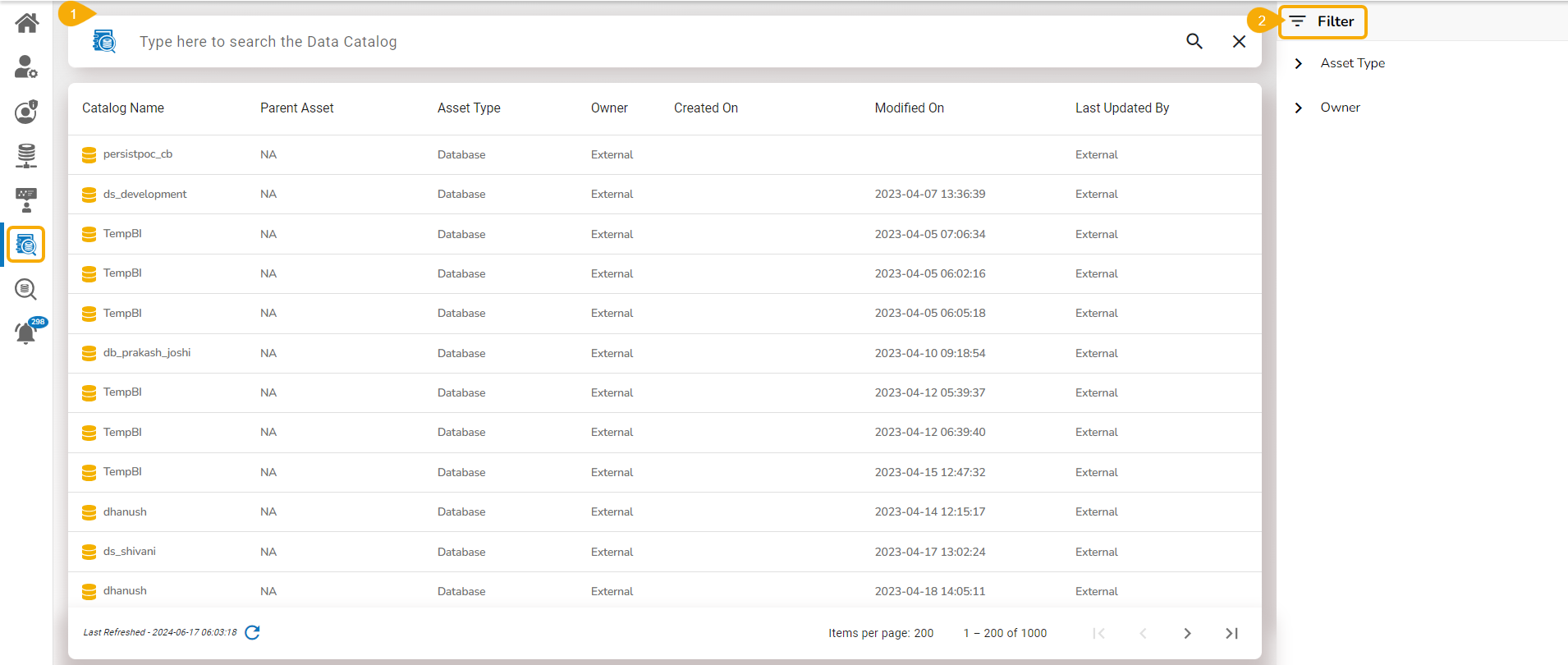
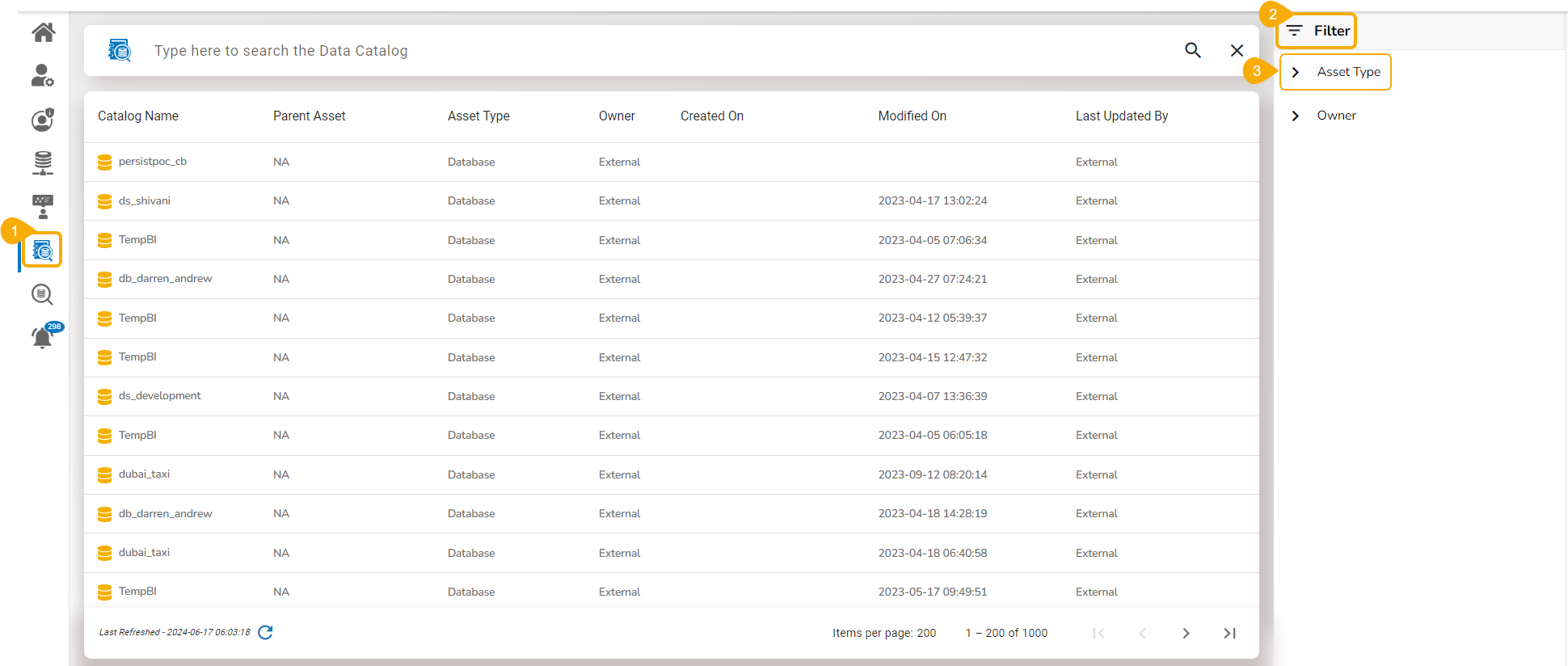
Click the Data Catalog Search icon on the homepage left panel.
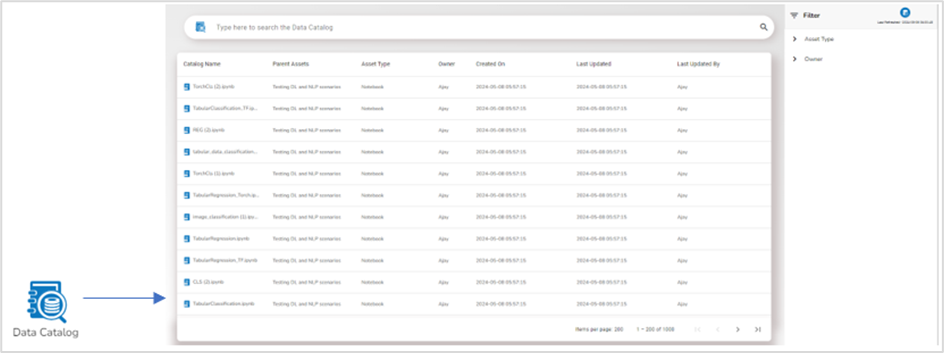
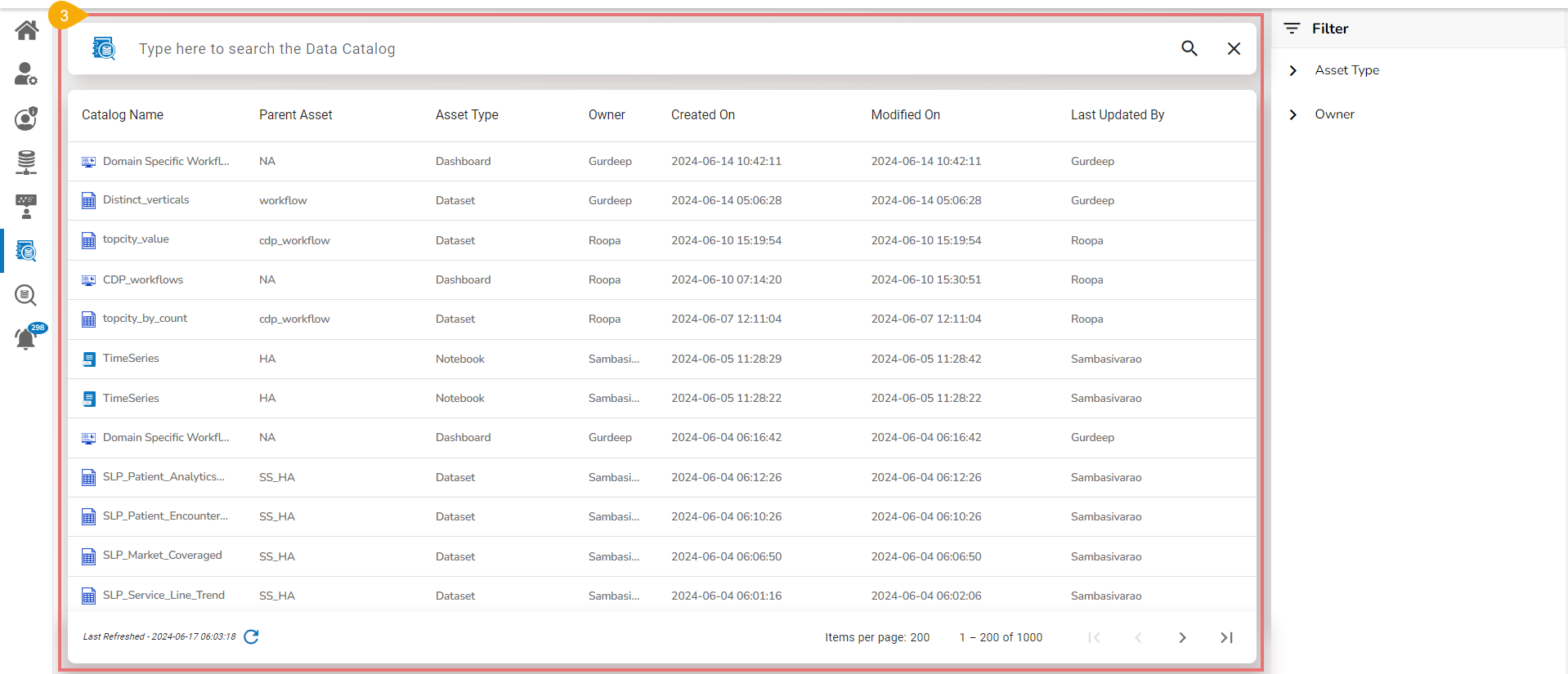
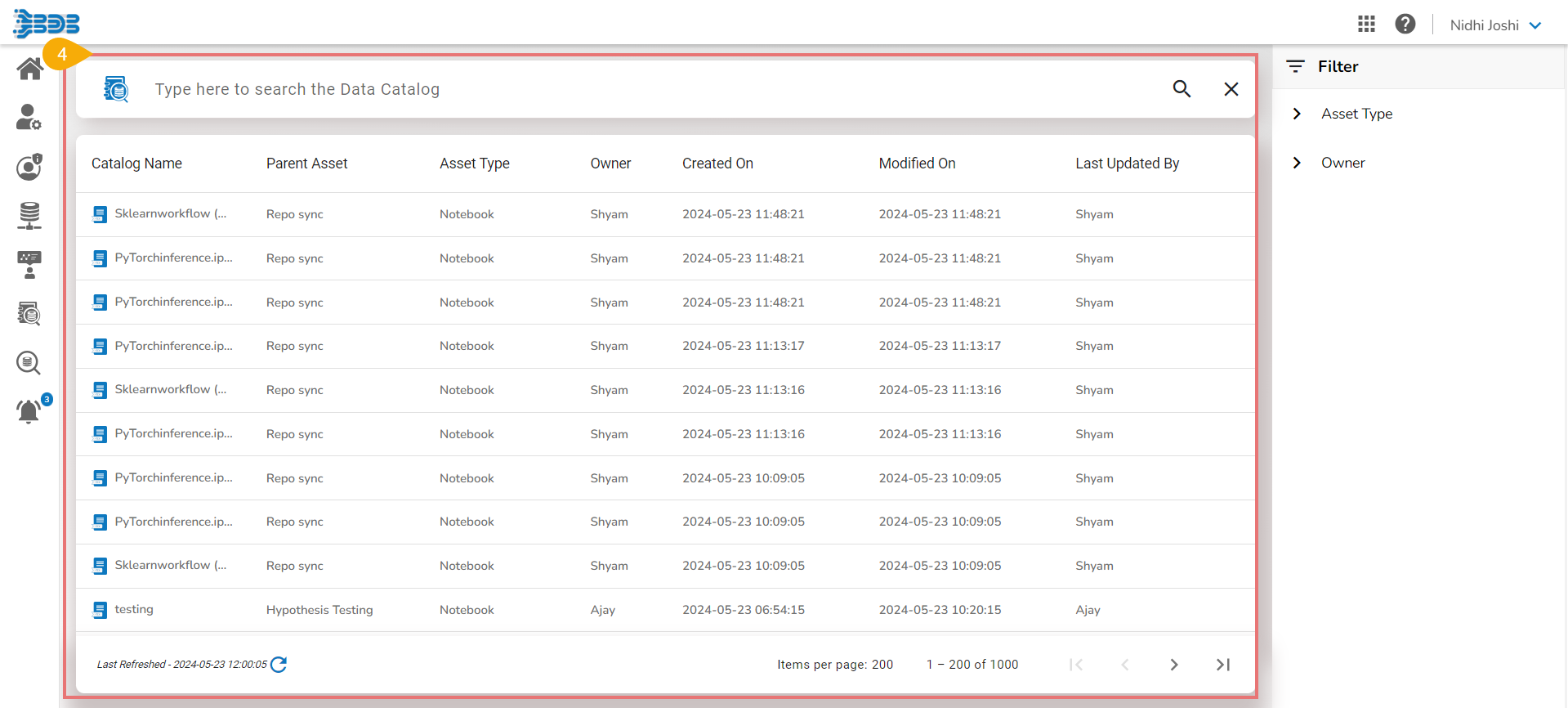
A default list of the Data Catalog appears.
Navigate to the Platform Homepage.
Click on the Apps menu.
Click the Data Catalog module from the Apps menu.
A default list of the Data Catalog appears.
Navigate to the default Data Catalog list.
Type in the given bar to search the Data Catalog.
Click the Search icon.
The displayed list gets customized based on the search result.
Navigate to the Data Catalog Search page.
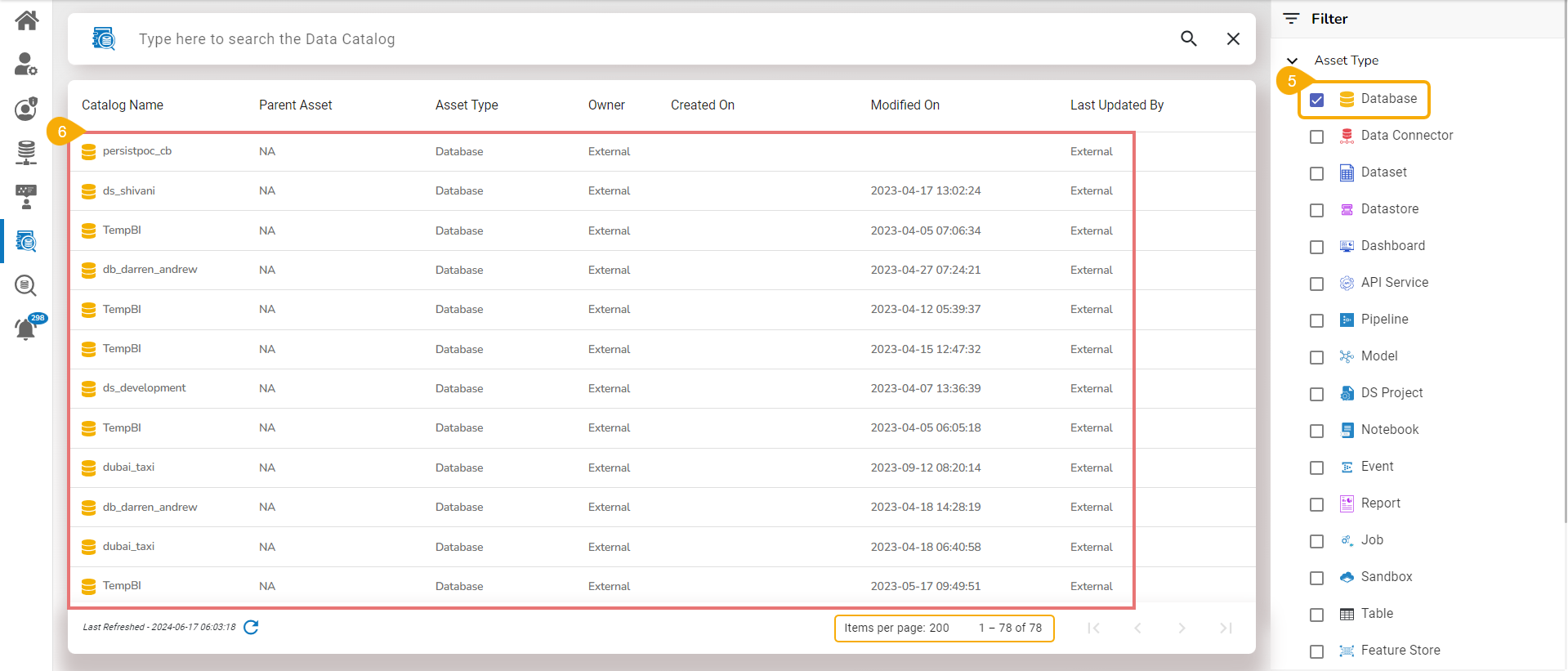
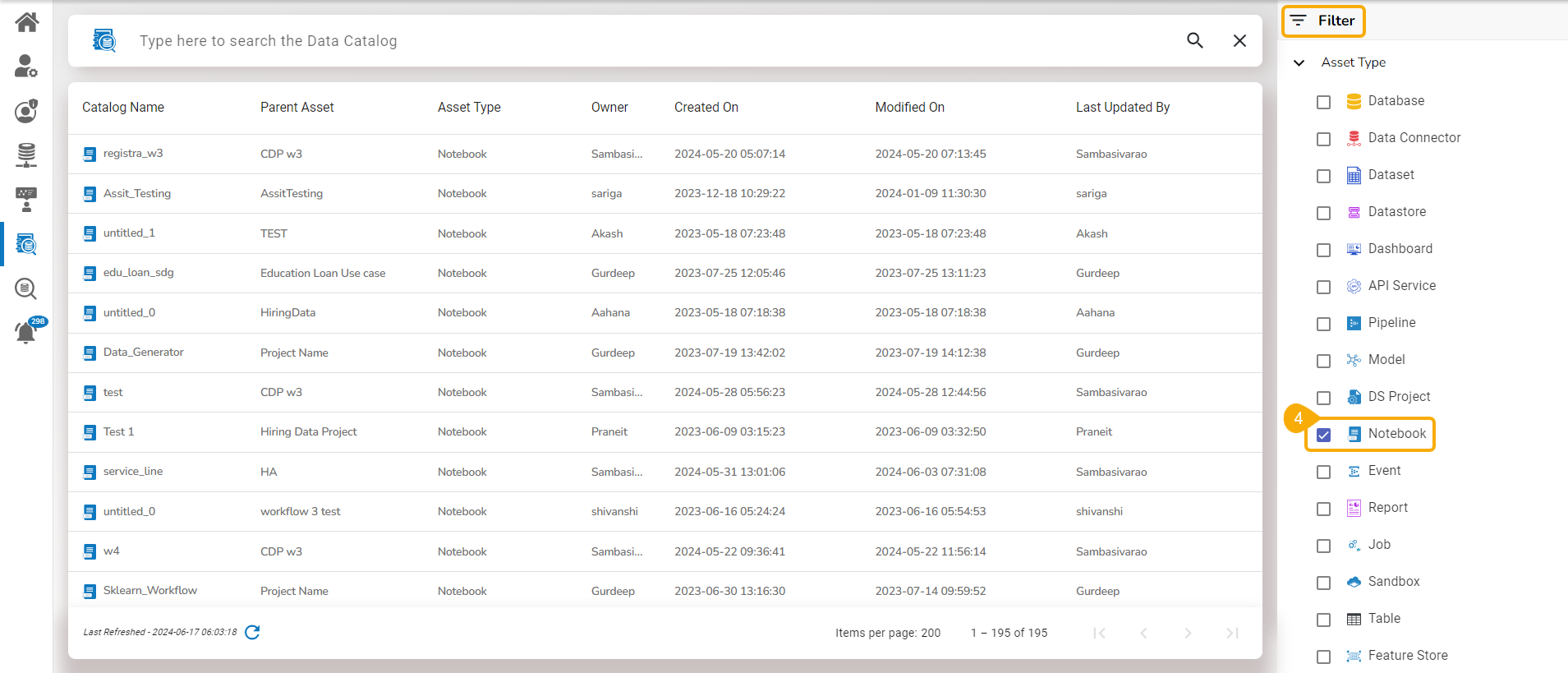
The Filter option is provided on the right side of the page.
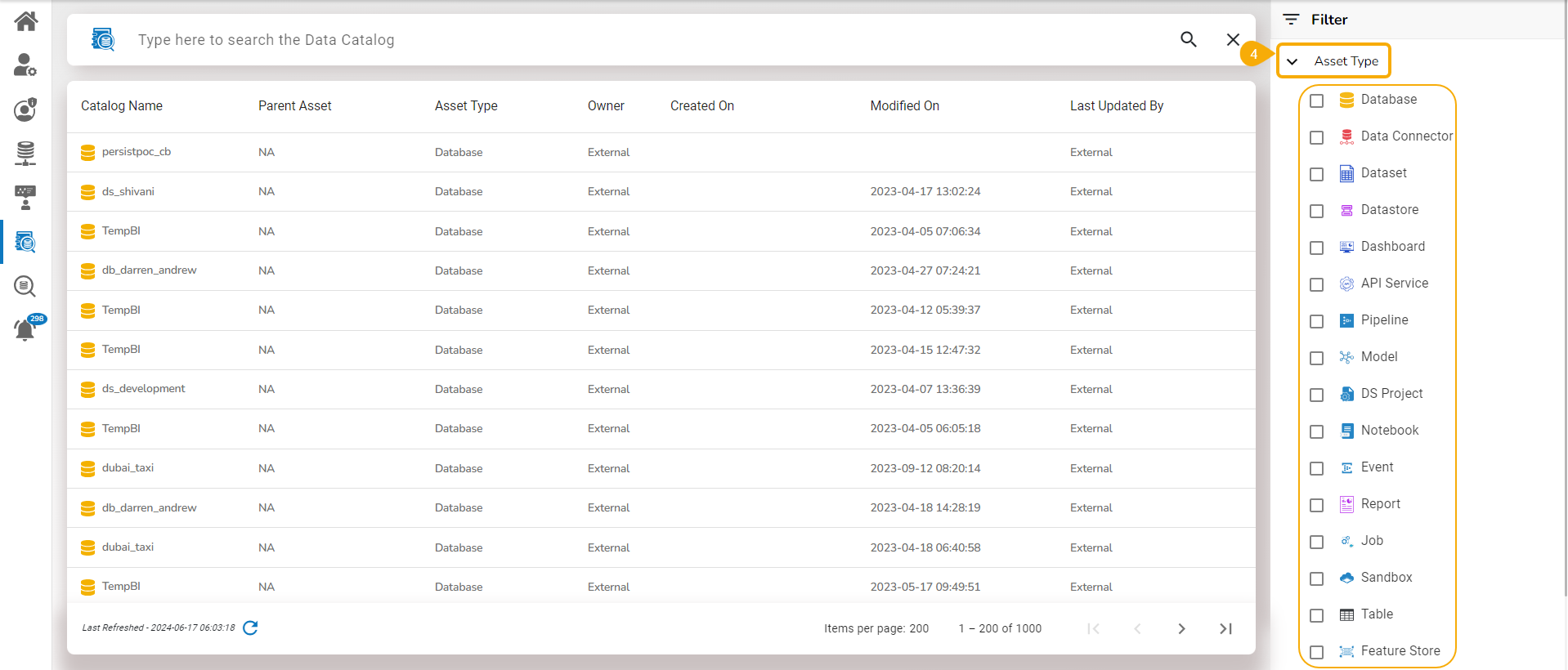
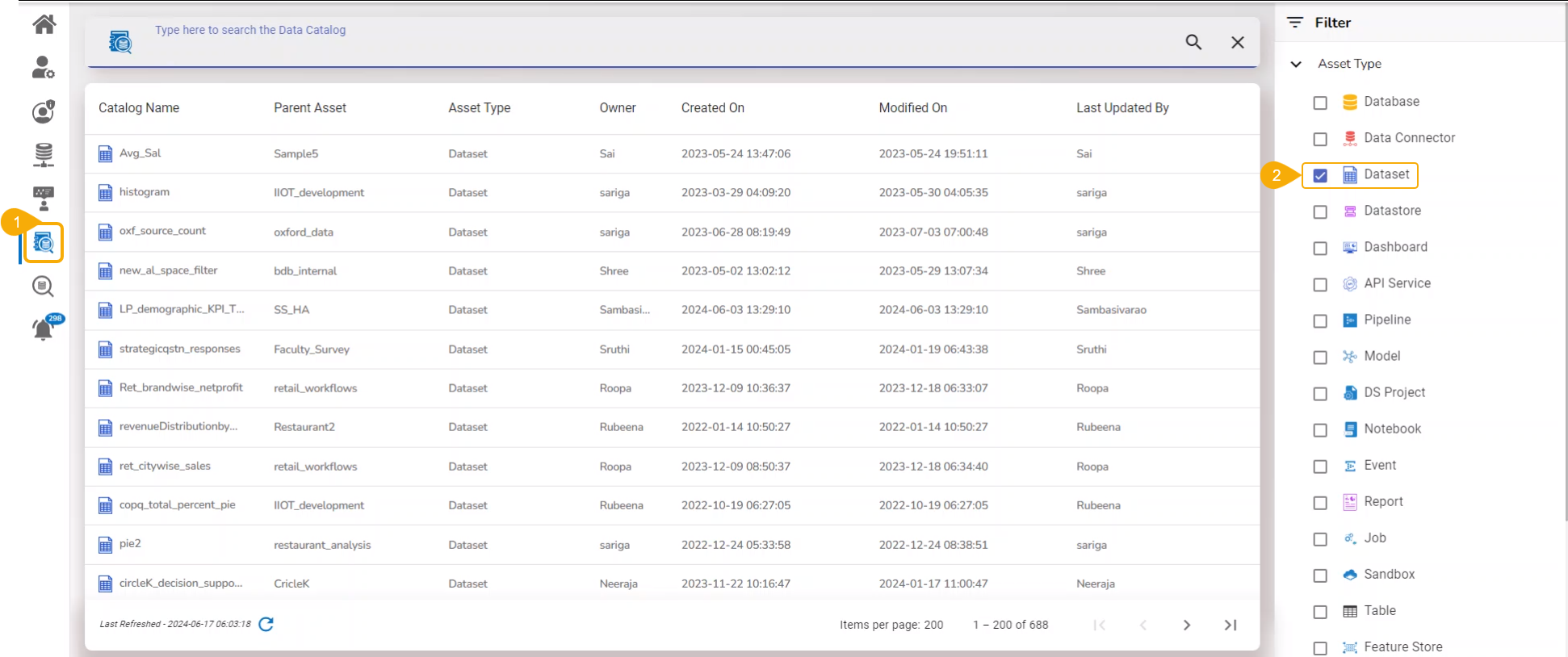
Access the Asset Type filter option. Click on it to get a list of the various Asset types.
The Asset Types opens.
Select an Asset type from the displayed list using the checkbox.
The displayed Data Catalog list will be customized based on the selected Asset type.
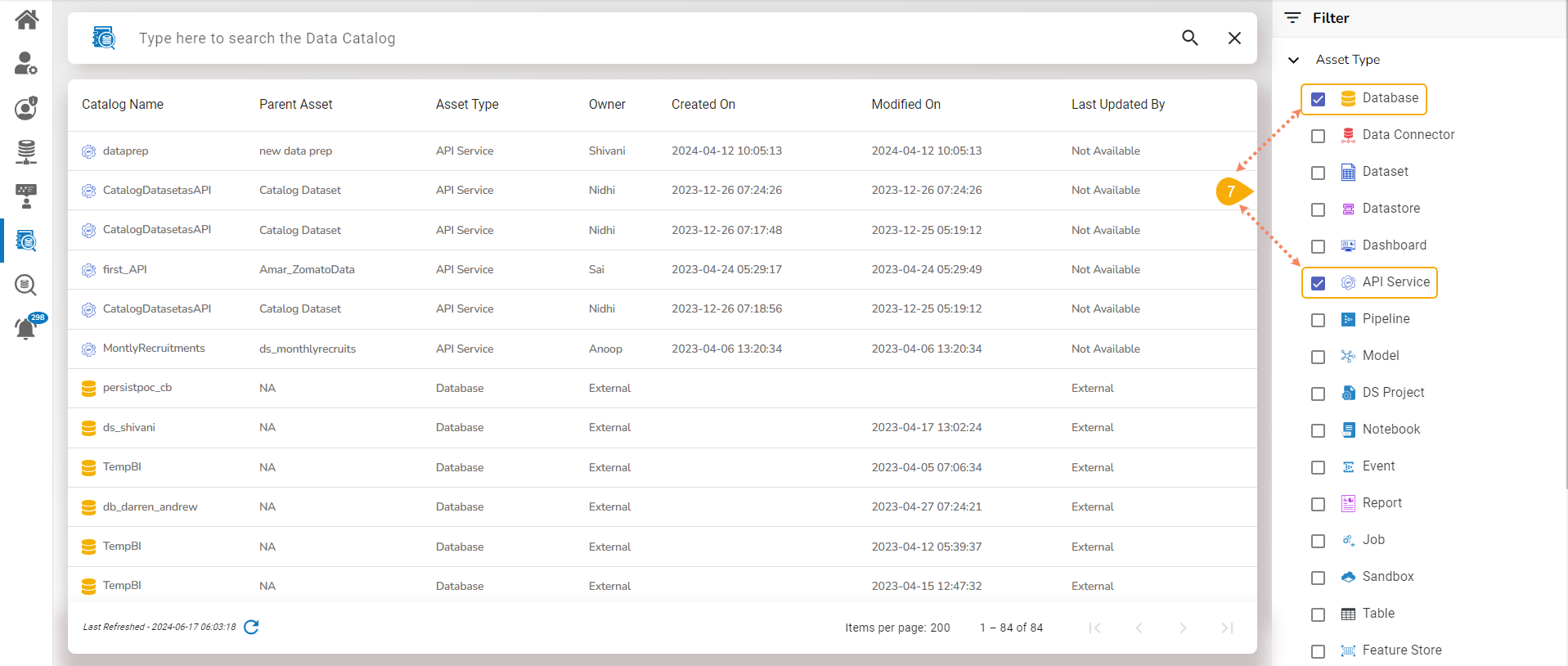
Users can apply multiple assets as filters to customize the displayed catalog list. E.g., Database and API Service filter categories are selected in the given image.
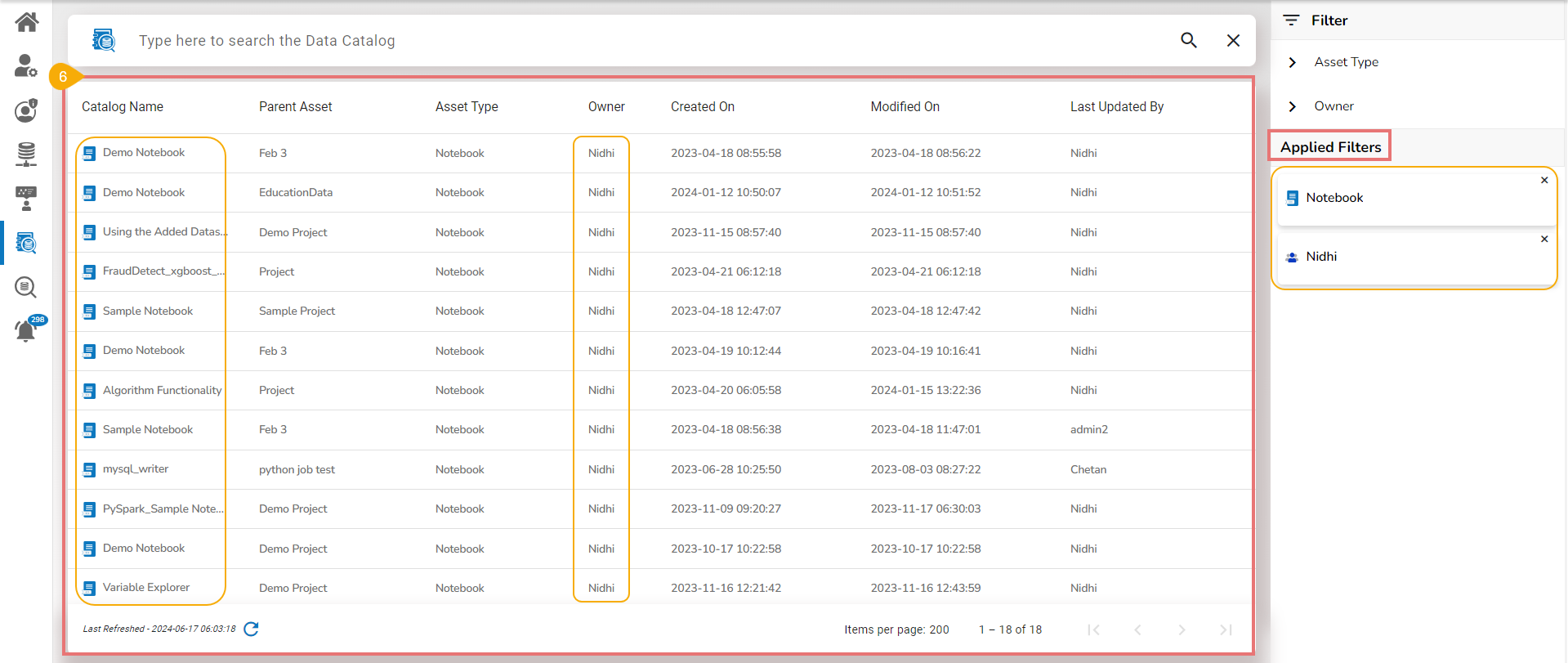
The applied filters will be displayed below.
The displayed list will be filtered based on the selected Asset types.
The total number of the items displayed at the end of the list indicates the same
Navigate to the Data Catalog Search page.
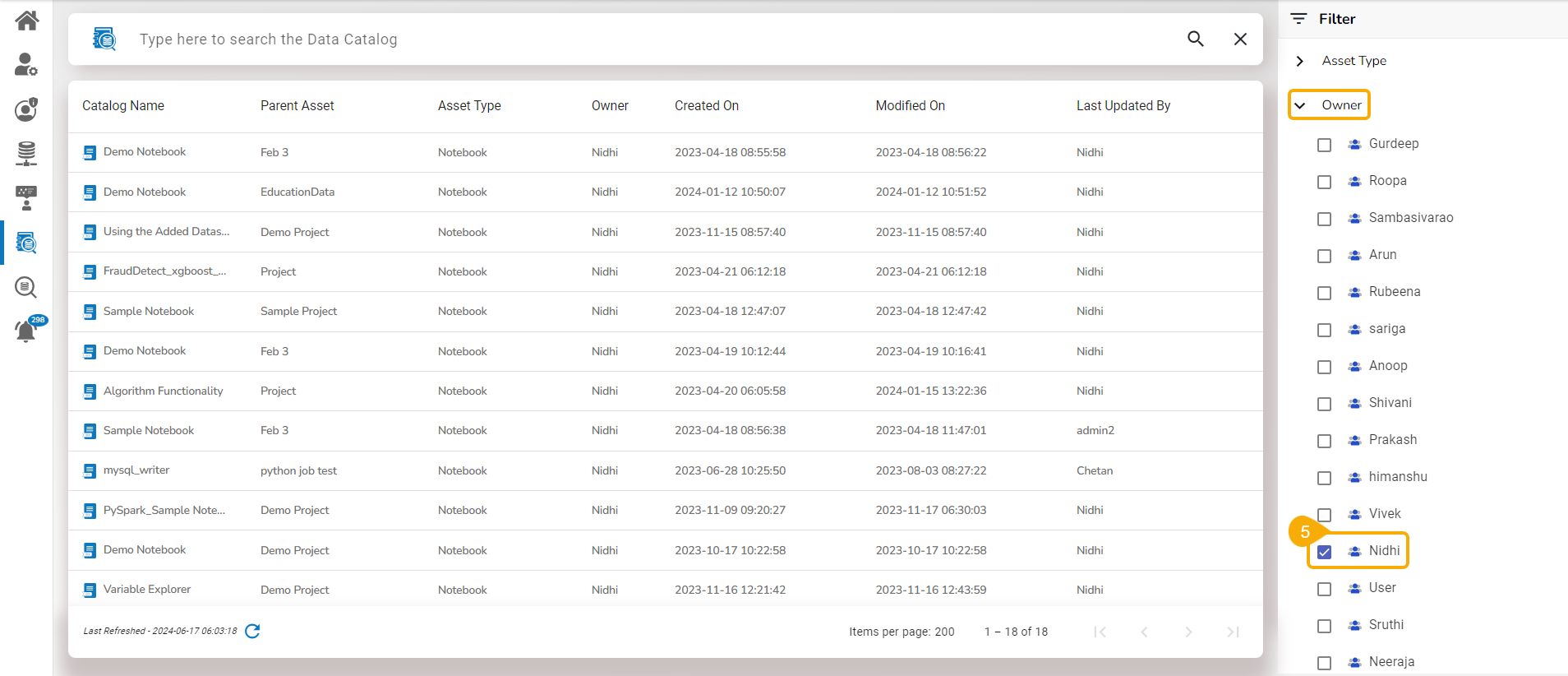
The Filter panel is displayed on the right side of the page.
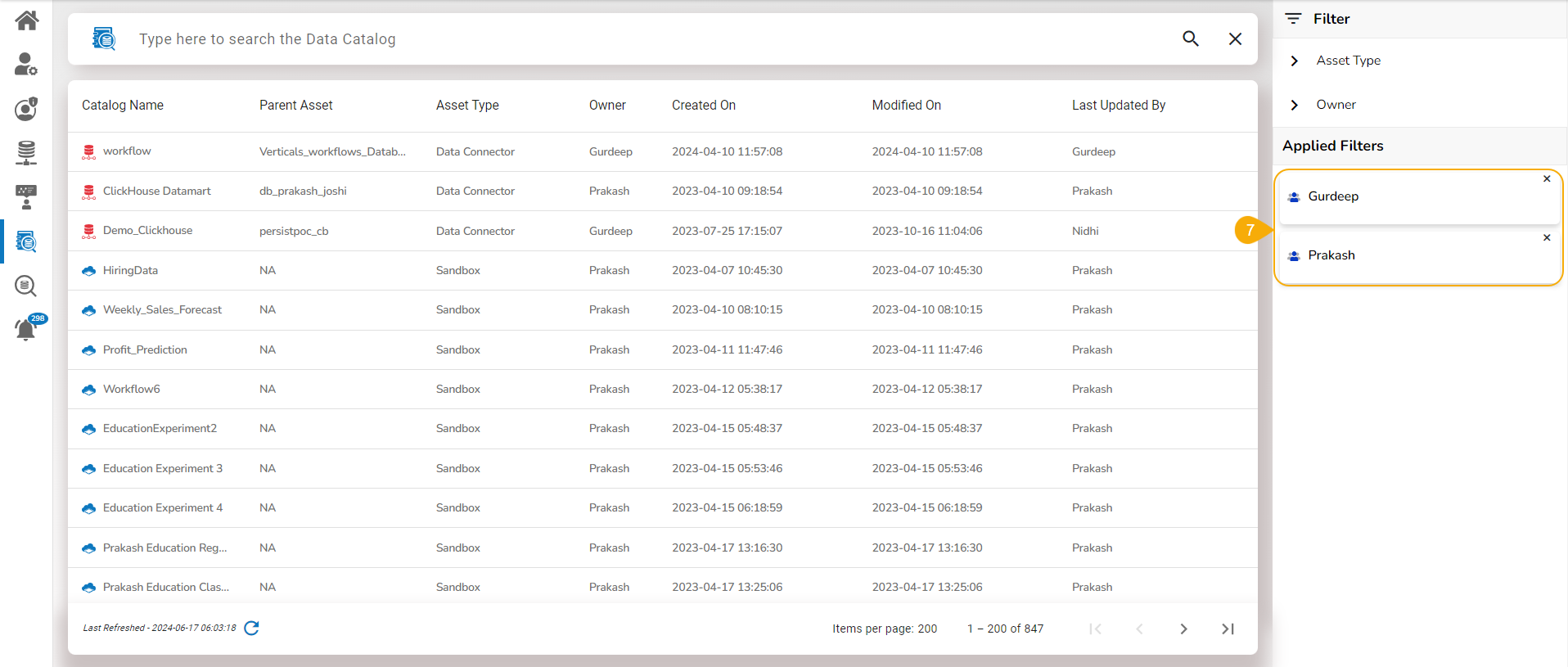
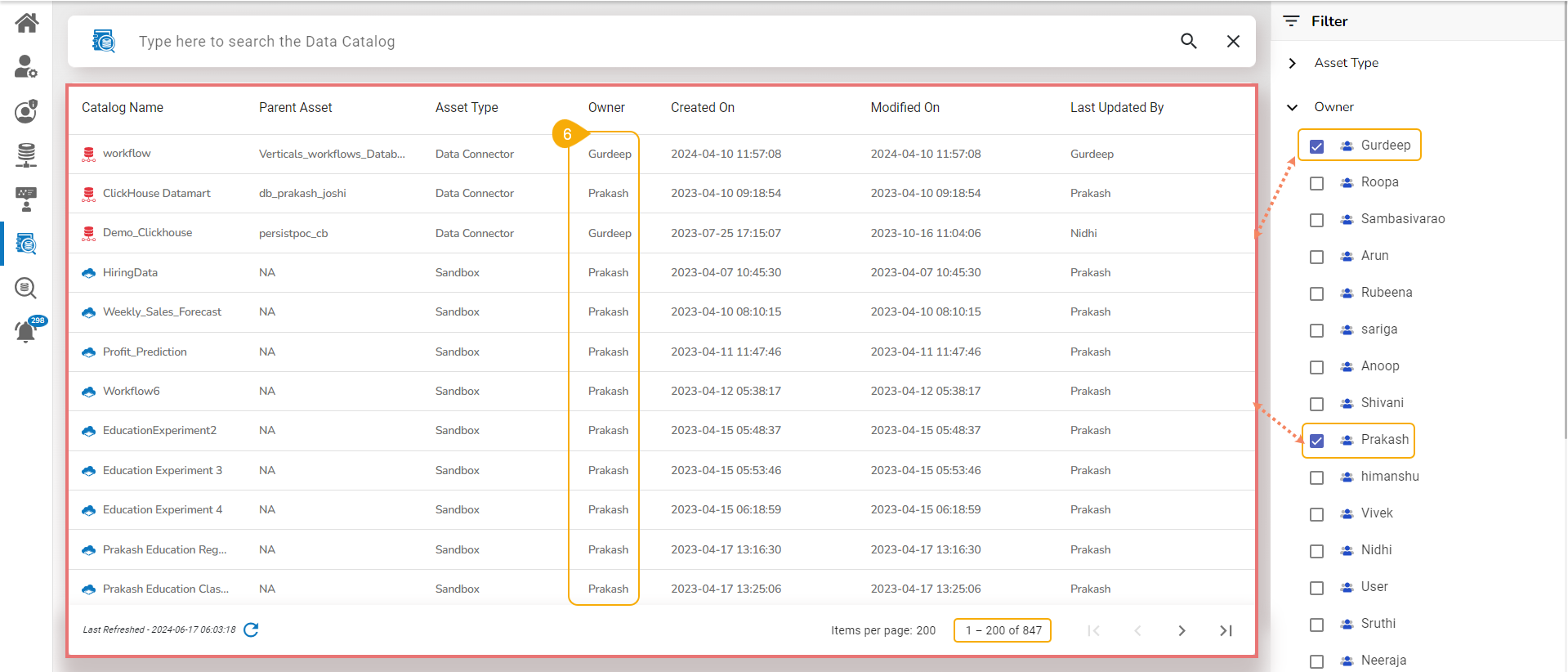
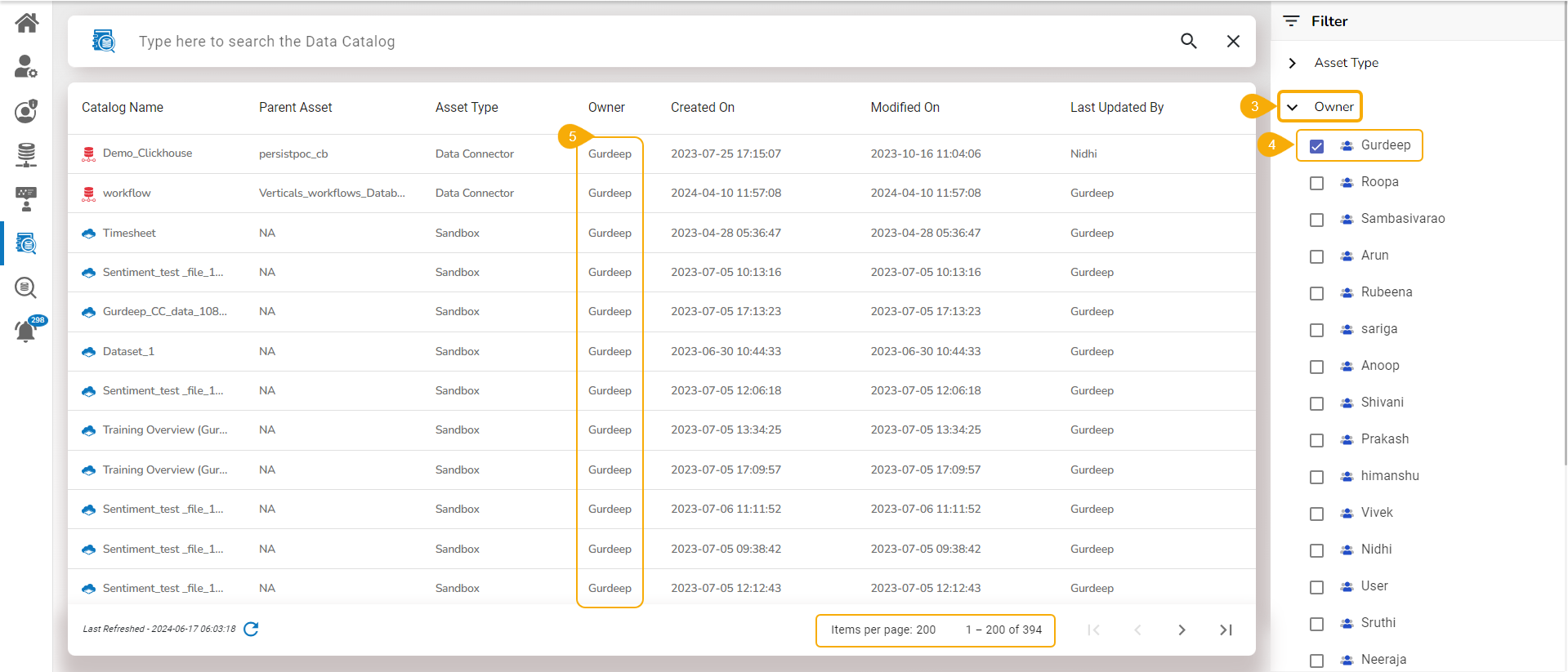
Access the Owner filter option. Click on it to get a list of the owners.
Select an owner by using the checkbox.
The displayed Data Catalog list will be customized based on the selected owner.
Users can apply multiple owners as filters to customize the displayed catalog list.
All the applied owners will be listed under the Applied Filters.
The user can apply filter conditions based on the combination of both filter categories and the Data Catalog list will get filtered accordingly.
Navigate to the Data Catalog search displaying the default Data Catalog list.
Access the Filter option on the right side of the page.
Open the Asset Type option.
Select an Asset type from the Asset Types list.
Select an owner from the Owner's list.
The combination of both the selected filter conditions will modify the displayed Data Catalog list.
Once the user clicks on a Catalog entry from the displayed Data Catalog list, an Overview page opens with various tabs for the selected Data Catalog asset.
Navigate to the Data Catalog Search.
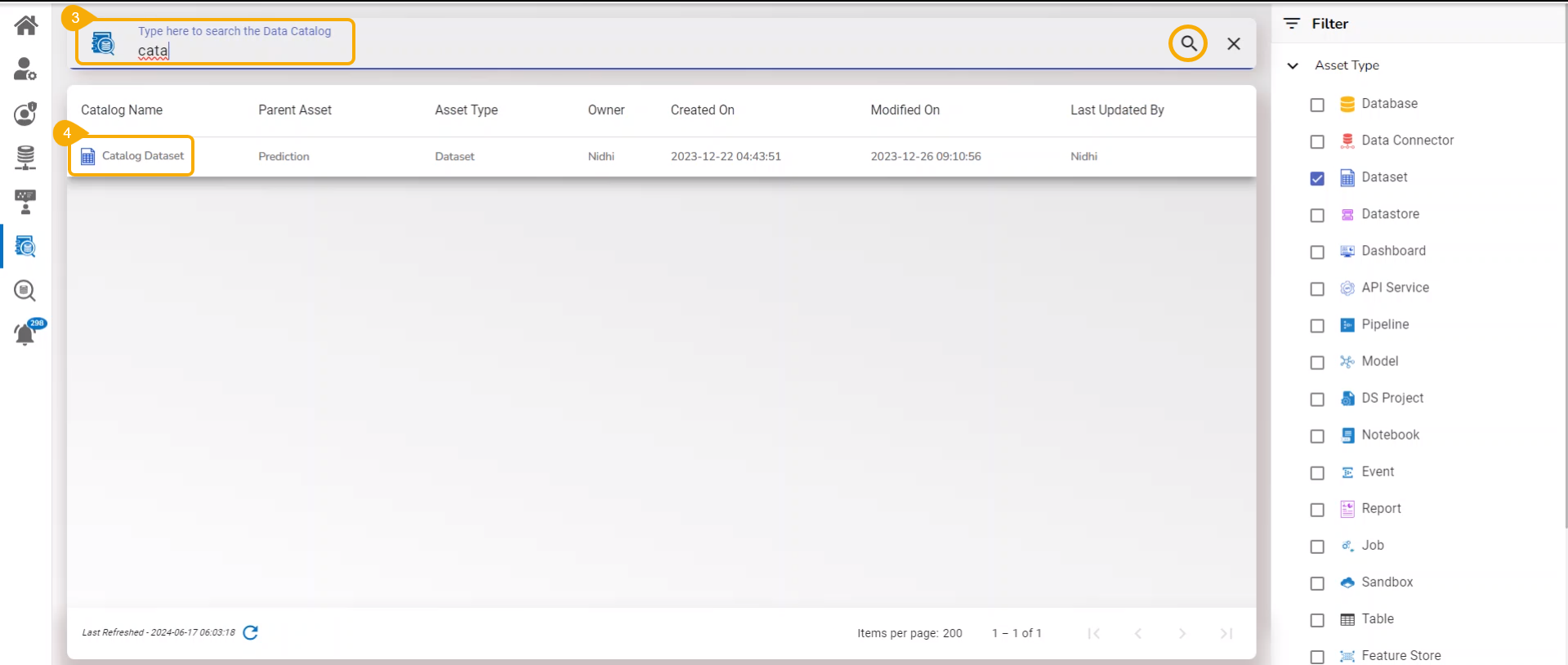
Click on a specific Catalog entry from a filtered or unfiltered Catalog List. The image displays the filtered list by Data Set asset.
Use the Search bar to search for the specific Catalog.
Click on the specific Catalog entry.
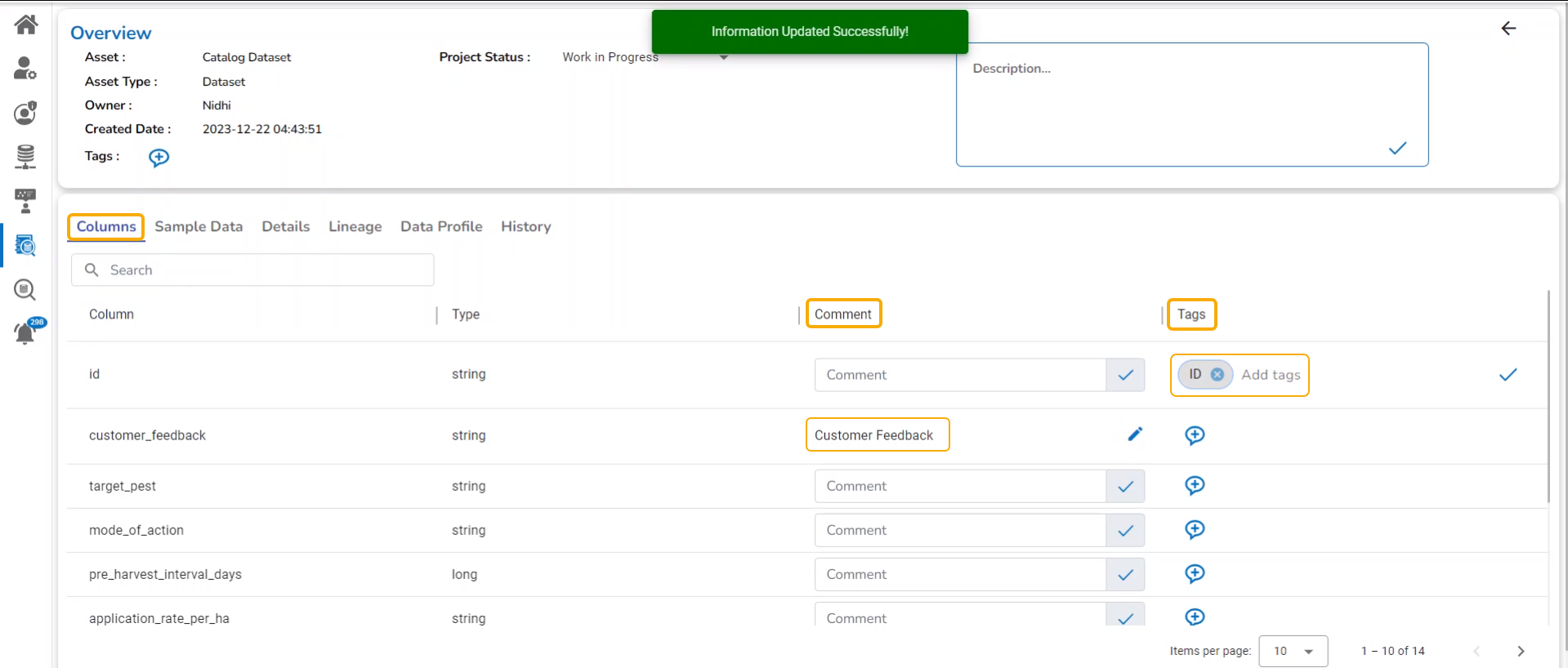
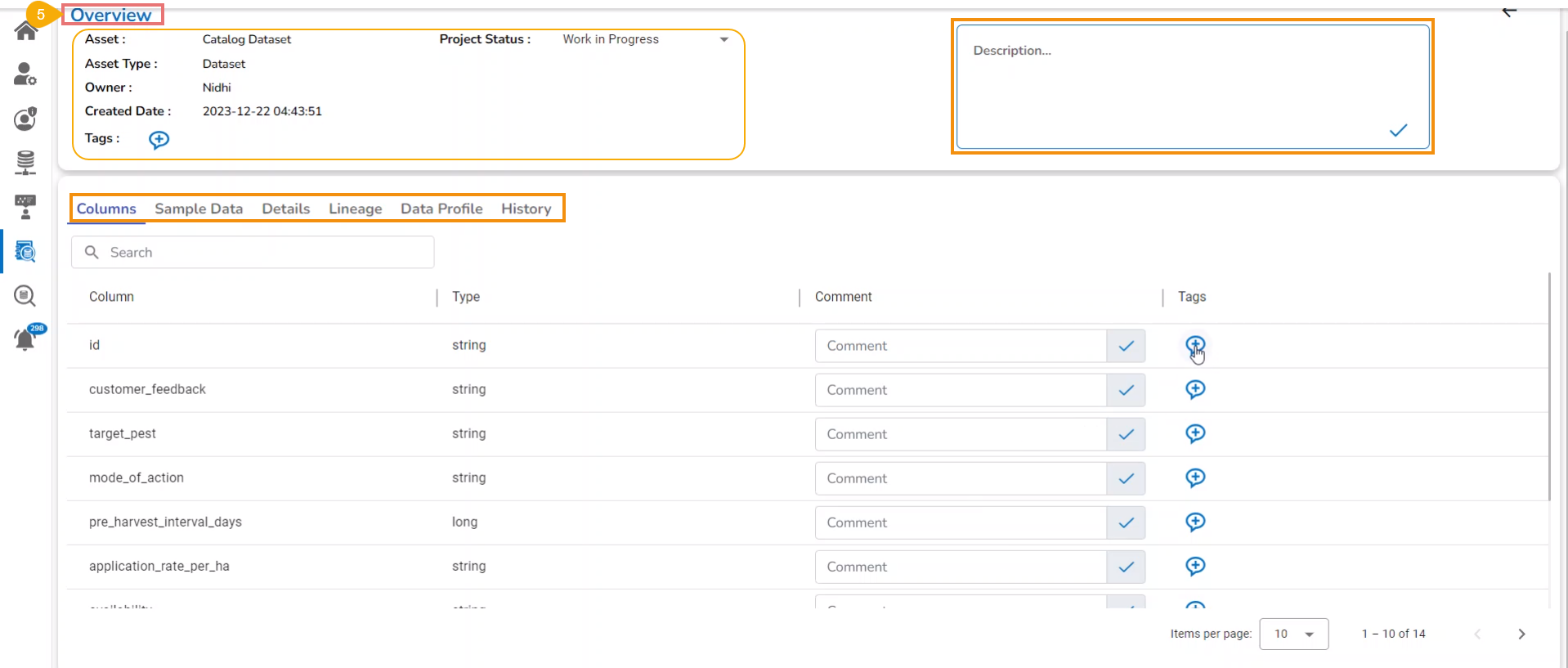
The Overview page opens for the chosen Asset displaying the following details.
Asset, Asset Type, Owner, Created Date, and Tags.
Description section to display the description for the selected Asset.
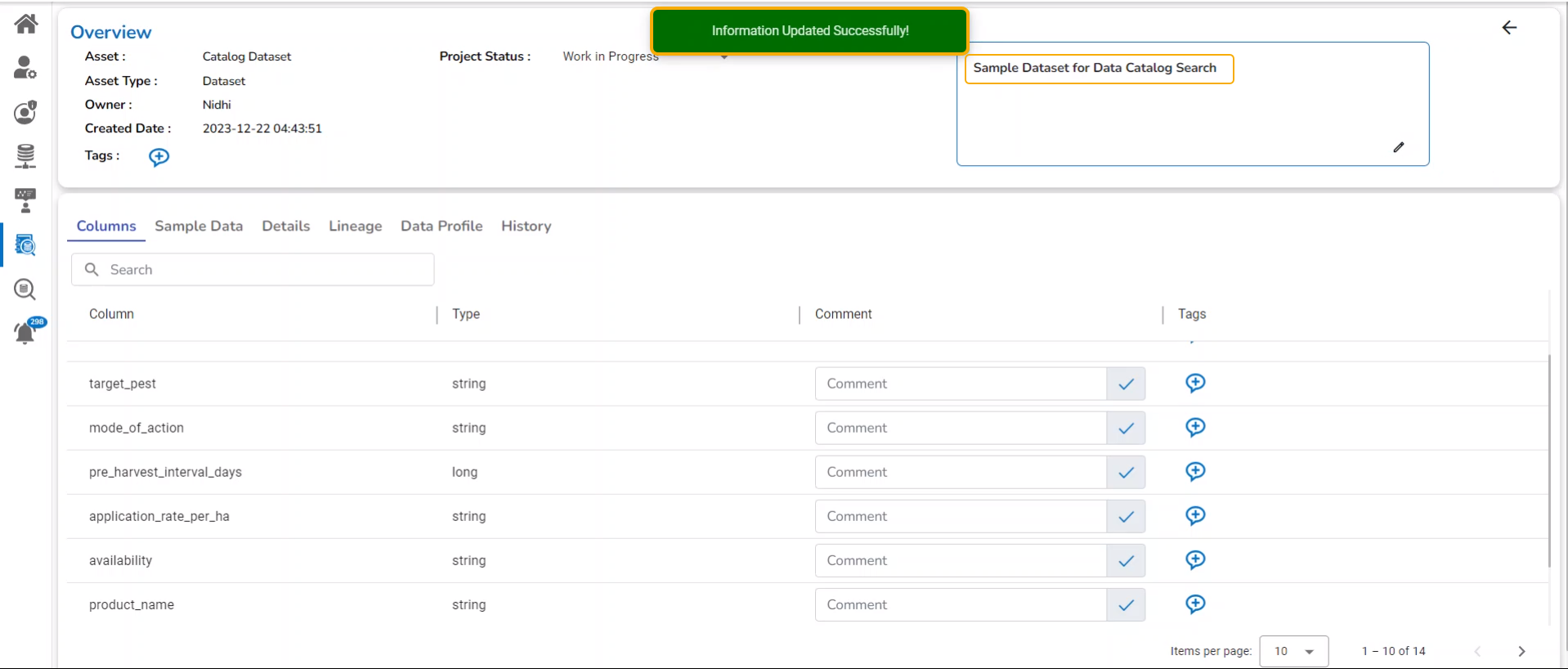
This is the default tab to open, it displays all the column names with Column Type and allows the Data Catalog users to modify or insert Comments and tags to the displayed columns.
The user gets notified under the Columns tab if a column contains Personal Information. The user may mask the concerned personal information to hide it in the data preview.
Navigate to the Columns tab.
Select a column from the displayed list of columns.
The notification will be displayed under the Comment section of the selected column.
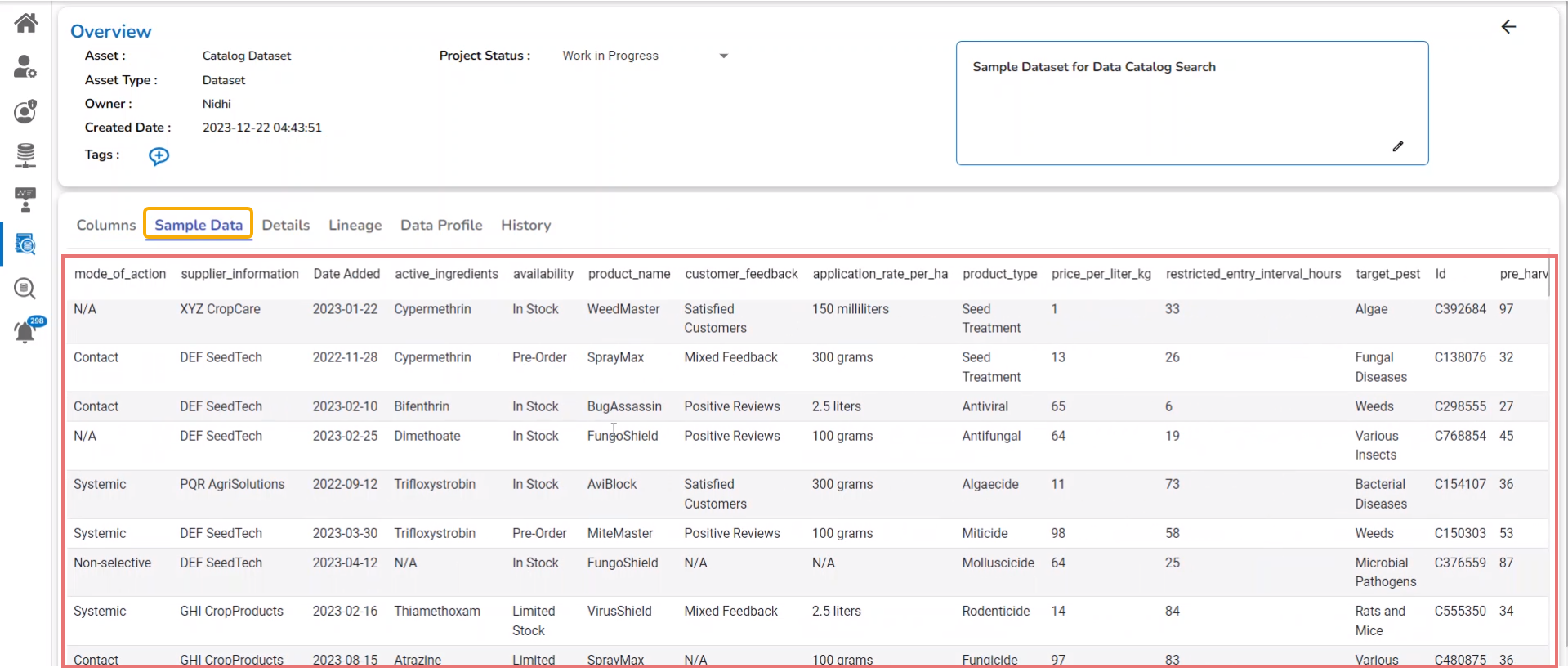
Click on the Sample Data tab to display the sample data for the selected Data Set or Feature Store. The user gets to see the sample of the data that is in use.
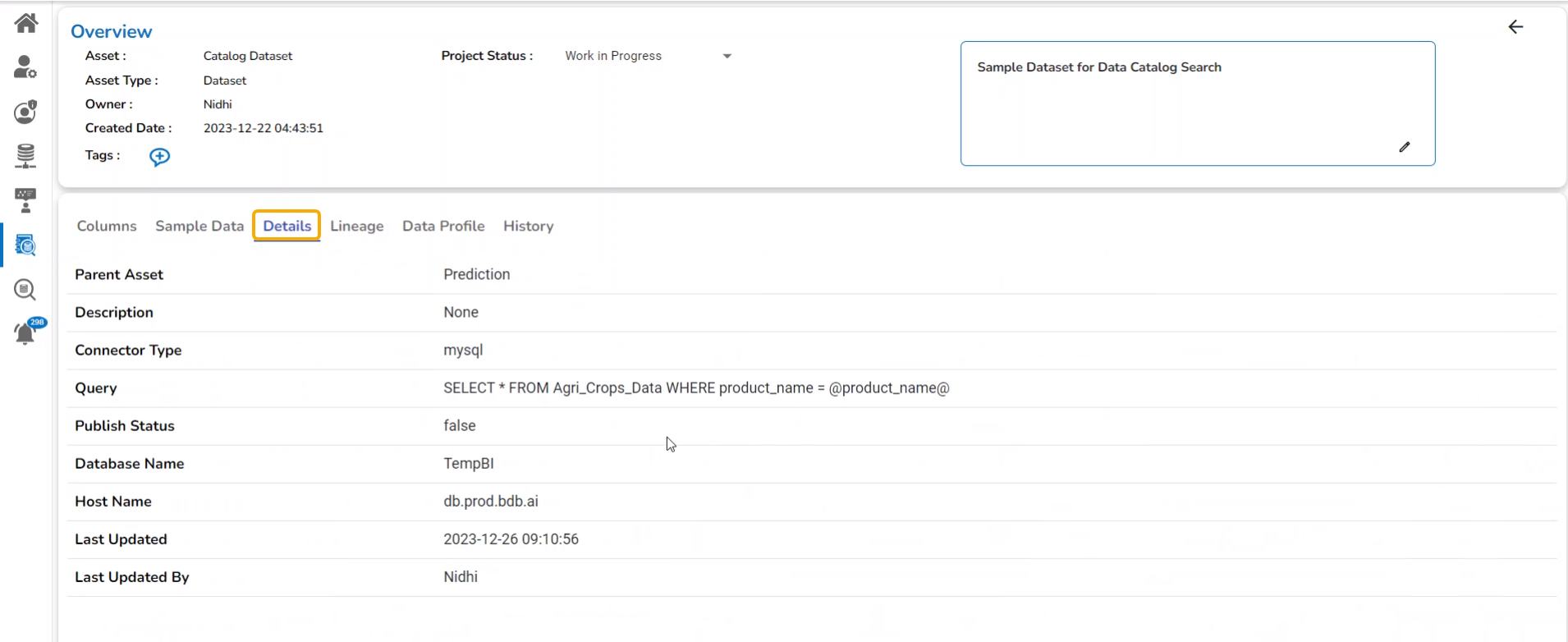
The Details tab displays the key information for the selected Catalog asset.
Navigate to the Details tab that displays the following details:
Parent Asset
Query
Publish Status
Database Name
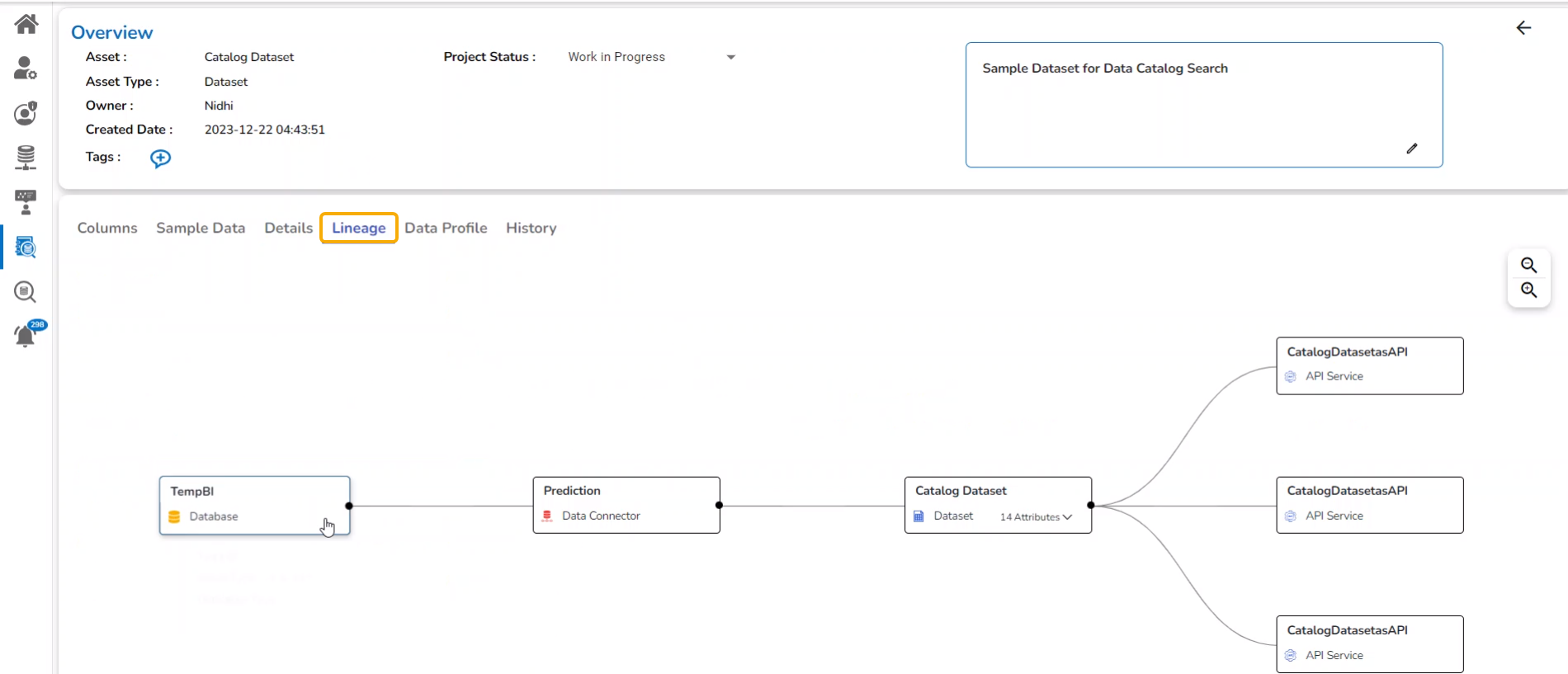
The Lineage tab displays Data Lineage for the selected Catalog. Click on the Lineage tab to open the Data Lineage. This page reveals the relationship between the searched asset and the base data source.
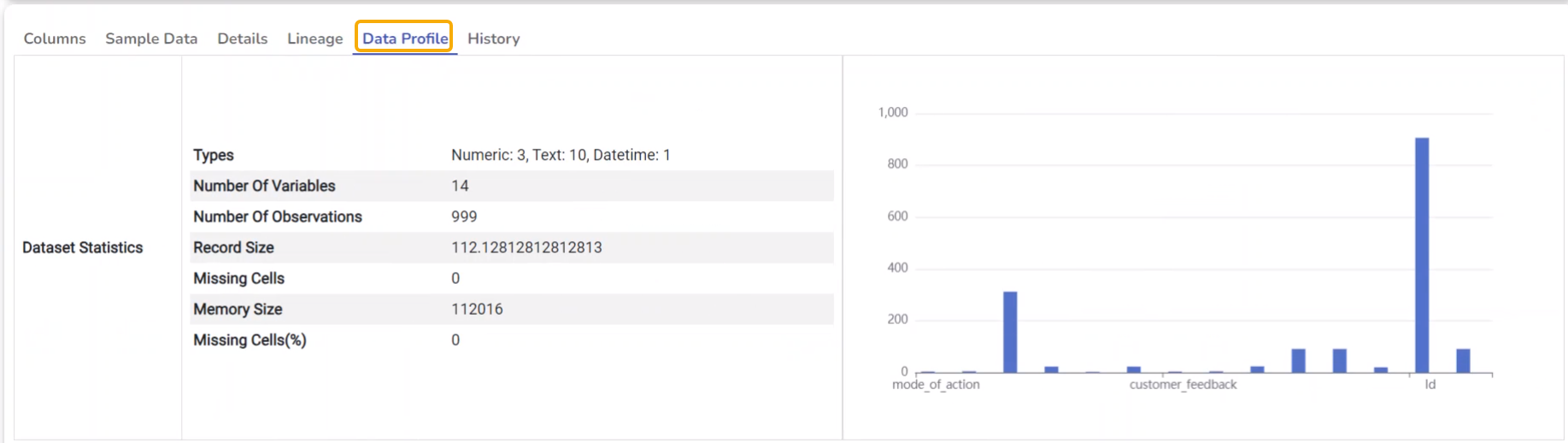
Navigate to the Data Profile tab to get the statistical information about the selected asset. It also displays a column chart based on the column names.
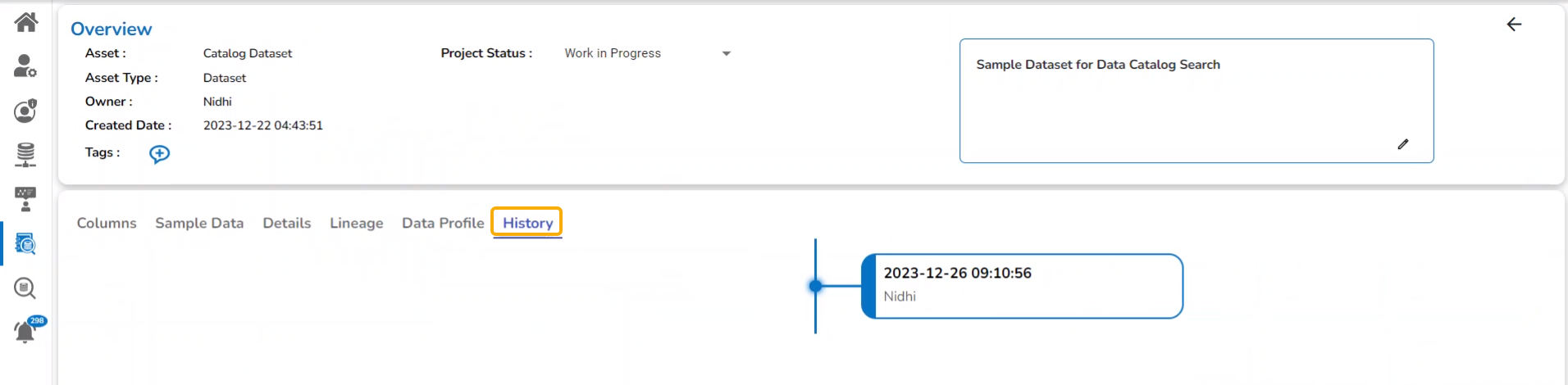
Click on the History tab to display the change history of the selected Data Catalog.
The History tab displays the last activated and deactivated information for the Data Pipelines and Jobs asset types.
Navigate to the Overview page for a Pipeline or Job Asset type.
Open the History tab.
Scrolling in the History tab displays the Last Activated and Last Deactivated information with the user's name, date, and time stamp for the selected pipeline/ job.
The Admin users will get a Delete icon for the Data Catalog Search to remove a specific Data Catalog entry from the list. Once the Data Catalog entry is removed from the Data Catalog Search page, it will not be displayed for the other users.
Click the Data Catalog Search icon from the platform homepage.
The Data Catalog list appears.
Search and select an asset from the displayed Catalog list.
Click the Delete icon for the selected asset.
A notification message appears to ensure that the selected asset is deleted.
The asset gets removed from the displayed catalog.
Navigate to the Data Center module.
Open the Data Sandbox List page.
The Data Sandbox file based on which the Data Catalog entry was removed would be displayed in the list.



A success message ensures that the provided description has been added to the concerned Data Catalog.
The inserted description remains in the Data Catalog.
Multiple tabs appear for a selected Asset such as Columns, Details, Lineage, Data Profile, and History.
Last Updated
Last Updated By
Click the Yes option.
Check out the illustration on the Apply Filter functionality by Asset Type.
Check out the illustration on the Apply Filter functionality by Owner.
Check out the given demonstration on how to explore the Data Catalog Search.
Check out the illustration on removing an asset from the Data Catalog List.


The user can publish a Data Sheet by clicking the Publish icon from the Data Center module.
Navigate to the Data Sheets list using the Data Center module.
Select a Data Sheet from the Data Sheets list (E.g., Sample Data Sheet in the following image).
Click the Publish icon for the selected Data Sheet.
The Publish Datasheet drawer opens.
Select either the User or User group tab to share the published Data Sheet (Use the Exclude User tab to exclude any user from the rights to access a data sheet).
Select user(s) or group(s) based on the selected tabs using the checkbox(es).
Click the Save option.
A confirmation message appears as shown below.
The Data Sheet will be added at the top of the Data Sheets list.
The selected Data Sheet gets published in the My Documents space of all the selected user(s).
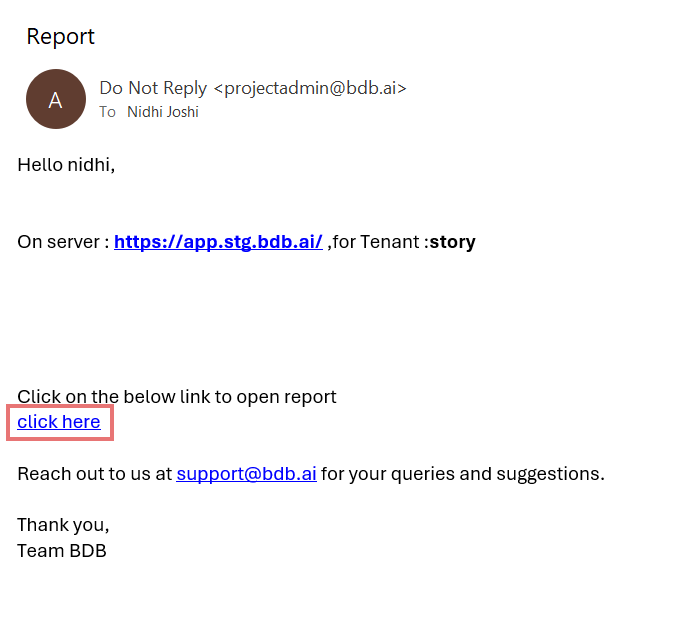
The user also receives a mail notification (as displayed below) for the published Datasheet.
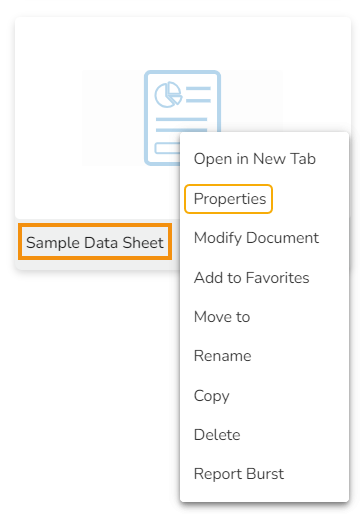
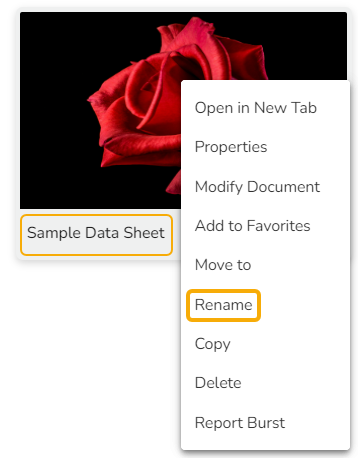
Each published Datasheet is credited with some operations on the BDB Platform. Use the right-click to access the available Datasheet operations in a context menu.
Select the Open in New Tab option using the Context menu.
The Datasheet opens in the new tab.
Select the Properties option from the context menu.
The Properties window appears with four options:
Properties: Displays basic details about the Datasheet creation.
Click the Browse option to upload an image.
Click the Save option to save the update.
A message appears to assure about the update.
The Datasheet can be shared with the selected User using the Share with User option.
Select the Share with User option using the Properties window.
Search for the specific user(s) using the Search bar.
Select a user or multiple users using the checkbox(es).
Click the
The Datasheet can be shared with the selected User Group by selecting the Share with Group option.
Select the Share with Group option using the Properties window.
Search for the specific user group(s) using the Search bar.
Select a user group or multiple groups using the checkbox(es).
Click the
The Selected User(s) will be excluded from the rights to access the Datasheet.
Select the Exclude User option using the Properties window.
Search for the specific user(s) using the search bar.
Select a user or multiple users using the checkbox(es).
Click the Save
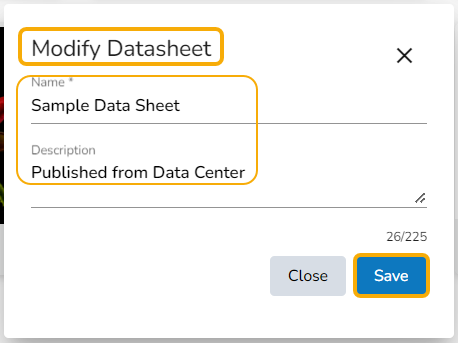
The user can modify the Datasheet name and description using the Modify Document option.
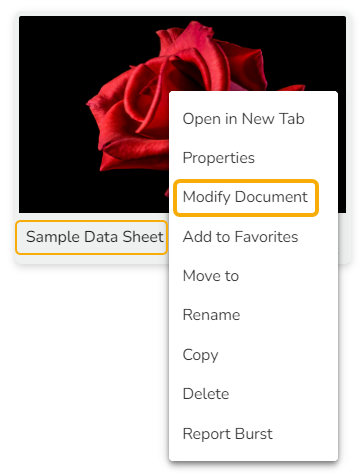
Select the Modify Document option using the context menu.
The Modify Datasheet window opens for the selected datasheet.
Modify the required information:
Name of the Datasheet.
Description of the Datasheet.
The selected information gets modified, and a message appears to ensure the same.
Select the Add to Favorite option from the context menu.
A message appears to ensure the success of the action.
Open the Favorites section.
The selected datasheet will be added to the Favorites.
Open the context menu option for the same Datasheet.
Click the Remove from Favorites option.
OR
Use the right-click on the datasheet which has been added to the Favorites.
Click the Remove from Favorites option appears.
The Datasheet gets removed from the Favorites, and a notification message states the same.
Administrators can move a Datasheet from one folder or document space (E.g. My Documents) to another folder or document space.
Select a Published Datasheet.
Select the Move to option from the operation context menu.
The Move To window appears displaying the available folders.
The Datasheet gets moved to the selected space or the folder under a space.
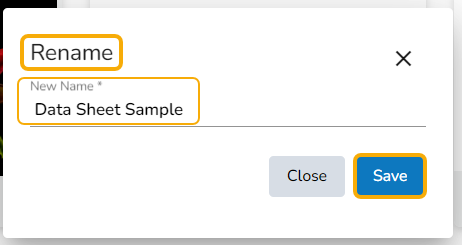
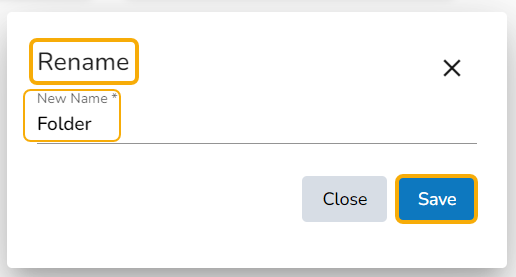
Select the Rename option from the context menu.
A new window opens prompting to rename the Datasheet.
Provide a New Name for the selected datasheet.
Click the Save option.
The selected datasheet gets renamed.
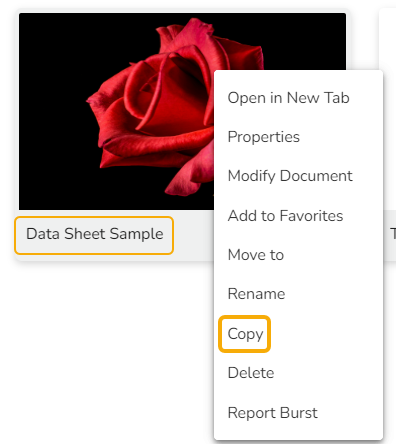
Select the Copy option from the context menu.
Use the right-click on another folder or on the blank space to get the Paste option.
Click the Paste option.
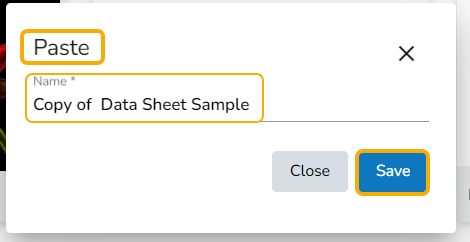
The Paste window displays the selected datasheet name with the 'Copy of-' prefix. E.g., A Datasheet named Data Sheet Sample gets a new name, Copy of Data Sheet Sample as shown in the following image:
The datasheet gets copied to the selected space with the new name.
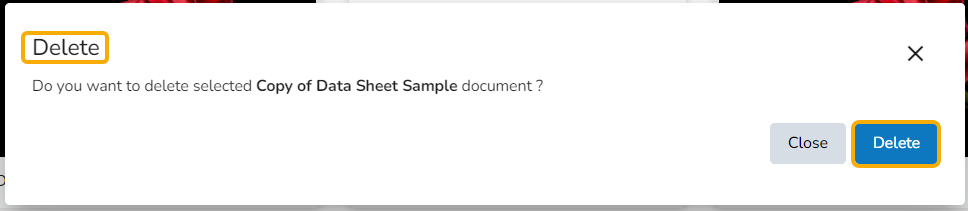
Select the Delete option from the context menu.
The Delete window opens to confirm the action.
Click the Delete option to delete the selected Datasheet.
The selected Datasheet will be deleted.
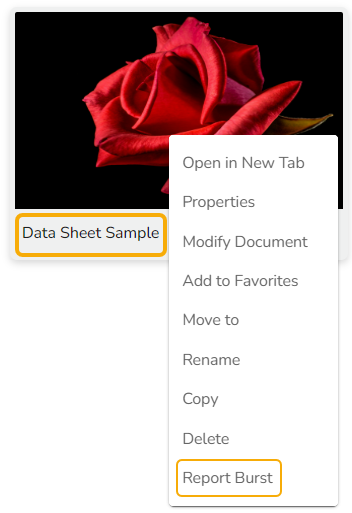
Select the Report Burst option from the context menu.
The Report Burst drawer opens.
Enter the internal or external user names/ mail IDs.
Provide Subject.
Add description.
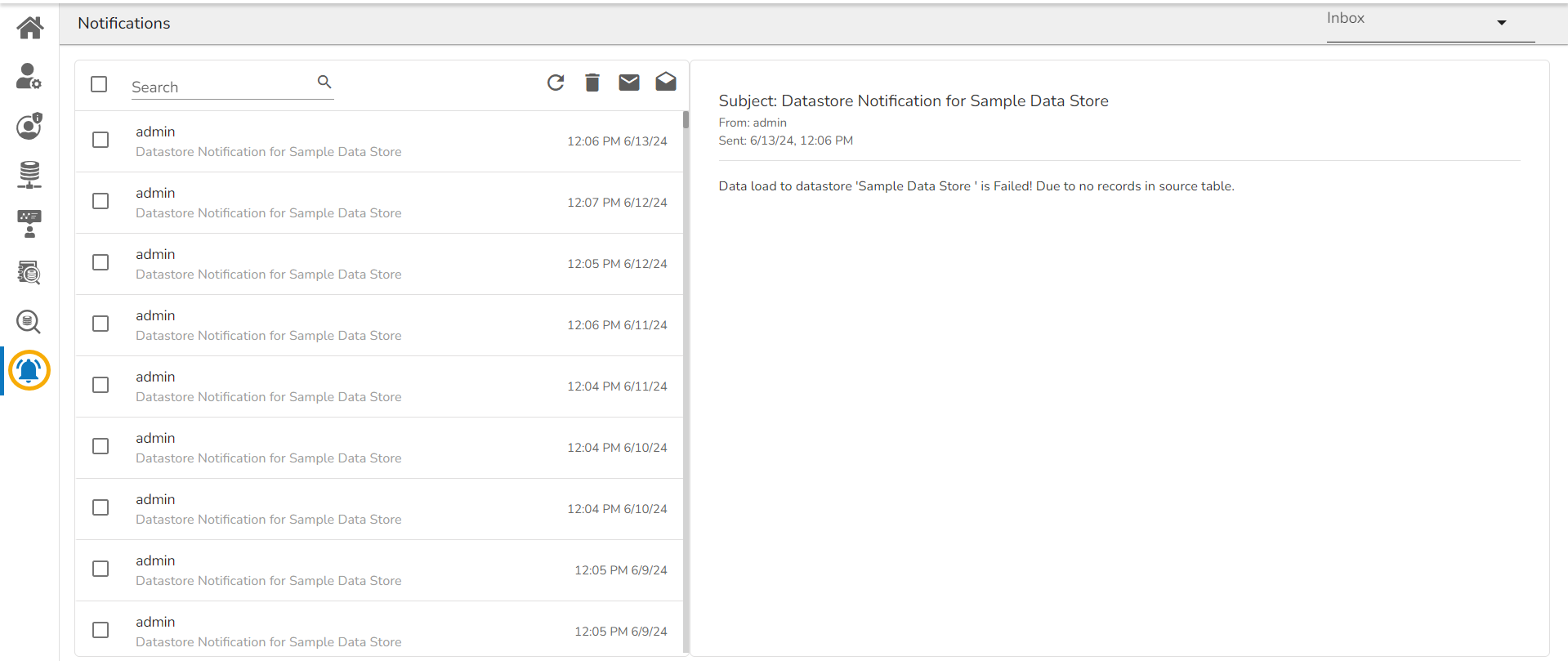
The Notification feature is a way to send and receive messages from processes to people (the platform user). By default, it has Inbox and Trash folders. The data store refresh and copy of a story document get communicated through this feature.
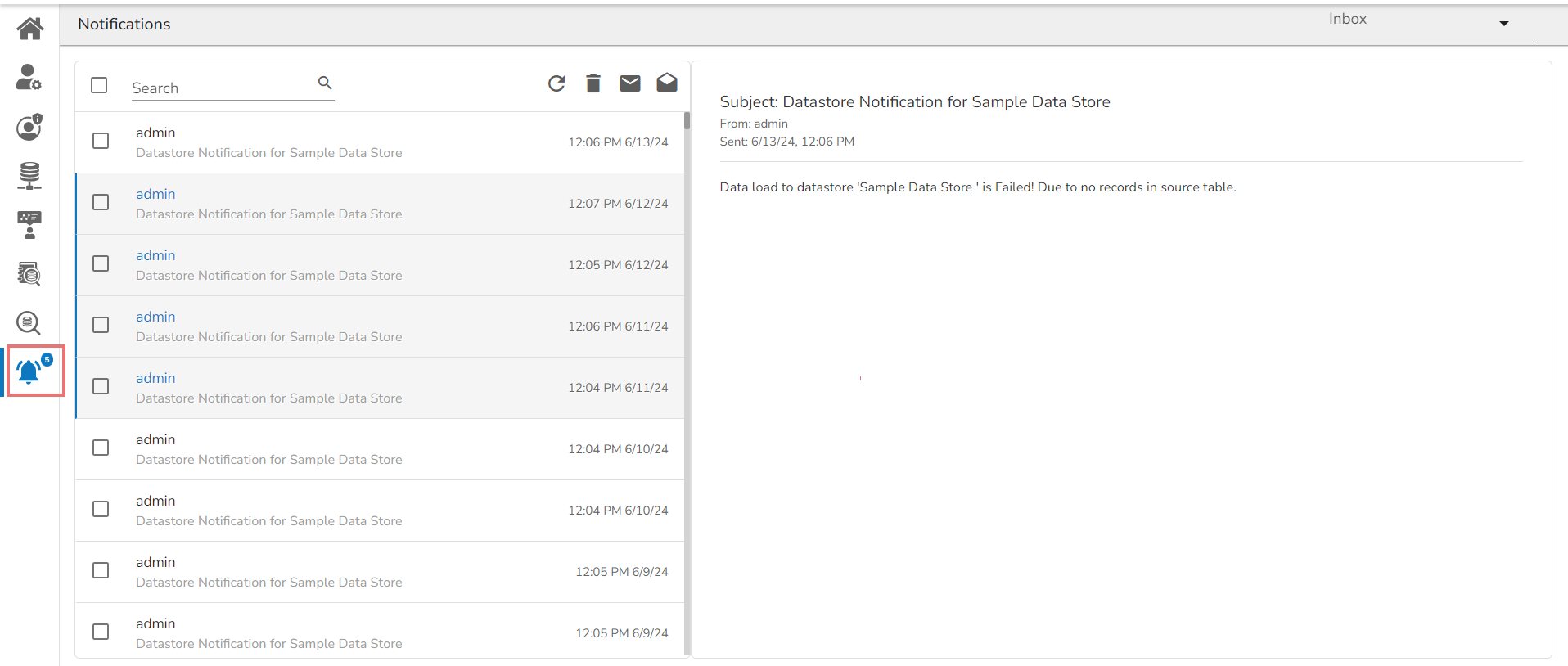
Click the Notification option using the Platform homepage header (the Notification icon appears with the count of unread notifications).
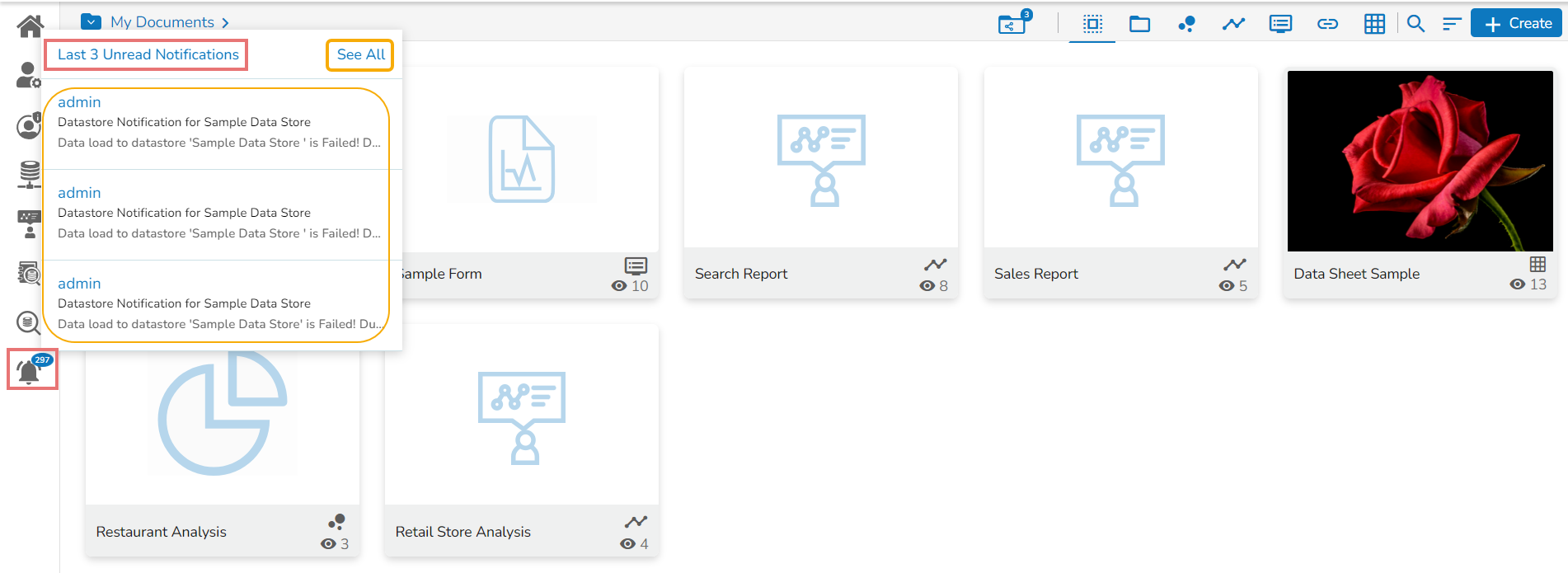
A window opens with the latest 3 notifications.
A success message appears stating that the document privilege has been updated.
The Datasheet gets shared with the selected user(s) under the Shared Documents folder.
A success message appears stating that the document privilege has been updated.
The Datasheet is shared with the selected user group(s).
A success message appears, and the document privilege gets updated to exclude the selected users.
The Datasheet permission gets excluded for the selected user/users.
Click the Save option.
Click the Move icon.
The users get redirected to the next screen displaying the selected folder name at the top.
Click the Save option.
A notification message appears.
Click the Save option.
Click the Save option.
A notification message will ensure the Report Burst schedule status has been updated successfully.
The Report Burst option turns active.
The user will receive an email with the open doc link to the concerned Datasheet at the scheduled time.


Click the See All option.
The notification Inbox page opens displaying the latest notification in detail (by default).
Icons provided on the inbox window:
Icons
Name
Task Assigned
Refresh
Receives the latest messages
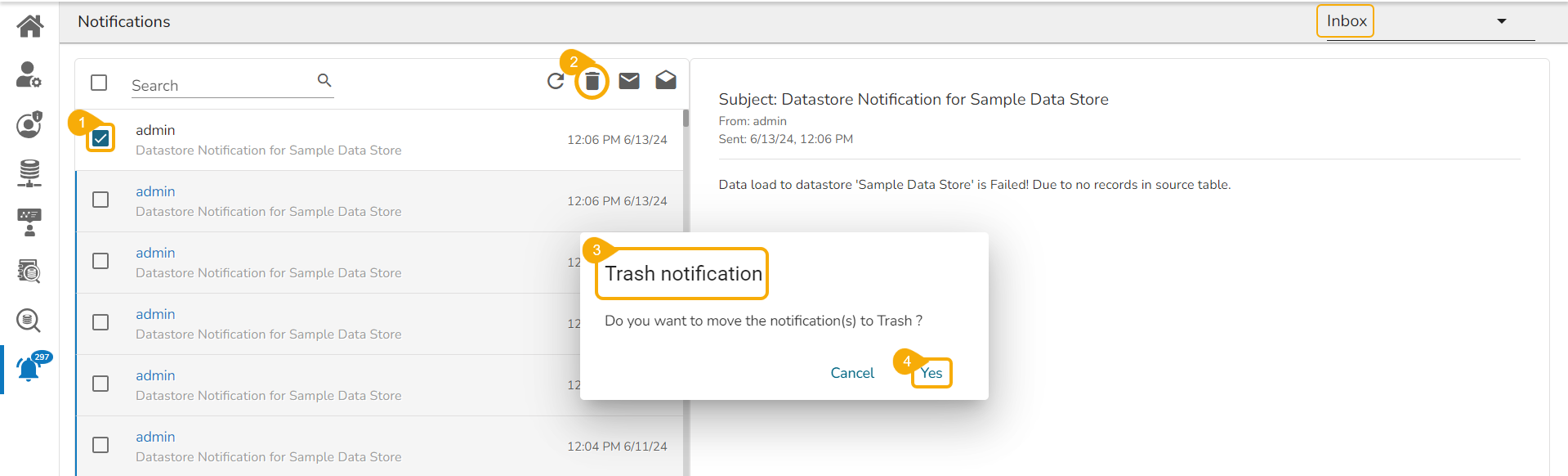
Select a notification using the checkbox.
Click the Delete icon from the header panel of the notification inbox.
A dialog box appears to confirm from the user's end to move the selected notification to Trash.
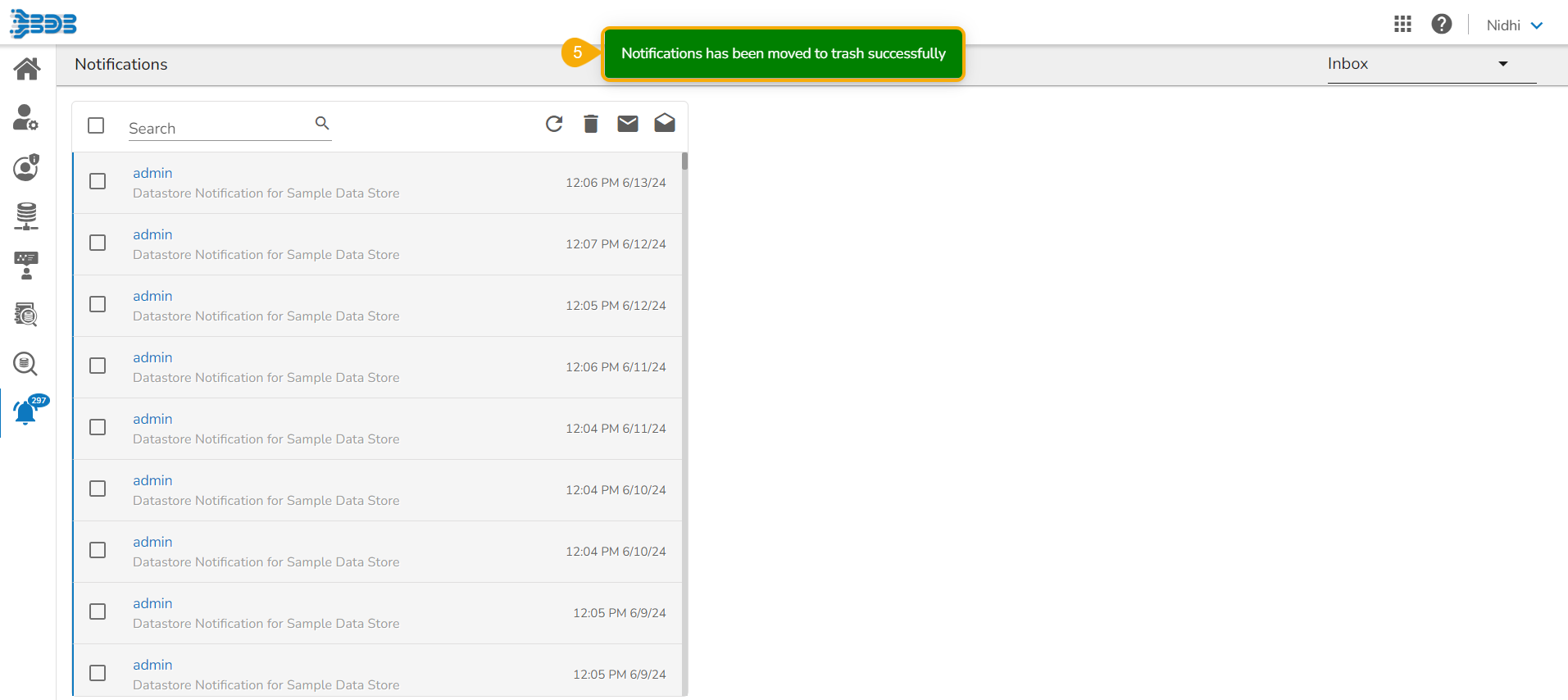
Click the Yes option to move the notification(s) to Trash.
A message ensures that the selected notification(s) has been moved to the Trash folder.
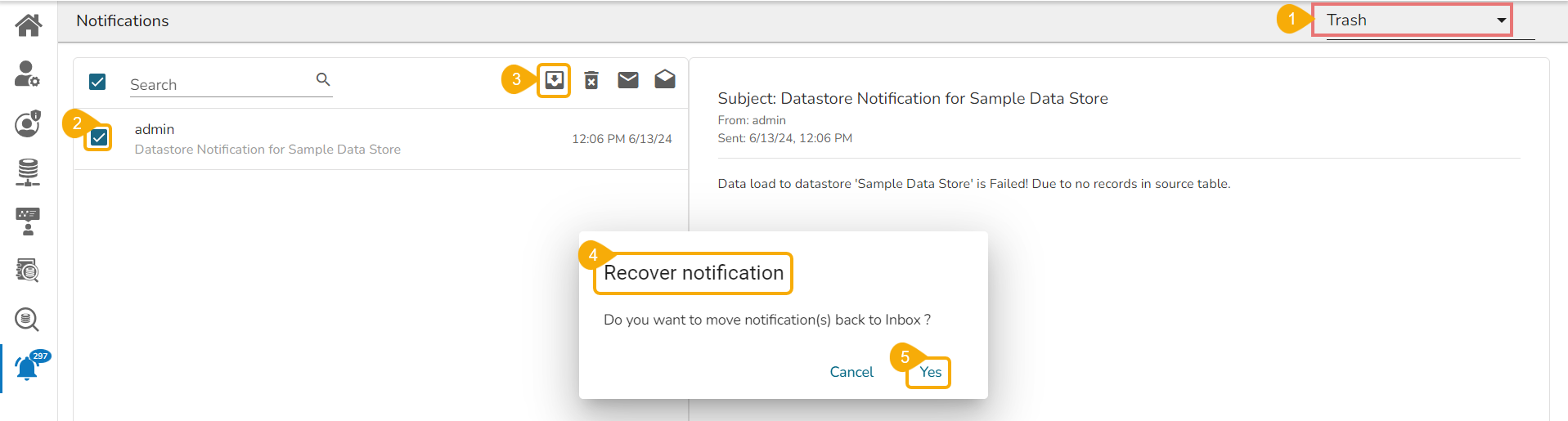
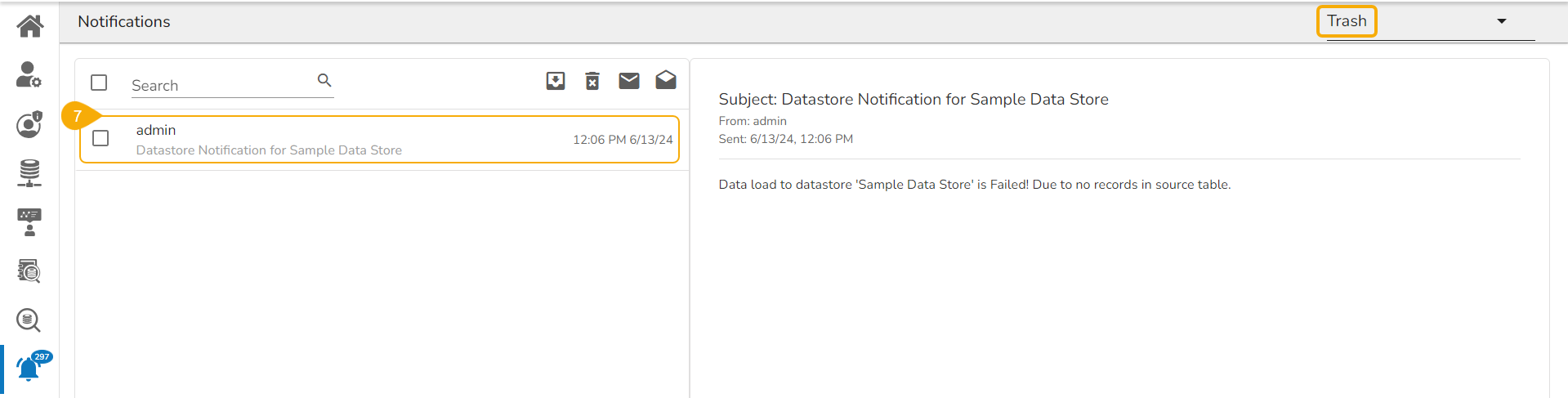
Select the Trash option from the drop-down and click on it.
The notifications under the Trash folder get displayed (by default the latest notification opens in details).
Navigate to the notification list under the Trash folder.
Select a notification using the checkbox.
Click the Move to Inbox icon from the header panel.
A dialog box confirms the intended action of moving the selected notification to the Inbox.
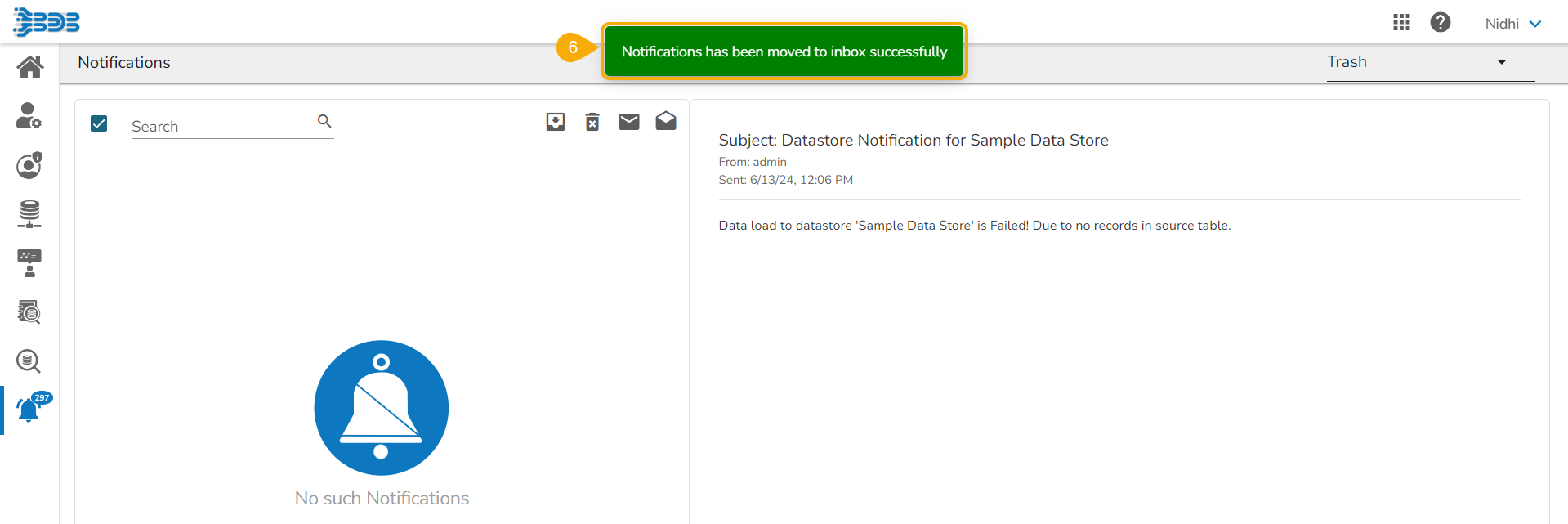
Click the Yes option to move the notification(s) to recover the Notification.
A message appears to ensure that the selected notification has been recovered. The selected notification is moved back to the Inbox folder.
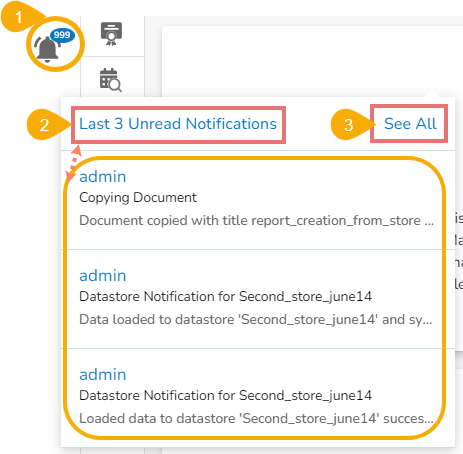
The left panel contains the Notification icon. The number of notifications displayed at the top of the Notification icon indicates the unread notification messages.
Click on the Notification icon.
A window opens with the See All option and displays the Last 3 Unread Notifications.
Click the See All option to display all the notification messages in the Inbox (By default, the Inbox folder opens).
The notification Inbox opens displaying all the available notifications.
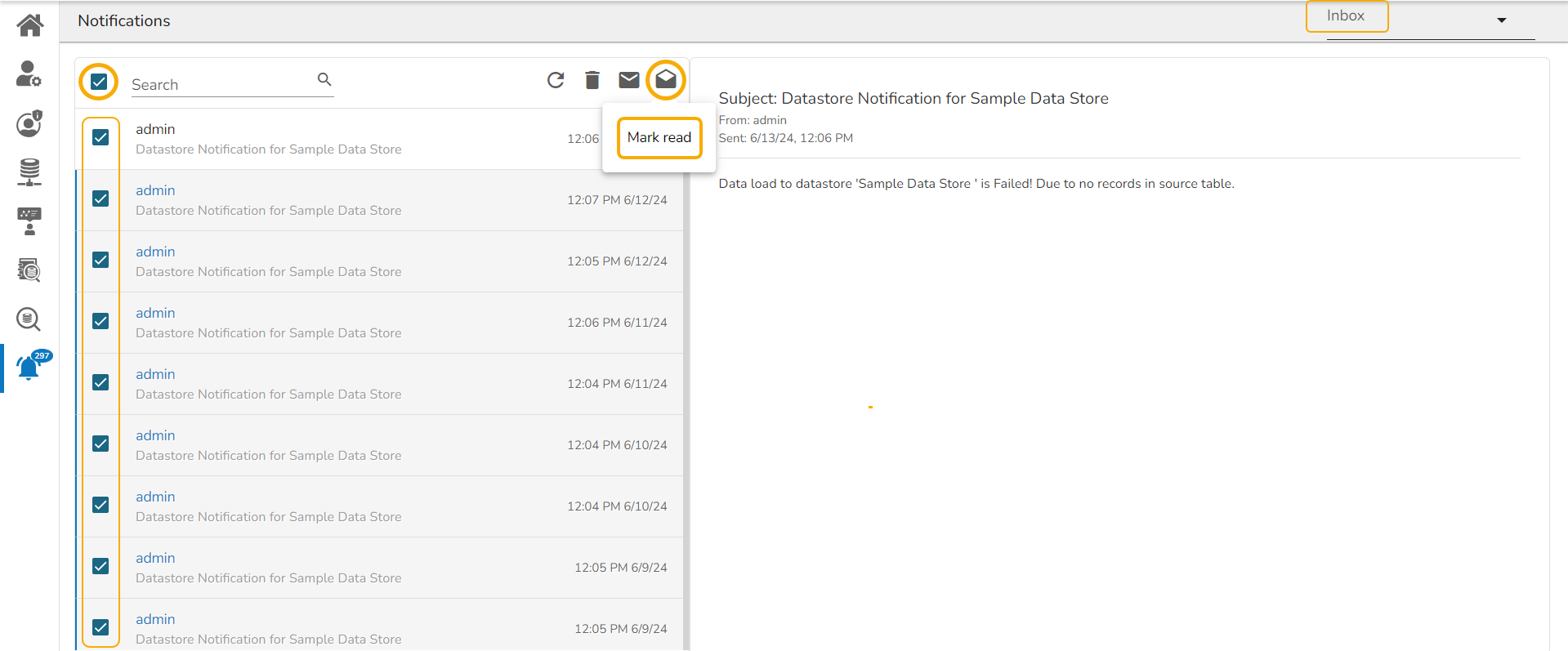
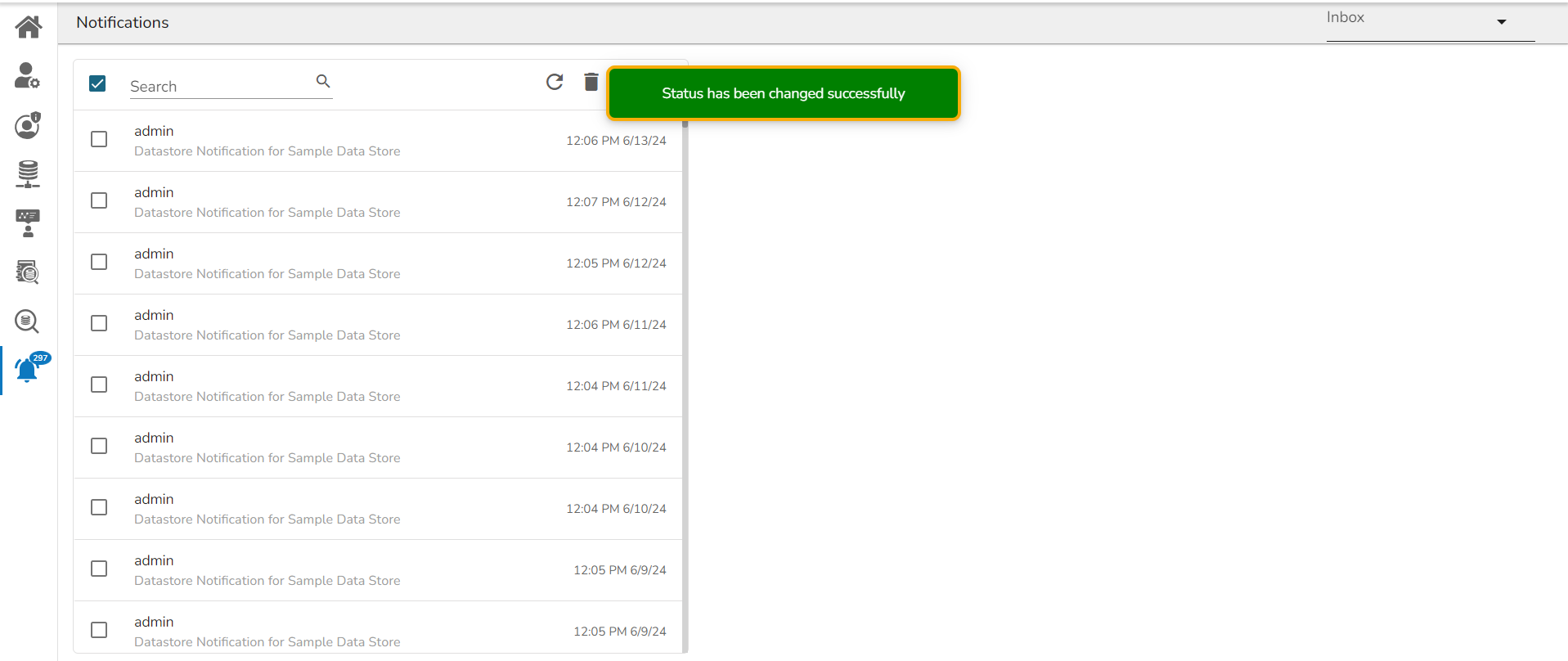
Use a checkmark in the given checkbox beside the search bar to select all the notifications. or Select the notifications by using the checkboxes provided next to those notifications.
Click the Mark Read icon.
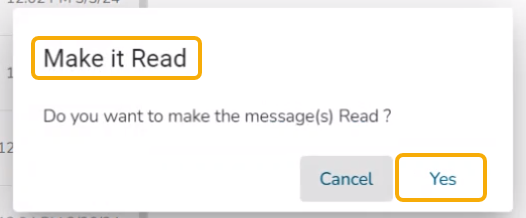
The Make it Read window appears.
Click the Yes option.
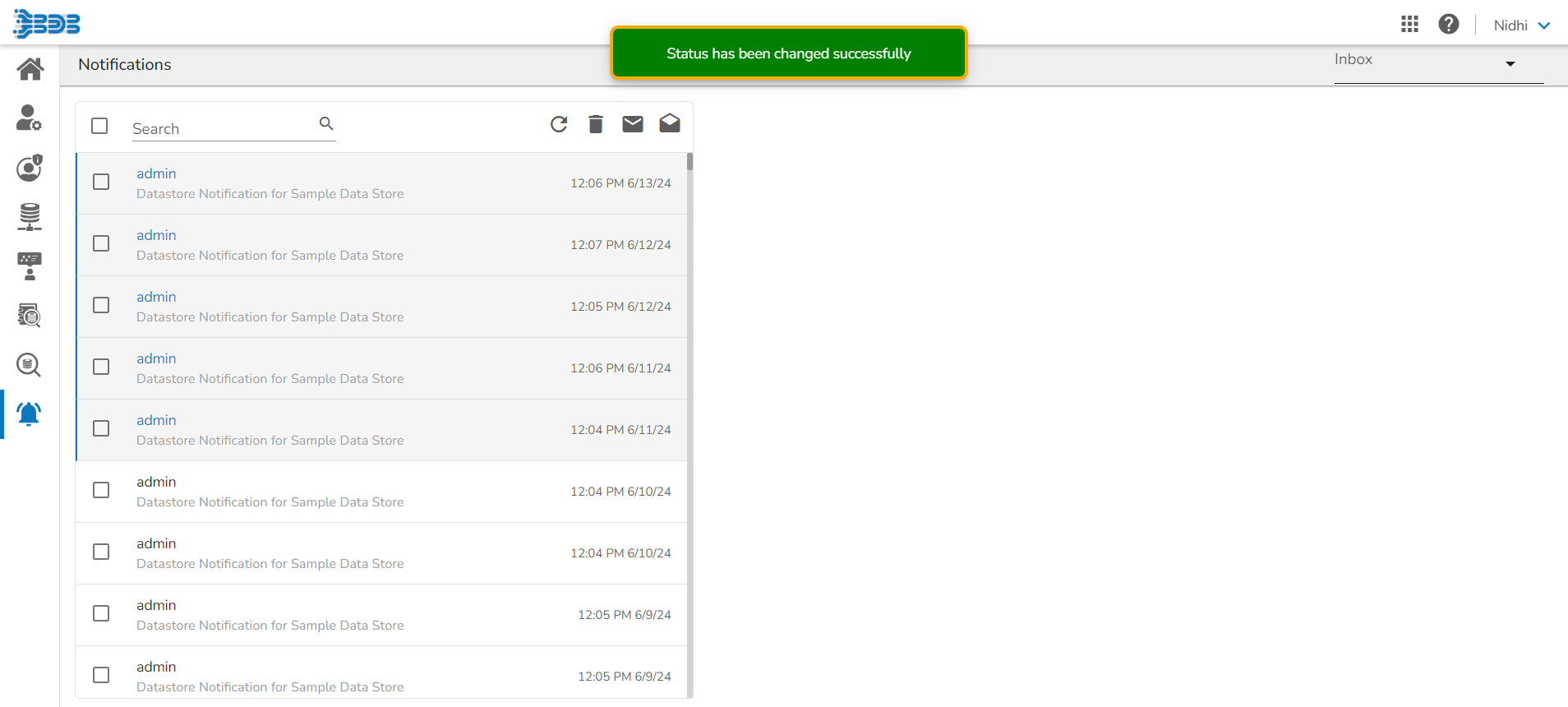
A notification message appears.
Use the Refresh icon available for the browser, the status of the selected notification(s) gets updated as Read, and the numbers indicating the unread notifications will disappear.
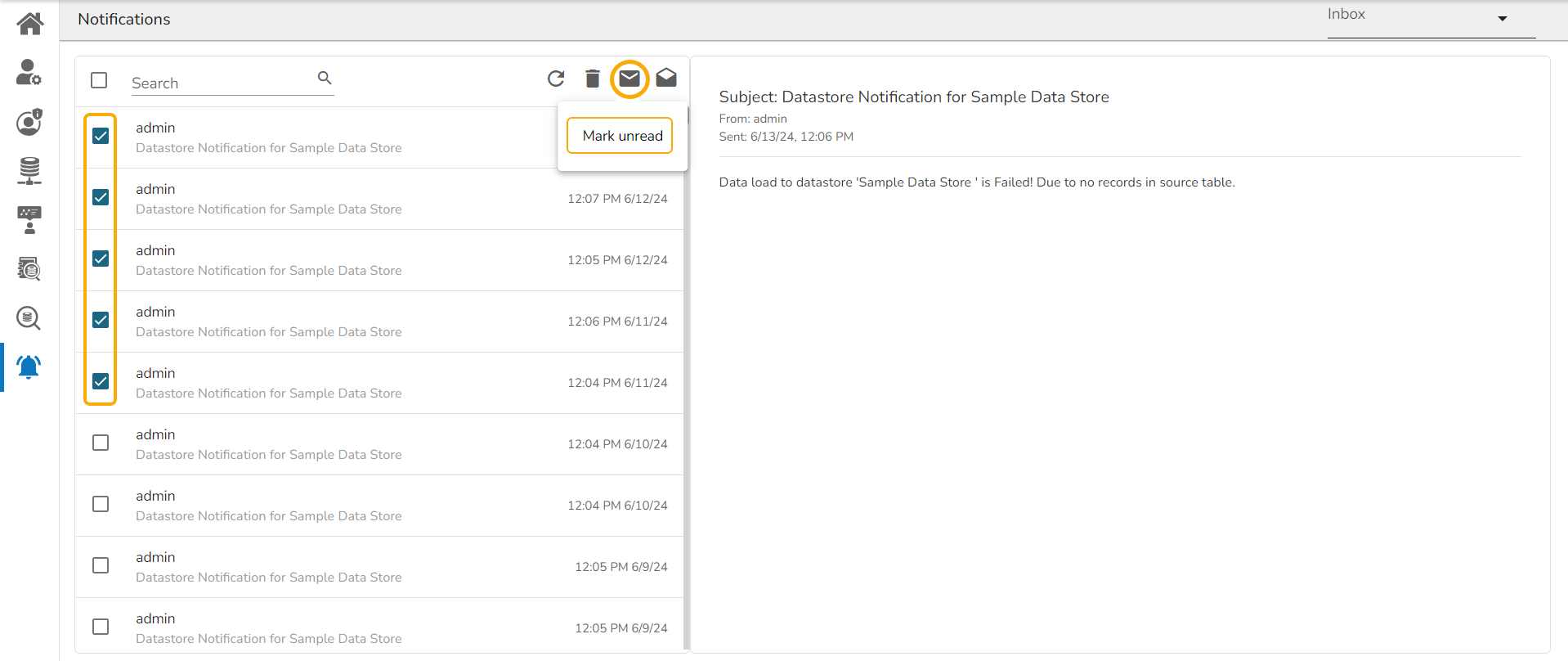
Navigate to the Inbox page and select the notification messages either by using the checkbox provided for Select All or selecting the individual messages by using the checkboxes next to them.
Click the Mark Unread icon.
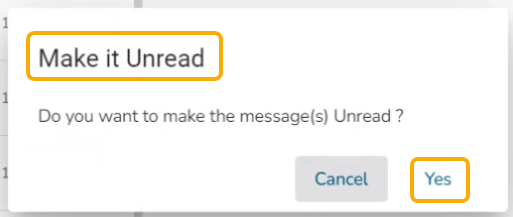
The Make it Unread window appears.
Click the Yes option.
A notification message appears.
All the notifications or the selected notification messages will turn Unread, and the number indicating the unread notifications appears at the top of the notification icon.

Delete
Moves the selected messages to the Trash folder
Mark unread
Marks messages status as ‘unread’
Mark read
Marks messages status as ‘read’



This section mentions steps to Sign off from the BDB Platform.
Click the User Profile icon on the Platform homepage.
Click the Sign-Out option.
The user successfully signs off from the BDB Platform.
This section aims to describe steps to reset password for your user account using the Forgot Password option.
The users are provided with a choice to reset the password in case they forget it. This functionality is provided on the sign-in page of the platform.
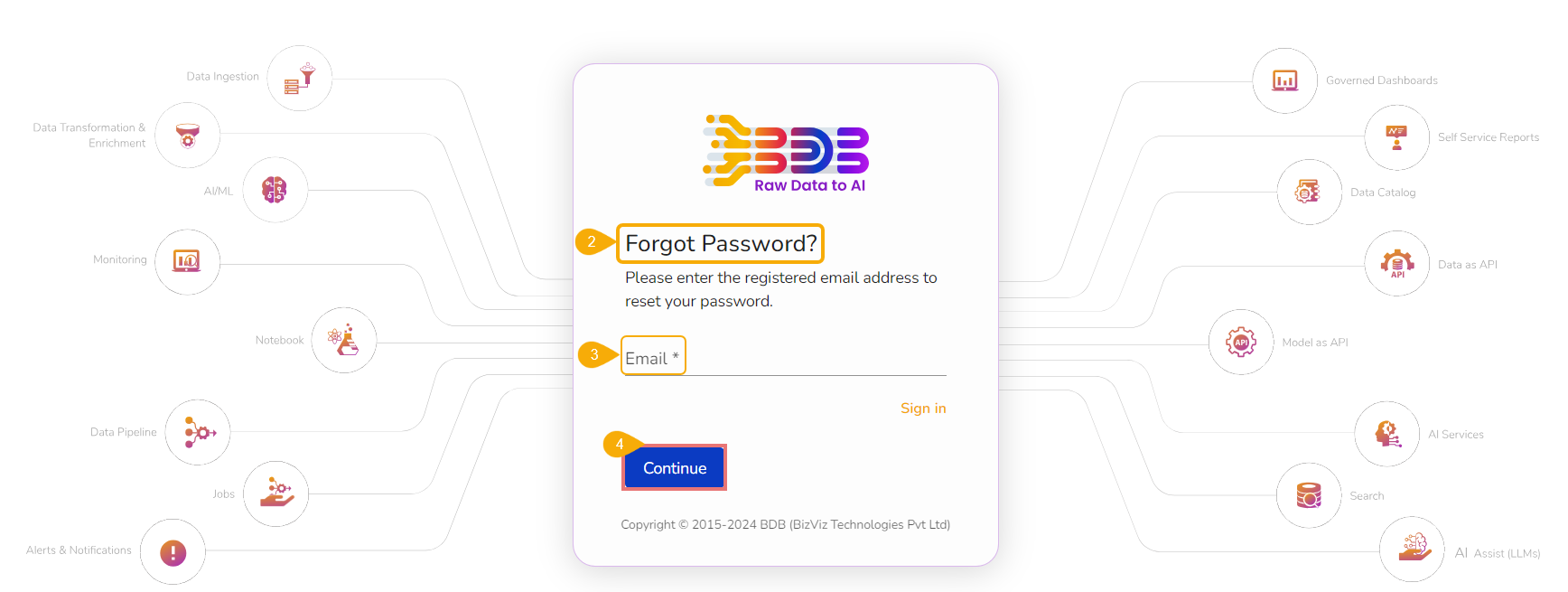
Click the Forgot Password? option from the Sign In page.
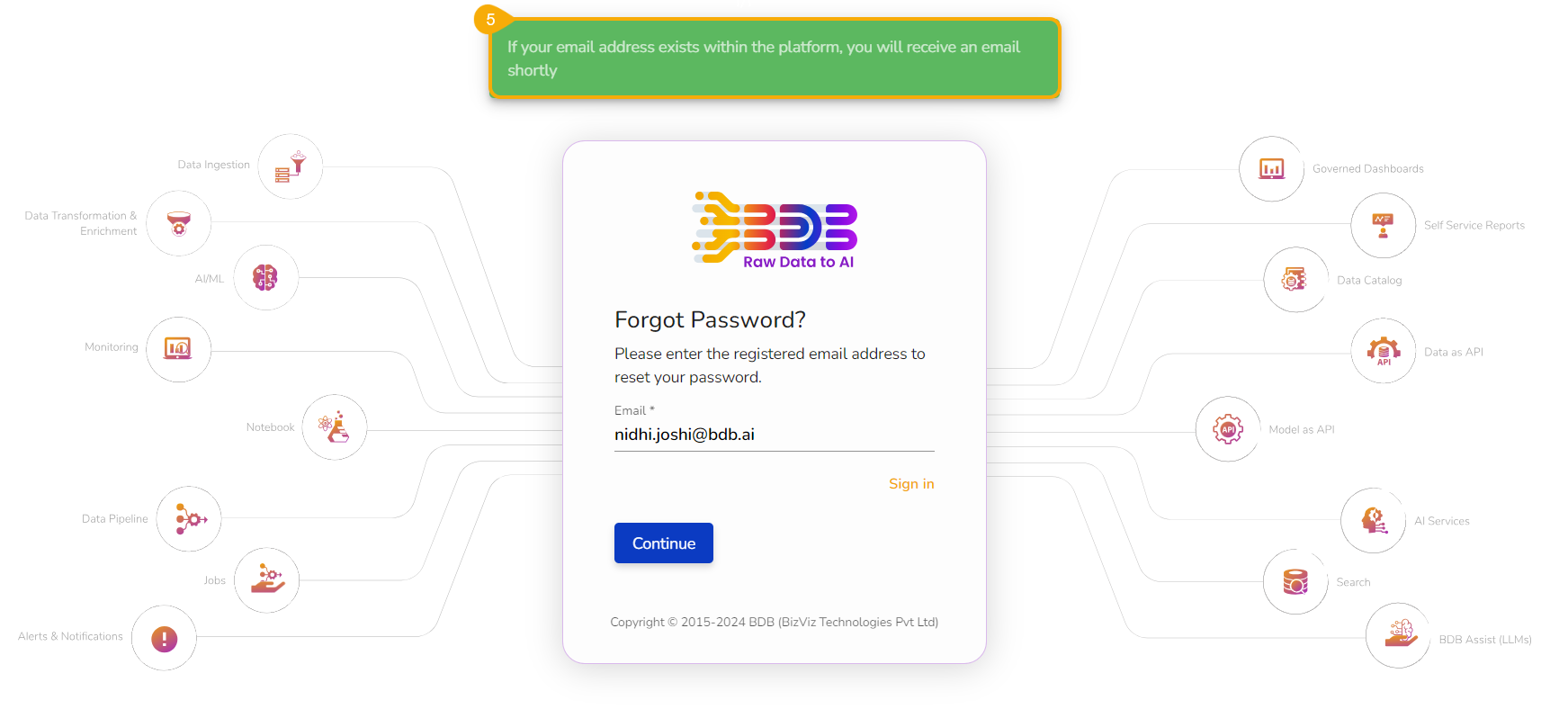
The Forgot Password? page opens.
Provide the registered email ID to send the reset password link.
Click the Continue option.
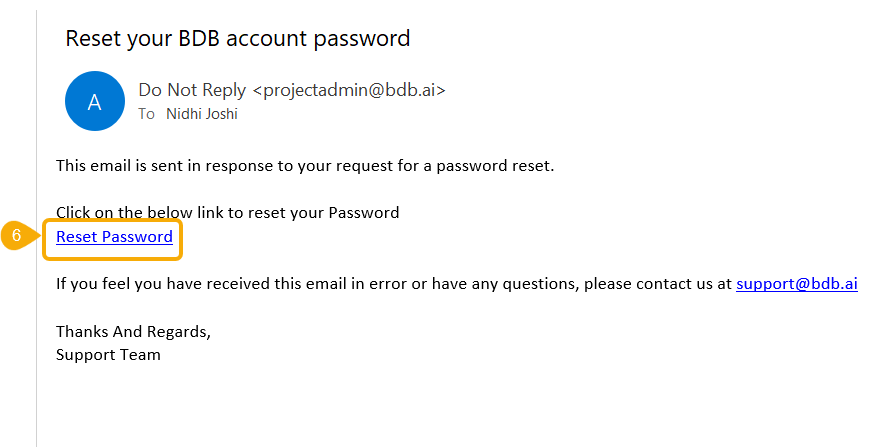
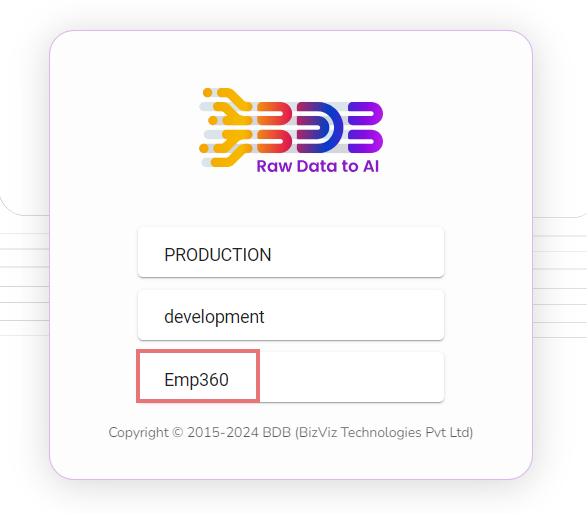
In case, a user does not have multiple spaces, a message appears to notify the user about the password reset link (the reset link gets shared via the registered email).
Click the link from your registered email.
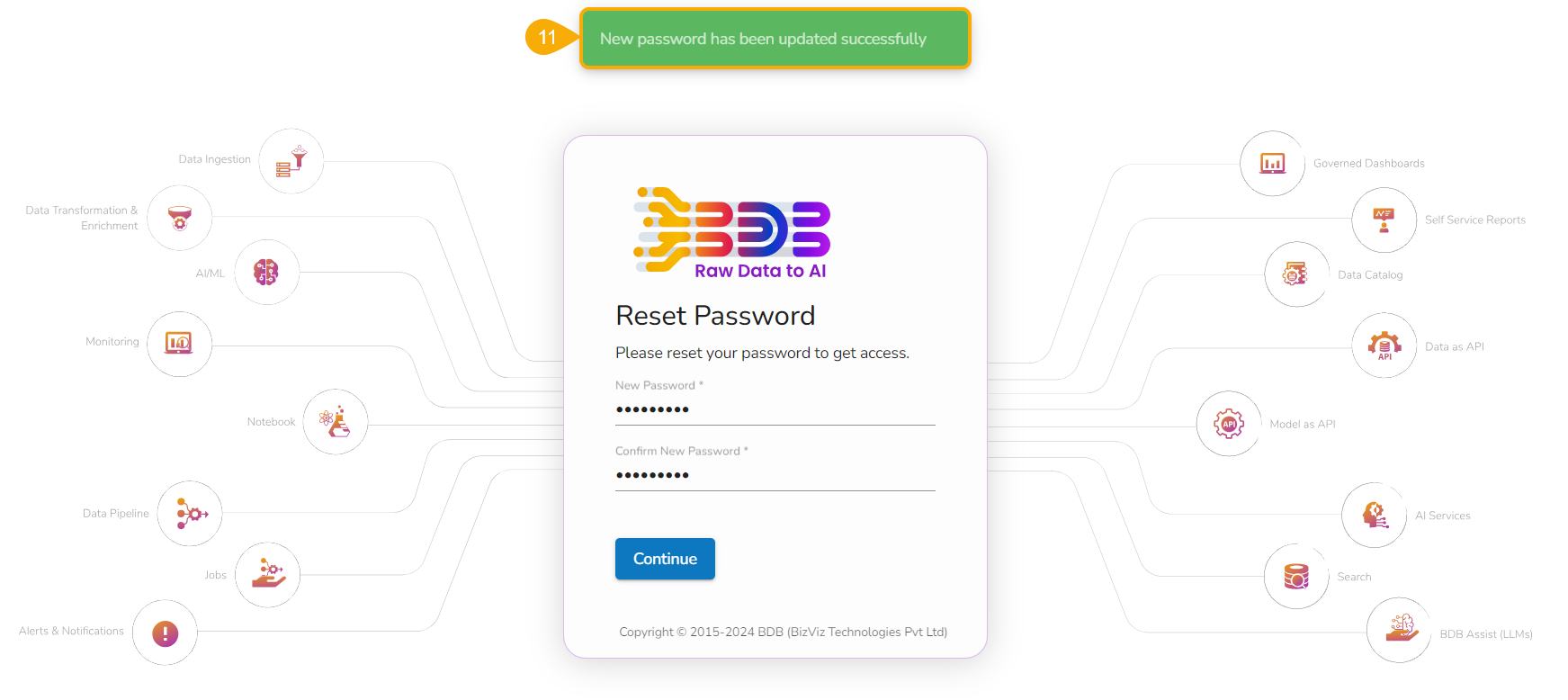
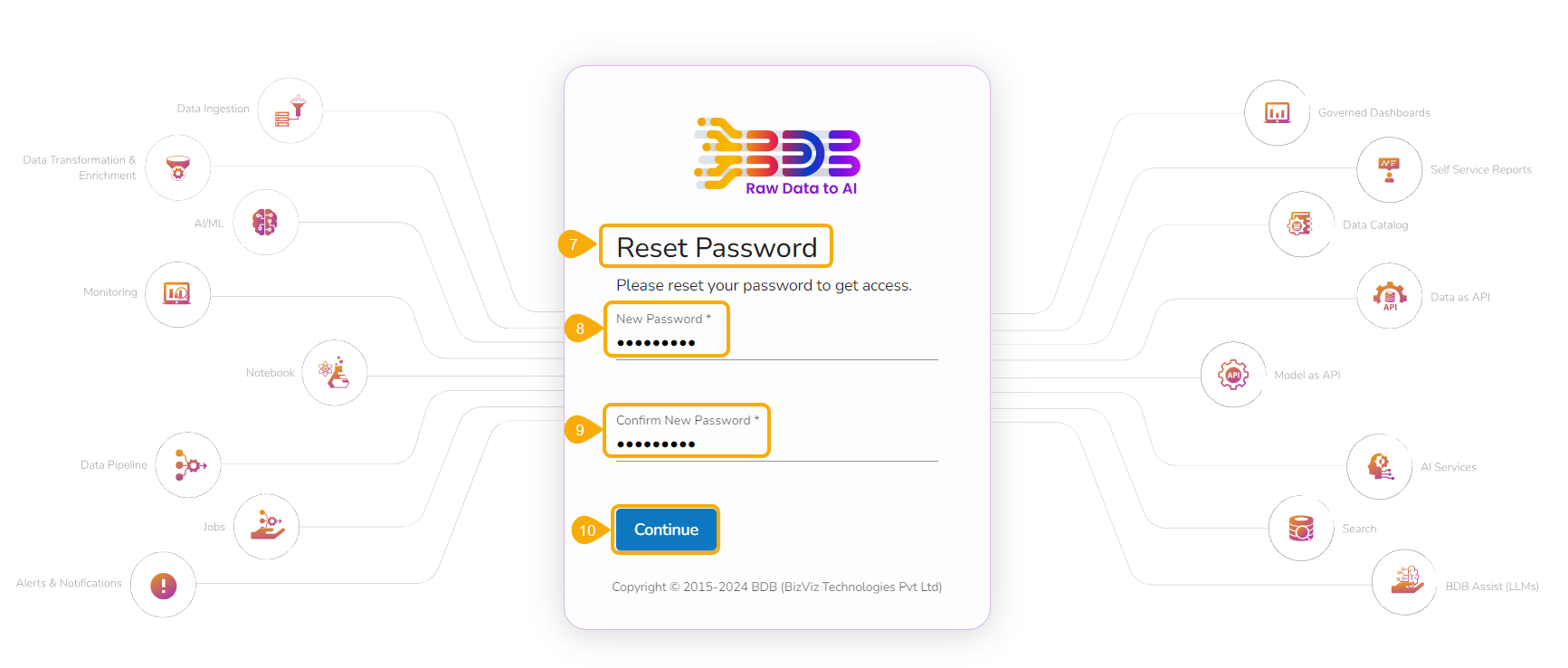
The user gets redirected to the Reset Password page to set a new password.
Set a new password.
Confirm the newly set password.
Click the
The password for the selected BDB account gets reset and a confirmation message appears to inform the user.
Navigate to the Platform Homepage.
The Create New Report option is accessible on the Platform Homepage in two ways:
Right-click anywhere on the My Documents or Public Documents blank space to get the context menu.
OR
Click the Create option to open the context menu from the Platform Homepage.
OR
The user can also use the Report icon either from the left side panel of the Homepage or the Apps Menu, to begin with the Report creation process.
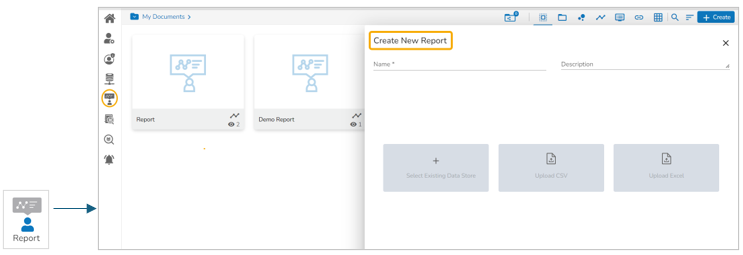
The Create New Report window opens.
Enter a title for the report.
Describe the report (optional).
Select any one option to begin with the Report.
Select a Data Store from the list by using the given checkbox. In the given image the available Data Store is only one.
Click the Create Report option.
Select the Upload File option for CSV or Excel.
Provide a Data Store Name.
Choose a File and upload it.
Once the file is chosen, the Data Store Details, Variable Types
The Report will be created based on the selected options, and the Design page will open by default.
Navigate to the Document Folder where the Report creation was intended, the newly created Report will be added there.
Select an existing Report.
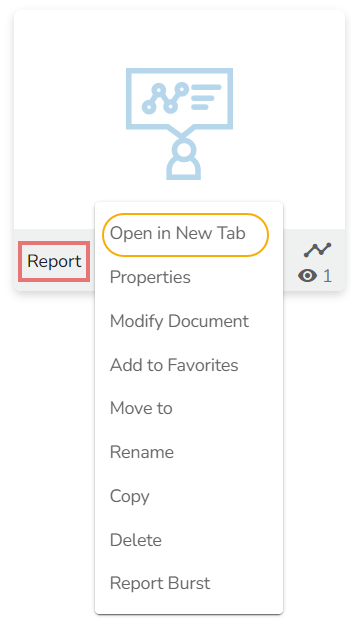
Use the right-click on it to get the credited options for a Report in a context menu.
The user can open the selected report in a new tab using this option.
Click the Open in New Tab option from the Report context menu containing all the credited options.
The concerned report opens in a new tab.
Select the Properties option from the Options menu.
A new screen pops up with some options:
Displays the basic properties of the selected Report.
The user can upload an image by using the Browse option.
Click the Copy link icon to copy the open document link.
Select an option from the Can view and Can edit options using the radio button.
The report document gets shared with the selected user or users.
Select the Share with User tab.
Search for a specific user(s) using the search bar.
Select a user or multiple users using the checkbox(es).
Click the
A success message appears, “Document privilege has been updated successfully”.
The report gets shared with the selected user or users.
The report gets shared with the selected user group or user groups.
Select the Share with Group tab.
Search for the specific (user) Group(s) via the Search bar.
Select a user group or multiple groups using the checkbox(es).
Click the
A success message appears, “Document privilege has been updated successfully."
The report is shared with the selected user group or user groups.
Exclude Users
The selected user will be excluded from the privilege of accessing the report.
Select the Exclude Users tab
Search for the specific user via the Search bar.
Select a user or multiple users using the checkbox(es).
Copy to
A copy of the report is created and shared with the selected users.
Select the Copy to tab.
Search the specific user(s) via the Search bar
Select the user(s) using the checkbox(es).
Click the
A message appears stating, “Document copying process started. Please check the notification for confirmation.”
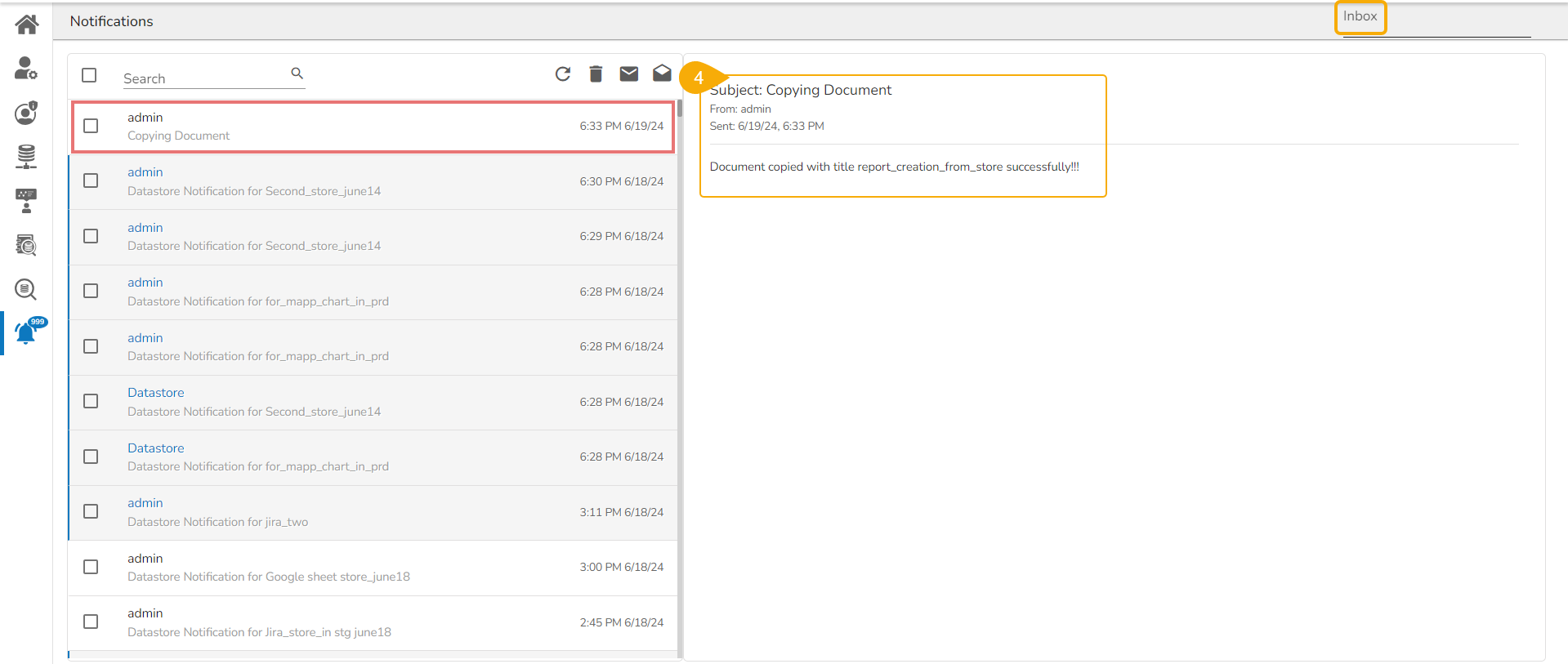
The user can open the Notification window to see the updates on the current task of copying the report. For example, the following image displays that the report was successfully copied to the selected users.
A copy of the report is shared with the selected user or users.
The Report Burst operation allows the user to share the open document link of a Report to another user(s).
Navigate to the Public Documents documents space.
Select a report and open the context menu with the available operations.
Click the Properties option.
Select the Modify Document option from the Report Options menu.
The Modify Report window opens.
Modify the following information:
Title: Enter a title for the Report
A confirmation message appears and the chosen information for the Report gets modified.
The user can add a Report to or remove it from the Favorites.
Select the Add to Favorites option from the Operations menu.
A new message pops up, “Document Added to favorites.”
Open the Favorites document using the document drop-down menu.
The selected Data Sheet document gets added to the Favorites space.
Click the Remove from Favorites option by right-clicking on the report under the Favorites.
OR
Please navigate to the original Report document and right-click on it to get the Remove from Favorites option.
A confirmation message appears.
The selected report gets removed from the Favorites.
Select the Move to option from the Report Options menu.
A new screen opens with the available folder options.
Select a folder or subfolder.
Select the Rename option from the Operations menu.
The Rename dialog box opens.
Enter the New Name for the report.
A confirmation message appears.
The report gets renamed successfully.
The user can copy a report and paste it into the selected place on the BDB Platform.
Select the Copy option from the Report options menu.
Select another folder and use right-click to get the Paste option.
Or
Navigate to My Documents or Public Documents and right-click anywhere.
A context menu with the Paste option appears.
Select the Paste option.
The copied report document gets pasted successfully with a different name in the given space.
E.g., The following image shows that the Report is named Copy of Report and has been pasted into the My Documents space.
Select the Delete option from the Operations menu.
A new window opens, assuring the deletion.
Click the Delete option.
A success message appears.
The selected report gets removed.
Select the Report Burst option from the Report options menu.
The Report Burst window opens.
Add the users or user groups.
The inactive button turns into active.
The open document link and PDF report get shared with the selected user(s)/ user group(s) on the user's mail ID.
The scheduler turns on. You can switch it off by clicking the Stop Schedule icon.
The scheduler gets stopped and the same gets communicated through a confirmation message.
Select Existing Data Store: It will redirect the user to the list of existing data stores.
Upload CSV: It will redirect the user to upload a CSV file.
Upload Excel: It will redirect the user to upload an Excel file.
Click the Create Report option when it gets enabled.
A success message appears, “Document privilege has been updated successfully.”
The selected users are excluded from the rights to access the report.
A new window opens with multiple tabs.
Select the Report Burst tab.
Add an external or internal user(s).
Provide Subject.
Provide Description.
Schedule the selected Report by configuring the time range.
Click the Save option.
A confirmation message appears.
The Scheduler status becomes active.
Click the Stop Schedule button to stop the scheduled Report Burst.
A confirmation message appears to inform the same.
The schedule stops.
The open doc link of the selected report gets shared to the selected user at the scheduled time through the registered email.
Click the Save option.
Click on the Move option to open a list of available sub-folders.
A new window opens with the selected Folder mentioned on the top.
Click the Save option.
A confirmation message appears.
The concerned report gets moved to the selected folder or subfolder.
Click the Save option.
The Paste window appears.
The Name field displays the prefix ‘Copy of-’ before the original name of the report (E.g., Report gets a new name Copy of Report.
Click the Save option.
Provide a description (optional).
Schedule the time for report bursting.
Click the Save option.
A confirmation message appears.


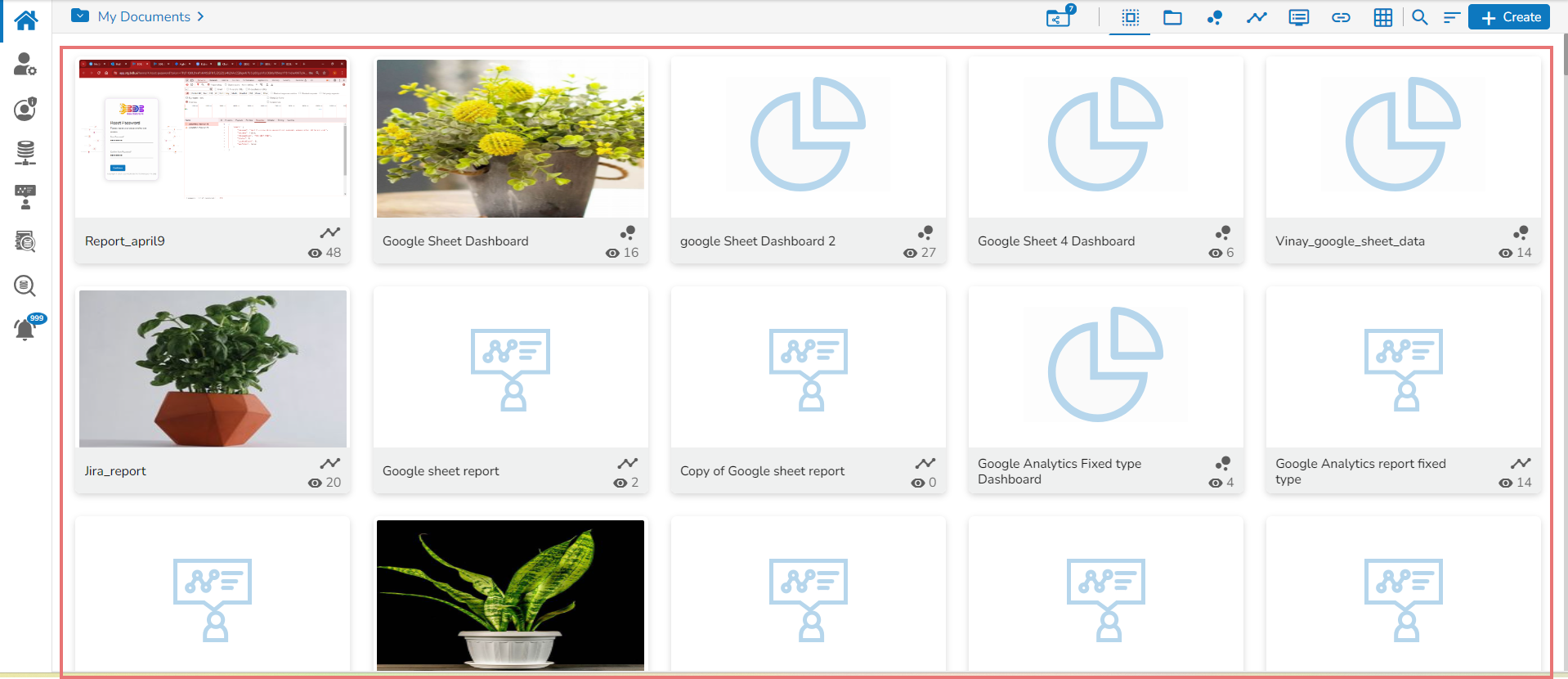
The user can create a folder under the My Documents space and access a publicly available folder under the Public Documents space. In contrast, the Shared folders will be listed under the Shared Documents.
Select the Create New Folder from the Options or Create Context menu.
The Create New Folder dialog box opens.
Fill in the following information:
Name: Enter a folder name.
Description: Describe the folder (optional).
Click the Save option.
A confirmation message appears.
The newly created folder gets added to the selected document space.
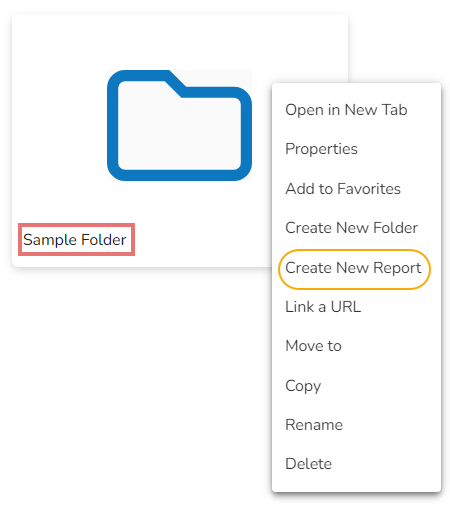
A single folder is credited with various options in a context menu by using a right-click on it as displayed below:
Select a folder.
Select the Open in New Tab option using the Folder options context menu.
The concerned folder opens in a new tab.
Select a folder.
Select the Properties option from the context menu.
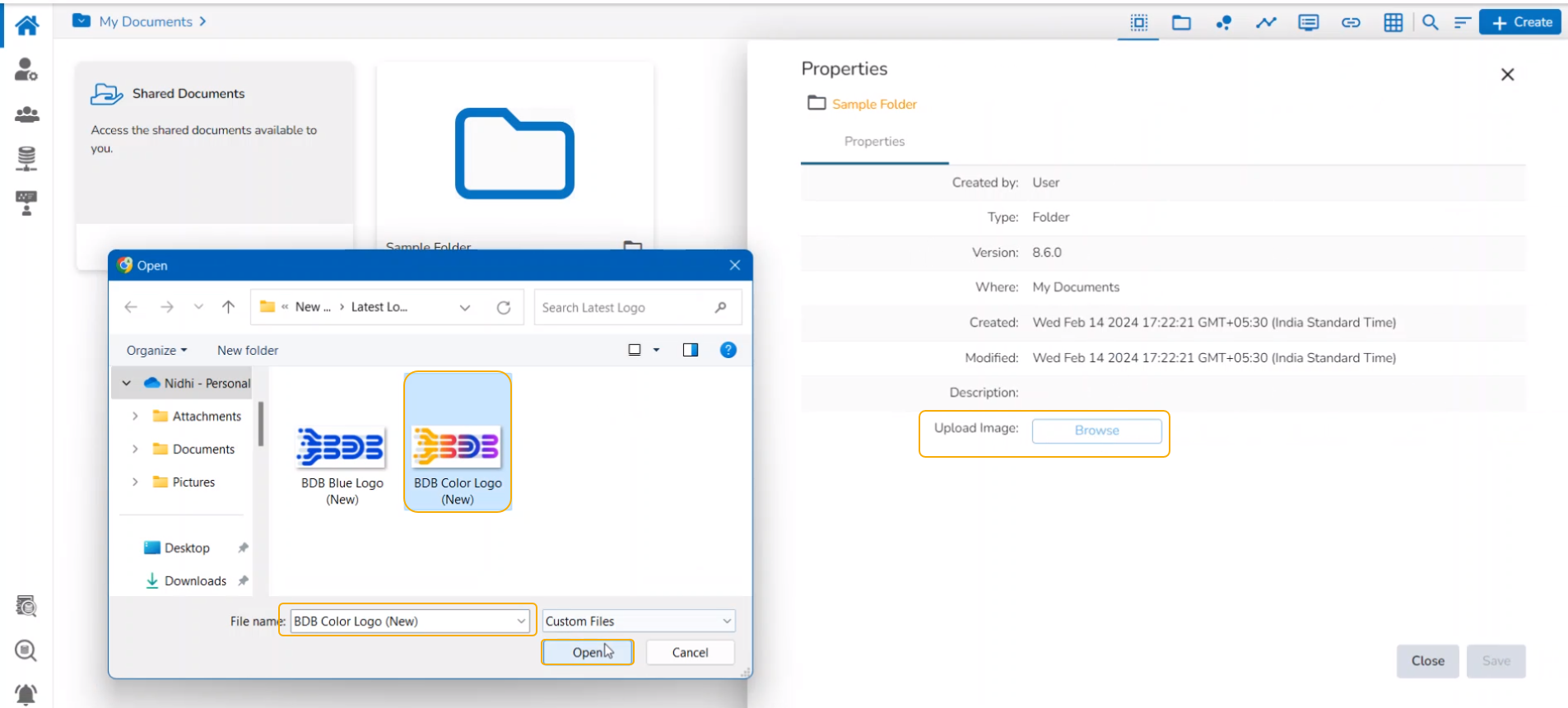
The folder Properties opens displaying the creator's name, document type, version, space, date of creation, and modification. The inserted description also gets displayed over here. The user can also upload an image using the Properties tab.
Uploading Image using the Properties Tab
Click the Browse option to update the image.
Once the Image gets selected, Click the Save option.
The image gets uploaded.
The user can add a folder to or remove it from the Favorites.
Select the Add to Favorites option from the Folder context menu.
A confirmation message appears, “Document added to favorites”.
The selected folder gets added to the Favorites document space.
Use the right-click on the folder in the Favorites document folder that you wish to remove.
The Remove from Favorites option appears.
OR
Navigate to My Documents and use right-click on the same folder. Click the Remove from Favorites option.
A message, “Folder removed from Favorites” appears on the screen, and the selected folder gets removed from the Favorites document space.
Select the Create New Folder option by using right-clicking on a Folder.
The Create New Folder window opens.
Fill in the following information:
Name: Enter a folder name
Select the Create New Story option from the Folder context menu.
The Create New Report window opens.
Enter a title for the report document.
Describe the report (optional).
Select either of the options to begin with the report.
Based on the selected options, the Report will be created and the Design page will open by default.
Navigate to the source Folder, and the created Report gets added to it.
The user can connect a URL to the required platform documents.
Select the Link a URL option from the context menu that opens by clicking on a folder.
The Link a URL dialog box opens.
The Add Details tab opens by default.
The user can add or remove parameters to the linked URL by using this option.
Navigate to the URL Parameter tab.
Two options for adding URL properties get displayed:
Add User Properties
By clicking the Add User Properties option, the user requires to add Parameter Name and Parameter Values.
By selecting the User Properties option, the administrator needs to insert a valid user custom field. (E.g., In the below-given image, parameter Param 1 passes the defined value for the city custom field provided for the selected user).
Select the Move to option from the Folder context menu.
The Move to window appears displaying the available folders.
Select a folder. You may use the Search bar to search a specific folder.
The system user can copy and paste a folder into a different one.
Select the Copy option from the context menu.
Select another folder and use the right-click to get the Paste option. Click the Paste option.
OR
Navigate to My Documents or Public Documents and right-click anywhere on the blank space to get the Paste option. Click the Paste option.
The Paste window appears.
The copied folder gets pasted successfully with a different name.
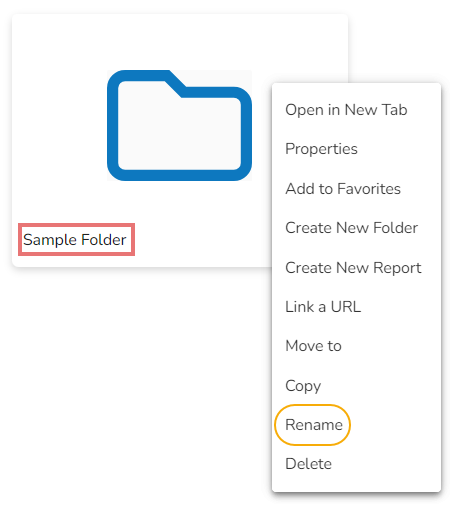
E.g., The following image shows that a folder Sample Folder from My Documents is named Copy of Sample Folder and has been pasted under the My Documents on the Platform Homepage.
Select the Rename option from the Folder context menu.
The Rename window opens.
Enter a New Name for the folder.
Click the Save option.
A confirmation message appears.
The folder gets renamed.
Select the Delete option from the context menu.
The Delete window appears to ensure the action of folder deletion.
Click the Delete option.
A success message appears, “Image has been updated successfully”.
Click the Remove from Favorites option.
Click the Save option.
A confirmation message appears for the folder creation.
A new (sub) folder gets created inside the selected folder.
Select Existing Data Store: It will redirect the user to the list of existing data stores.
Upload CSV: It will redirect the user to upload a CSV file.
Upload Excel: It will redirect the user to upload an Excel file.
The next screen when an existing Data Store is selected to create a Report is displayed in the image.
Select a Data Store from the list by using the given checkbox.
Click the Create Report option.
The next screen when a CSV file is uploaded to create a Report is given below.
Provide a Data Store Name.
Choose a File and upload it.
Once the file is chosen, it will display the Data Store details such as Variable Types and Examples tabs, and a confirmation message appears to notify the user of the successful update of the file.
Click the Create Report option when it gets enabled.
The next screen when an Excel file is uploaded to create a Report is given below.
Provide a Data Store Name.
Choose a File and upload it.
Once the file is chosen, it will display the Data Store details such as Variable Types and Examples tabs, and a confirmation message appears to notify the user of the successful update of the file.
Click the Create Report option when it gets enabled.
Enter a name for the URL.
Provide the URL link that you wish to add in the Type URL field.
Describe the URL (optional).
Navigate to the URL Parameter tab to add parameters (Optional).
Click the Save option.
A confirmation message appears.
The URL gets created in the selected folder.
The user can see the linked URL by opening the created sample URL.
By choosing the System Properties option, it requires the administrator to select an option from the available system properties drop-down menu. (E.g., in the below-given image, parameter Param 2 passes the authentication Token as system properties to link the URL).
Click the Save option to save the information.
Click the Move icon.
A new window displays the available folders/ documents inside the selected folder.
Click the Save option.
A confirmation message appears.
The folder gets moved to the targeted folder.
Click the Save option.
A confirmation message appears to inform about the targeted deletion.
The selected folder gets removed from the platform.
The following confirmation message appears if the deleted folder is the only document available under the My Documents space.