
Notifications
The Notification feature is a way to send and receive messages from processes to people (the platform user). By default, it has Inbox and Trash folders. The data store refresh and copy of a story document get communicated through this feature.
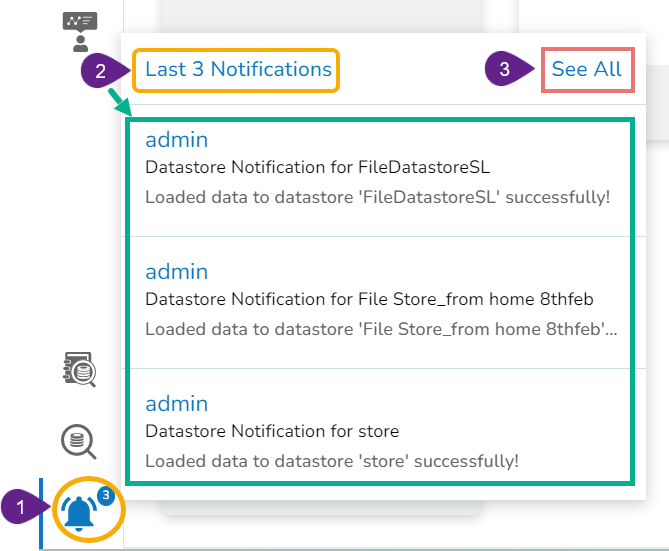
Click the Notification option using the Platform homepage header (the Notification icon appears with the count of unread notifications).
A window opens with the latest 3 notifications.
Click the See All option.
The notification Inbox page opens displaying the latest notification in detail (by default).
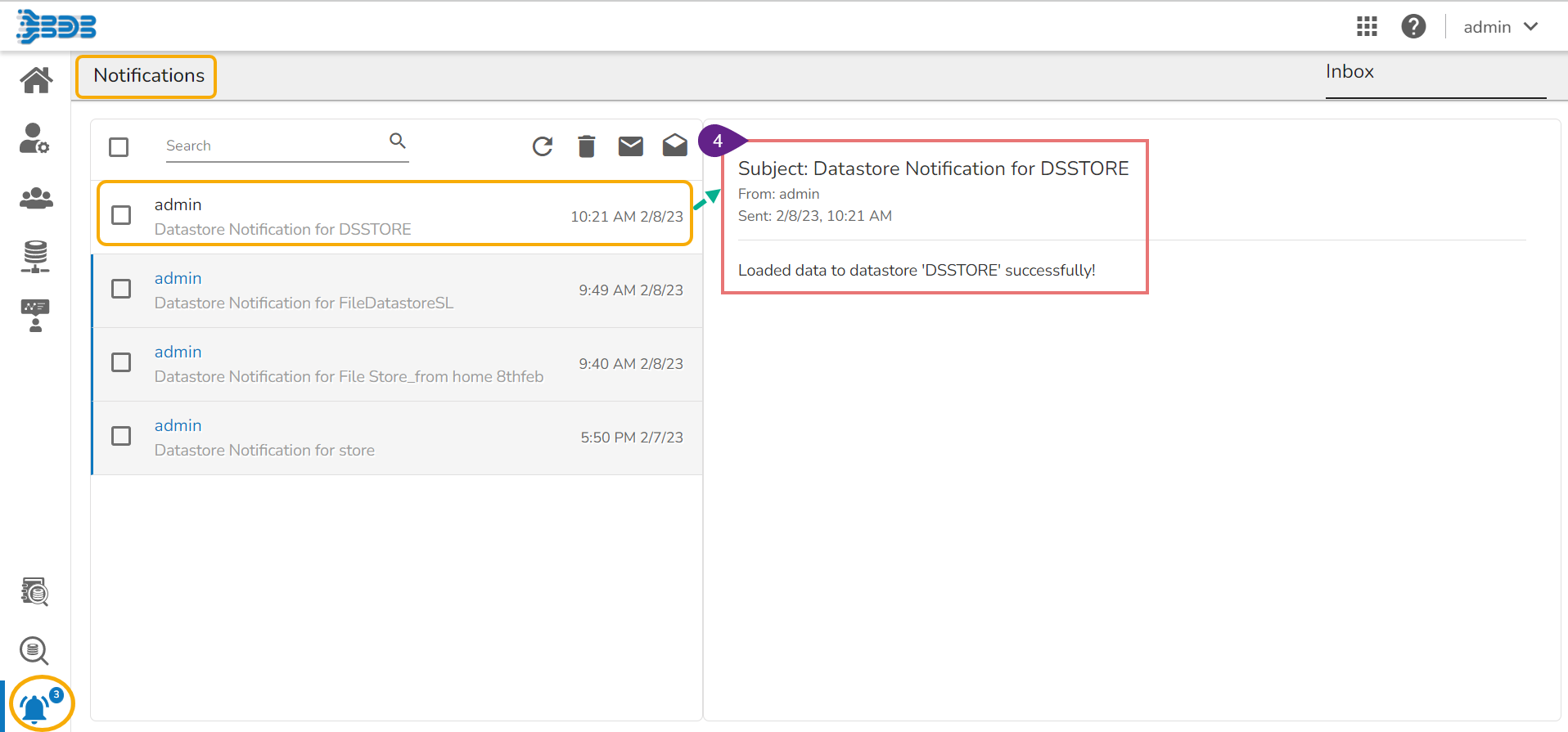
Please Note: Unread Notifications are indicated through numbers on the Notification icon.
Icons provided on the inbox window:
Icons
Name
Task Assigned

Refresh
Receives the latest messages

Delete
Moves the selected messages to the Trash folder

Mark unread
Marks messages status as ‘unread’

Mark read
Marks messages status as ‘read’
Moving a Notification message into Trash Folder
Click the Delete icon from the header panel of the notification inbox.

A message window appears to confirm the action of moving the selected notification to Trash.
Click the Yes option to move the notification(s) to Trash.

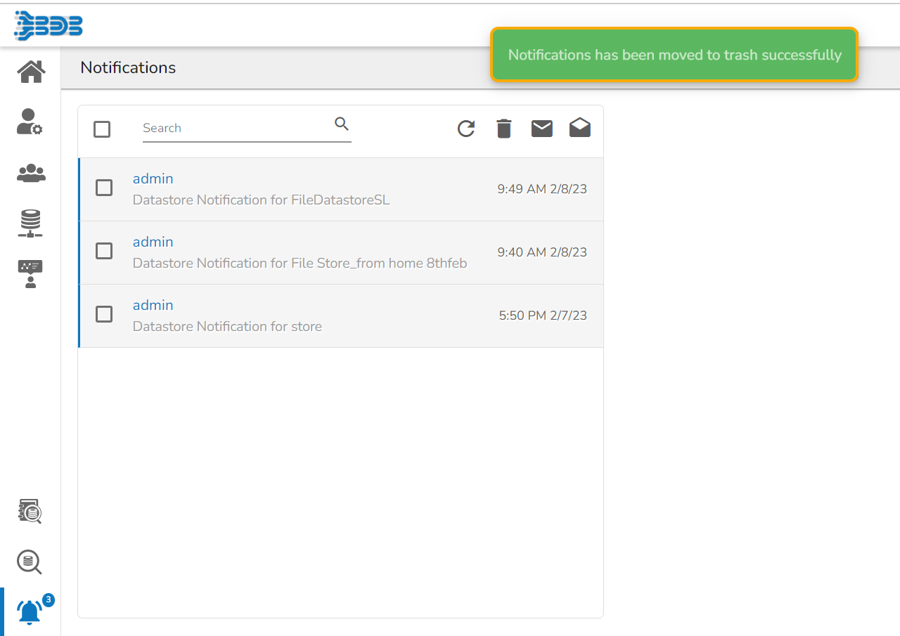
A message appears to confirm that the selected notification(s) has been moved to the Trash folder.
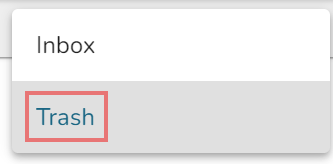
Click the drop-down option to get the Trash option.
Click the Trash option.
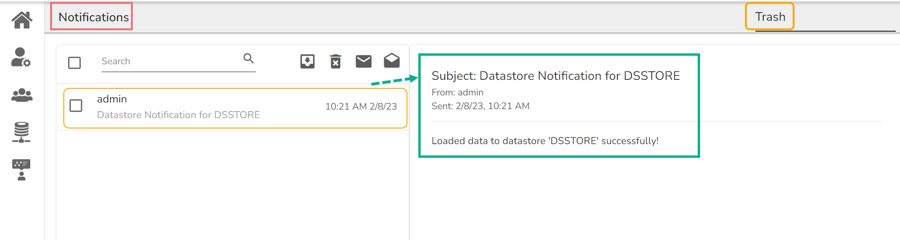
The notifications under the Trash folder get displayed (the latest notification opens in details (by default).
Last updated