> For the complete documentation index, see [llms.txt](https://docs.bdb.ai/data-center-2/llms.txt). Markdown versions of documentation pages are available by appending `.md` to page URLs; this page is available as [Markdown](https://docs.bdb.ai/data-center-2/data-center/data-connectors/supported-data-connectors/api-connectors/quickbooks.md).

# QuickBooks

The following set of steps displays how to create a QuickBooks Data Connector.

* Select the ***QuickBooks*** icon from the Data Connector page.

&#x20;      ![](https://content.gitbook.com/content/j2SqA9Ec9HkYsyrU85qy/blobs/nTzuakIrwbfIMviUx7Ry/image.png)

* The QuickBooks Connector page opens.
* Click the ***Select Account*** option for login to a QuickBooks account.

<figure><img src="https://859511478-files.gitbook.io/~/files/v0/b/gitbook-x-prod.appspot.com/o/spaces%2FGDmsjfjJBNqow7Fo97cO%2Fuploads%2FV4me82jTlJWkzKhuVenv%2Fimage.png?alt=media&#x26;token=c5cbaaef-8534-4ae1-a43f-d4e4d28de407" alt=""><figcaption></figcaption></figure>

* The ***Sign in*** page of the QuickBooks opens.
* Enter the credentials to Sign in.

&#x20;     ​![](https://859511478-files.gitbook.io/~/files/v0/b/gitbook-x-prod.appspot.com/o/spaces%2FGDmsjfjJBNqow7Fo97cO%2Fuploads%2Flpz9oyBd3QMUbuBssa96%2Fimage.png?alt=media\&token=2c071e69-8492-4382-a33e-2d1ed0acdadb)​

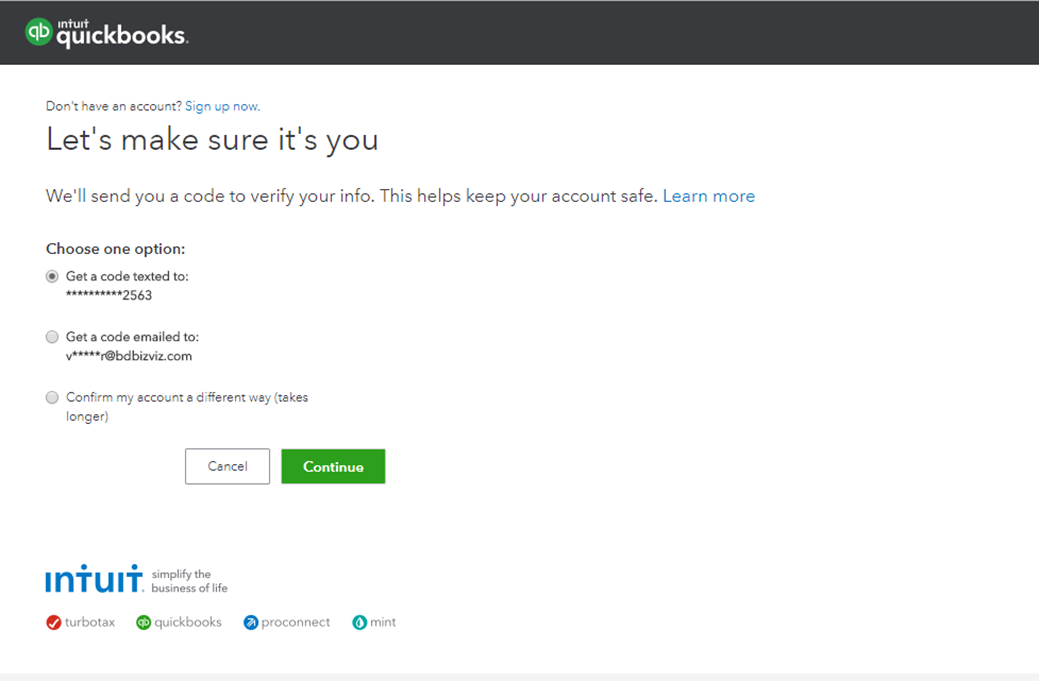
* The user receives a code to assure the authenticity of the selected account. The users get a verification code through the registered email or mobile.

&#x20;    ​​

<figure><img src="https://859511478-files.gitbook.io/~/files/v0/b/gitbook-x-prod.appspot.com/o/spaces%2FGDmsjfjJBNqow7Fo97cO%2Fuploads%2FcKrcQyEEOKhOwmuTQPWI%2Fimage.png?alt=media&#x26;token=8906f370-a724-48c3-a009-ca6a432c9307" alt=""><figcaption></figcaption></figure>

{% hint style="info" %}
*<mark style="color:green;">Please Note</mark>: The users can also sign in using the Google Account.*
{% endhint %}

* After verifying the authenticity code, the user gets a new window asking to authorize BDBizViz.
* Click the ***Connect*** option.

&#x20;     ​![](https://859511478-files.gitbook.io/~/files/v0/b/gitbook-x-prod.appspot.com/o/spaces%2FGDmsjfjJBNqow7Fo97cO%2Fuploads%2FxB1uc2INM5ItCmaT72Nf%2Fimage.png?alt=media\&token=abc4c3fe-025a-45e0-92a1-c4c8b11d5165)​

* The QuickBooks connector page reopens with the ‘Change Account’ option indicating that a QuickBooks account has been selected.
* Enter a Data Connector Name.
* Click the ***Save*** option.

<figure><img src="https://859511478-files.gitbook.io/~/files/v0/b/gitbook-x-prod.appspot.com/o/spaces%2FGDmsjfjJBNqow7Fo97cO%2Fuploads%2FbJx7ZksNGYOAfJBDajba%2Fimage.png?alt=media&#x26;token=3dc1b797-cc4d-4b17-b924-8eecc461ee0b" alt=""><figcaption></figcaption></figure>

* A success message appears, and the newly created QuickBooks Connector gets added to the Data Connectors list.