Navigate to the Survey Templates page.
Choose the Create New Survey from Template option to create a new survey using any of the given templates.
Click on a Survey template category.
The available templates appear below the category titles.
All the available survey templates will be listed with the following details:
Preview-Select this option to get a preview of the selected Template
Use This Template- Select an existing template to create a new Survey
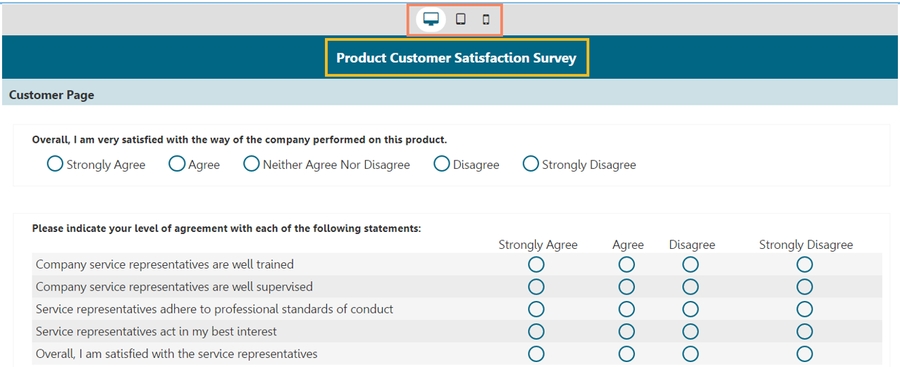
By clicking the Preview option, the user can view the survey's preview page.
The user can preview the survey in Desktop, iPad, and Mobile display modes.
Click the Use This Template option.
The user is redirected to the survey design page.
The user can modify the survey information or questionnaire.
Click the Save option to save the survey.
The newly created Survey gets added to the Survey List on the Survey Landing Page.
Please note: A new survey, regardless of which creation method you use, will be added to the Survey List on the Survey Landing page.
Last updated 4 months ago