> For the complete documentation index, see [llms.txt](https://docs.bdb.ai/interacting-with-platform-3/llms.txt). Markdown versions of documentation pages are available by appending `.md` to page URLs; this page is available as [Markdown](https://docs.bdb.ai/interacting-with-platform-3/homepage/document-folders-in-progress/document-options/options-for-a-published-form.md).
# Options for a Published Form
{% hint style="info" %}
*Pre-requisites: It is required to configure the **Form Settings** option from the **Admin module** before accessing the Forms module for Form creation.*
{% endhint %}
## Publishing a form
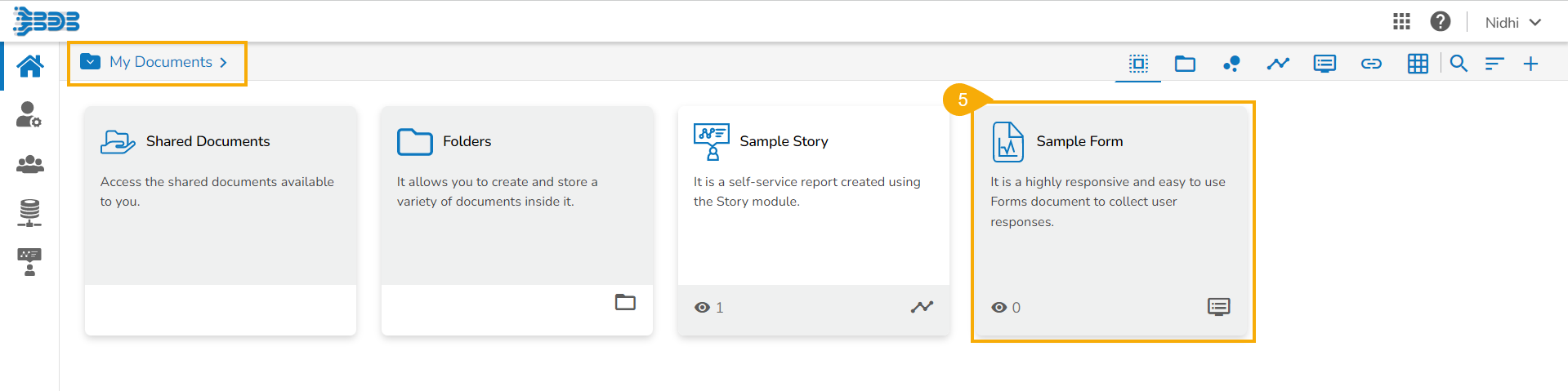
The users can publish the forms created by them to the BDB Platform. The published forms can be accessed on the BDB Platform homepage under the *My Documents* section.
* Click the *Publish* icon from the header panel of the selected Form.
Or
* Click the *Publish* option using the ***Form Options*** menu.

* A pop-up window opens to confirm the action.
* Click the ***Yes*** option to publish the form.

* A success message appears to confirm the action of the publish.

* The published form appears under ***My Documents*** place of the same BDB Platform account.
## **Options Assigned to a Published Form**
Each published Form is credited with some operations on the BDB Platform. The users can use right-click to access the available Form operations in a context menu.
### Open in New Tab
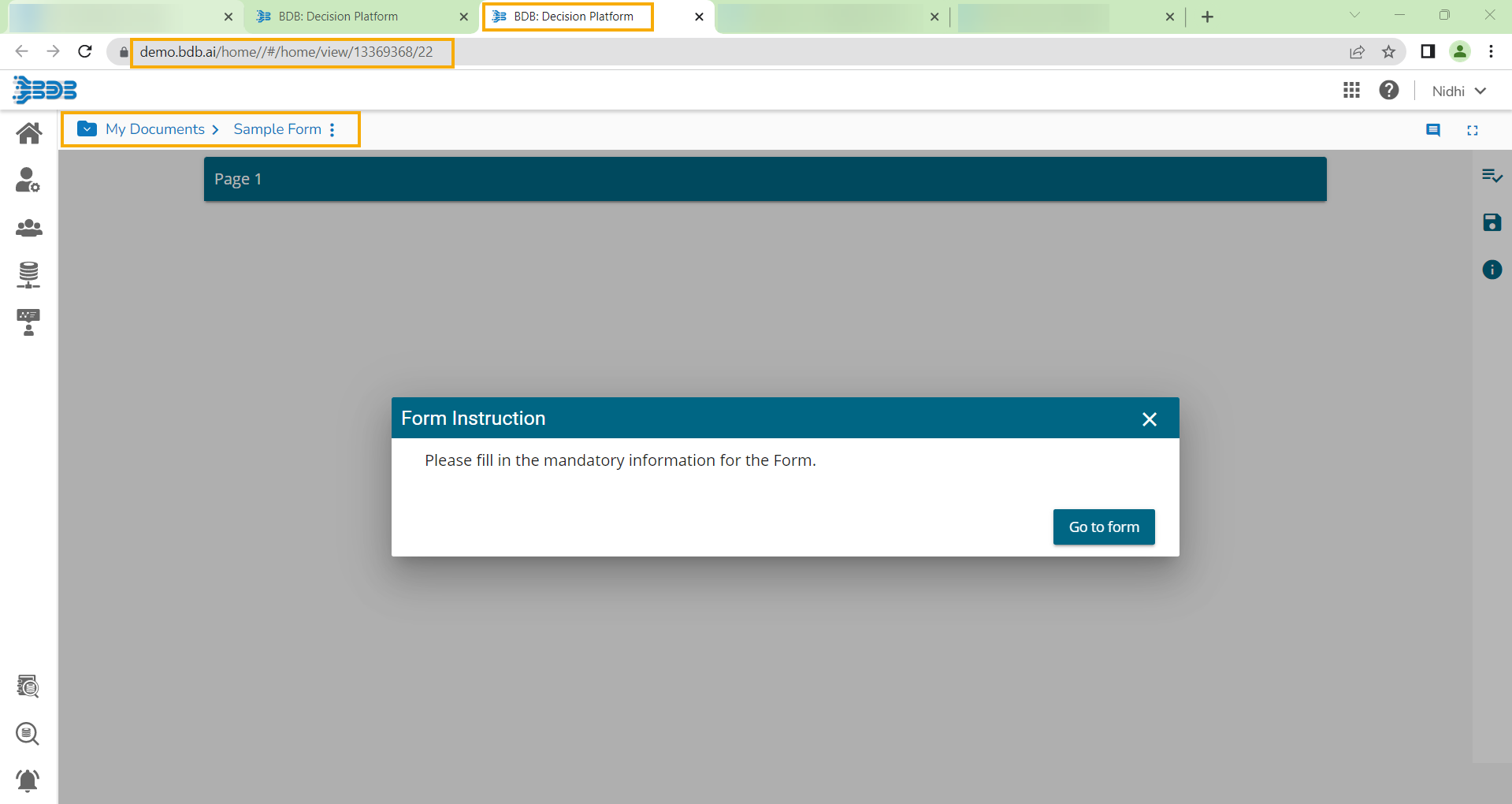
* Select the ***Open in New Tab*** option using the Context menu.

* The form opens in the new tab.
### Properties
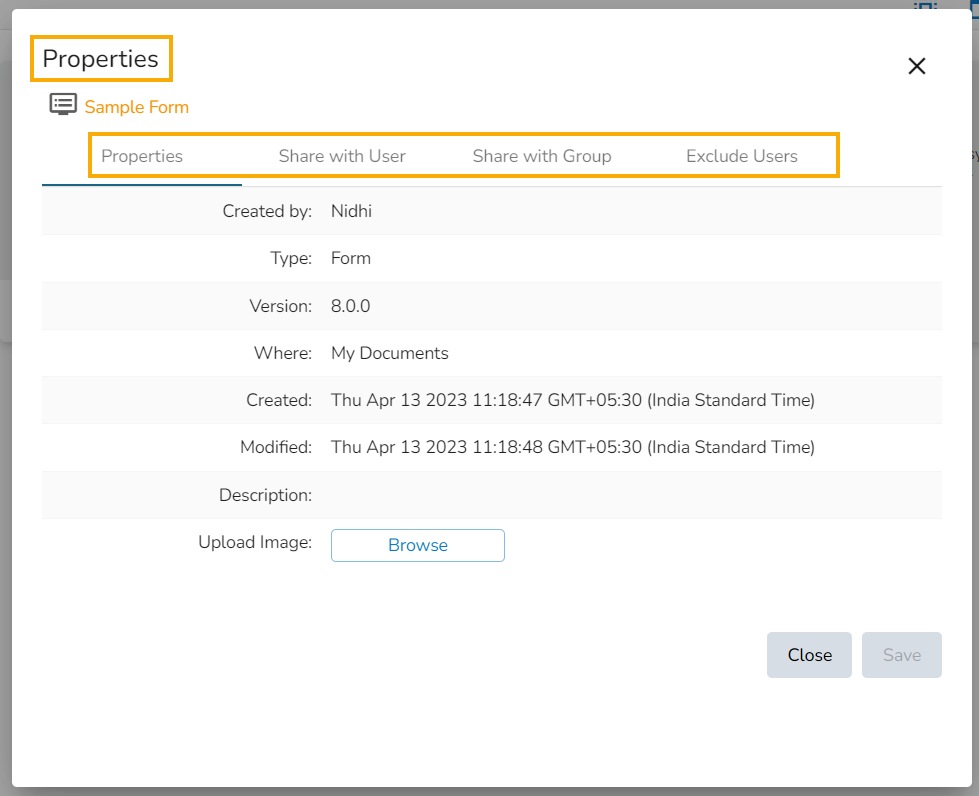
* Select the ***Properties*** option from the context menu.
* The ***Properties*** window appears with four options:
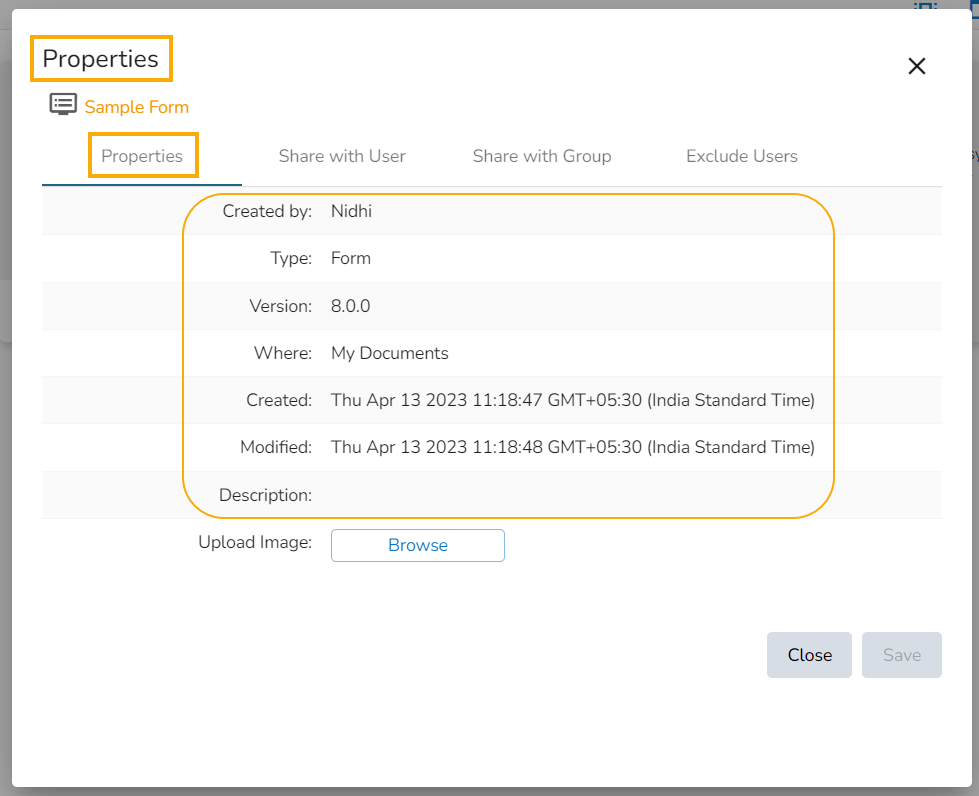
#### **Properties**
**Properties**: Displays basic details about the Form creation.
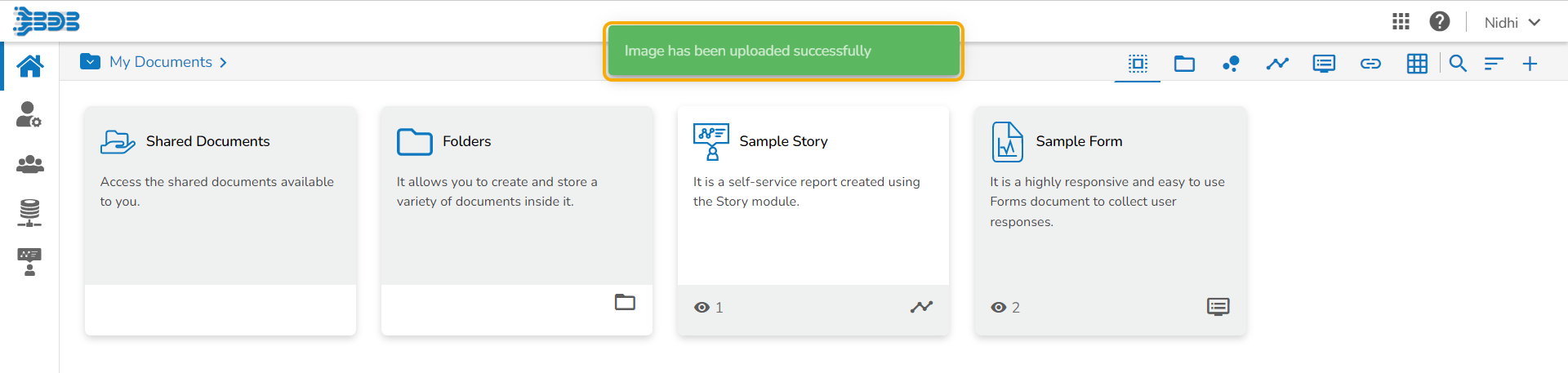
* Click the **Browse** option to upload an image.
* Click the ***Save*** option to save the update.

* A message appears to assure about the update.
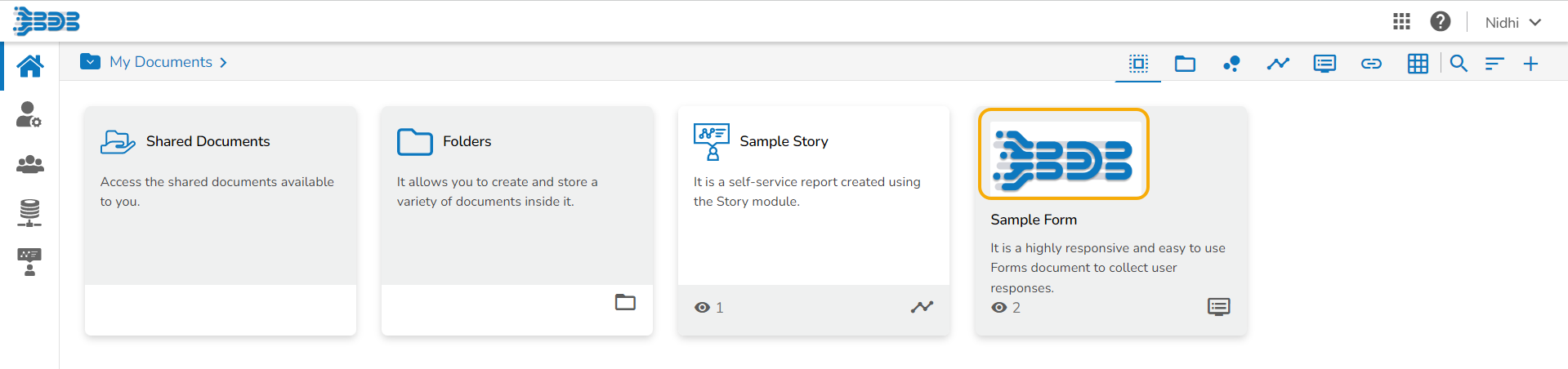
* The image gets updated for the Form.
#### Share with User
The Form gets shared with the selected User by using the ***Share with User*** option.
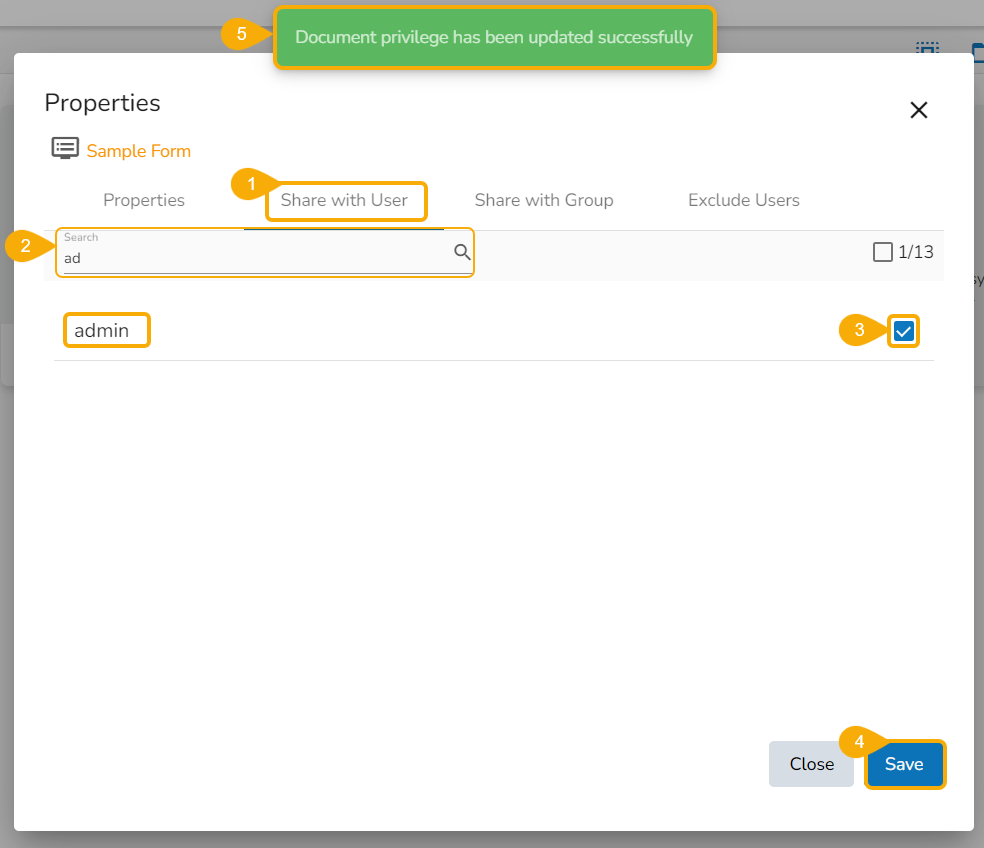
* Select the ***Share with User*** option using the Properties window.
* Search for the specific user(s) using the Search bar.
* Select a user or multiple users by using a checkbox in the given box.
* Click the ***Save*** option.
* A success message appears stating that the document privilege has been updated.
* The Form gets shared with the selected user(s).
* The Form gets shared with the selected user group(s).
#### Share with Group
The Form gets shared with the selected User Group by selecting the ***Share with Group*** option.
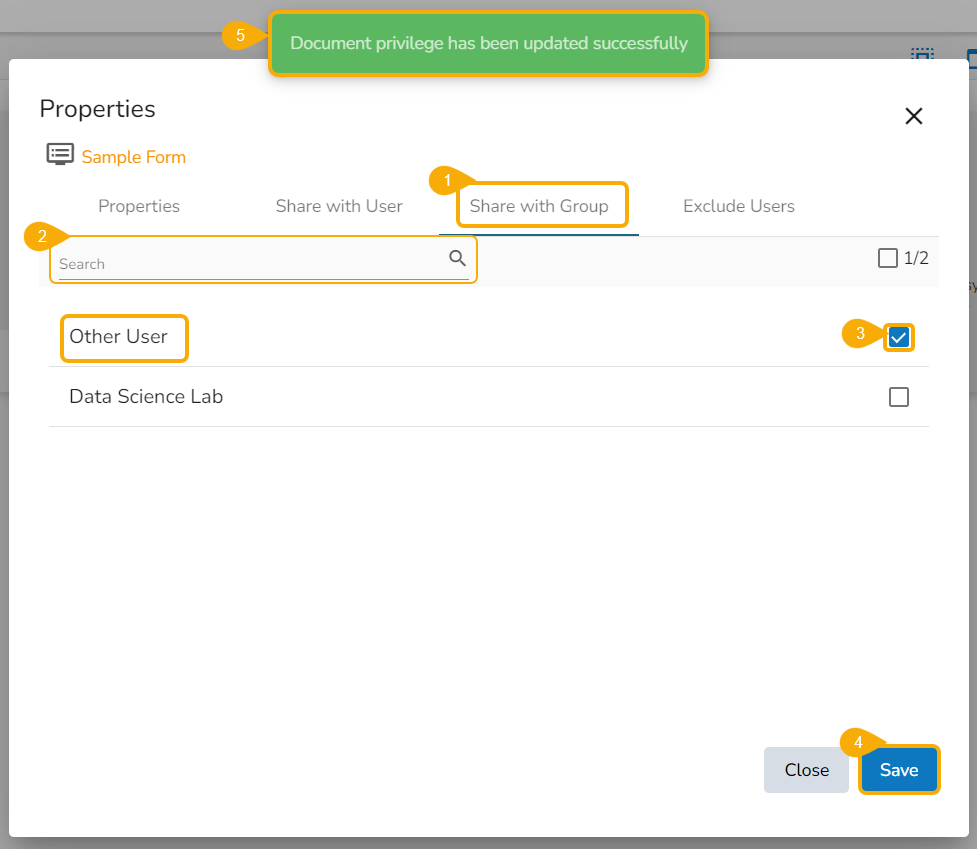
* Select the ***Share with Group*** option using the Properties window.
* Search for the specific user group(s) using the Search bar.
* Select a user group or multiple user groups and move to the space given on the right side.
* Click the ***Save*** option.
* A success message appears stating that the document privilege has been updated.
* The Form gets shared with the selected user group(s).
#### Exclude the User
The Selected User gets excluded from the rights to access the Form
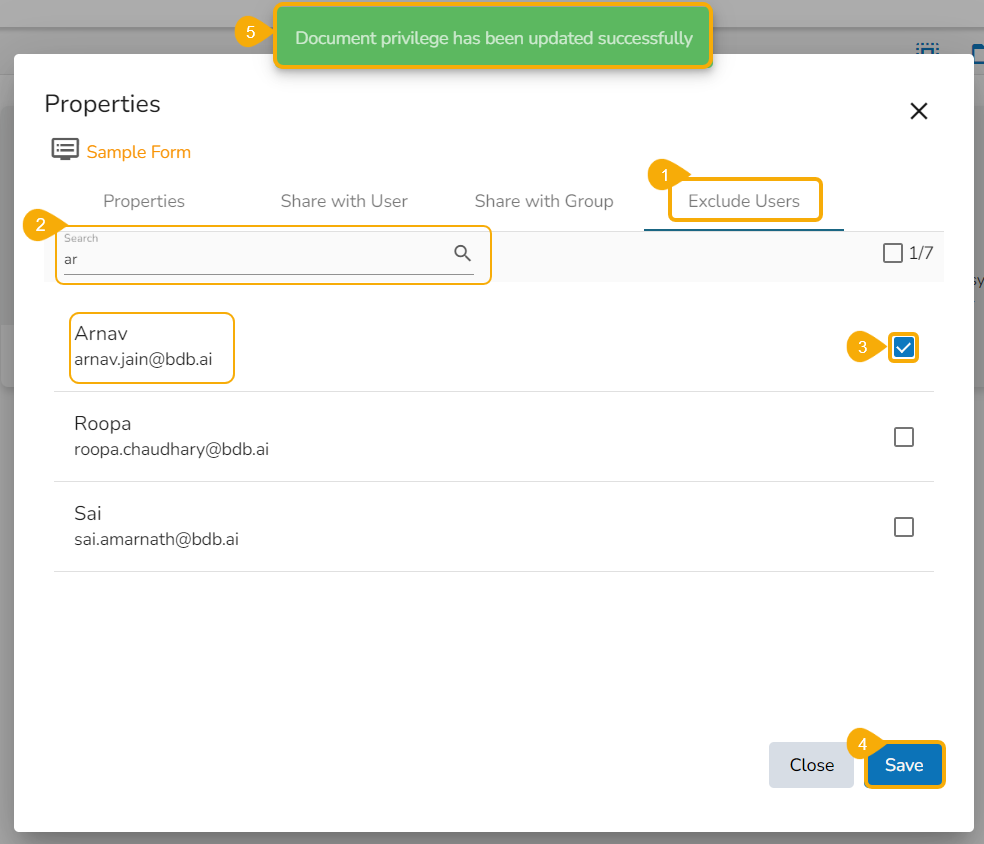
* Select the ***Exclude User*** option using the Properties window.
* Search for the specific user(s) using the search bar.
* Select a user or multiple users and move to the space given on the right side. (Use the single arrow icon to move only one user. Use the double arrows icon to move all the users.)
* Click the ***Save*** option.
* A success message appears, and the document privilege gets updated to exclude the selected users.
Excluding the selected user from the Form access
* The Form permission gets excluded for the selected user/users.
### Modifying a form
The user can modify Form name and description by using the Modify option.
* Select the ***Modify Document*** option using the context menu.

* The ***Modify*** window opens for the selected form.
* Modify the required information:
* Name of the Form
* Description of the Form
* Click the ***Save*** option.

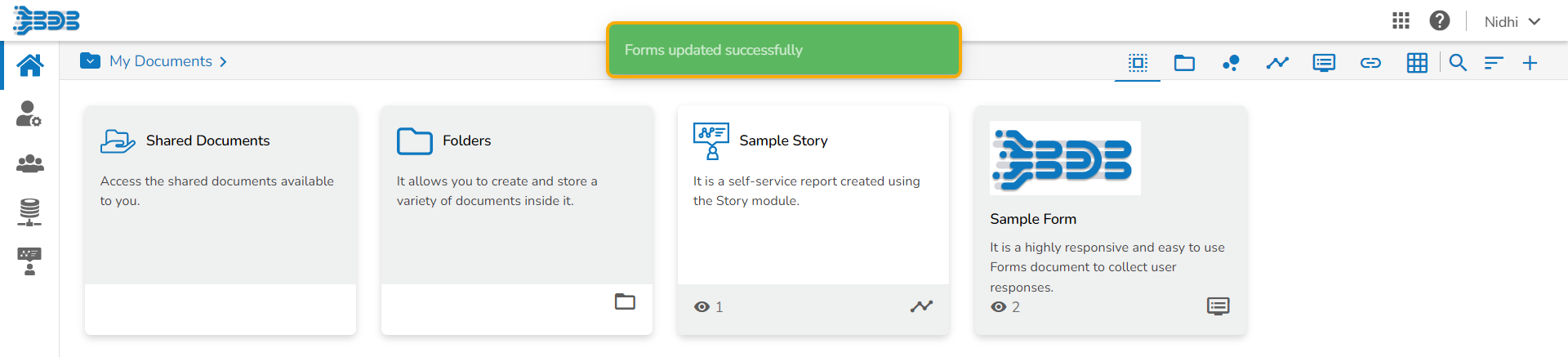
* The selected information gets modified, and a message appears to assure the same.
### Adding a form to favorite
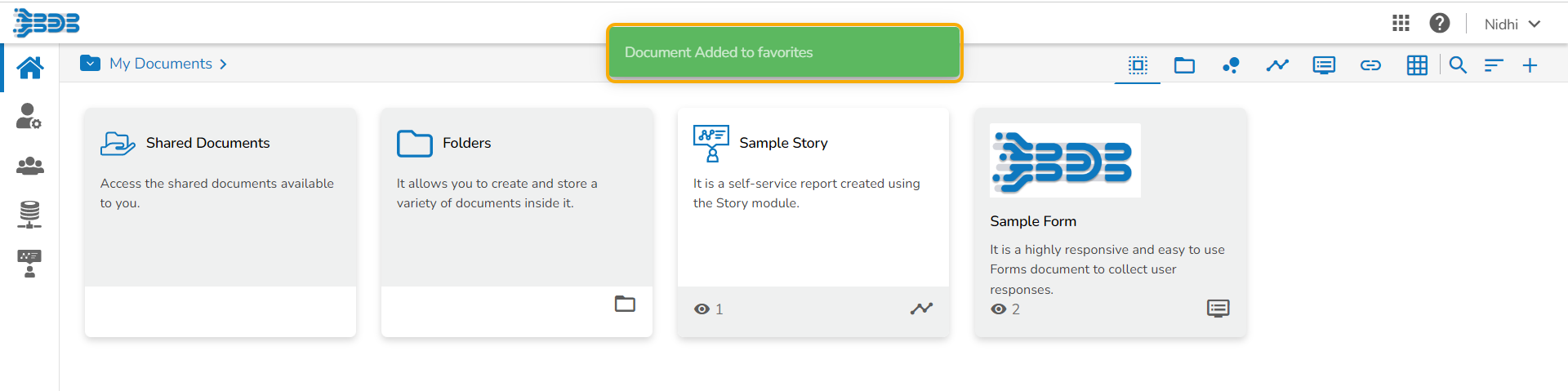
* Select the ***Add to Favorite*** option from the context menu.

* A message appears to assure the success of the action.
* Open the Favorites section.

* The selected Form gets added to the Favorites.
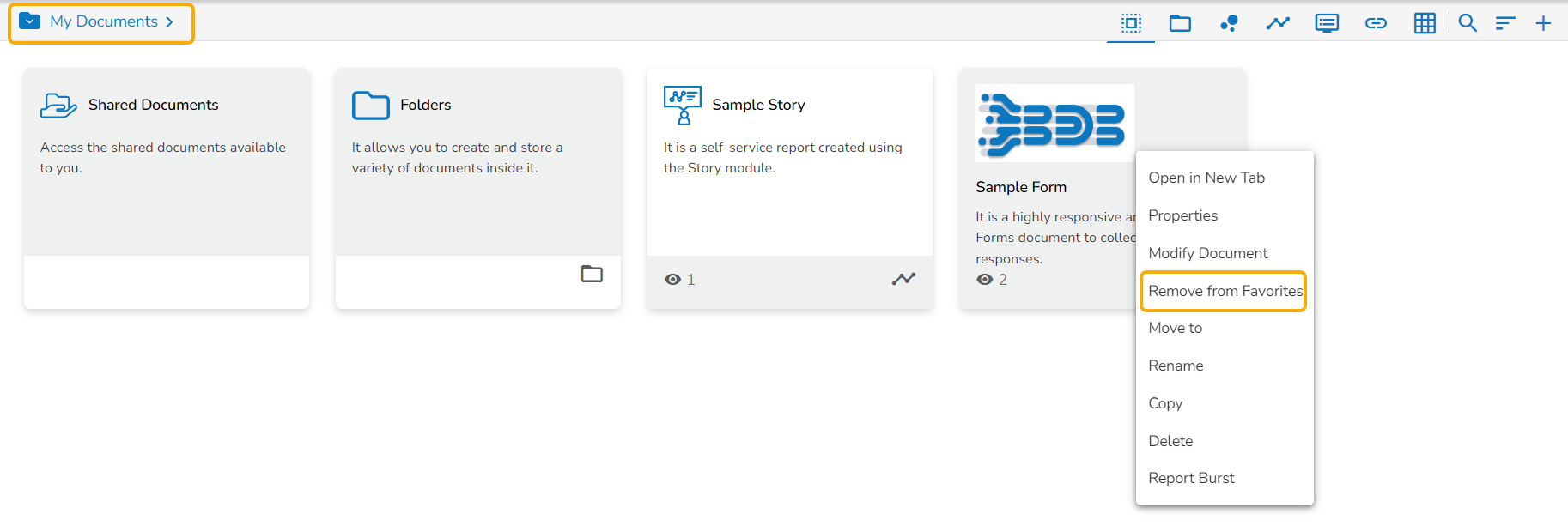
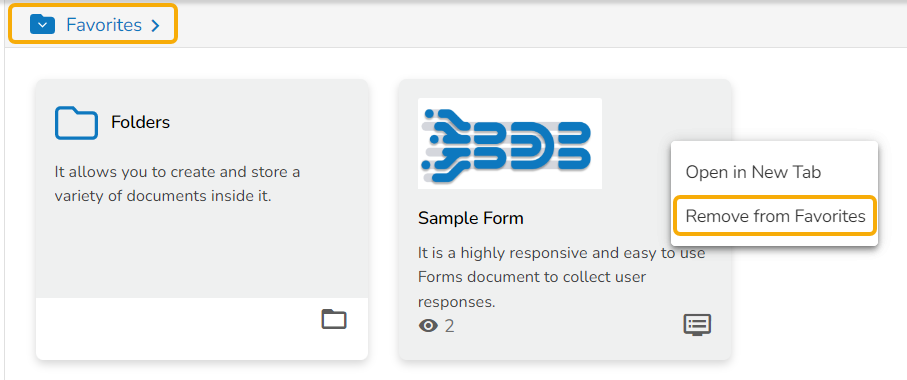
* Open the context menu option for the same Form.
OR
* Use the right-click on the Form which has been added to the ***Favorites***.
* Click the ***Remove from Favorite*** option appears.
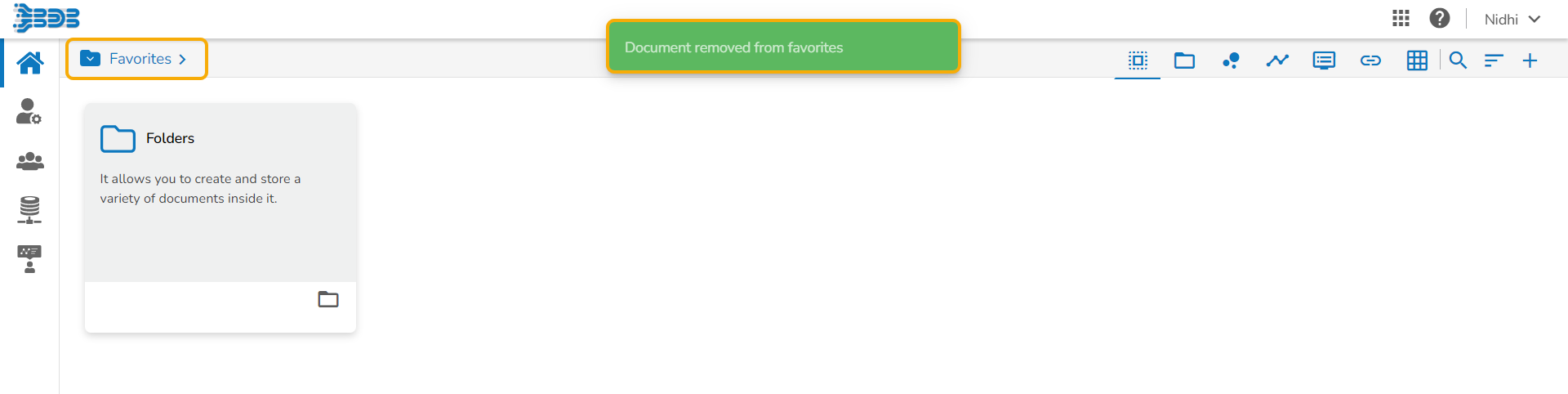
* The Form gets removed from the Favorites, and a notification message appears stating the same.
### Moving a Form
Administrators can move a Form from one folder or document space (E.g. ***My Documents***) to another folder or document space.
* Select a form.
* Select the ***Move to*** option from the operation context menu.

* The ***Move To*** window appears displaying the available folders.
* Select a folder.
* Click the ***Move*** icon.

* The users get redirected to the next screen displaying the selected folder name at the top.
* Click the ***Save*** option.

* A success message appears.

* The Form gets moved to the selected space.

{% hint style="info" %}
*Please Note:* *To view a Form, use a click on the selected Form.*
{% endhint %}
### Renaming a form
* Select the ***Rename*** option from the context menu.

* A new window opens prompting to rename the Form.
* Provide a New Name for the selected form.
* Click the ***Save*** option.

* The selected form gets renamed.
### Coping a form
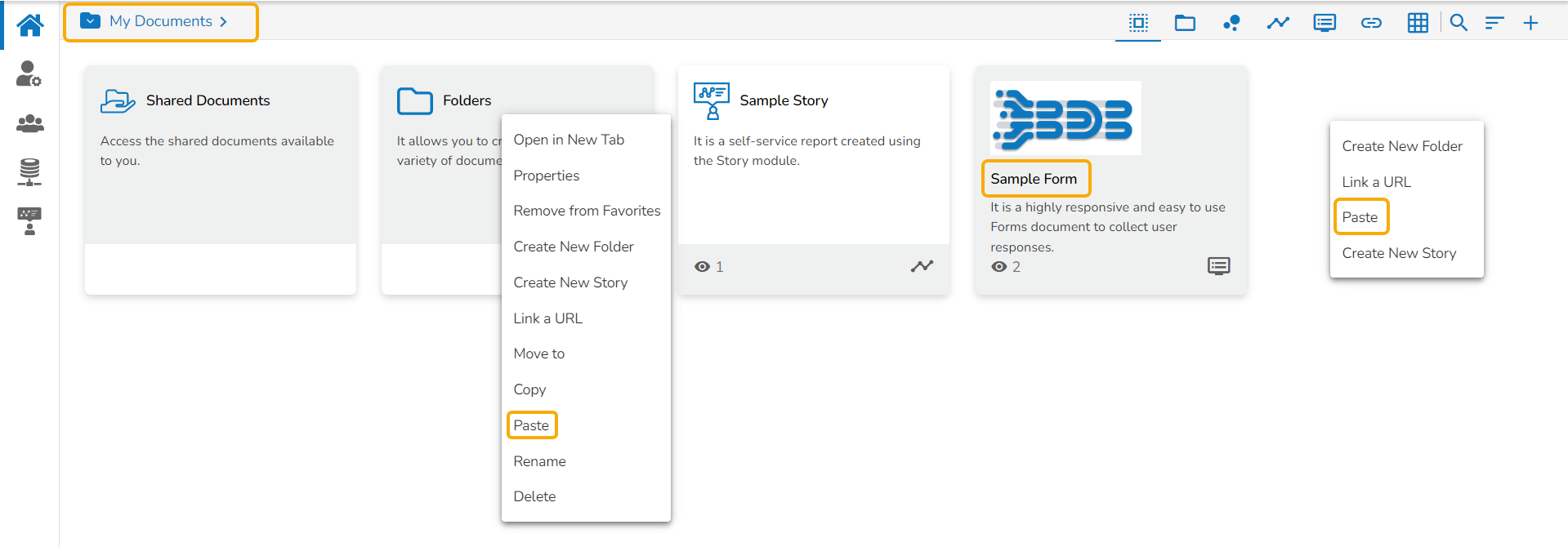
* Select the ***Copy*** option from the context menu.

* Use the right click on another folder or on the blank space to get the ***Paste*** option.
* Click the ***Paste*** option.
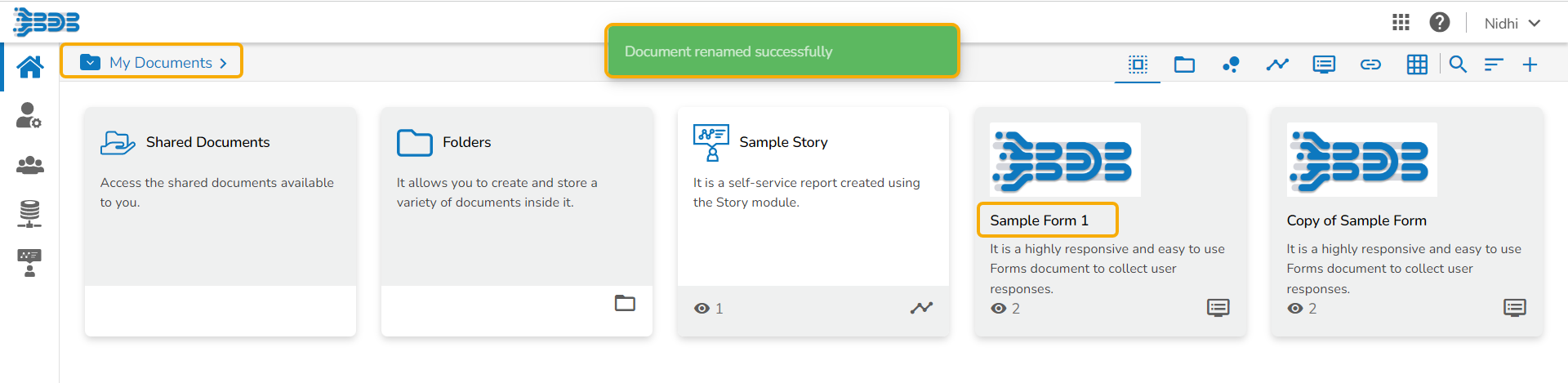
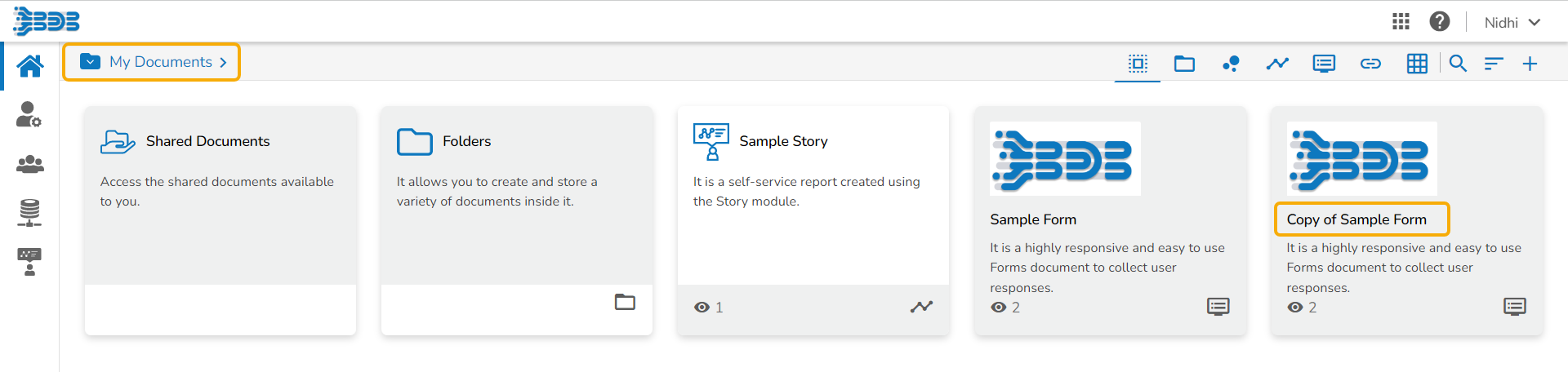
* The ***Paste*** window opens displaying the selected form name with the '**Copy of-'** prefix. E.g., A form named Sample Form 1 gets a new name, ***Copy of Sample Form*** as shown in the following image:
* Click the ***Save*** option.

* The form gets copied to the selected space with the new name.
### Deleting a form
* Select the ***Delete*** option from the context menu.

* The ***Delete*** window opens to confirm the action.
* Click the ***Delete*** option to delete the selected form.

* The selected form gets deleted.
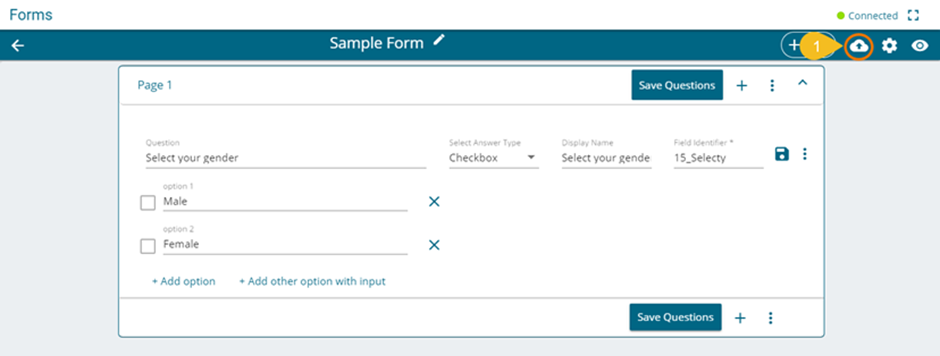
 icon from the header panel of the selected Form.