# Save As

* Navigate to the Designer homepage.
* Open the ***Manage*** option.
* Open an existing dashboard from the list of available dashboards (You can find the list of dashboards inside a Workspace).

<figure><img src="https://859511478-files.gitbook.io/~/files/v0/b/gitbook-x-prod.appspot.com/o/spaces%2FGDmsjfjJBNqow7Fo97cO%2Fuploads%2FSlNgqinkHWVDUXR3PN6E%2Fimage.png?alt=media&#x26;token=93d89cd5-1067-491d-8f17-15e5c636fd3c" alt=""><figcaption><p>Opening a dashboard</p></figcaption></figure>

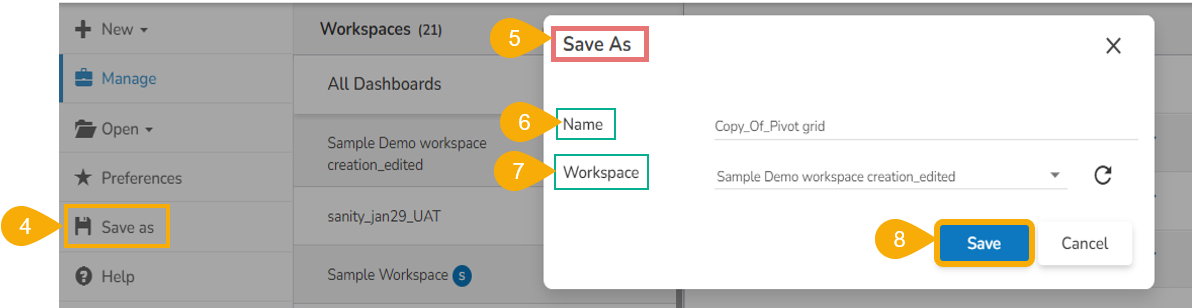
* Click the ***Save As*** option from the left panel.
* The ***Save As*** window appears to confirm the action.
* The original dashboard name appears with the “Copy\_Of” prefix (the users can edit the name as per their wish).
* Select a workspace from the drop-down menu.
* Click the ***Save*** option.

<figure><img src="https://859511478-files.gitbook.io/~/files/v0/b/gitbook-x-prod.appspot.com/o/spaces%2FGDmsjfjJBNqow7Fo97cO%2Fuploads%2FM9cMnmp88Ah8R8SVTDI8%2Fimage.png?alt=media&#x26;token=d71787cf-d622-4070-ac50-f4ba10fc97df" alt=""><figcaption><p>The Save As Dialog box</p></figcaption></figure>

* A copy of the selected dashboard gets saved in the chosen workspace.

<figure><img src="https://859511478-files.gitbook.io/~/files/v0/b/gitbook-x-prod.appspot.com/o/spaces%2FGDmsjfjJBNqow7Fo97cO%2Fuploads%2FrzY43Ot7vY73hBMyOv4D%2Fimage.png?alt=media&#x26;token=0c890b53-0130-458c-a795-cdbe0366c9c3" alt=""><figcaption><p>The dashboard gets saved as with the copy of the original one.</p></figcaption></figure>