> For the complete documentation index, see [llms.txt](https://docs.bdb.ai/data-science-lab/llms.txt). Markdown versions of documentation pages are available by appending `.md` to page URLs; this page is available as [Markdown](https://docs.bdb.ai/data-science-lab/project/tabs-for-a-data-science-lab-project/tabs-for-pyspark-environment/notebook/notebook-list-page/sharing-a-notebook.md).

# Sharing a Notebook

{% hint style="info" %}
*Check out the walk through on how to share a Notebook.*
{% endhint %}

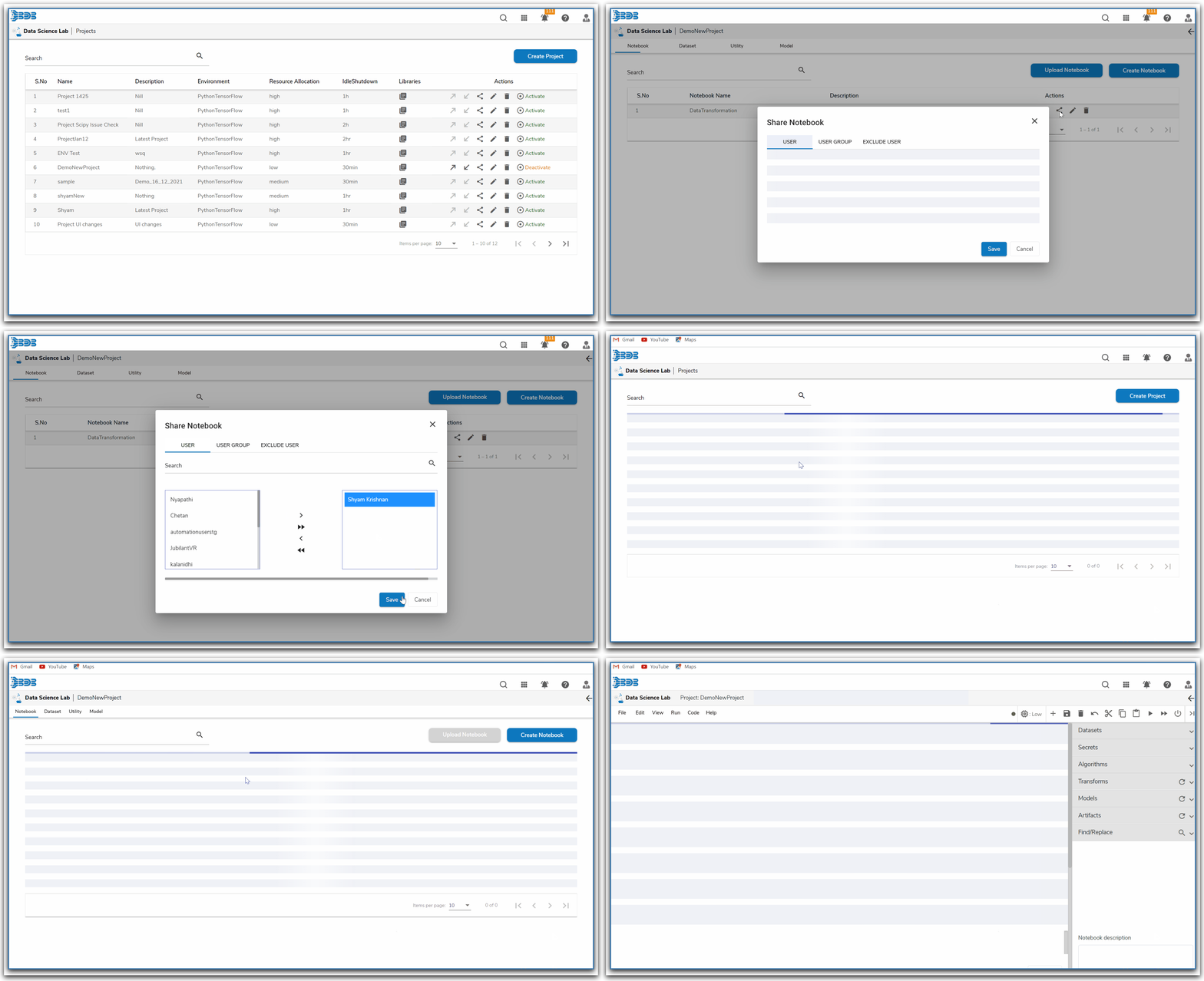
<figure><img src="https://859511478-files.gitbook.io/~/files/v0/b/gitbook-x-prod.appspot.com/o/spaces%2FGDmsjfjJBNqow7Fo97cO%2Fuploads%2Fv2HQtWJFGrHddzL1jmPN%2FShare%20-%20Notebook.gif?alt=media&#x26;token=5c78426f-9c0f-46b6-88d7-9802286141bf" alt=""><figcaption><p><em><strong>Sharing Notebook</strong></em></p></figcaption></figure>

* Navigate to the ***Notebook*** tab for a DS Lab project.
* Select a Notebook from the list.
* Click the ***Share*** icon.

<figure><img src="/files/EbxxgVvWkHpEd1MtI0uL" alt=""><figcaption><p><em><strong>Share icon given for a Notebook</strong></em></p></figcaption></figure>

* The ***Share Notebook*** page opens.
* Select a tab out of USER, USER GROUP, and EXCLUDE USER tabs.
* Search for a specific user or user group to share the Notebook.
* Select a User or user group from the respective tabs (as displayed in the given image for the USER tab).
* Use the single arrow mark to move the user (By selecting the icon containing both the arrows will move all the users).

<figure><img src="/files/uoZOp1PSvEovsqKB9TmN" alt=""><figcaption><p><em><strong>Selecting a User to Share Notebook</strong></em></p></figcaption></figure>

* The selected user or user group will get moved to the right hand side box.
* Click the ***Save*** option.

<figure><img src="/files/s4jnQy7CiN4Ec5u9ZjzI" alt=""><figcaption><p><em><strong>the</strong></em> <em><strong>Selected user to share a Notebook</strong></em></p></figcaption></figure>

* A notification message appears, and the Notebook gets shared.

<figure><img src="/files/2uQlnWe6X8F7be32PqGE" alt=""><figcaption><p><em><strong>Notification message when a Notebook gets shared</strong></em></p></figcaption></figure>

* Login to the Platform using the credentials of the user to whom the Notebook is shared.
* Navigate to the ***DS Lab*** module.
* The ***Shared Project*** gets the letter "***s***" to indicate that it is shared to the user. Click the shared project.&#x20;

{% hint style="info" %}
*<mark style="color:green;">Please Note</mark><mark style="color:green;">:</mark>*&#x20;

* *The **Project** gets shared by default with the concerned **Notebook** while using the **Share** function for a Notebook.*
* *The **Shared Project** even if it is shared by default with a Notebook **remains*** ***Active by default** for the user to access and open the Notebook tab provided inside it.*
  {% endhint %}

<figure><img src="/files/N6voPQptkvhHWOqtChA1" alt=""><figcaption><p><em><strong>Accessing a Shared Project</strong></em> </p></figcaption></figure>

* Open a shared ***Project.***
* The shared ***Notebook*** can be seen in the list.

<figure><img src="/files/pETZ6jx92OSEaGcRXDnj" alt=""><figcaption><p> <em><strong>Accessing the</strong></em> <em><strong>Shared Notebook inside a Shared Project</strong></em></p></figcaption></figure>

{% hint style="info" %}
*<mark style="color:green;">Please Note:</mark>*

1. The user with whom the project has been shared appears in the right-side box.
2. If the project is shared with a user group, then all the users under that group appear under the right-side box.
3. If the ***EXCLUDE USER*** tab is selected the user gets excluded from the rights to access the Notebook.
4. A ***Shared Project*** will not have permissions to ***Share***, ***Edit*** or ***Delete*** by the user to whom it has been shared.
5. A ***Shared Notebook*** will not have permissions to ***Share*** or ***Delete*** by the user to whom it has been shared.
6. *Refer the **Data Science Lab Quick Start Flow** page to get an overview of the **Data Science Lab** module in nutshell.* [***Click here***](https://docs.bdb.ai/data-science-lab/data-science-lab-quick-start-flow) *to get redirected to the quick start flow page.*
   {% endhint %}


---

# Agent Instructions
This documentation is published with GitBook. GitBook is the documentation platform designed so that both humans and AI agents can read, navigate, and reason over technical content effectively. Learn more at gitbook.com.

## Querying This Documentation
If you need additional information that is not directly available in this page, you can query the documentation dynamically by asking a question.

Perform an HTTP GET request on the current page URL with the `ask` query parameter:

```
GET https://docs.bdb.ai/data-science-lab/project/tabs-for-a-data-science-lab-project/tabs-for-pyspark-environment/notebook/notebook-list-page/sharing-a-notebook.md?ask=<question>
```

The question should be specific, self-contained, and written in natural language.
The response will contain a direct answer to the question and relevant excerpts and sources from the documentation.

Use this mechanism when the answer is not explicitly present in the current page, you need clarification or additional context, or you want to retrieve related documentation sections.
