# Data Sandbox
{% hint style="info" %}
*Pre-requites: The user must configure the **Sandbox Settings** to access the Data Sandbox option under the **Data Science Lab**.*
{% endhint %}
{% hint style="success" %}
*Check out the walk-through on how to add a Data Sandbox as a dataset.*
{% endhint %}
{% embed url="" %}
***Uploading & Adding a Data Sandbox as Data set***
{% endembed %}
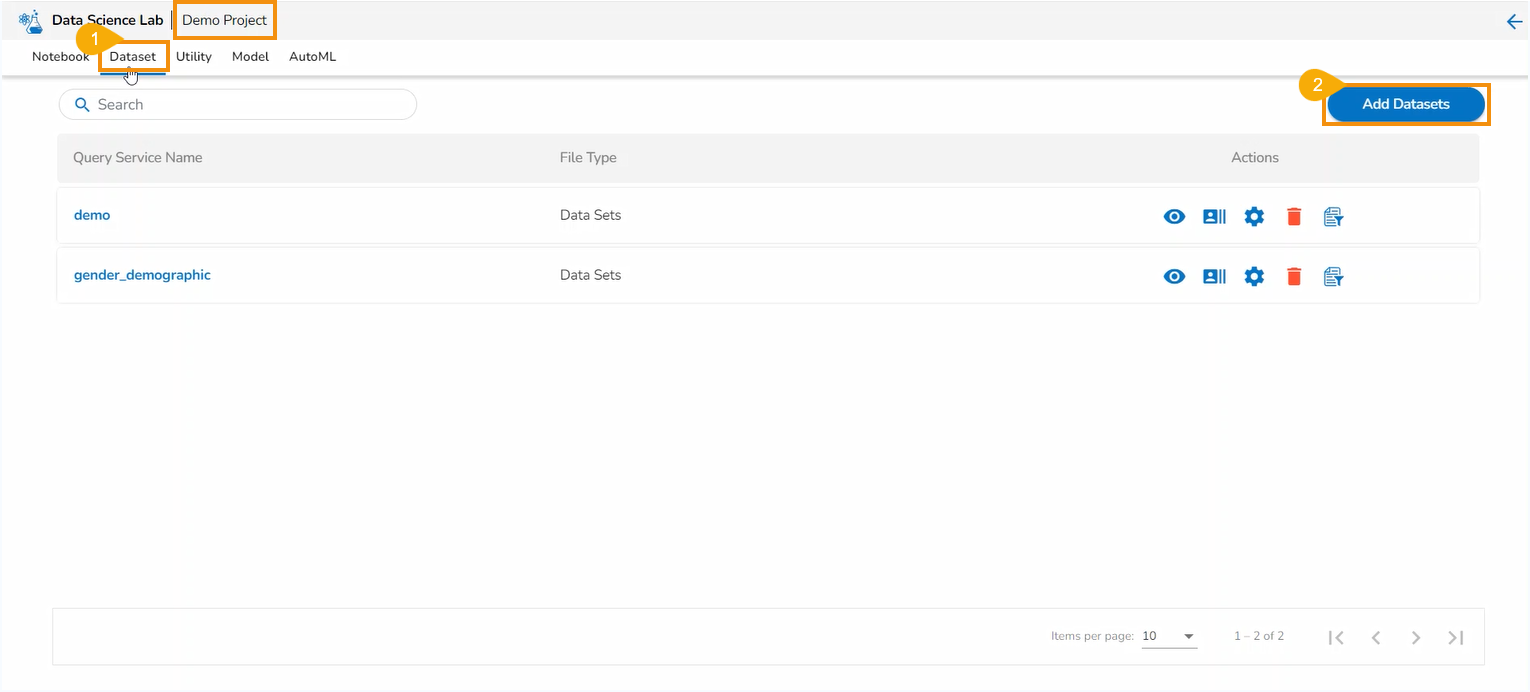
* Open the **Dataset** tab from a specific project.
* Click the **Add Datasets** option.
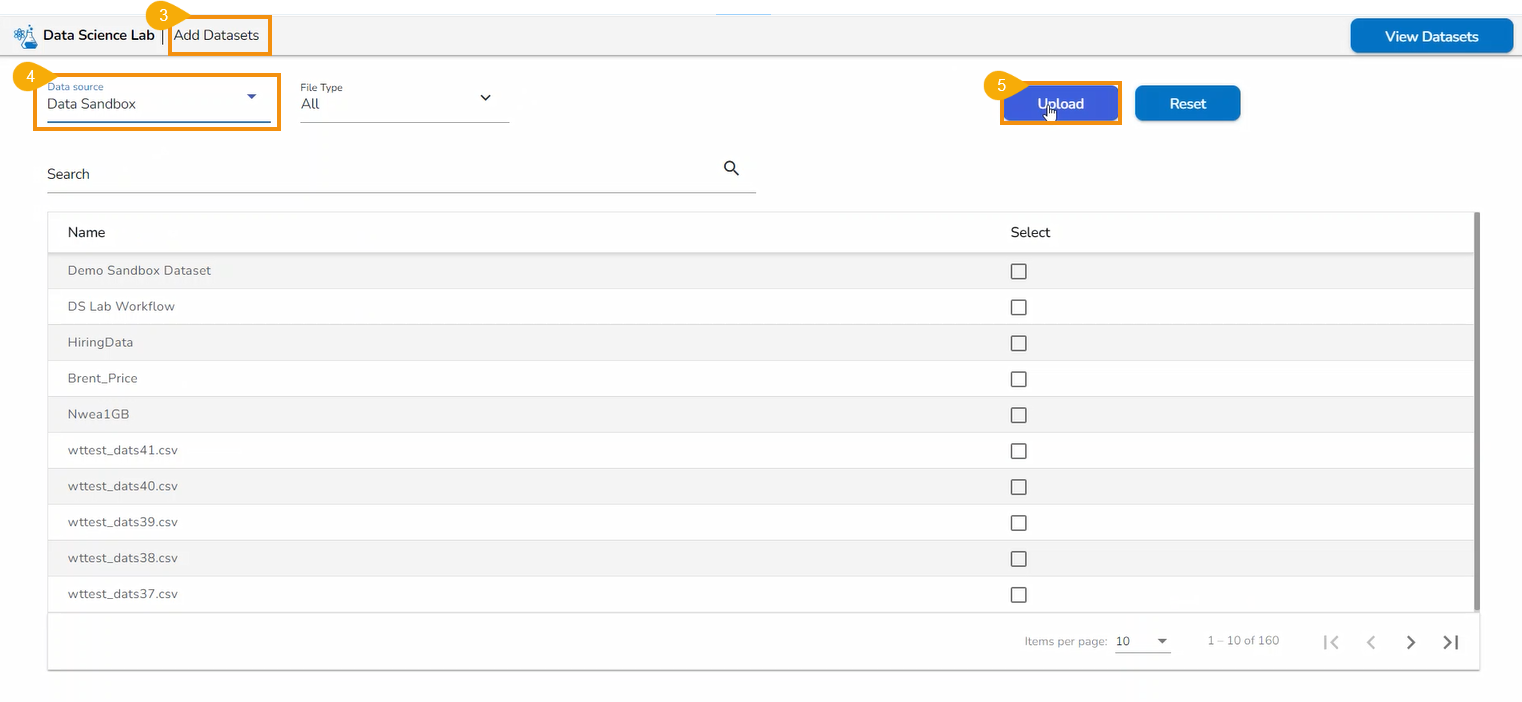
* The user gets redirected to the **Add Datasets** page.
* Select the ***Data Sandbox*** option from the Data Service drop-down menu.
* Click the ***Upload*** option to upload a Data Sandbox file.
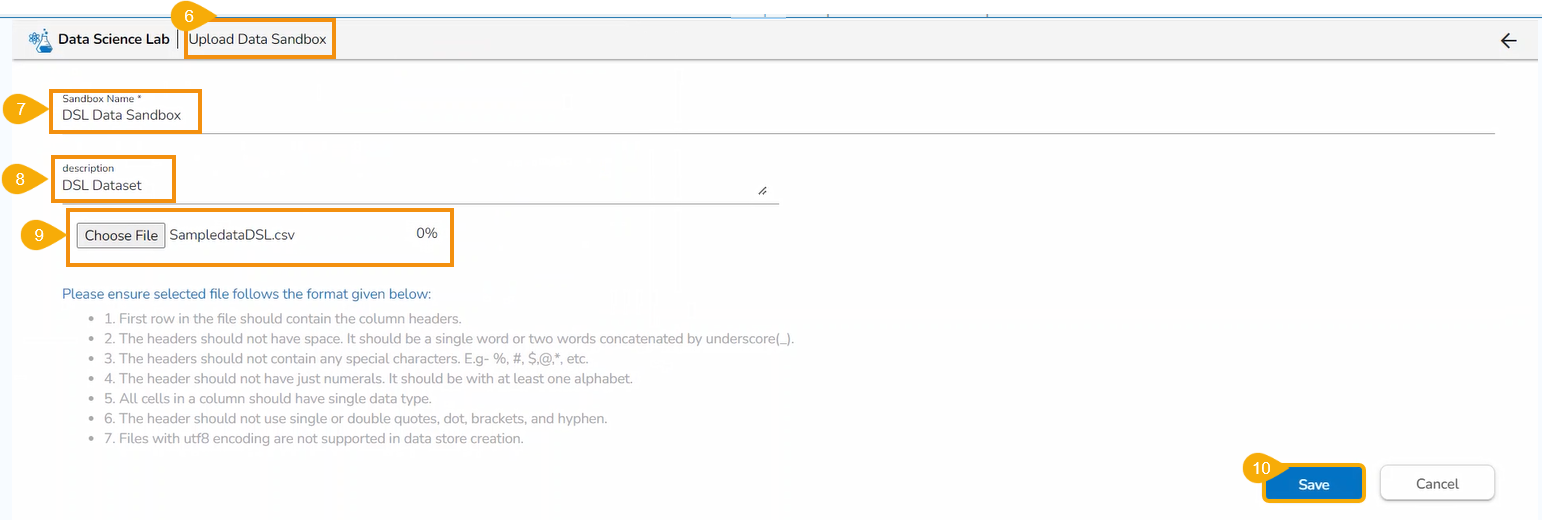
* The user gets redirected to the ***Upload Data Sandbox*** page.
* Provide a ***Sandbox Name***.
* Provide ***Description*** about the Data Sandbox.
* Click the ***Choose File*** option to select a file.
* Click the ***Save*** option to begin the file upload.
Upload Data Sandbox Page
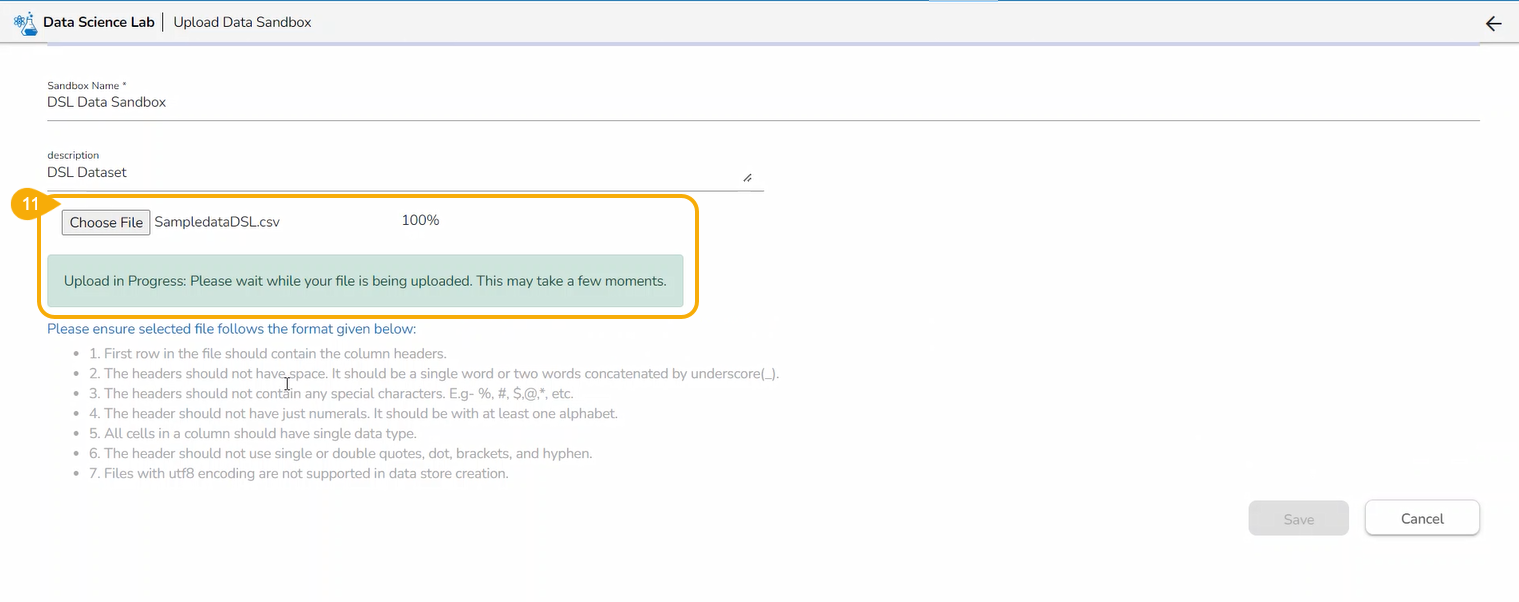
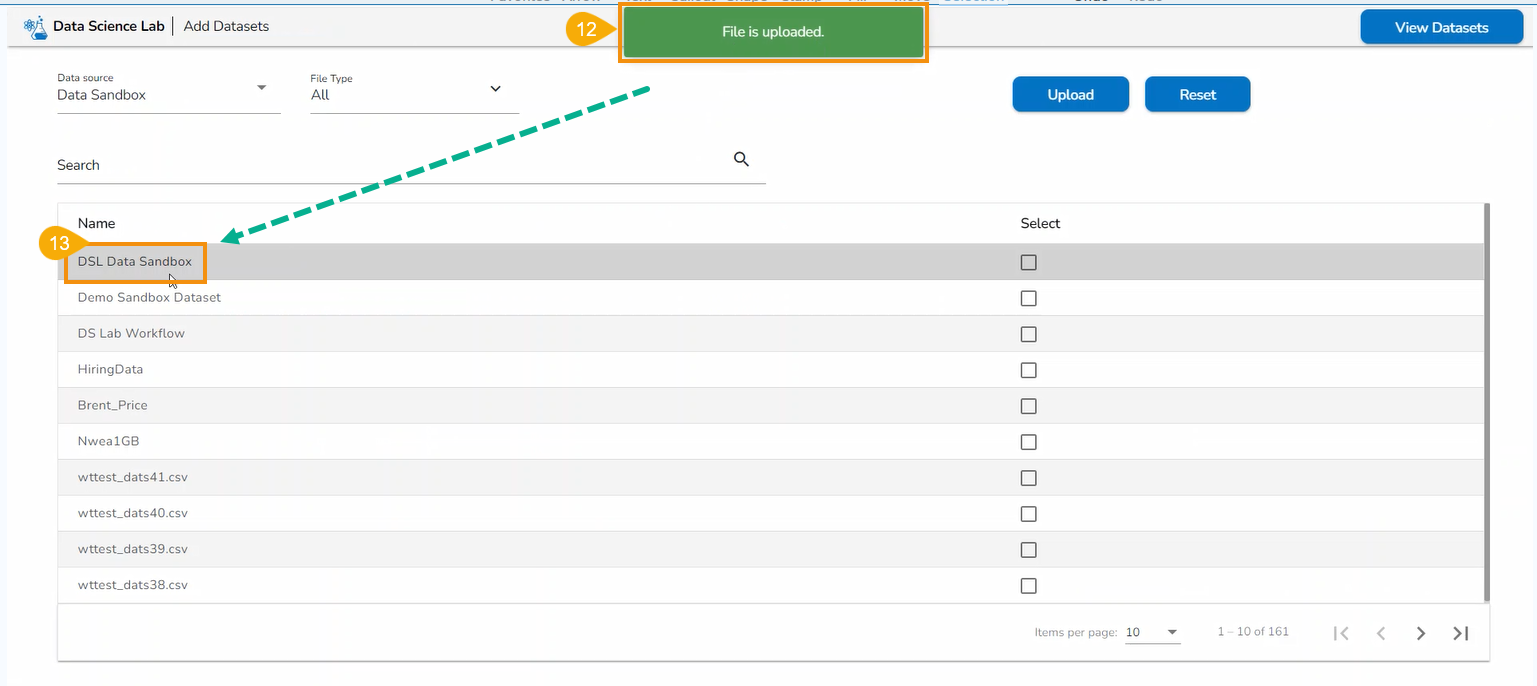
* Wait till the file gets loaded 100%.
* A notification message appears to indicate that the file has been uploaded (after the data gets loaded 100%).
* The user gets redirected to the ***Add Datasets*** tab.
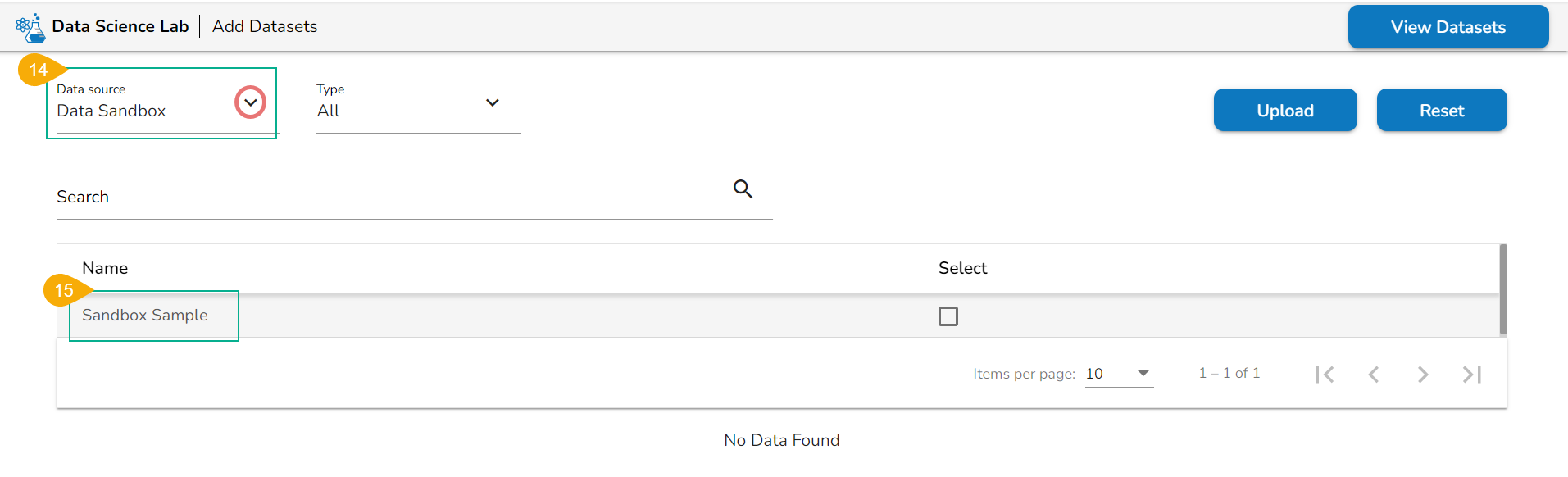
* Select the ***Data Sandbox*** option from the ***Data Source*** drop-down menu.
* The uploaded Data Sandbox file appears in the list below.
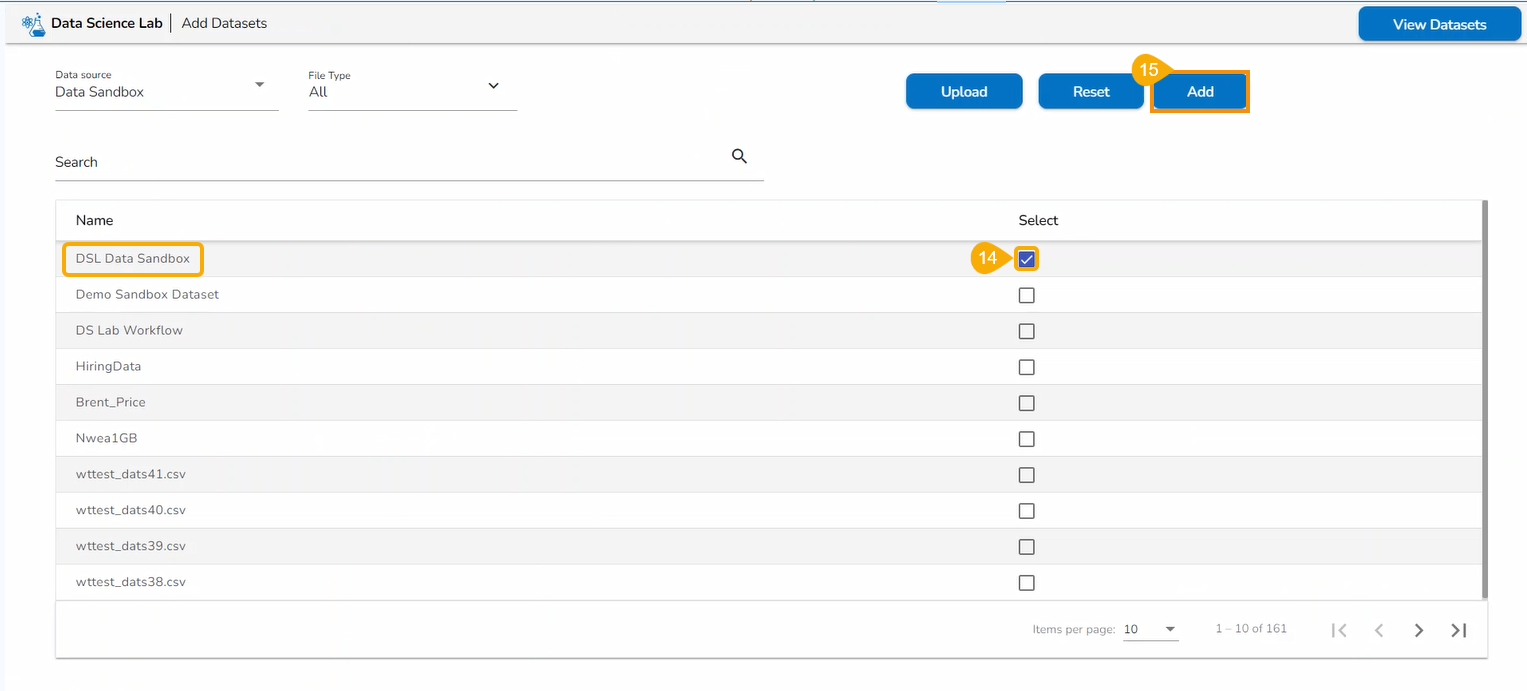
* Select a Data Sandbox file using the checkbox given next to the Sandbox entry.
* Click the ***Add*** option that appears after selecting the uploaded Sandbox file.
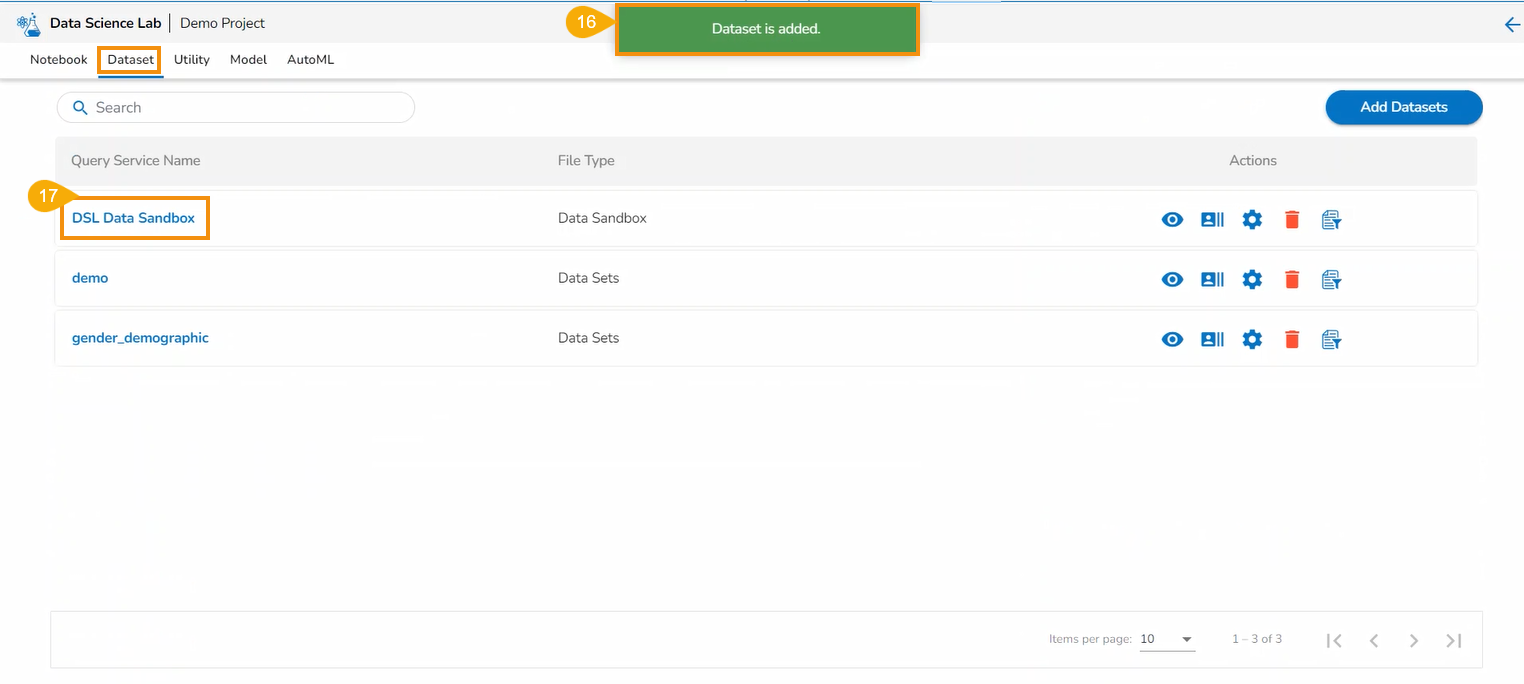
* A notification message appears to inform that the selected Dataset (in this case, the selected Data Sandbox file) has been updated.
* The user gets redirected to the ***Dataset*** tab where the added dataset file gets listed.
{% hint style="info" %}
*Please Note:*
* *The user can get a **Search bar** to search across the multiple Datasets options on the **Add Datasets** page.*
* *Refer the* [***Data Science Lab Quick Start Flow***](https://docs.bdb.ai/data-science-lab-4/data-science-lab-quick-start-flow) *page to get an overview of the **Data Science Lab** module in nutshell.*
{% endhint %}