# Google Analytics
{% hint style="success" %}
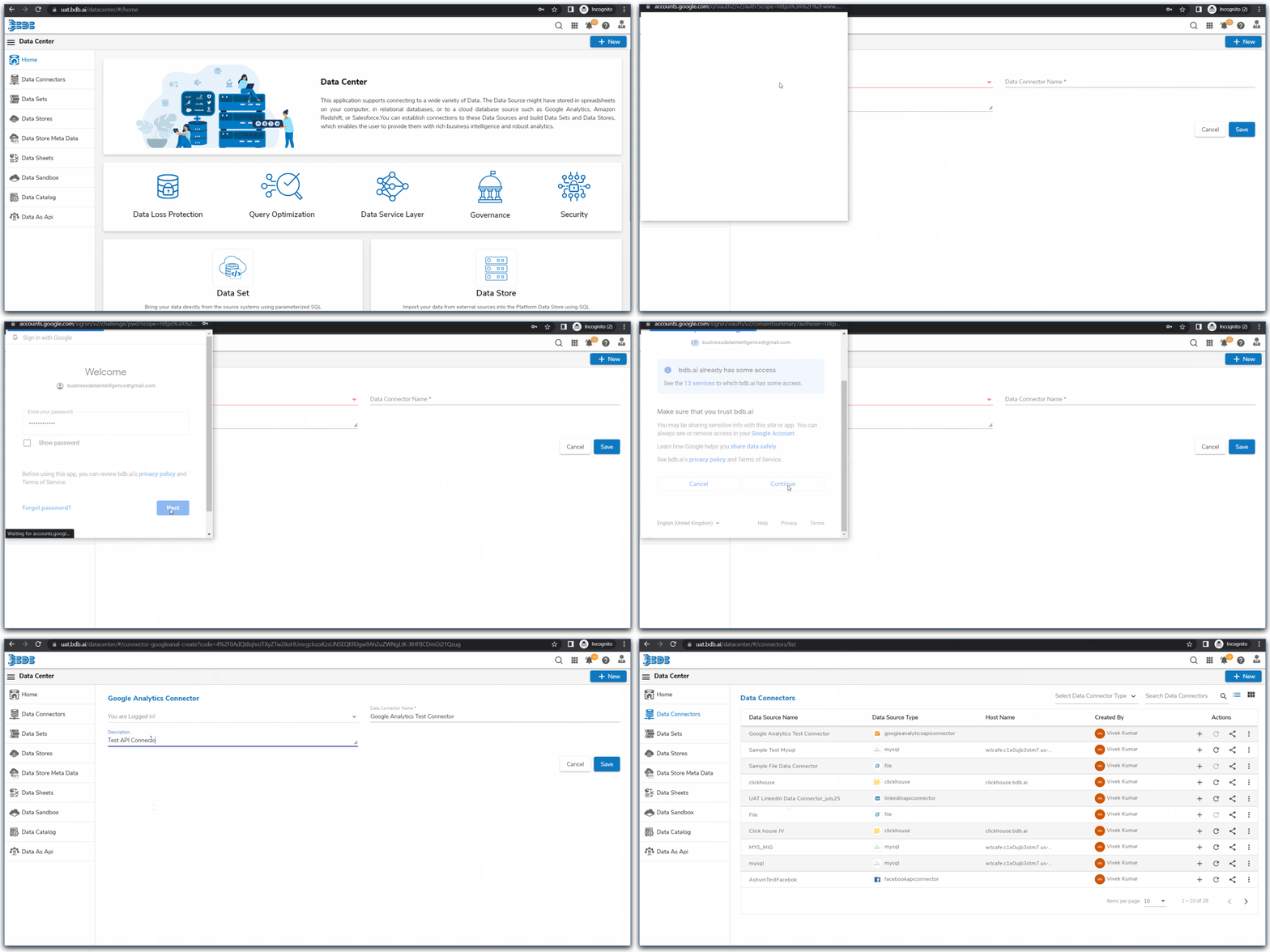
*Check-out the given walk-through on how to create a Data Connector using the Google Analytics as data source.*
{% endhint %}

The following set of steps displays how to create a Google Analytics Data Connector.
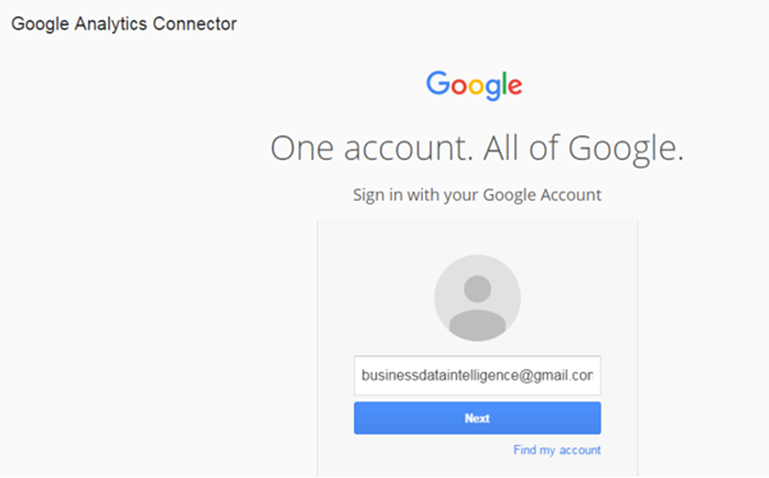
* Select the **Add New Account** option to add a new Google account or select an added Google account from the Select Account drop-down menu.
* The user gets redirected to log in to a Google account, if the **Add New Account** is selected.
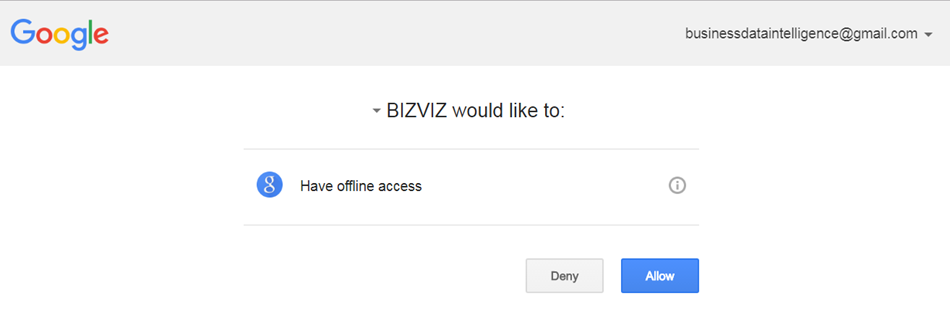
* Give access to the analytics data by clicking the **Allow** option.
* The user gets redirected to the data connector form with an authorization code in the URL, after getting the access permission. The form mentions that the user has been logged in to the selected Google account.
* **Data Connector Name:** Enter a user-defined name to identify the data connector.
* **Description:** Describe the data connector (optional).
* Click the **Save** option.
{% hint style="info" %}
*Please Note: The user can **Cancel** the connector if wished to do so from the current page.*
{% endhint %}
* A success message appears, and the newly created Google Analytics data connector gets added to the Data Connectors list.
{% hint style="info" %}
*Please Note: The below-given page opens if the user selects an account using the **Select Account** drop-down menu. In this scenario, the user needs to provide only the Data Connector name, Description (optional) and click the **Save** option to create a new Google Analytics Data Connector.*
{% endhint %}
---
# Agent Instructions: Querying This Documentation
If you need additional information that is not directly available in this page, you can query the documentation dynamically by asking a question.
Perform an HTTP GET request on the current page URL with the `ask` query parameter:
```
GET https://docs.bdb.ai/data-center-4/data-center/data-connectors/supported-data-connectors/api-connectors/google-analytics.md?ask=
```
The question should be specific, self-contained, and written in natural language.
The response will contain a direct answer to the question and relevant excerpts and sources from the documentation.
Use this mechanism when the answer is not explicitly present in the current page, you need clarification or additional context, or you want to retrieve related documentation sections.
.png?alt=media&token=e9b2624c-5d3e-469d-abc4-b521b2e88787)