> For the complete documentation index, see [llms.txt](https://docs.bdb.ai/data-center-3/llms.txt). Markdown versions of documentation pages are available by appending `.md` to page URLs; this page is available as [Markdown](https://docs.bdb.ai/data-center-3/data-center/data-connectors/supported-data-connectors/api-connectors/linkedin.md).
# Linkedin

The following set of steps displays how to create a LinkedIn Data Connector.
* Select the ***LinkedIn*** connector type icon from the Data Connector page.
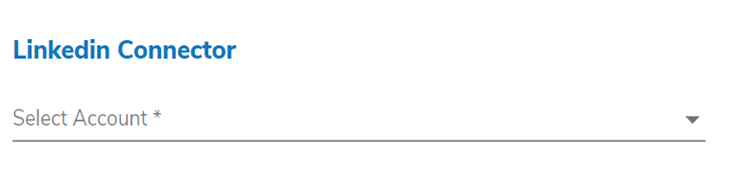
* The LinkedIn Connector page opens.
* Click the ***Select Accoun*****t** option.
* The user gets redirected to a new window to access a valid LinkedIn account.
* Insert the credentials of the LinkedIn account to log in.
* Click the ***Allow access*** option to provide permission to BDB for accessing data from the selected LinkedIn account.

* The LinkedIn Connector page reopens with the ***Change Account*** option indicating that a LinkedIn account is selected (Click the ‘Change Account’ option if you wish to change the selected account).
* Provide a name for the LinkedIn Data Connector (E.g., In this case, it is defined as **Sample LinkedIn Data Connector)**.
* Click the ***Save*** option.
* A success message appears, and the newly created data connector gets added to the Data Connectors list.