# Viewing Data

## **Opening a Published Data Sheet** <a href="#opening-a-published-data-sheet" id="opening-a-published-data-sheet"></a>

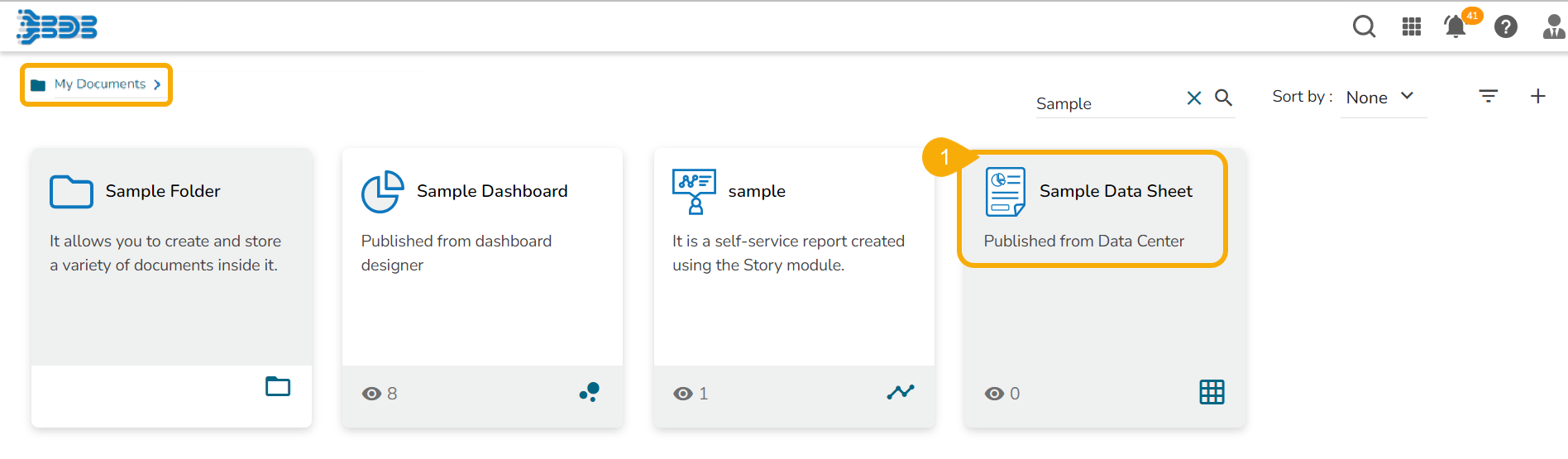
* Click on the Published Data Sheet.

<figure><img src="https://859511478-files.gitbook.io/~/files/v0/b/gitbook-x-prod.appspot.com/o/spaces%2FGDmsjfjJBNqow7Fo97cO%2Fuploads%2FjHl6mW5K2b4bhCAgVync%2Fimage.png?alt=media&#x26;token=0e9b0e93-e885-4361-9b20-e9ba39167976" alt=""><figcaption></figcaption></figure>

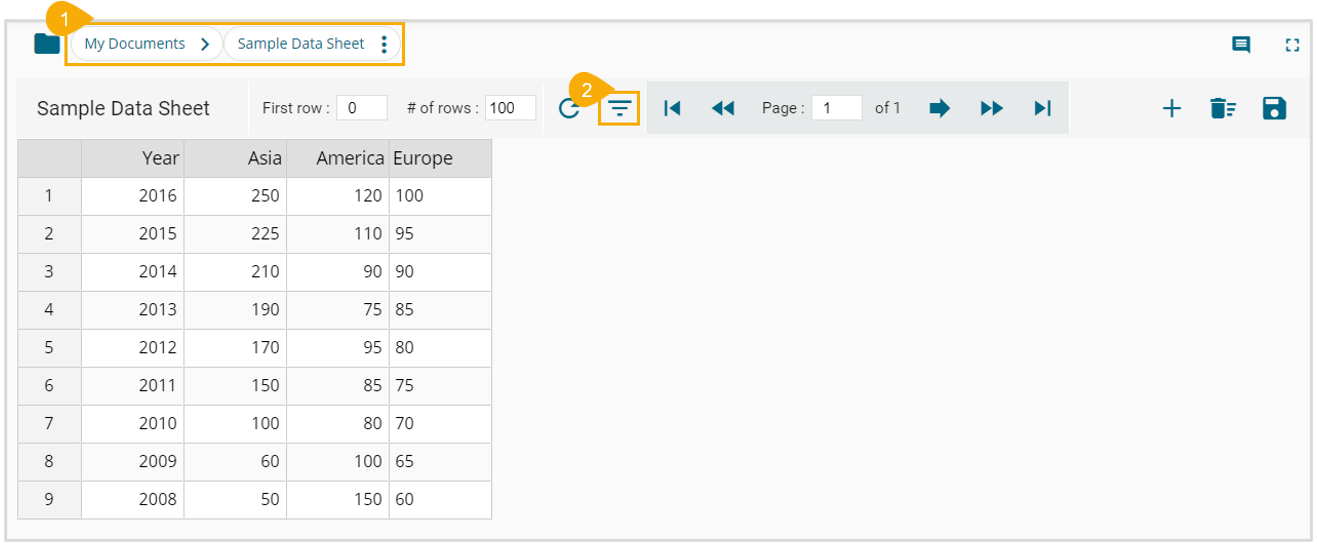
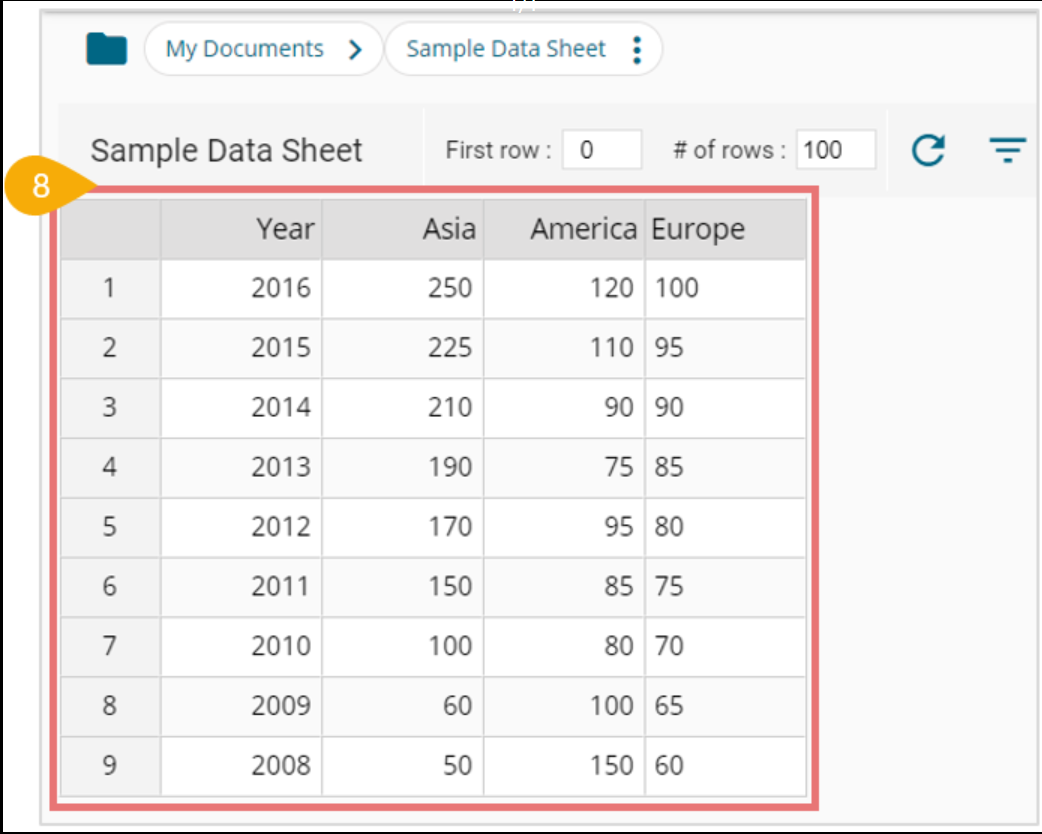
* The Data Sheet opens displaying the data table.

## **Filtering the Data** <a href="#filtering-the-data" id="filtering-the-data"></a>

* Open a published Data Sheet.
* Click the ***Filter*** icon.

<figure><img src="https://859511478-files.gitbook.io/~/files/v0/b/gitbook-x-prod.appspot.com/o/spaces%2FGDmsjfjJBNqow7Fo97cO%2Fuploads%2F8Yhsk5HOg1KSeotkk6aB%2Fimage.png?alt=media&#x26;token=0e6ac95f-db2e-4344-86d8-34f251c2b04c" alt=""><figcaption><p><em>Accessing the Filter icon for a Published Data Sheet</em></p></figcaption></figure>

* The ***Apply*** ***Filters*** window opens.
* Provide the following information:
  * **Value**: Mention a value in the given space.
  * **Field Name**: Select a field from the drop-down menu.
* Click the ***Ok*** option.

![](https://859511478-files.gitbook.io/~/files/v0/b/gitbook-x-prod.appspot.com/o/spaces%2FGDmsjfjJBNqow7Fo97cO%2Fuploads%2Feg0nuE1PLrHeO3Kpj6vf%2Fimage.png?alt=media\&token=b023c260-57c4-49f9-9550-d7f2d5d57a1a)​

{% hint style="info" %} <mark style="color:green;">Please Note:</mark> *Please provide the field value first, and then select the field name to apply filter.*
{% endhint %}

* The displayed data gets filtered as per the inserted condition (The filter icon turns red to indicate that the displayed data is filtered).

<figure><img src="https://859511478-files.gitbook.io/~/files/v0/b/gitbook-x-prod.appspot.com/o/spaces%2FGDmsjfjJBNqow7Fo97cO%2Fuploads%2FSecePAsDfm85aZaggtEN%2Fimage.png?alt=media&#x26;token=946d227c-46a6-43bd-80db-318f0421365c" alt=""><figcaption><p><em>Filtered data in a Published Data Sheet</em></p></figcaption></figure>

* Click the ***Clear Filter*** icon.

<figure><img src="https://859511478-files.gitbook.io/~/files/v0/b/gitbook-x-prod.appspot.com/o/spaces%2FGDmsjfjJBNqow7Fo97cO%2Fuploads%2FFYXutGFeEz77q9NtZWQj%2Fimage.png?alt=media&#x26;token=4b21692c-b5bb-401c-bdca-cb5799cbf6c3" alt=""><figcaption></figcaption></figure>

* The applied filter gets clear.

​

<figure><img src="https://859511478-files.gitbook.io/~/files/v0/b/gitbook-x-prod.appspot.com/o/spaces%2FGDmsjfjJBNqow7Fo97cO%2Fuploads%2F63i3chbZTGCRx98V1LEe%2Fimage.png?alt=media&#x26;token=f3d7dcc5-4ded-4023-8e81-94ae803f6413" alt=""><figcaption><p>Clearing the applied Filter</p></figcaption></figure>


---

# Agent Instructions: Querying This Documentation

If you need additional information that is not directly available in this page, you can query the documentation dynamically by asking a question.

Perform an HTTP GET request on the current page URL with the `ask` query parameter:

```
GET https://docs.bdb.ai/data-center-2/data-center/data-sheets/publishing-a-data-sheet/viewing-data.md?ask=<question>
```

The question should be specific, self-contained, and written in natural language.
The response will contain a direct answer to the question and relevant excerpts and sources from the documentation.

Use this mechanism when the answer is not explicitly present in the current page, you need clarification or additional context, or you want to retrieve related documentation sections.