> For the complete documentation index, see [llms.txt](https://docs.bdb.ai/administrative-settings-4/llms.txt). Markdown versions of documentation pages are available by appending `.md` to page URLs; this page is available as [Markdown](https://docs.bdb.ai/administrative-settings-4/admin-panel-options/configurations/password.md).
# Password
The admin can enforce strong password policies to protect user accounts from unauthorized access by using the Password Settings option.
The administrator can configure the account password information using this option.
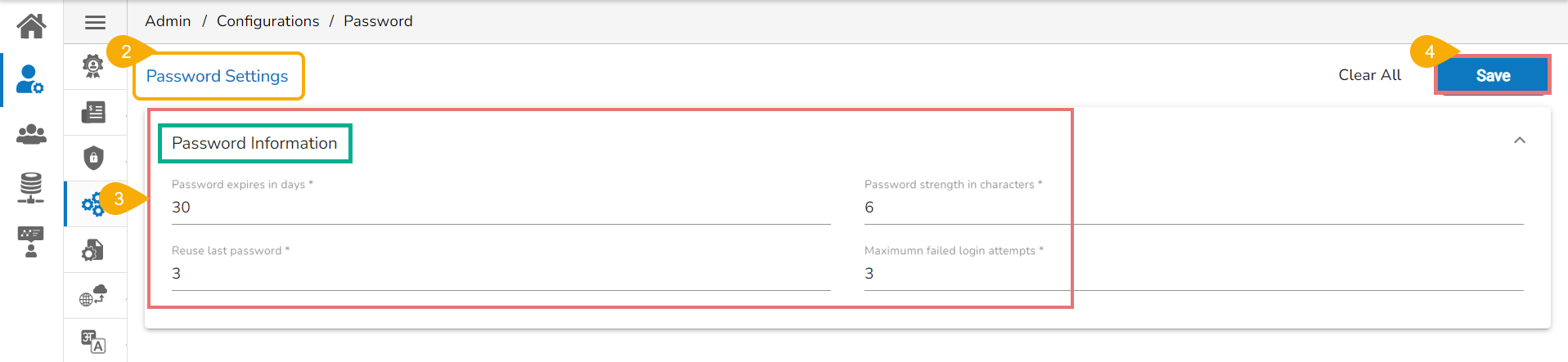
* Click the ***Password*** option from the list of configuration and Settings options.
* The ***Password Settings*** page appears.
* Provide the following information:
* **Password Expiry (Days):** Set password validity (in days)
* **Password Strength (:** Set password length (6 to 16)
* **Password Reuse:** Set a limit to restrict the user from using an old password (the last 3 passwords cannot be reused)
* **Login Failures (No. of User Login Failure):** Set the number of chances provided to the user for logging in with wrong passwords (Maximum 3 login chances are provided to a user. The user account gets blocked if a user enters the wrong password more than 3 times.)
* Click the ***Save*** option to save the entered password information.
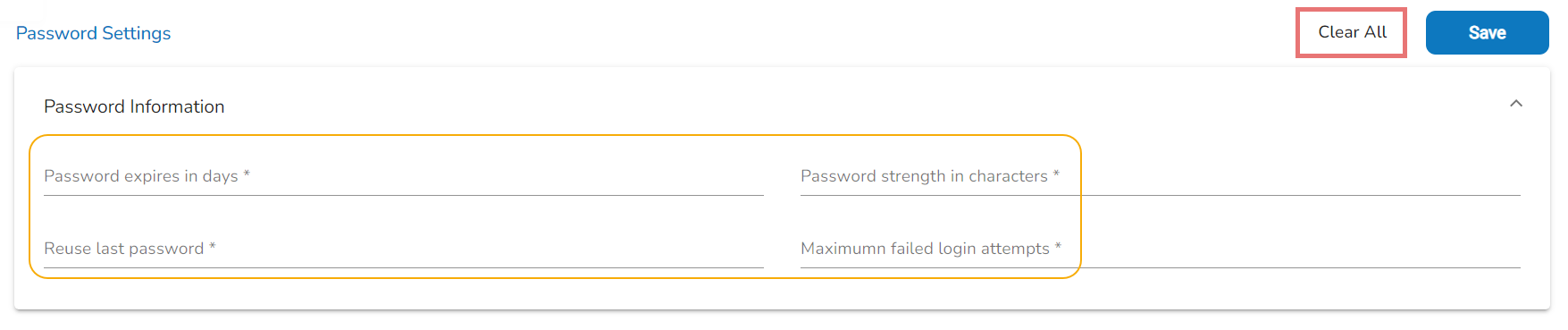
* Click the ***Clear All*** option to erase the entered password information.
{% hint style="info" %}
*Please Note:*
* *The administrator can block any user who fails to enter the correct password 3 times.*
* *A user can Sign in with the same password only when the administrator enables the user again (The password must be a combination of alphabetical letters, numerical figures, and a unique character **E.g.,** Admin1@).*
{% endhint %}