> For the complete documentation index, see [llms.txt](https://docs.bdb.ai/administrative-settings-4/llms.txt). Markdown versions of documentation pages are available by appending `.md` to page URLs; this page is available as [Markdown](https://docs.bdb.ai/administrative-settings-4/admin-panel-options/configurations/data-store-settings.md).

# Data Store Settings

Configure the database settings for your Data Stores to get saved.

This Admin option helps to configure the Data Store settings. The Data Store settings currently provide three database types to choose from:

1. [Mongo](https://docs.bdb.ai/administrative-settings-4/admin-panel-options/configurations/data-store-settings#configuration-data-store-with-mongo-as-selected-db)
2. [Elastic](https://docs.bdb.ai/administrative-settings-4/admin-panel-options/configurations/data-store-settings#configuring-data-store-with-elastic-as-selected-db)
3. [ClickHouse](https://docs.bdb.ai/administrative-settings-4/admin-panel-options/configurations/data-store-settings#configuring-data-store-with-clickhouse-as-selected-db)
4. [PostgreSQL](https://docs.bdb.ai/administrative-settings-4/admin-panel-options/configurations/data-store-settings#configuring-data-store-with-postgresql-as-selected-db)

## **Configuration Data Store with Mongo as selected DB**

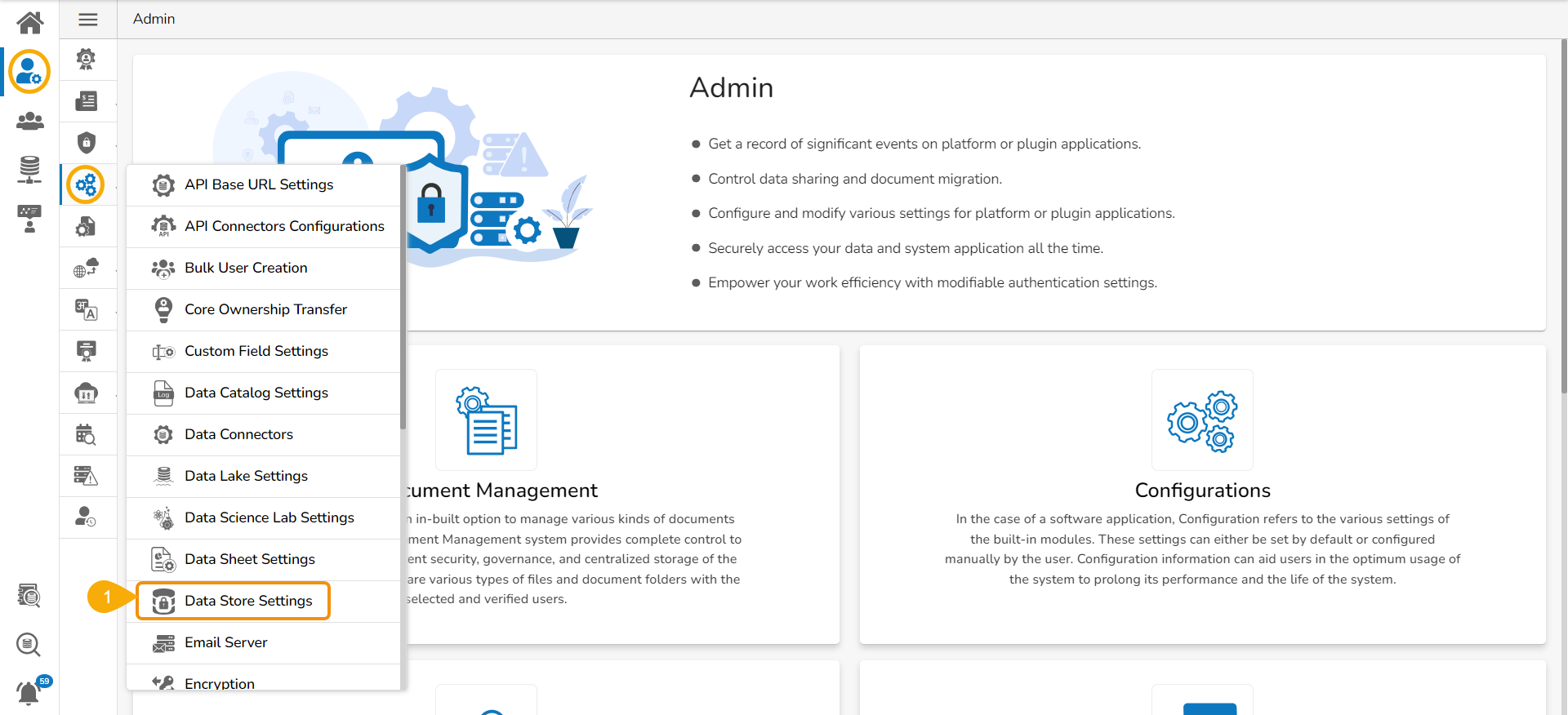
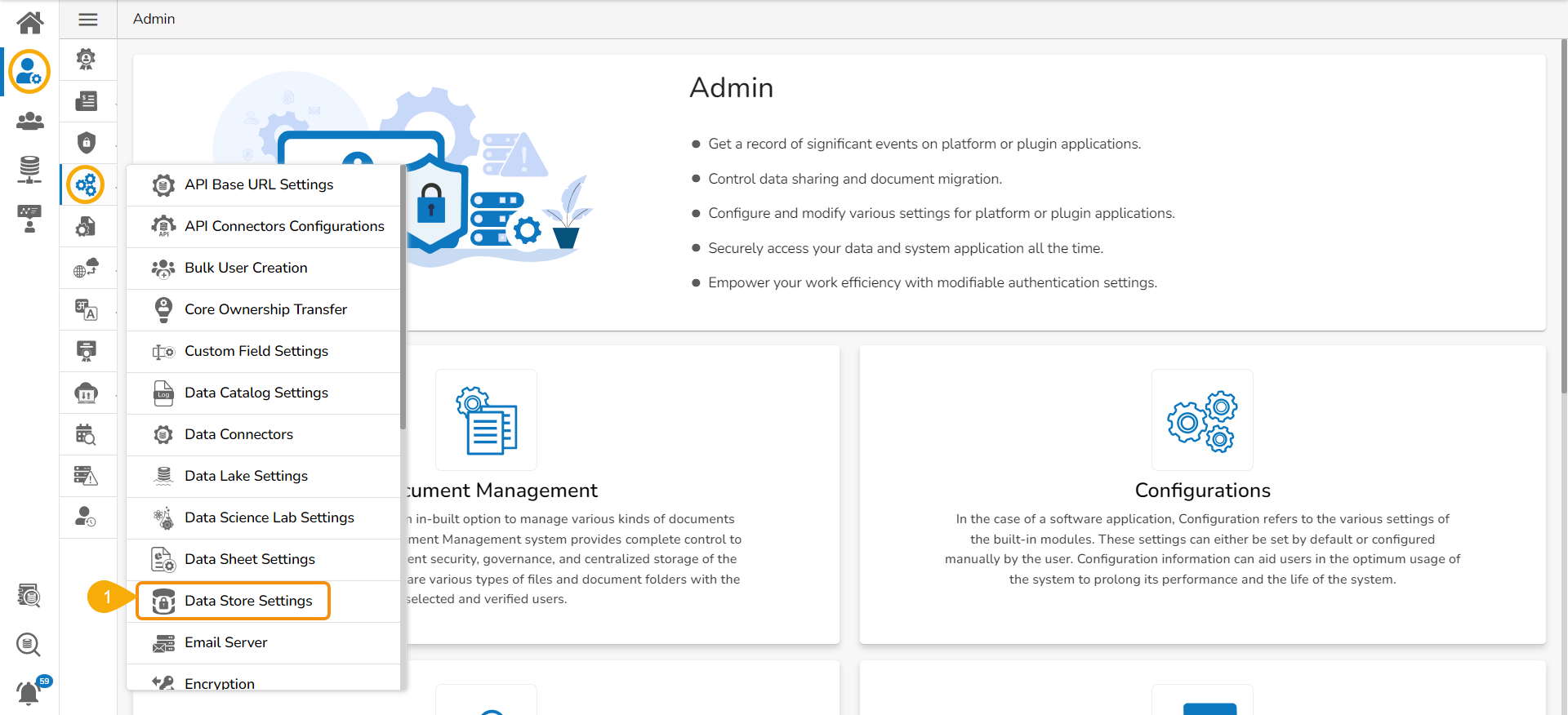
* Click the ***Data Store Settings*** option from the list of Configuration and Settings options.​

<figure><img src="https://content.gitbook.com/content/Bxju1xjBIIexZfulhFPA/blobs/5H9NEZhVVEVkv0ysu2lB/image.png" alt=""><figcaption></figcaption></figure>

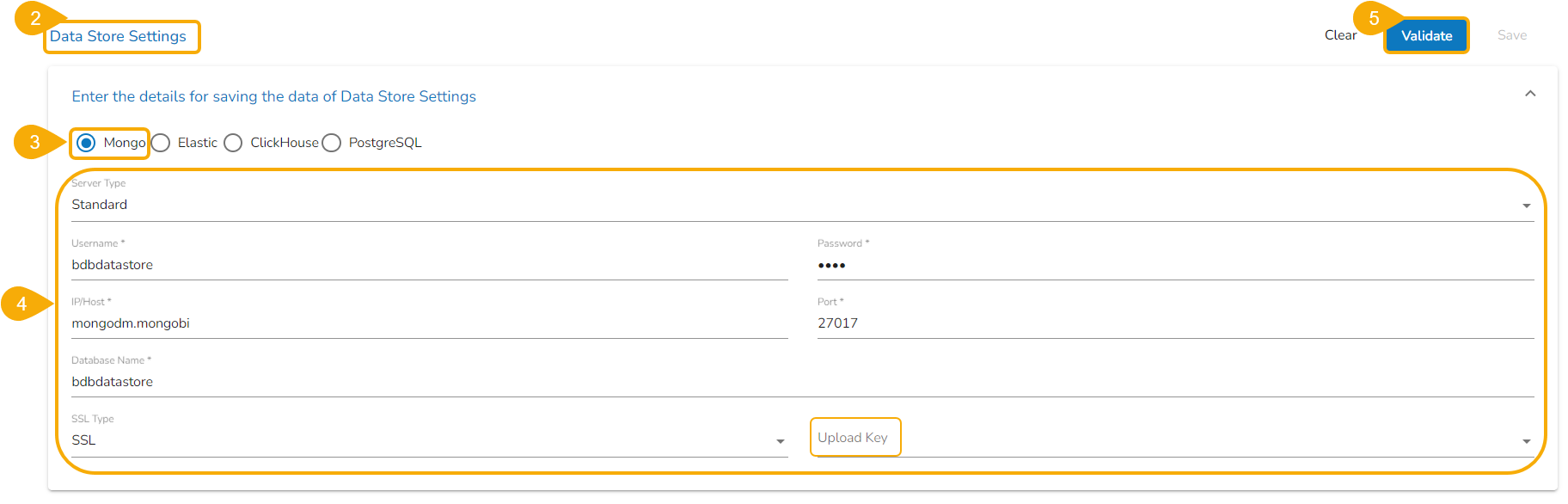
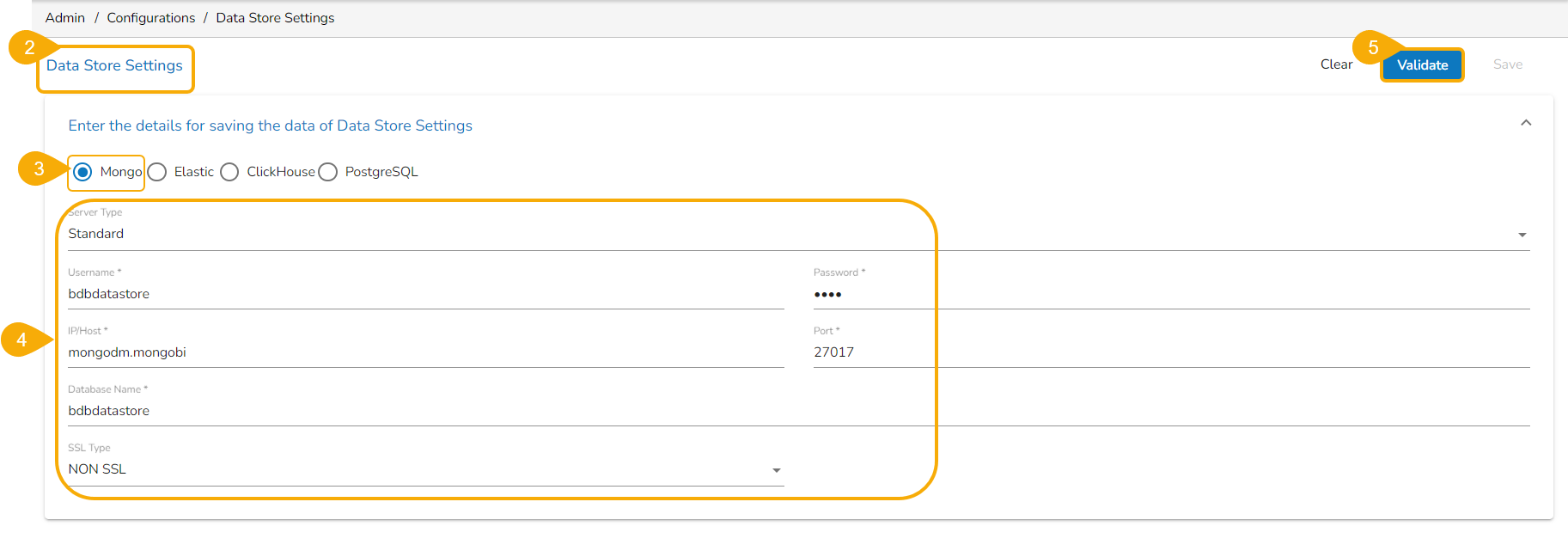
* The ***Data Store Settings*** page appears.
* Select a Database type. E.g., in this case, select the ***Mongo*** option.
* Provide the following information for the Data Store Settings:
  * Server Type
  * Username
  * Password
  * IP/Host
  * Port
  * Database Name
  * SSL Type - Select one option ***NON SSL*** or ***SSL***
* Click the ***Validate*** option.

<figure><img src="https://content.gitbook.com/content/Bxju1xjBIIexZfulhFPA/blobs/c248Jop0TvOOW692GuhE/image.png" alt=""><figcaption><p><em><strong>Field configuration with NON SSL type configuration</strong></em></p></figcaption></figure>

<figure><img src="https://content.gitbook.com/content/Bxju1xjBIIexZfulhFPA/blobs/SPCwYJituKzwcldZBDYN/image.png" alt=""><figcaption><p><em><strong>Field configuration with SSL type configuration</strong></em></p></figcaption></figure>

* A notification message appears.
* The ***Save*** option gets enabled. Click the ***Save*** option to save the inserted information.

<figure><img src="https://content.gitbook.com/content/Bxju1xjBIIexZfulhFPA/blobs/b7zTNvkLeB8LkQ5hndYq/image.png" alt=""><figcaption></figcaption></figure>

* A notification message appears to confirm that the Data Store configuration for Mongo DB has been saved.

<figure><img src="https://content.gitbook.com/content/Bxju1xjBIIexZfulhFPA/blobs/JUTFewTH1xqR4vZYHy4D/image.png" alt=""><figcaption></figcaption></figure>

## [**Configuring Data Store with Elastic as selected DB**](https://docs.bdb.ai/administrative-settings-4/admin-panel-options/configurations/data-store-settings#configuring-data-store-with-elastic-as-selected-db)

* Click the ***Data Store Settings*** option from the list of Configuration and Settings options.

​

<figure><img src="https://content.gitbook.com/content/Bxju1xjBIIexZfulhFPA/blobs/rM63nyoDKFR8JXHKyBsP/image.png" alt=""><figcaption></figcaption></figure>

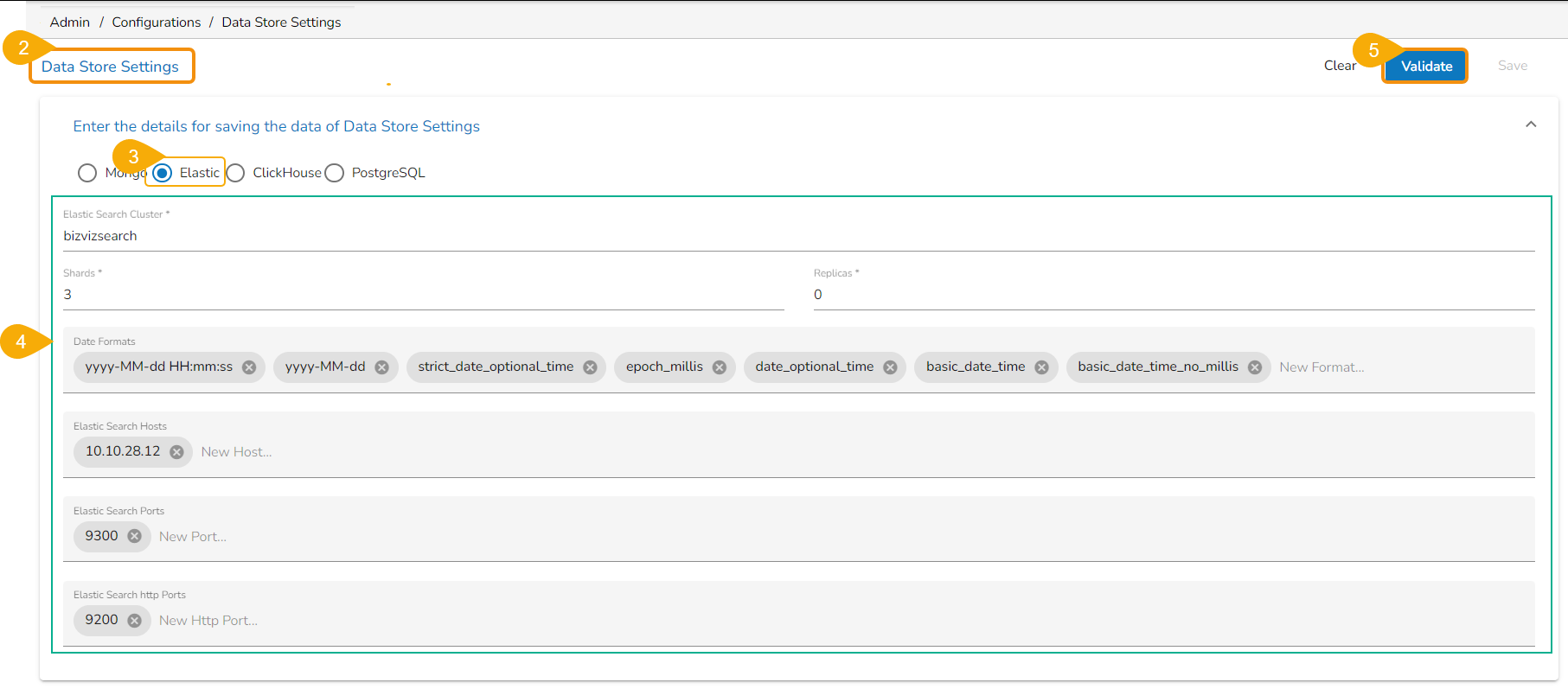
* The ***Data Store Settings*** page appears.
* Select a Database type. E.g., in this case, select the ***Elastic*** option.
* Provide the following information for the Data Store Settings:
  * Elastic Search Cluster
  * Shards
  * Replicas
  * Date Formats
  * Elastic Search Hosts
  * Elastic Search Ports
  * Elastic Search http Ports
* Click the ***Validation*** option.

<figure><img src="https://content.gitbook.com/content/Bxju1xjBIIexZfulhFPA/blobs/3kLQZkLiuq21cx0LBIsz/image.png" alt=""><figcaption></figcaption></figure>

* A notification message appears.
* The ***Save*** option gets enabled. Click the ***Save*** option to save the inserted information.

<figure><img src="https://content.gitbook.com/content/Bxju1xjBIIexZfulhFPA/blobs/lwaiEACbp9Ihz4ZPjmqz/image.png" alt=""><figcaption></figcaption></figure>

* A notification message appears to confirm that the Data Store configuration for Elastic has been saved.

<figure><img src="https://content.gitbook.com/content/Bxju1xjBIIexZfulhFPA/blobs/nnoNHok6S4ufdFGvcdRd/image.png" alt=""><figcaption></figcaption></figure>

## [**Configuring Data Store with ClickHouse as selected DB**](https://docs.bdb.ai/administrative-settings-4/admin-panel-options/configurations/data-store-settings#configuring-data-store-with-clickhouse-as-selected-db)&#x20;

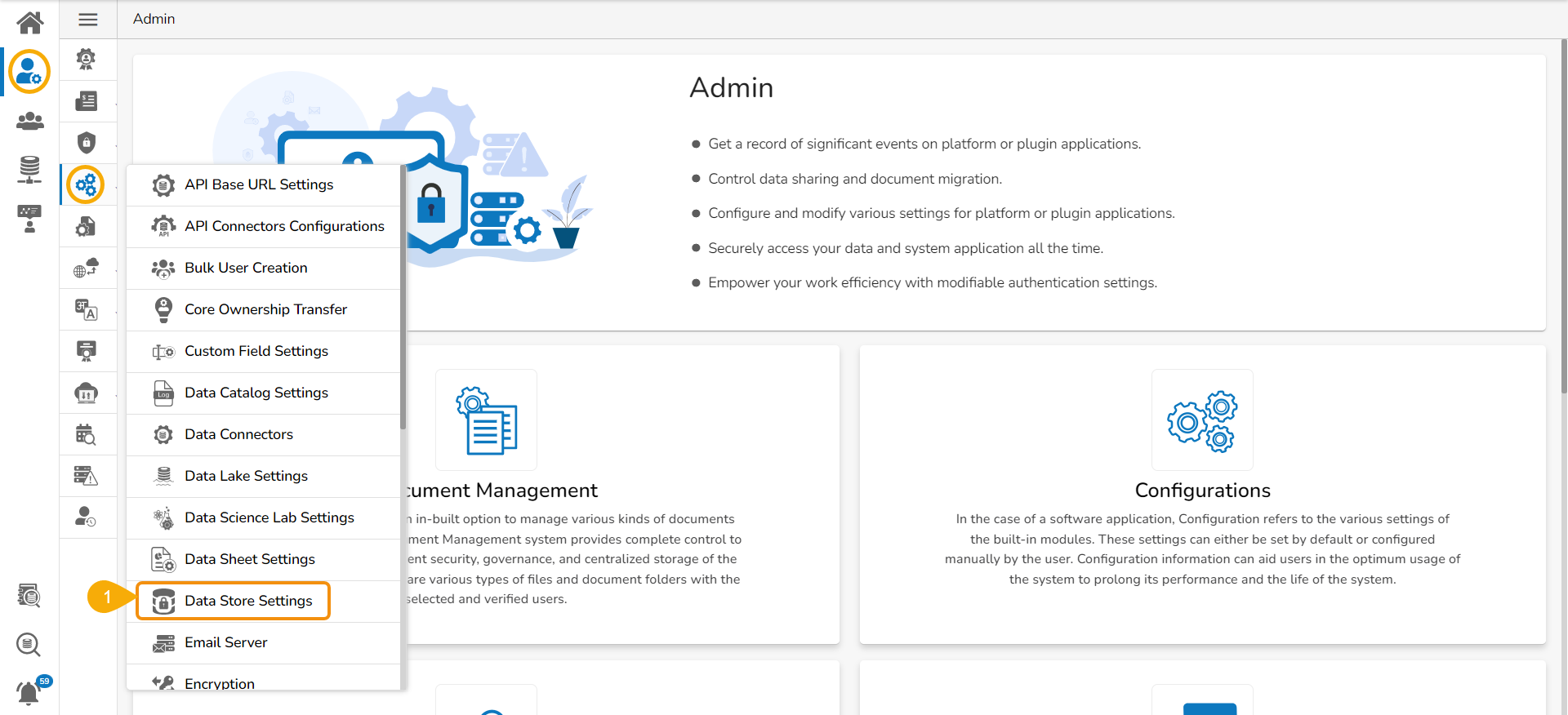
* Click the ***Data Store Settings*** option from the list of Configuration and Settings options.​

<figure><img src="https://content.gitbook.com/content/Bxju1xjBIIexZfulhFPA/blobs/5H9NEZhVVEVkv0ysu2lB/image.png" alt=""><figcaption></figcaption></figure>

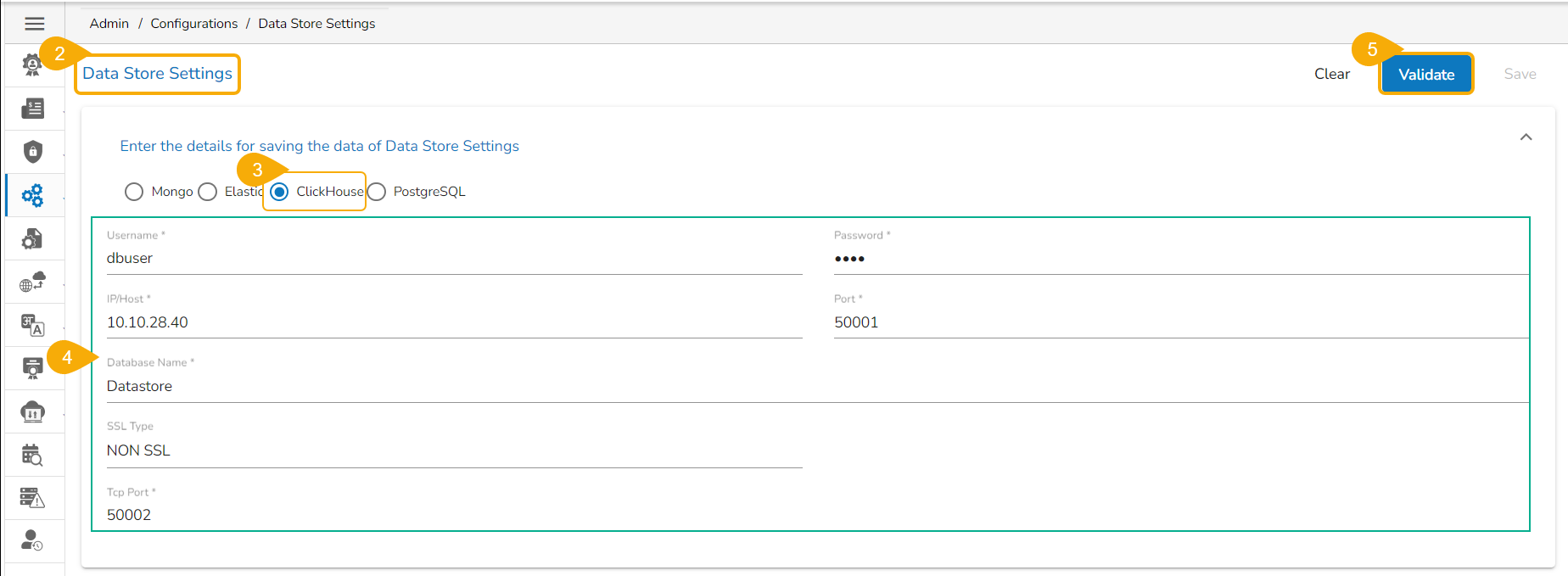
* The ***Data Store Settings*** page appears.
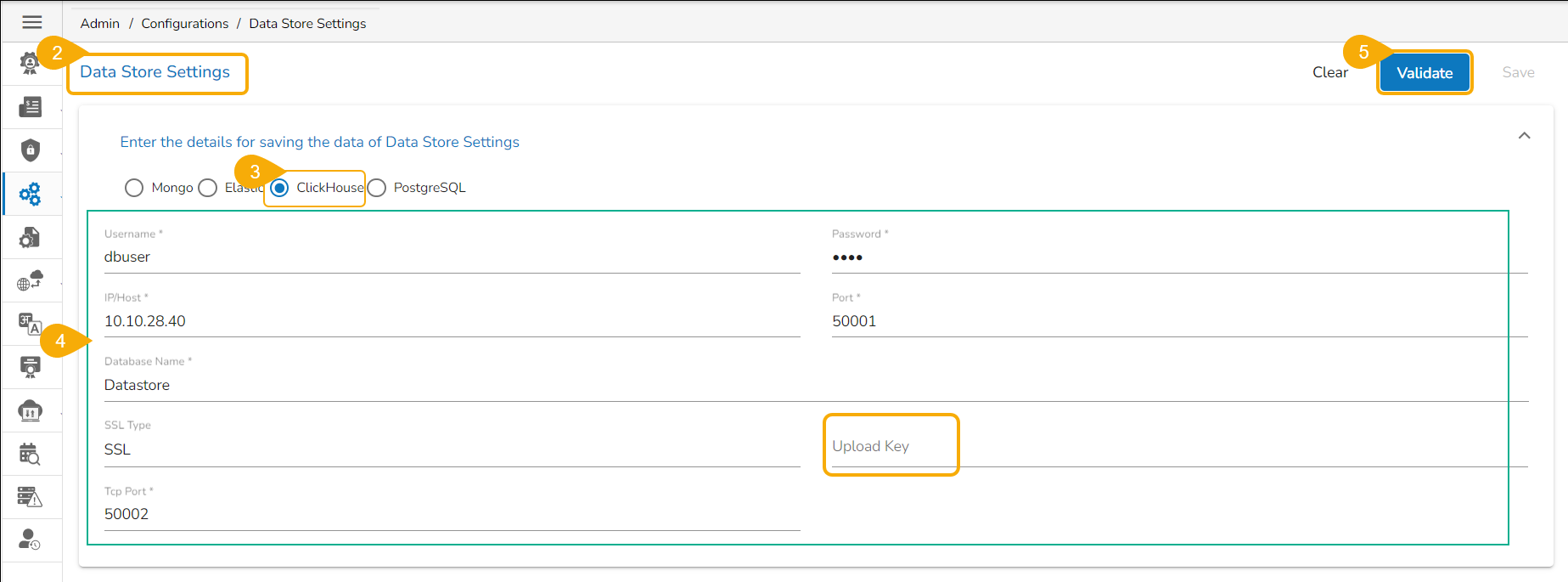
* Select a Database option. E.g., select the ***ClickHouse*** option.
* Provide the following information for the Data Store Settings:
  * Username
  * Password
  * IP/Host
  * Port
  * Database Name
  * SSL Type - Select one option ***NON SSL*** or ***SSL***
  * TCP Port
* Click the ***Validate*** option.

<figure><img src="https://content.gitbook.com/content/Bxju1xjBIIexZfulhFPA/blobs/LNOtv6E5X1yPHz6vARUA/image.png" alt=""><figcaption><p><em><strong>Field configuration  with NON SSL type configuration</strong></em></p></figcaption></figure>

<figure><img src="https://content.gitbook.com/content/Bxju1xjBIIexZfulhFPA/blobs/uw5OgFV2xcABnrJe6BQx/image.png" alt=""><figcaption><p><em><strong>Field configuration with SSL type configuration</strong></em></p></figcaption></figure>

* A notification message appears.
* The ***Save*** option gets enabled. Click the ***Save*** option to save the inserted information.

<figure><img src="https://content.gitbook.com/content/Bxju1xjBIIexZfulhFPA/blobs/imNKenPeLEF0GhMGDh1w/image.png" alt=""><figcaption></figcaption></figure>

* A notification message appears to confirm that the Data Store configuration for ClickHouse DB has been saved.

<figure><img src="https://content.gitbook.com/content/Bxju1xjBIIexZfulhFPA/blobs/CfS3UisTTAdxCvyJflZV/image.png" alt=""><figcaption></figcaption></figure>

## [**Configuring Data Store with PostgreSQL as selected DB** ](https://docs.bdb.ai/administrative-settings-4/admin-panel-options/configurations/data-store-settings#configuring-data-store-with-postgresql-as-selected-db)

* Click the ***Data Store Settings*** option from the list of ***Configuration and Settings*** options.

<figure><img src="https://content.gitbook.com/content/Bxju1xjBIIexZfulhFPA/blobs/tGWavV2fgmDqPyIEb88p/image.png" alt=""><figcaption></figcaption></figure>

* The ***Data Store Settings*** page appears.
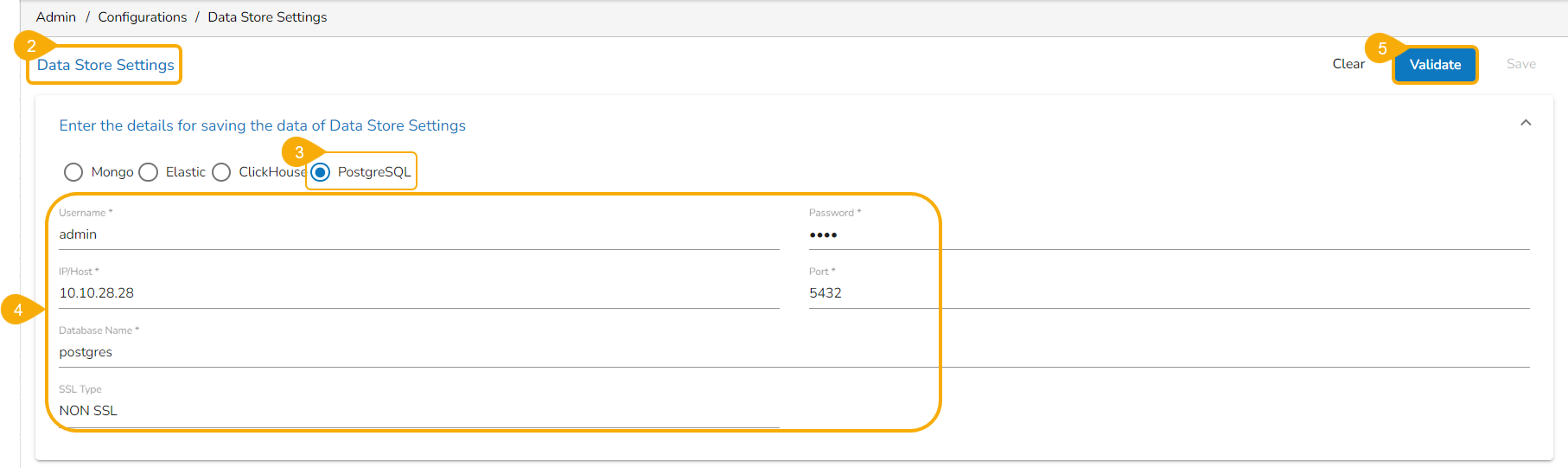
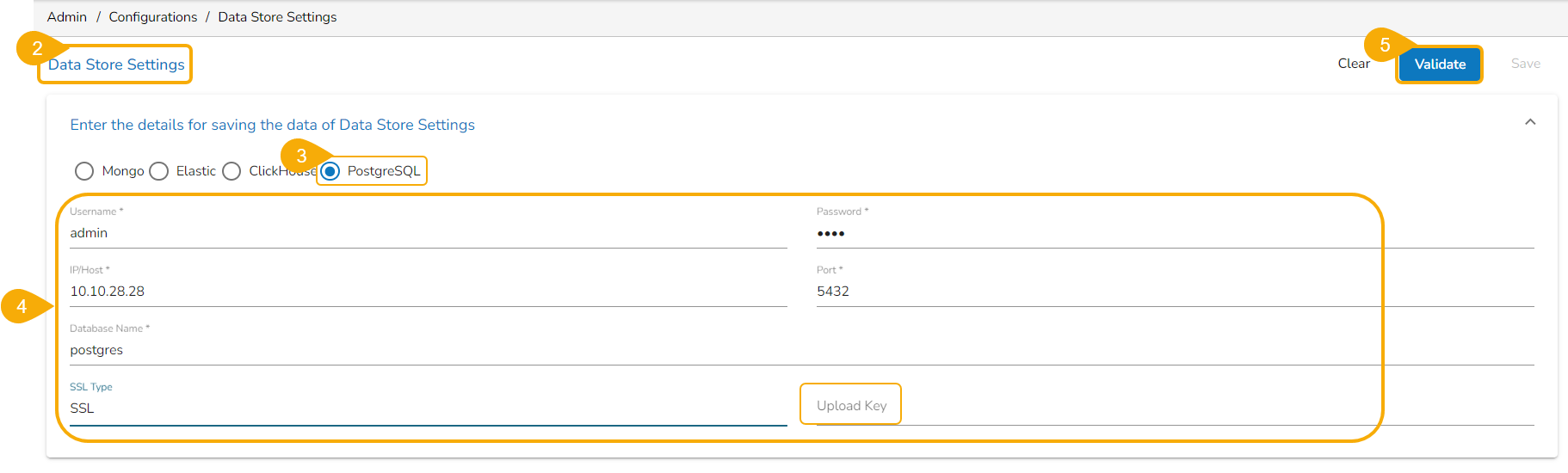
* Select a Database option. E.g., in this case, select the ***PostgreSQL*** option.
* Provide the following information for the Data Store Settings:
  * Username
  * Password
  * IP/Host
  * Port
  * Database Name
  * SSL Type - Select one option ***NON SSL*** or ***SSL***
  * TCP Port
* Click the ***Validate*** option.

<figure><img src="https://content.gitbook.com/content/Bxju1xjBIIexZfulhFPA/blobs/BdAZqMUw0rOp6fCFofY3/image.png" alt=""><figcaption><p><em><strong>Field configuration with NON SSL type configuration</strong></em></p></figcaption></figure>

<figure><img src="https://content.gitbook.com/content/Bxju1xjBIIexZfulhFPA/blobs/QikSQoS4Wch4q3Tg7Euh/image.png" alt=""><figcaption><p><em><strong>Field configuration with SSL type configuration</strong></em></p></figcaption></figure>

* A notification message appears.
* The ***Save*** option gets enabled. Click the ***Save*** option to save the inserted information.

<figure><img src="https://content.gitbook.com/content/Bxju1xjBIIexZfulhFPA/blobs/9tQiEqN1uQ8nbVIvnId1/image.png" alt=""><figcaption></figcaption></figure>

* A notification message appears to confirm that the Data Store configuration for PostgreSQL has been saved.

<figure><img src="https://content.gitbook.com/content/Bxju1xjBIIexZfulhFPA/blobs/OjGdR8Kr312qh5AQCM19/image.png" alt=""><figcaption></figcaption></figure>

{% hint style="info" %}
*<mark style="color:green;">Please Note:</mark>*&#x20;

* *The user needs to provide the **Upload Key** while configuring the Data Store Settings with SSL for the Mongo DB, ClickHouse, and PostgreSQL database.*
* *The PostgreSQL Datastore Settings support multiple IPs.*
  {% endhint %}