> For the complete documentation index, see [llms.txt](https://docs.bdb.ai/administrative-settings-4/llms.txt). Markdown versions of documentation pages are available by appending `.md` to page URLs; this page is available as [Markdown](https://docs.bdb.ai/administrative-settings-4/admin-panel-options/configurations/data-sheet-settings.md).
# Data Sheet Settings
The Data Sheet Settings option helps the administrator to configure the Data Sheets templates.
## Configuring Data Sheet Settings for MySQL Database
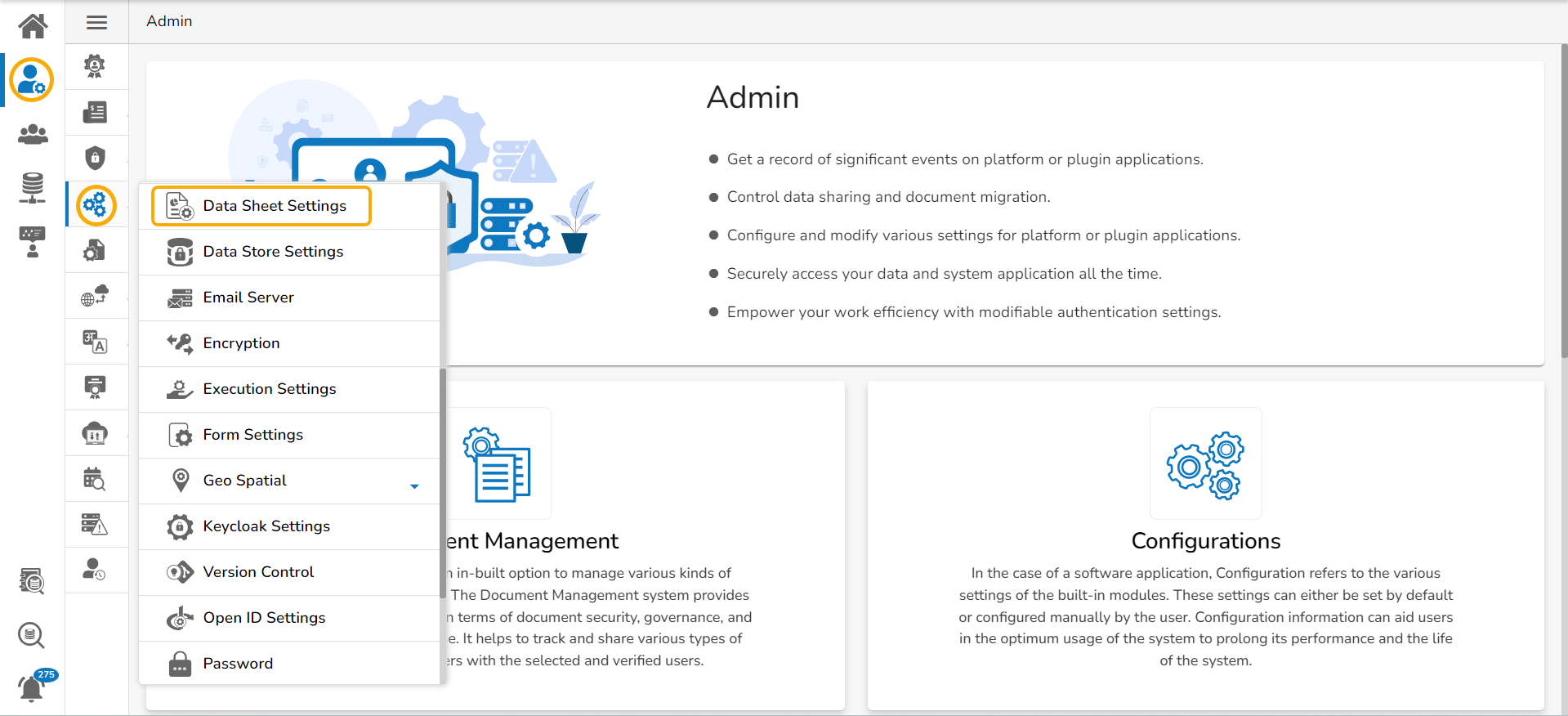
* Click the ***Data Sheet Settings*** from the list of ***Configurations*** under the ***Admin*** module.
Accessing the Data Sheet Settings option
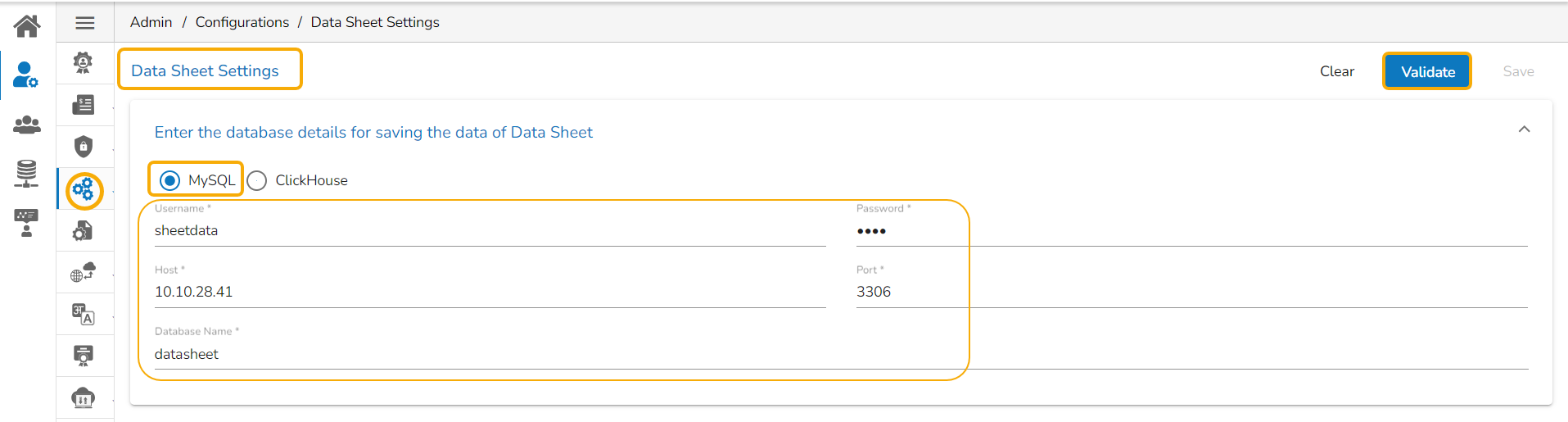
* The **Data Sheet Settings** form opens.
* Select ***MySQL*** as Database type.
* Enter the database details to save the Data Sheet data as mentioned below:
* **Username**: Use read-only credentials
* **Password**: Use a valid password
* **Host**: Provide Host address
* **Port**: Provide the port number
* **Database Name**: Provide the database name
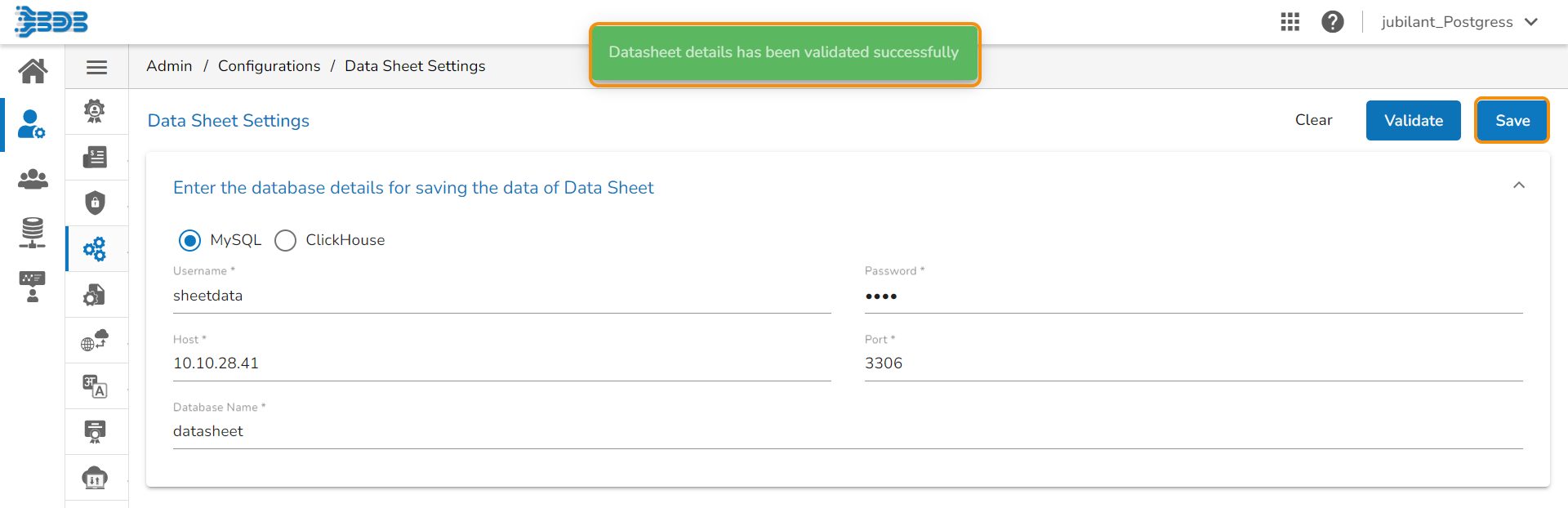
* Click the ***Validate*** option to save the entered settings information.
* A notification message appears and the provided ***Data Sheet Settings*** get registered.
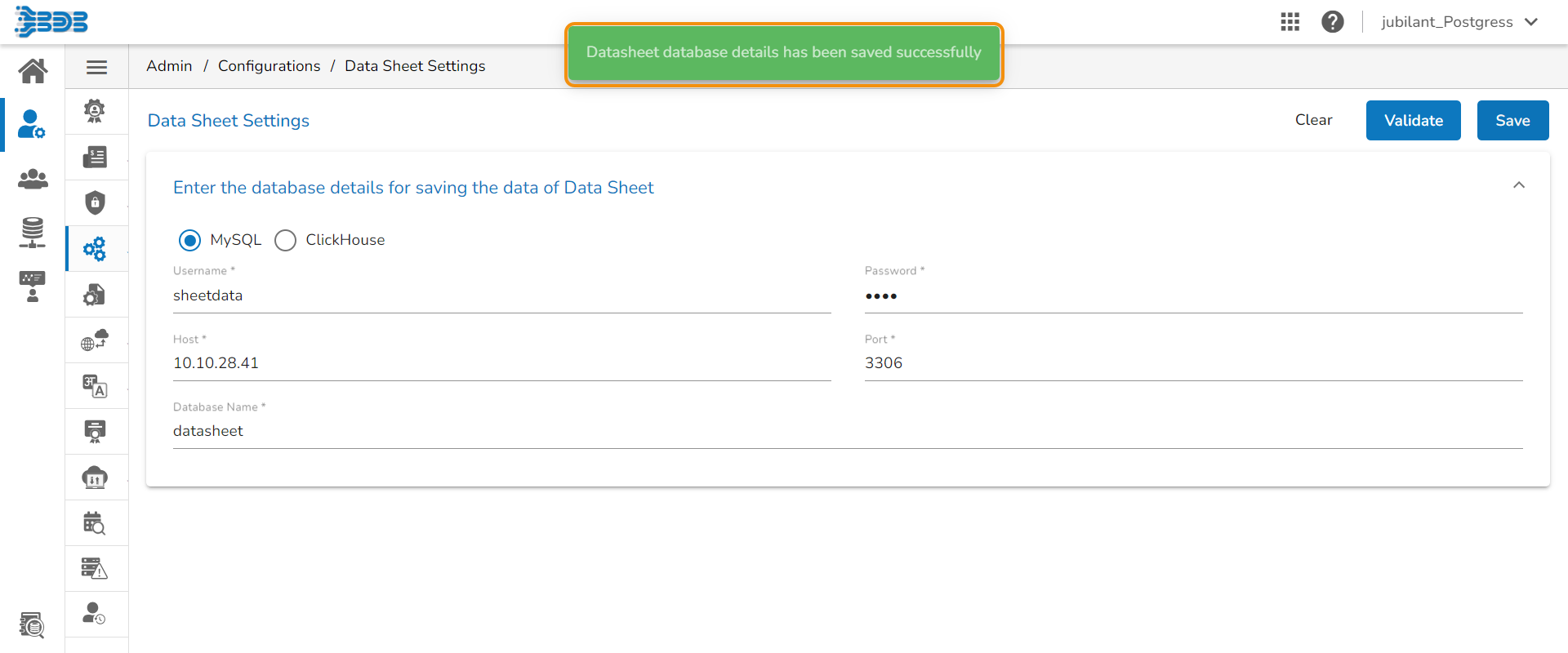
* Click the ***Save*** option.
* A notification message appears to confirm the user that the validated settings are saved for the ***Data Sheet Settings***.
## Configuring Data Sheet Settings for ClickHouse Database
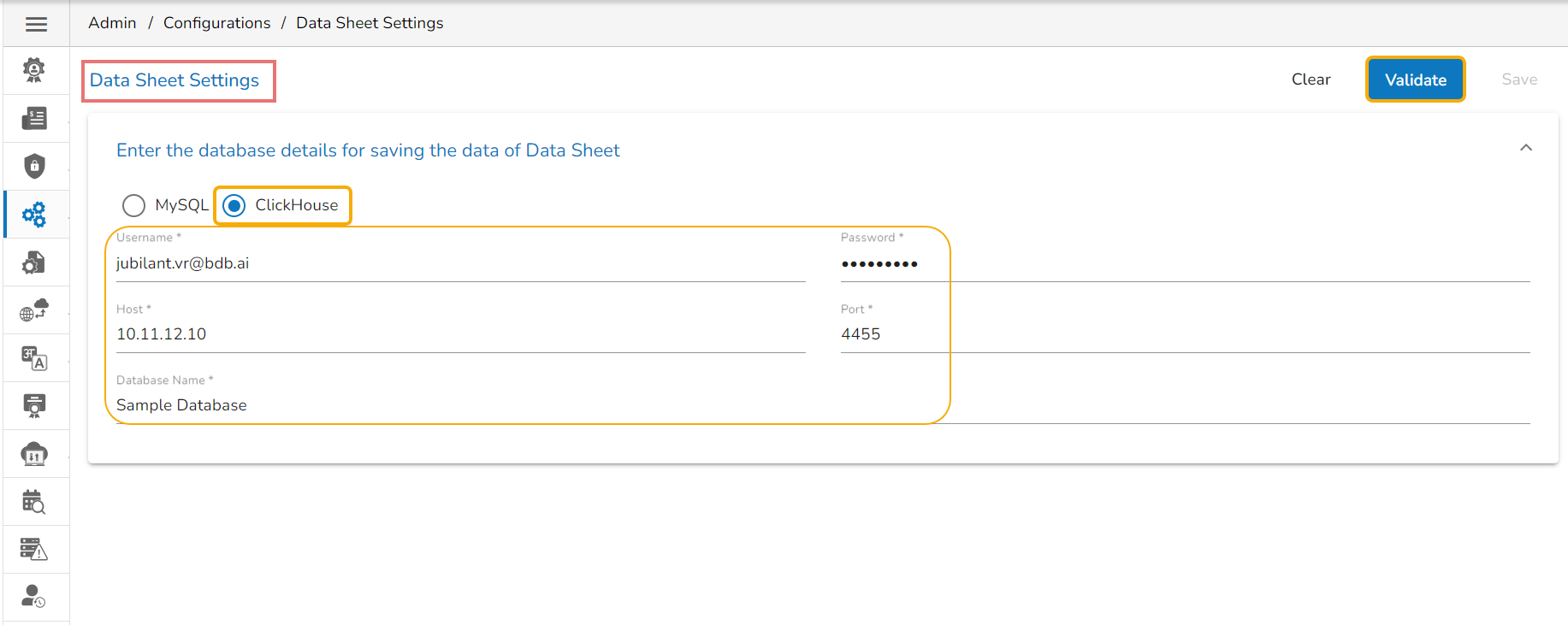
The user can follow the same set of steps to configure the ***Data Sheet Settings*** with the ***ClickHouse*** option.
* Navigate to the ***Data Sheet Settings*** form.
* Select the ***ClickHouse*** as Database type.
* Enter the database details to save the form data as mentioned below:
* **Username**: Use read-only credentials
* **Password**: Use a valid password
* **Host**: Provide Host address
* **Port**: Provide the port number
* **Database Name**: Provide a database name
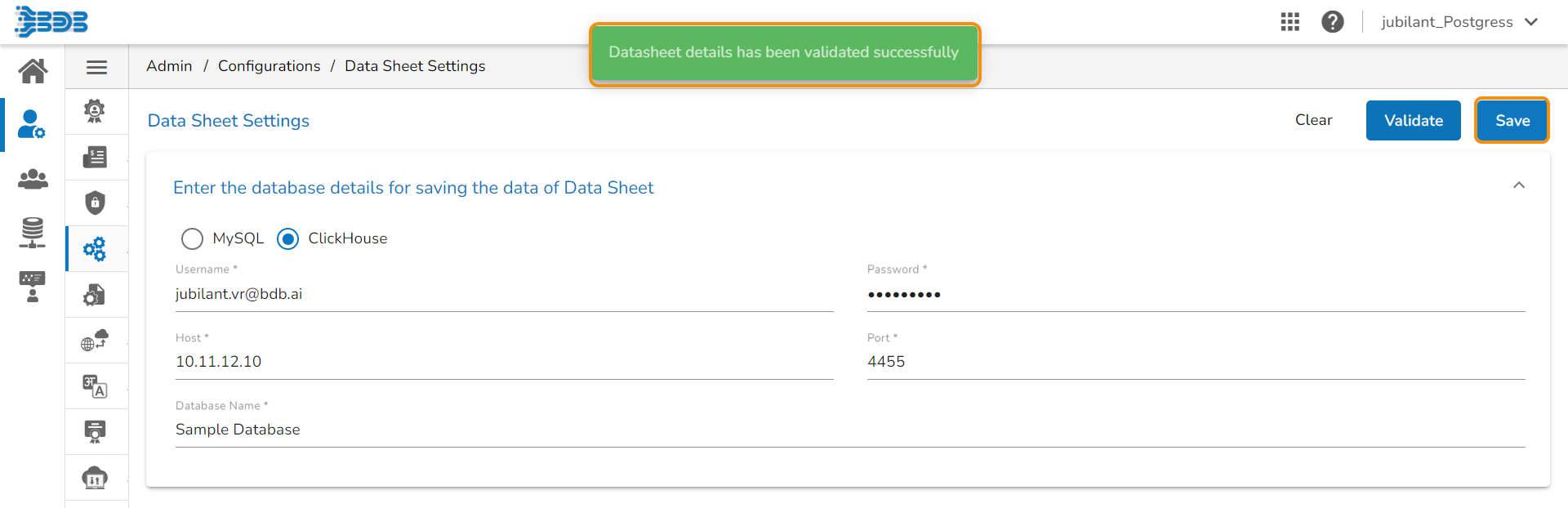
* Click the ***Validate*** option to save the entered settings information.
* A notification message appears and the provided ***Data Sheet Settings*** get registered.
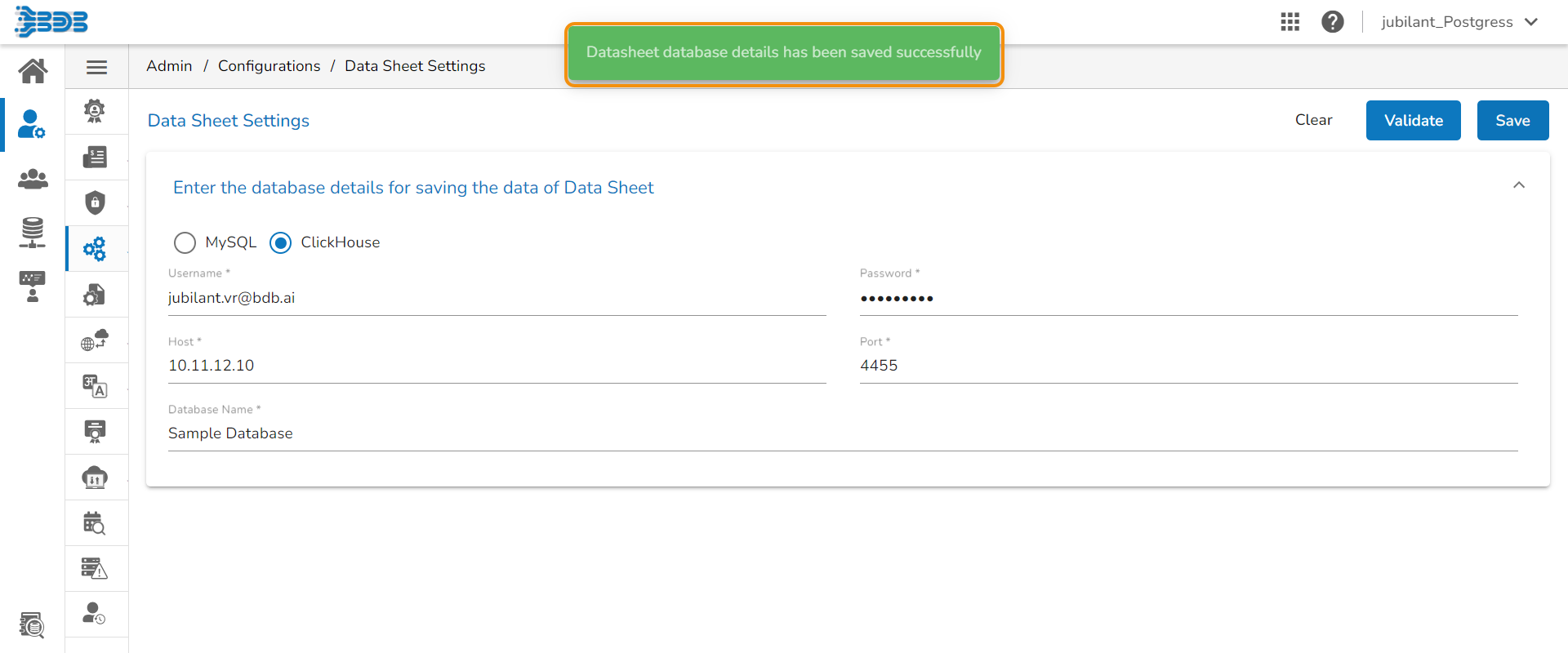
* Click the ***Save*** option.
* A notification message appears to confirm the user that the validated settings are saved for the Data Sheet creation.
{% hint style="info" %}
*Please Note: The **Data Sheet** supports **MySQL** version up to **8.0** at present.*
{% endhint %}